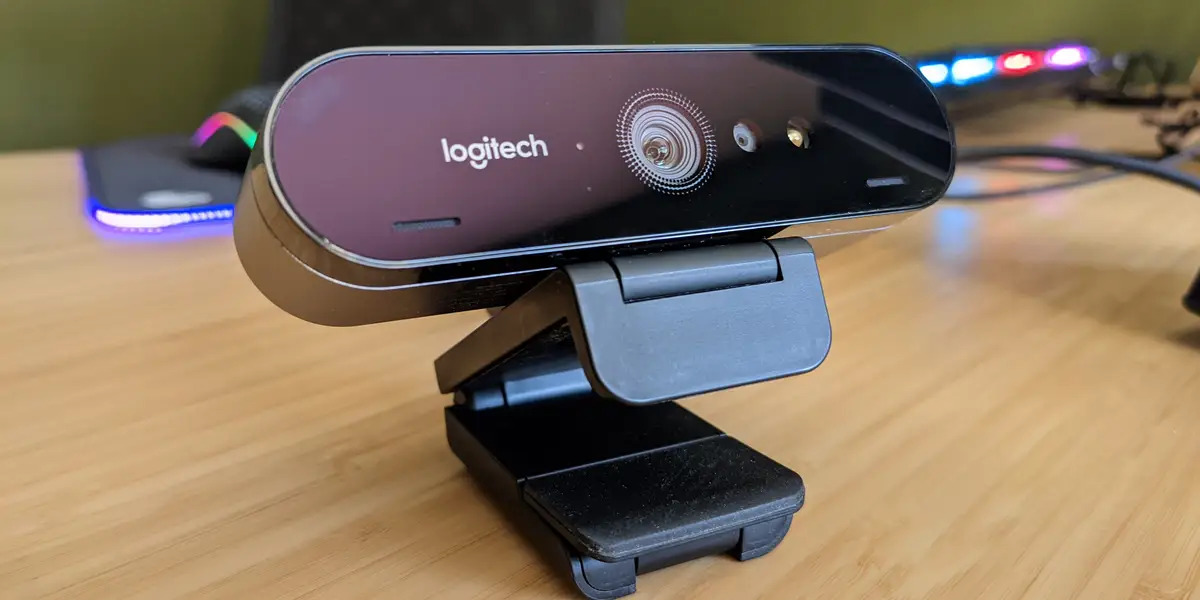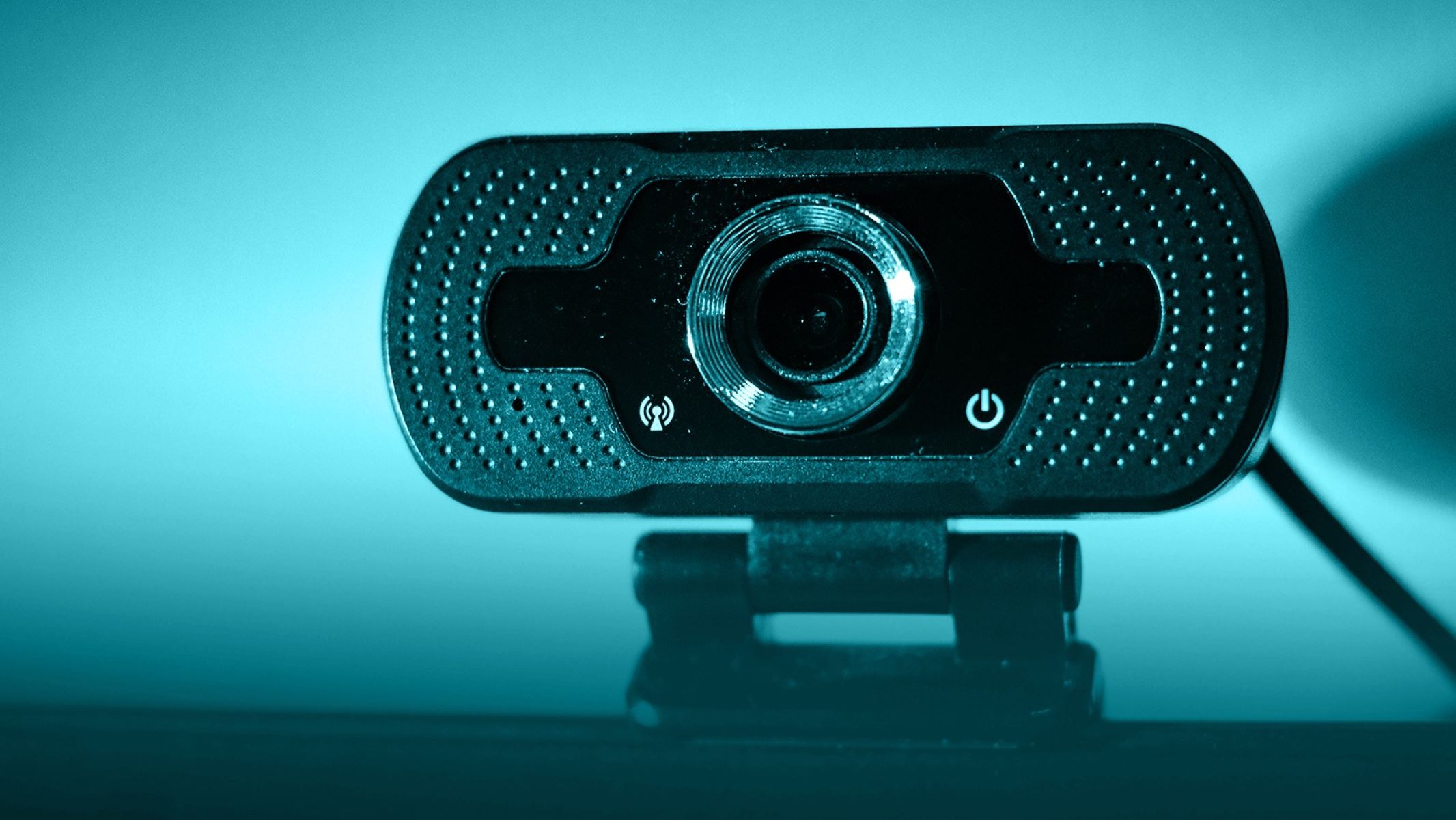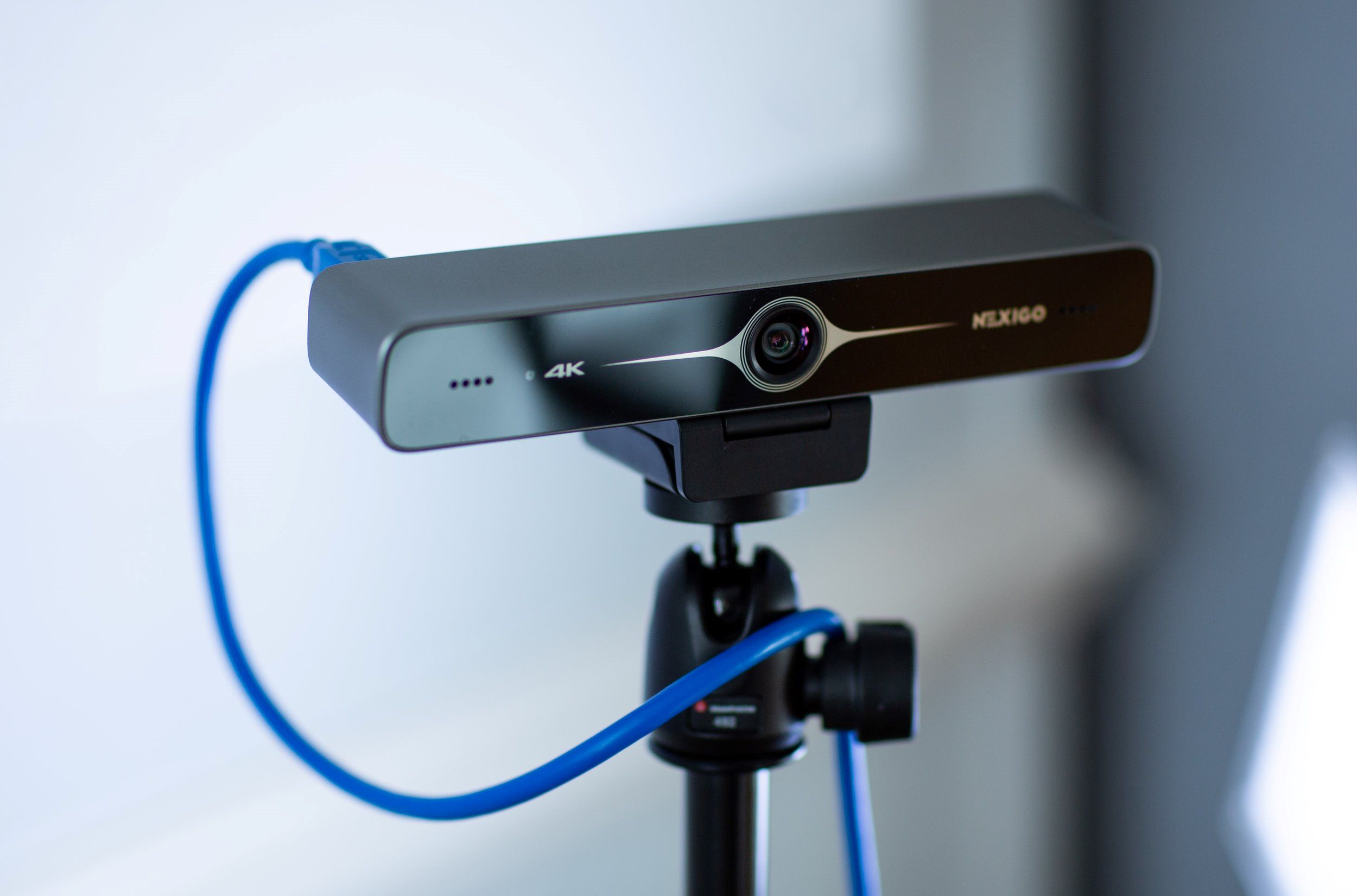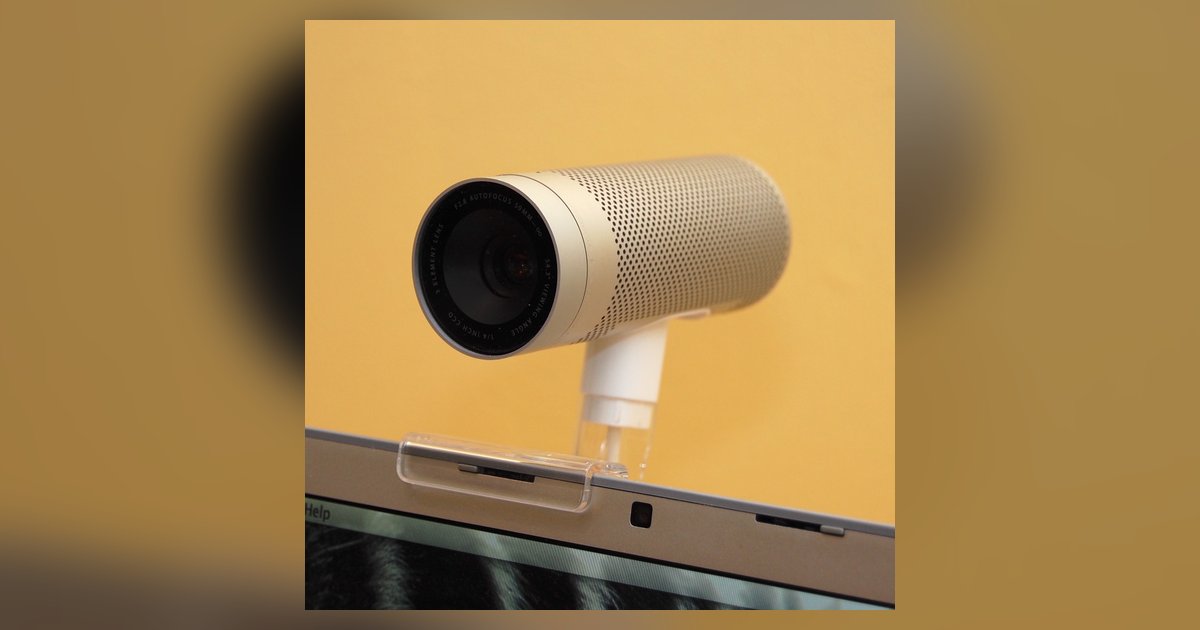
Lockdown Browser often fails to access an external camera because the built-in camera is still enabled and taking priority. You must completely disable the integrated webcam in your operating system's device manager or system settings before launching the exam.
Disable the built-in camera for lockdown browser webcam
Even if your external camera works perfectly in Zoom or Teams, Lockdown Browser may default to a different camera; use the "change my webcam" link to select your external camera. If the wrong camera is selected, the external camera may not appear during the environment check; use the "change my webcam" link to select it. On Windows, press Win+X and select Device Manager. Expand the "Cameras" or "Imaging devices" section, right-click your integrated webcam, and choose "Disable device." Confirm the prompt. On macOS, go to System Settings > Privacy & Security > Camera and ensure LockDown Browser has permission to access your camera. The documented method is to use the "change my webcam" link during the webcam check to select your external camera. After plugging in your external camera, open LockDown Browser, log in, navigate to a course, and click the "Help Center" icon in the toolbar to run the "webcam check." The external device should now appear as the sole option. If you need to temporarily reverse this after the exam, re-enable the device in Device Manager, but if these steps still fail, you may need to get around respondus lockdown browser restrictions entirely.
Grant camera permissions again
Lockdown Browser may still lack camera permission; toggle its camera access off and back on in your operating system's privacy settings. On Windows, open Settings > Privacy > Camera, toggle "Camera access" off, then back on. Scroll down to "Let apps access your camera" and ensure it is enabled. Find Lockdown Browser in the list below and toggle it off, wait five seconds, and toggle it on again. This forces the operating system to re-present the camera selection dialog when you next launch the browser. You must also ensure that the external camera itself has permission. On macOS, check that the external camera's manufacturer app is listed and granted camera access. After resetting permissions, close Lockdown Browser completely. Unplug the external camera, plug it back in, and relaunch the browser to force a fresh enumeration.
When the external camera still shows a black screen
If you have disabled the built-in camera, reset permissions, and the external camera still shows a black screen in the Lockdown Browser verification tool, the problem is often a proprietary driver. Many external webcams require their manufacturer's background software to initialize the video stream. Unplug the camera, launch the manufacturer's application, then reconnect the camera while that software is running. The driver will then load the necessary firmware and signal processing routines. Once the manufacturer's app shows a live preview, close it and open Lockdown Browser. If the black screen persists, check that the external camera is not in a "privacy shutter" mode. Some models have a physical slider or a software toggle that blanks the feed when the privacy mode is active. Also verify that no other app is holding an exclusive lock on the camera. Close all video apps before launching the exam. The operation of Respondus Lockdown Browser depends on exclusive access to a single video device. Any background process that captures the external camera will cause a black screen. As a last resort, you can temporarily bypass the camera check by using a different USB port and ensuring the camera is not plugged into a hub. Direct motherboard ports provide the most stable connection. Instead, always contact your school's IT support if these steps fail. Request an alternative exam arrangement if your hardware is incompatible. To properly use lockdown browser, always test your external camera setup at least 24 hours before the scheduled exam using the official "Lockdown Browser External Camera Verification" tool available in your learning management system.