Understanding what you're dealing with when you use lockdown browser
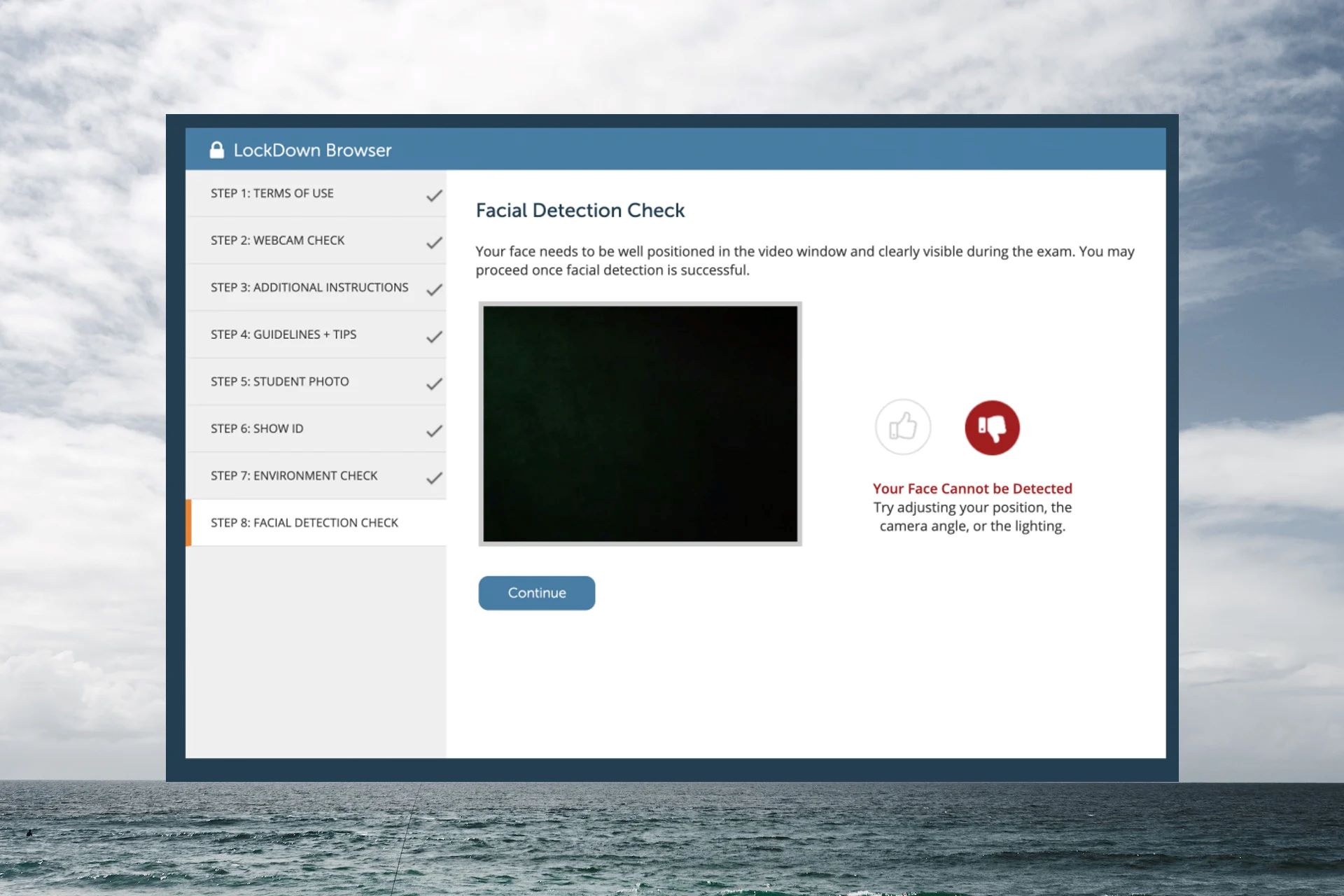
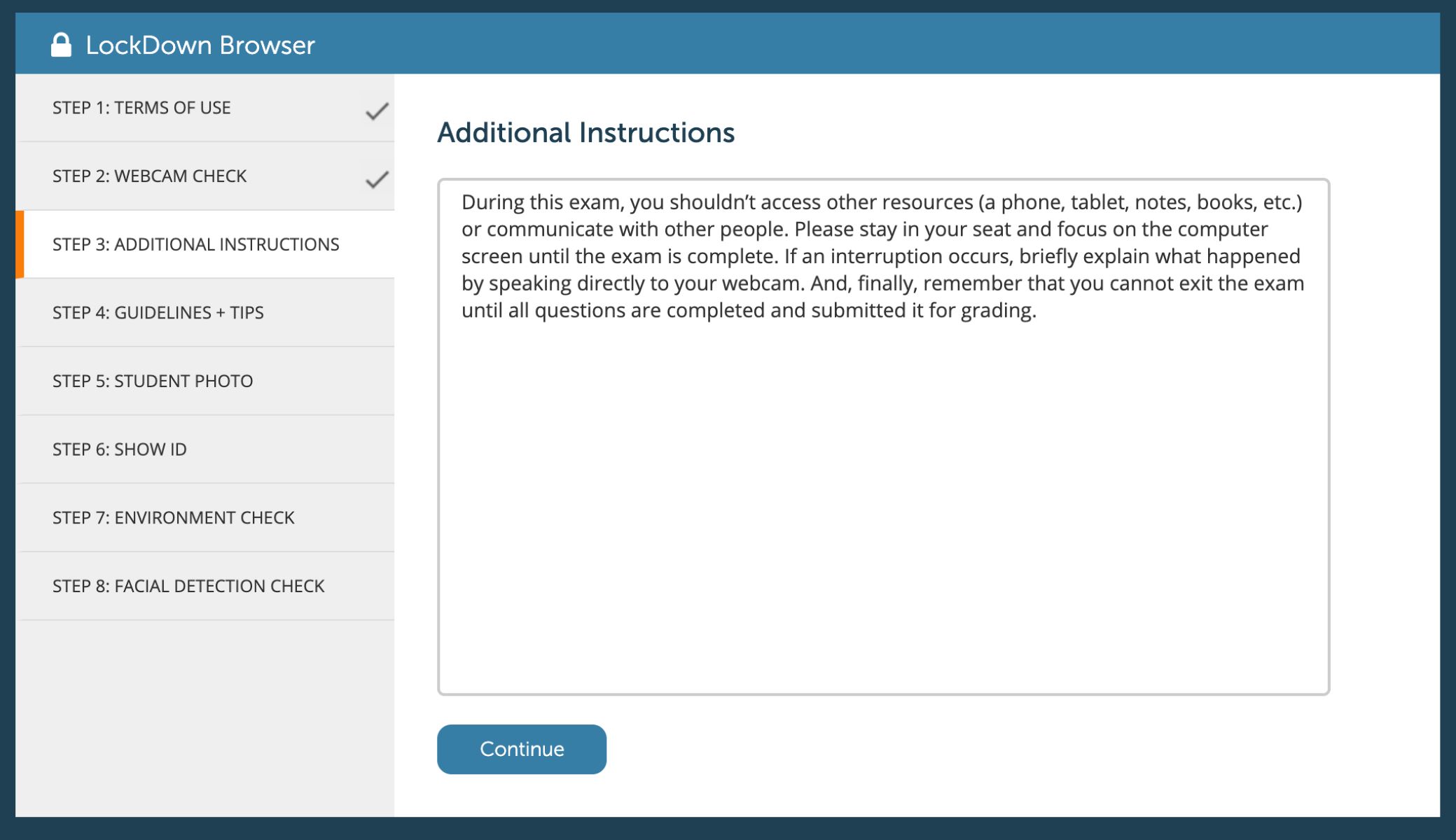
Before you install anything, understand what it means to use lockdown browser. This is not a simple proctoring tool. It is a dedicated, locked-down browser application that replaces your normal web browser during an exam. When you launch it, it takes over your screen, blocks access to other applications, and prevents you from navigating away from the test window. The underlying technology is Respondus LockDown Browser, which creates a specialized environment designed to prevent you from using your computer for anything other than the exam itself. To grasp the full scope of the restriction, you need to understand the operation of Respondus Lockdown Browser. It disables keyboard shortcuts, right-click menus, and even the ability to take screenshots. Many students focus on cheating detection by Lockdown Browser, worrying about webcam feeds, but these automated systems flag suspicious behavior in specific, well-documented ways. The more immediate concern is hardware-based checks. For instance, Lockdown Browser detecting a second monitor or HDMI splitter can trigger a review of your session because it directly undermines test integrity. The real danger, however, is not the detection itself. A flagged exam can retroactively invalidate your entire course credit weeks after the test, a consequence that technical workarounds never address.
If you’re trying to figure out whether your setup will raise flags, start with Lockdown Browser detecting a second monitor or HDMI splitter. When you need to understand the specific behaviors and methods that get flagged during an exam, turn to cheating detection by Lockdown Browser. For a broader orientation on the tool itself before you dive into those specifics, see respondus lockdown browser.
Fixing setup and hardware problems
Before your exam begins, confirm that every piece of hardware is recognized by the system. If your webcam fails to activate, start by checking the physical connection. A loose USB cable is the most common culprit, and a different port often resolves the issue. For those using an external camera, you may need to run the 'Run Webcam Check' from the Help Center icon in the toolbar to verify detection and functionality rather than relying on automatic detection. A detailed walkthrough on how to handle a lockdown browser webcam not working external camera setup can save you from scrambling during the countdown timer by helping you quickly diagnose and fix the exact camera configuration before your exam begins. External monitors present a separate challenge. The software is designed to detect a second display and will block the exam if one is connected. Disconnect any external monitor entirely, even if you plan to keep it off, because the system polls for connected hardware at launch. A persistent camera error sometimes stems from conflicting drivers, so temporarily disabling any virtual camera software (such as OBS or Snap Camera) can clear the conflict. Finally, test everything inside a practice session provided by your institution rather than waiting until the real exam. A failure that appears during a dry run is a fixable problem, while the same failure during a live test can lead to a flagged session that retroactively invalidates your course credit weeks later.
- lockdown browser webcam not working external camera setup — Lockdown Browser webcam not working external camera setup
What happens when things go wrong
When a session is flagged, the immediate confusion can feel overwhelming. The larger problem often unfolds later. Instructors review flagged footage alongside system logs. If they detect patterns like repeated screen switching or suspicious audio, they may escalate the case to academic integrity committees. Even if you successfully complete the exam, a flagged record can trigger a retroactive grade hold or course credit invalidation weeks afterward. This is why searching for how to get around respondus lockdown browser misses the point entirely. The technical act of bypassing is rarely the hardest part, but the institutional paper trail that follows can have lasting consequences. Similarly, treating the browser like a toy you might hack browser games with ignores the fact that your institution’s monitoring software may log activity beyond just the exam window. If your dashboard suddenly shows a lockdown browser exam flagged what happens next notification, do not assume a quick email will resolve it. Some schools may have a formal review process before restoring access to your grades. The safest approach is to contact your instructor immediately with any context you can provide, because silence after a flag often leads to the harshest outcomes.