To adjust browser window size, use the Windows key + Left or Right arrow keys to snap a window to half the screen, or press Alt + Spacebar, then select "Size" and use the arrow keys for manual control. These keyboard shortcuts are the fastest way to resize your browser window for multitasking or better viewing, and you can also increase tab size in Google Chrome to make individual tabs easier to click, then change font size in bookmarks toolbar in Chrome for a consistently comfortable reading experience.
How to Adjust Browser Window Size with Keyboard Shortcuts
The quickest methods for resizing a browser window involve keyboard shortcuts, which let you change the window dimensions without touching your mouse. On Windows, pressing the Windows key along with the Left or Right arrow key instantly snaps the active browser window to occupy exactly half of the screen. This is ideal for placing two windows side by side for efficient multitasking.
For more precise manual resizing on Windows, press Alt + Spacebar to open the System Menu. Press Enter when you are satisfied with the new size. On Mac, you can hold down the Option key while dragging a window's edge to resize it from both sides simultaneously.
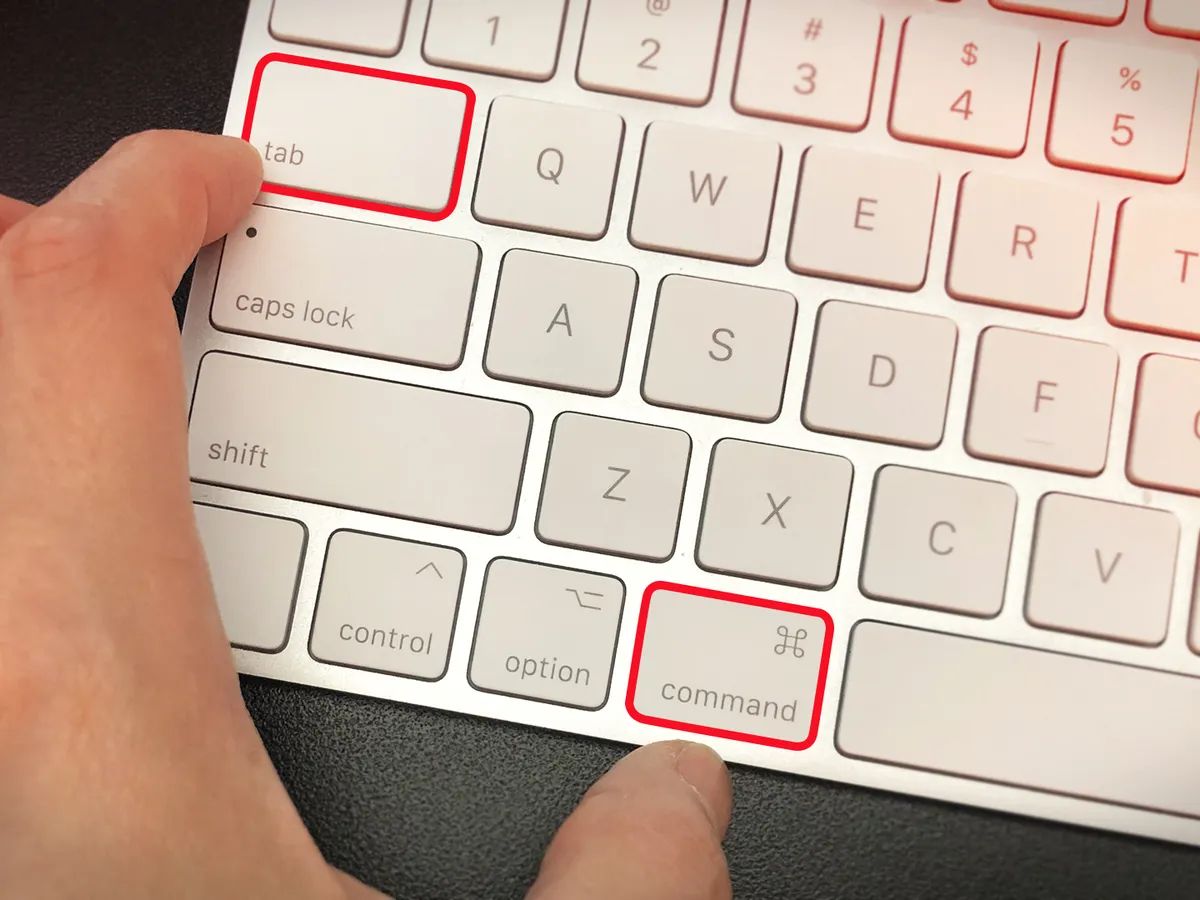
It is important to distinguish resizing the browser window from page zoom. Adjusting the browser window size changes the physical dimensions of the window itself. Page zoom, on the other hand, only changes the size of the content (text, images, videos) inside the window. To control page zoom, use Ctrl and + to zoom in, Ctrl and - to zoom out, and Ctrl + 0 to reset to 100% on Windows and Linux. Mac users use the Command key instead of Ctrl.
How to Resize a Browser Window Using the Taskbar or Dock
If you prefer mouse-driven actions, you can resize a browser window using the Windows taskbar or the Mac dock. On Windows, right-click the browser's icon on the taskbar. From the context menu, select "Size." Your cursor will change, and you can then use the arrow keys on your keyboard to adjust the window's dimensions. Press Enter to confirm the new size.
Click and hold the green full-screen button to see options for tiling the window to the left or right half of the screen. You can also drag any edge or corner of the window to manually resize it to your preferred dimensions.
Using Developer Tools to Set a Precise Browser Window Size
For developers and testers who need exact screen dimensions, browser developer tools provide precise control. Open the developer tools by pressing F12 or Ctrl + Shift + I on Windows and Linux, or Command + Option + I on Mac. Within the developer tools panel, locate and click the "Toggle Device Toolbar" icon, which resembles a small mobile device. This toolbar allows you to simulate exact screen dimensions. You can select a preset device profile from the dropdown menu or enter a custom width and height in the input fields. This method is essential for testing how a website appears on different screen sizes without physically changing your monitor.
Troubleshooting Common Browser Window Resizing Issues
You may encounter a few common issues when trying to adjust browser window size. Most browsers enforce a minimum window width. For example, Chrome's minimum width is approximately 500 pixels, and Firefox's is around 450 to 500 pixels. This prevents you from making the window too narrow to be functional. If you need a smaller viewport for testing, use the developer tools method described above.
Another issue is that Microsoft Edge does not always remember the last adjusted window size when you reopen the browser. If Edge forgets your preferred dimensions, try minimizing the window, resizing it to your desired size, and then closing the browser. This sequence can sometimes help Edge retain the setting for the next session. For more consistent results, consider using a different browser or a dedicated window management tool.
When resizing Chrome windows, tabs and fonts, remember that the window size controls the overall browser frame, while tabs and fonts are managed separately. You can rearrange tabs by dragging them, and adjust font sizes using the page zoom shortcuts mentioned earlier.