To get the microphone back on your keyboard, the fix depends on whether you use an iPhone, an Android with Gboard, or a Samsung device, but the solution is almost always a single setting that got toggled off. You can restore the microphone back on keyboard in under a minute by following the steps for your specific device below.
Why the microphone icon disappeared from your keyboard
Common triggers include iOS updates that reset dictation preferences, accidental setting changes, Gboard’s suggestion strip being hidden, Samsung Voice input being disabled, or a conflict with Google Gemini on Samsung devices. Knowing the cause helps you skip straight to the right fix.
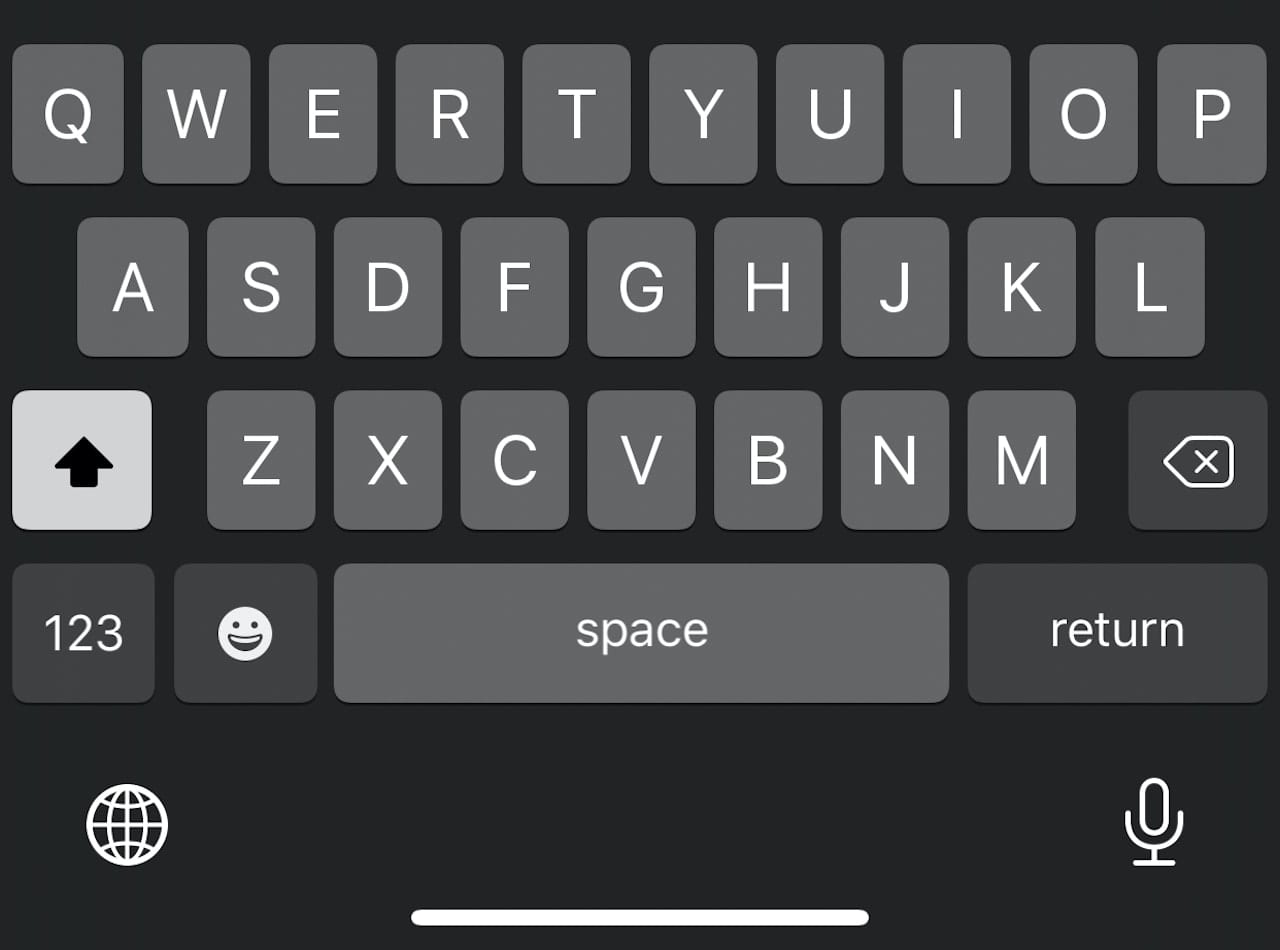
Get the microphone back on your iPhone or iPad keyboard
- Open Settings.
- Tap General > Keyboard.
- Ensure Enable Dictation is turned on.
On Face ID iPhones, the microphone icon appears at the bottom right of the keyboard. On Home button models, it sits left of the space bar. If the icon is still missing after enabling dictation, restart your device and check again.
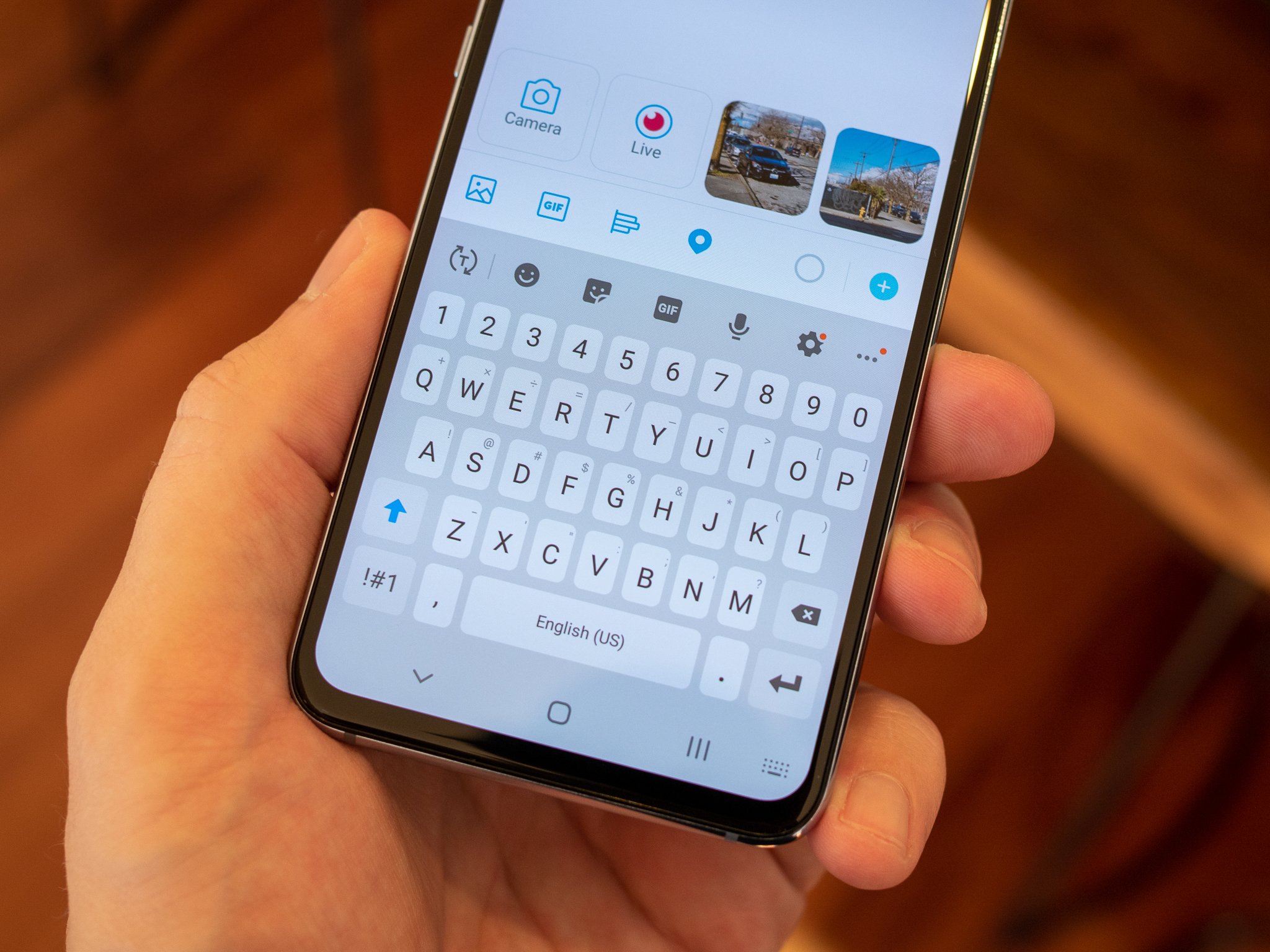
Restore the microphone on Gboard (Android)
- Open the Gboard app (or long-press the comma key and tap the gear icon).
- Go to Text correction.
- Enable Show suggestion strip, the microphone often appears in this strip.
For Pixel 6 or later devices, you can enable advanced voice typing in Gboard Settings > Voice typing > Assistant voice typing. Note that Google Voice Typing requires a stable internet connection to work.
Fix the missing microphone on Samsung Keyboard
- Open Settings.
- Go to General management > Keyboard list and default.
- Tap Samsung Keyboard.
- Ensure Voice input is enabled, then choose either Samsung Voice Input or Google Voice Typing.
Samsung Voice Input may work offline, while Google Voice Typing needs internet. If you recently installed Google Gemini, it might permanently disable or remove the microphone icon on Samsung devices, uninstalling Gemini or reverting to Samsung Voice Input often resolves this.
Still missing? Quick fixes to try
Restart your device to clear temporary glitches. Check for operating system updates, as updates can restore default settings that hide the icon. If none of these steps work, contact the manufacturer’s support for your specific device model.
\nRelated reading: How To Get Spanish Keyboard, How Do I Get My Keyboard Back To Normal On Android, and How To Set Spotify Song As Alarm.