To change your Bluetooth name, you edit the identifier your device broadcasts to nearby gadgets, making it simpler to spot in pairing lists. The exact steps depend on whether you're renaming your phone or computer itself, or a connected accessory like earbuds, but the process takes under a minute once you know where to look.
What is a Bluetooth name?
A Bluetooth name is the public label your device advertises to other Bluetooth-enabled hardware during discovery, such as "John's iPhone" or "Galaxy Buds."
Why change your Bluetooth name?
Changing your Bluetooth name gives you an instant way to personalize your device, make it easier to identify among many connections, and avoid broadcasting sensitive details like your full name.
Before you start: your device vs. your accessories
There's a critical difference between renaming your phone or computer's own Bluetooth broadcast and renaming a connected accessory like headphones. The first changes what other devices see when they scan for *you*; the second changes what *your* device calls the accessory. For accessories, they must be actively connected to your phone or computer before you can rename them, if they're powered off or out of range, the option will be grayed out or missing.
How to change your Bluetooth name on Android
On Android, you're changing the discoverable name of the phone or tablet itself, not connected accessories. This name appears to other devices when they scan for Bluetooth.
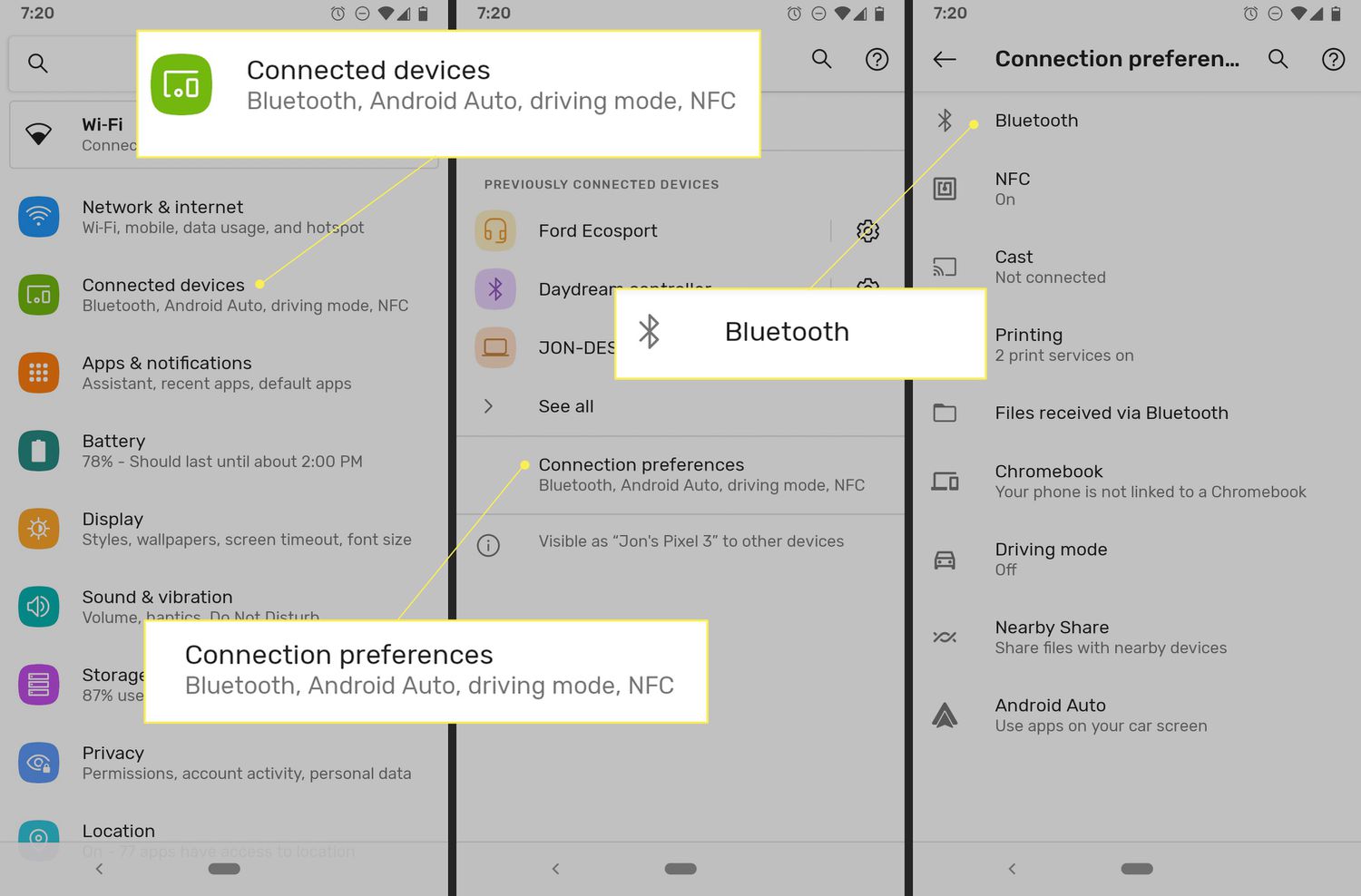
- Open Settings and tap Connected devices.
- Tap Connection preferences, then Bluetooth.
- Ensure Bluetooth is on, then tap Device name.
- Enter your new name and tap Rename or Save.
That's it. Your Android device will now broadcast that new name to nearby gadgets.
How to change your Bluetooth name on iOS
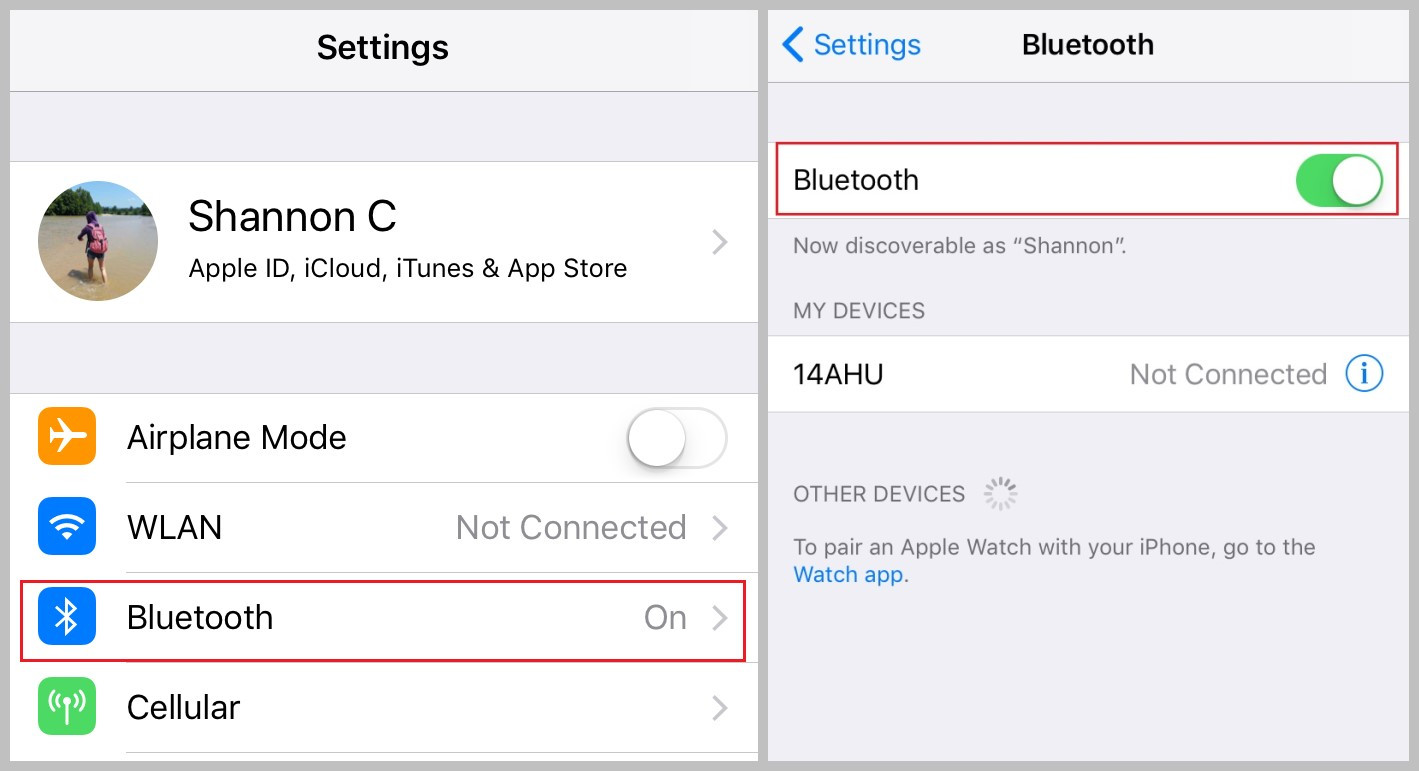
On iPhone or iPad, you can rename connected Bluetooth accessories (like earbuds or speakers) directly from the Bluetooth settings.
- Open Settings and tap Bluetooth.
- Find the accessory in the list and tap the i icon next to it.
- Tap Name, type the new name, then tap Done.
The accessory must be connected to your iPhone for this to work. If it's not connected, the name field will be greyed out.
How to change your Bluetooth name on Windows
On Windows, you can rename a connected Bluetooth accessory through the Devices settings. Be aware that some users report the change may revert after a restart, so you might need to repeat it.
- Go to Settings > Bluetooth & devices > Devices.
- Click the three-dot menu next to the connected accessory and select Rename.
- Type the new name and click Rename to confirm.
If the rename option is missing, the accessory may not support renaming, or you may need to disconnect and reconnect it first.
How to change your Bluetooth name on macOS
macOS lets you rename connected Bluetooth accessories, and the steps differ slightly between recent and older versions.
For macOS Ventura 13 and later:
- Open System Settings > Bluetooth.
- Click the i button next to the connected accessory.
- Click Name, type the new name, and press Return.
For earlier macOS versions (Monterey and before):
- Open System Preferences > Bluetooth.
- Control-click (or right-click) the connected accessory's name.
- Choose Rename, type the new name, and press Return.
As with iOS, the accessory must be connected for the rename option to appear.
New name not showing up? Try these fixes
If your new Bluetooth name doesn't appear on other devices right away, try these verified troubleshooting steps in order:
- Toggle Bluetooth off and on on the device you renamed. This forces it to rebroadcast the new name.
- Disconnect and reconnect the accessory. Turn off the accessory, then turn it back on and re-pair it with your phone or computer.
- Restart your system. A quick reboot clears any stale name caches on both the broadcaster and the scanner.
After these steps, the new name should appear consistently across all your devices.
Tips for choosing a good Bluetooth name
Pick something that's both personal and practical. Use your first name or a nickname for a personal touch, but avoid including sensitive information like your full name, address, or phone number, since anyone with Bluetooth can see it. Keep it descriptive enough to identify the device type (e.g., "Living Room Speaker" instead of "Speaker 2"), and remember that most devices have a character limit, usually around 30-40 characters, so stay concise. Avoid offensive language, as your name will be visible to others in public places. A fun, clever name can bring a smile to people nearby, but make sure it's appropriate for all audiences. If you manage multiple devices, consider a consistent naming convention like "Sarah's MacBook Pro" or "Office Printer, 2nd Floor" to make pairing effortless.
\nRelated reading: How To Turn Off Headphone Mode On Android (Without Headphones In), How To Transfer Files From Android To iPhone Via Bluetooth, and WhatsApp Storage Full? How to Free Up Space Without Losing Chats.