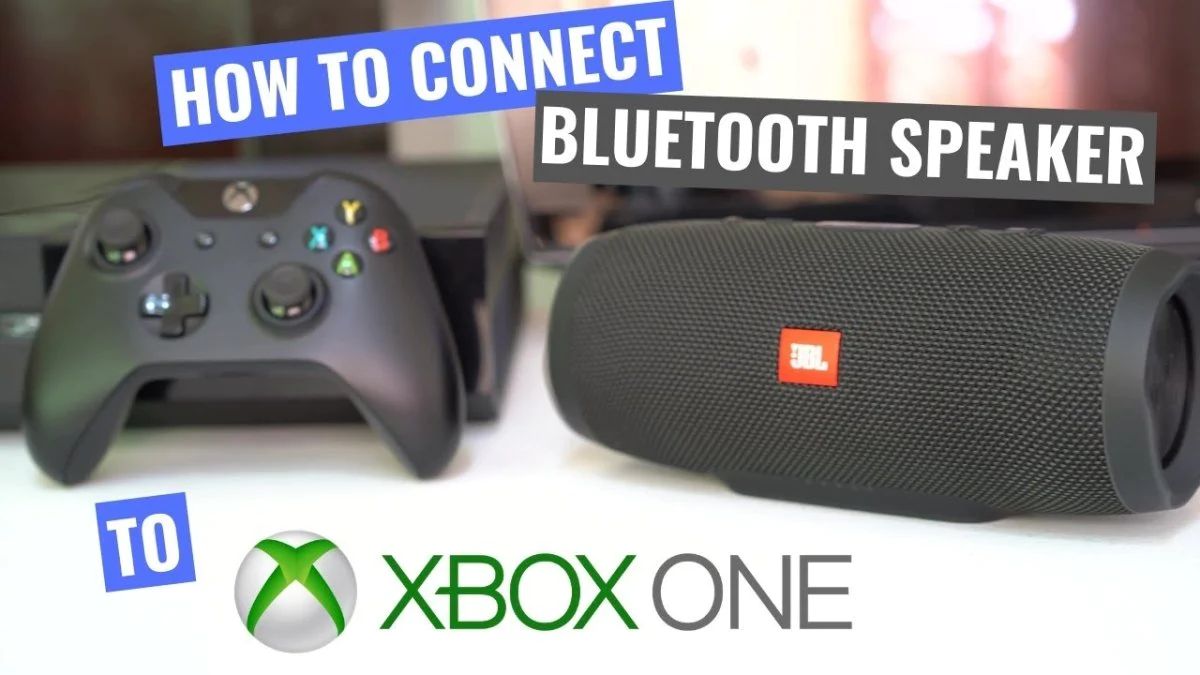
You cannot connect a Bluetooth speaker directly to an Xbox One, Series X, or Series S because these consoles lack native Bluetooth audio support. To connect Bluetooth speaker to Xbox, you must use a Bluetooth transmitter plugged into your controller, or route chat audio through the Xbox app.
Why your Xbox won't connect to a Bluetooth speaker directly
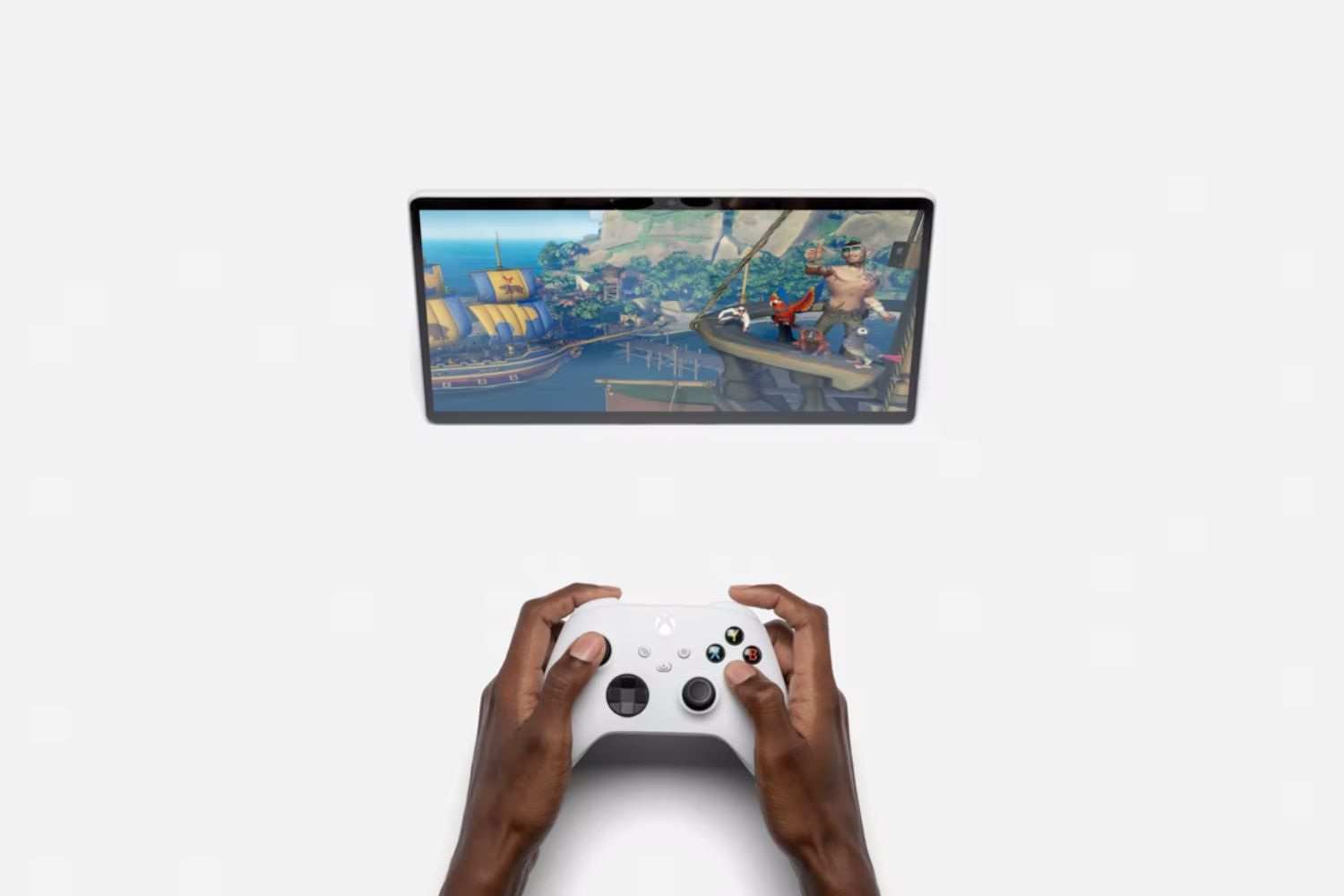
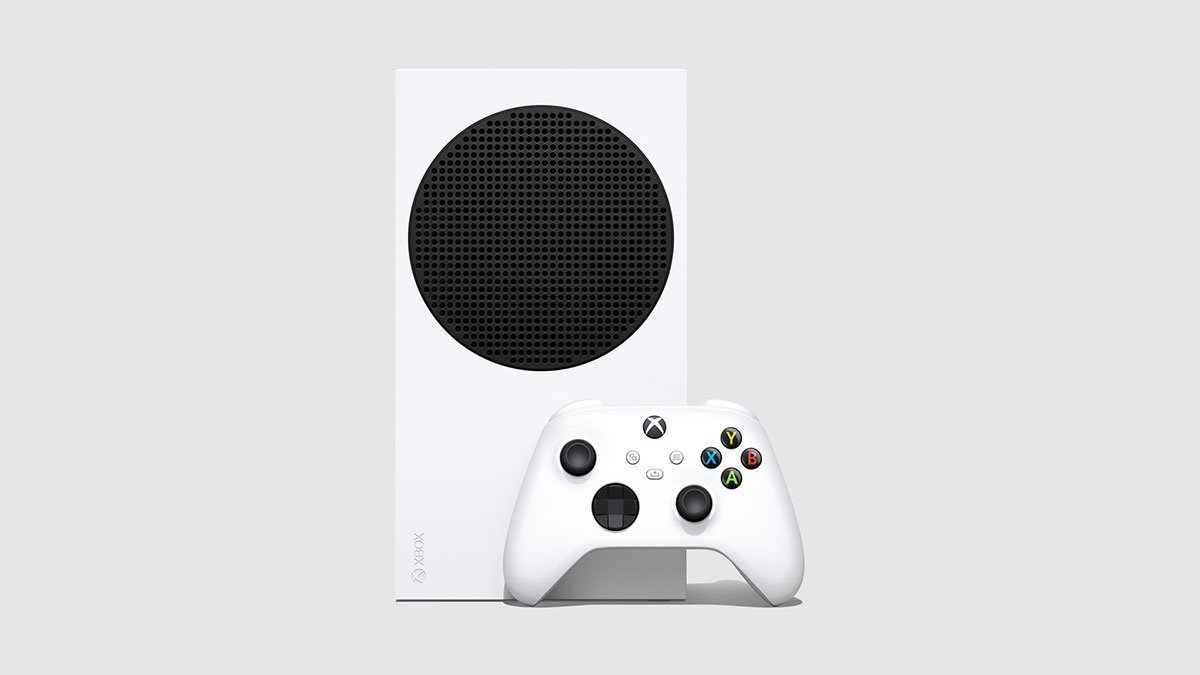
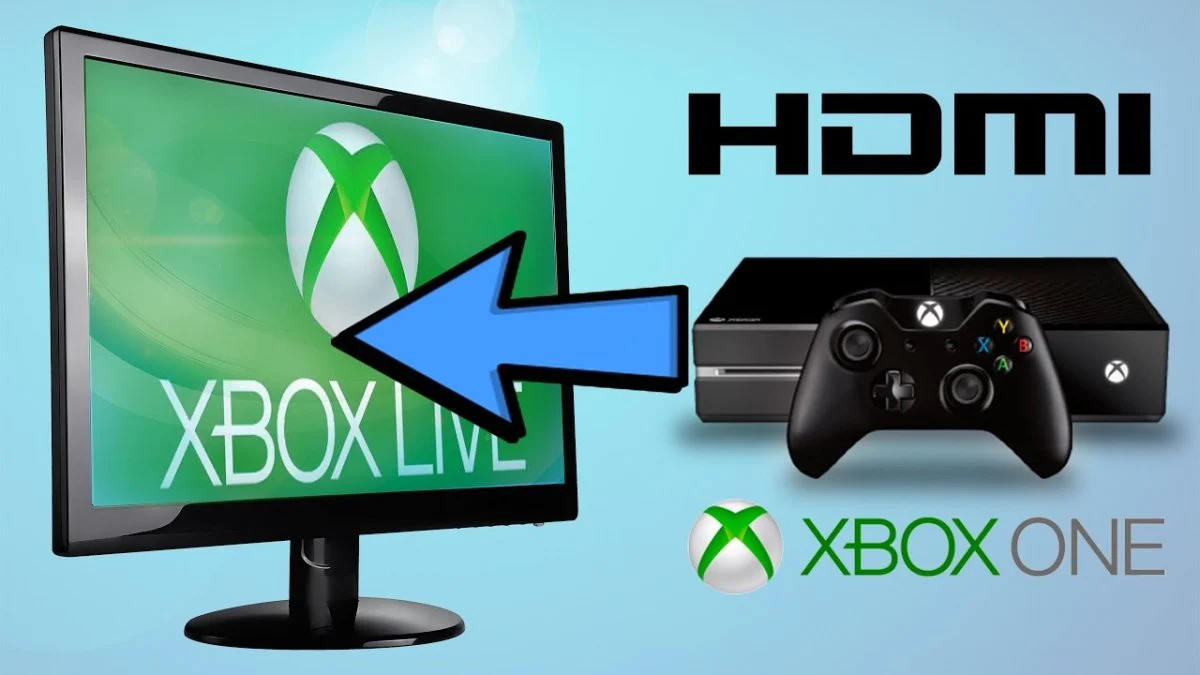
The hard truth is that Xbox consoles, including Xbox One, Xbox Series X, and Xbox Series S, do not natively support Bluetooth audio for game sound or chat. Microsoft's Xbox consoles use a proprietary "Xbox Wireless" protocol for connecting controllers and compatible headsets, which prioritizes lower latency and more stable bandwidth than standard Bluetooth. Xbox controllers include Bluetooth technology, but this is for connecting to PCs, mobile phones, and tablets, not for routing audio to the Xbox console itself. This means standard Bluetooth pairing fails because the console has no Bluetooth receiver for audio.
Workaround 1: Use a Bluetooth transmitter on your controller
The most straightforward method to get wireless audio from your Xbox to a Bluetooth speaker involves using a Bluetooth transmitter.
- Plug a Bluetooth transmitter into the 3.5mm headphone jack on your Xbox controller.
- Put your Bluetooth speaker into pairing mode.
- Pair the transmitter with your speaker following the transmitter's instructions.
- Adjust the audio volume using the controller's controls or the speaker itself.
When using a Bluetooth transmitter, ensure it supports low-latency codecs like aptX Low Latency (≤40ms) to minimize audio-video sync issues. Without a low-latency codec, you will likely hear noticeable audio lag, making gameplay frustrating.
Workaround 2: Route chat audio through the Xbox app
For chat audio only, you can use the Xbox app on a smartphone or PC: connect your Bluetooth headphones/speaker to your phone/PC, enable "Remote Features" on your Xbox (Settings > Devices & connections), and use the app to join or create party chats. This Xbox app method routes voice chat audio through your phone/headphones, while game audio remains on the console or TV. This is useful if you want to hear friends clearly through a Bluetooth speaker while game sounds play from your TV, but it does not send game audio to the speaker. If you need full game audio through a wireless speaker, you can connect Xbox to soundbar via Bluetooth using a dedicated adapter. For a wireless headset that delivers both game and chat audio directly, you can connect Logitech g733 to Xbox using its USB receiver.
Why a dedicated Xbox wireless headset is the best solution
Dedicated Xbox Wireless headsets are designed for seamless, low-latency audio and full chat functionality directly with the console. Unlike Bluetooth speakers, these headsets use the Xbox Wireless protocol, eliminating the need for adapters or workarounds. If you are looking for a true wireless audio solution for gaming, a dedicated headset is the only option that delivers both game and chat audio without lag, and the same principles apply when connecting a headset to a console.
Troubleshooting Bluetooth transmitter and app issues
Audio lag
Audio lag is the most common problem when using a Bluetooth transmitter. If you notice sound is out of sync with the picture, your transmitter or speaker likely does not support a low-latency codec. Switch to a transmitter that supports aptX Low Latency or ensure your speaker is compatible.
Interference and connection drops
Bluetooth signals can be disrupted by other wireless devices, Wi-Fi routers, or physical obstacles. Move your speaker closer to the controller and reduce the number of active wireless devices nearby. If drops persist, restart both the transmitter and speaker.
Xbox app not finding the console
If the Xbox app cannot find your console, verify that Remote Features are enabled in the console's settings. Ensure both devices are on the same network and that the console is powered on. Restarting the app or console often resolves discovery issues.
Chat audio not routing correctly
When using the Xbox app for chat, confirm that your Bluetooth speaker is selected as the audio output device on your phone or PC. Check the app's party settings to ensure your microphone and speaker are assigned correctly. Remember that game audio will not route through this method, only party chat will play through the Bluetooth speaker.