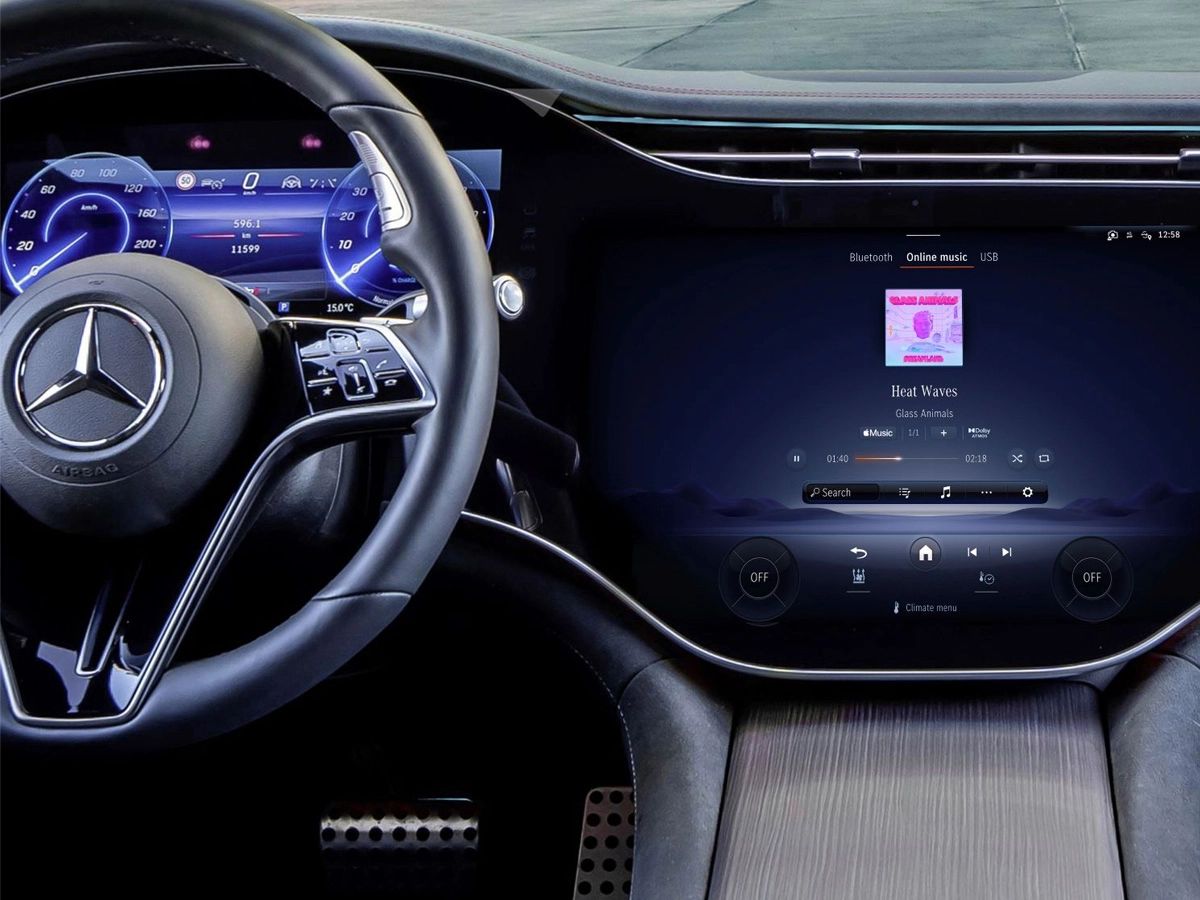
To connect to Mercedes Bluetooth, start by ensuring Bluetooth is enabled on both your smartphone and your vehicle's infotainment system. This guide walks you through the exact pairing process for hands-free calling and music streaming, with model-specific variations noted where they apply.
How to connect to mercedes Bluetooth: A brief introduction
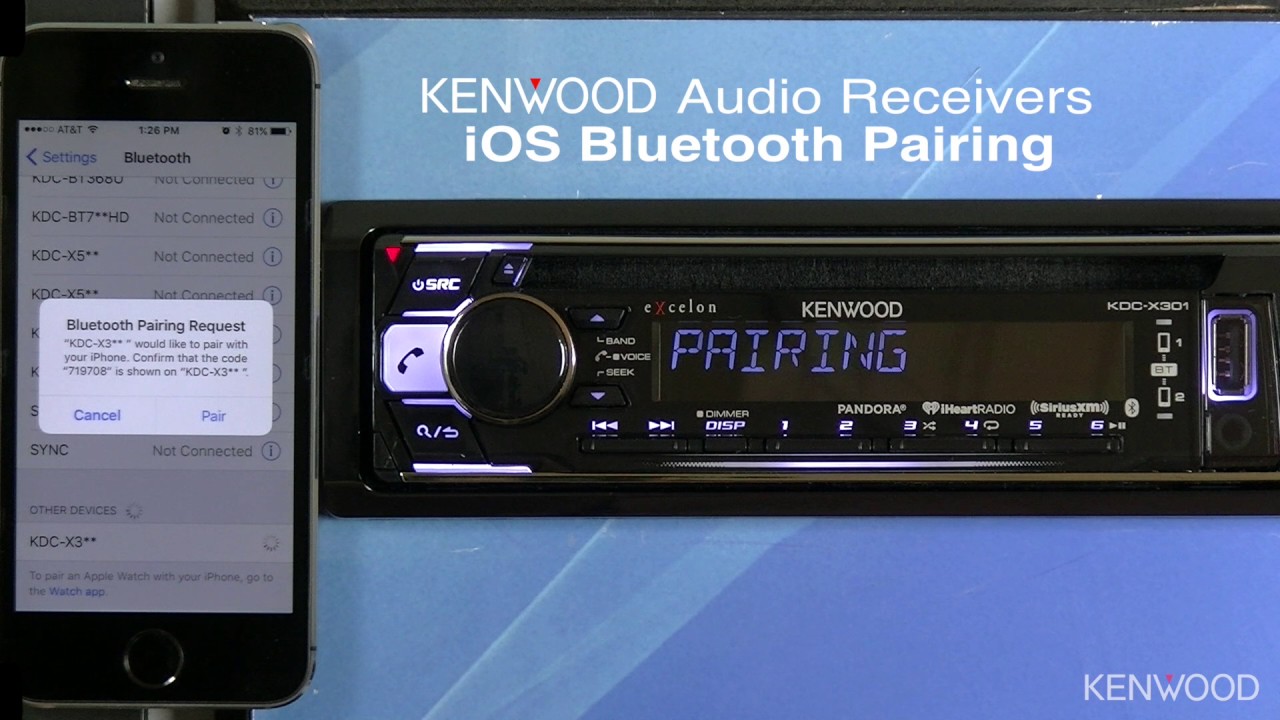
Connecting your phone via Bluetooth transforms your driving experience by enabling hands-free calls, wireless audio streaming, and access to your contacts directly from the dashboard. If you drive multiple vehicles, you may also need to connect phone to kenwood radio Bluetooth in a secondary car. While the core process is consistent across most Mercedes-Benz models, the exact menu labels and button locations can vary slightly depending on your vehicle's model year and infotainment system version.
Activate Bluetooth in your mercedes-benz
Before pairing, you must ensure your vehicle's Bluetooth system is turned on. The method varies by model, but you'll typically use one of these two approaches:
- Press the TEL key on your dashboard or center console to open the phone menu directly.
- Alternatively, navigate to Settings on your vehicle's center display, then select System.
- From there, choose Interior and Bluetooth® or Wi-Fi and Bluetooth to access the Bluetooth toggle.
- Ensure Bluetooth is set to On. Your vehicle is now discoverable to your phone.
Pair your phone with the vehicle
With Bluetooth active in your Mercedes, you can now pair your smartphone. Follow these steps in order:
- On your vehicle's home screen, select the Phone icon.
- Choose Connect Device, Connect Dev., or Connect New Device, the label depends on your system version.
- Select Search for Phone from Vehicle, then press Start Search.
- On your smartphone, make sure Bluetooth is enabled and the device is set to discoverable mode.
- Wait for your phone's name to appear on the vehicle's display, then select it.
- A 6-digit passcode will appear on both your vehicle's screen and your phone. Confirm the codes match.
- Tap Pair or Confirm on your phone to complete the connection.
Once paired, the system will remember your phone for future connections, so you won't need to repeat this process every time you enter the car.
Test the connection and features
After pairing, verify that everything works correctly before hitting the road. Start by making a test call or playing music to confirm the audio routes through your car's speakers. A successful connection gives you access to these hands-free features:
- Place and receive phone calls without touching your phone
- Stream music and podcasts wirelessly from your device
- Access your phonebook and recent calls through the infotainment screen
- Send and receive text messages with voice commands (if supported)
- Use wireless Apple CarPlay®/Android Auto® if your vehicle is equipped
If you want to access your contacts by voice, you may need to grant the vehicle permission to download phone contacts to car when prompted on your smartphone. This one-time authorization enables the system to sync your address book for hands-free calling.
Troubleshooting common Bluetooth connection issues
If your phone isn't found or won't pair, work through these solutions in order:
- Check device compatibility: Not all smartphones work with every Mercedes infotainment system. Consult your owner's manual or the Mercedes website for a list of tested devices.
- This clears temporary glitches.
- Clear old connections: On your phone, go to Bluetooth settings and remove any previous Mercedes connections. Also delete any unused paired devices from your vehicle's list.
- Update software: Ensure both your phone's operating system and your Mercedes multimedia software are up to date. Outdated versions can cause pairing failures.
- Reset Bluetooth settings: If problems persist, reset the Bluetooth settings on both your phone and the vehicle. This clears corrupted data that may interfere with the connection.
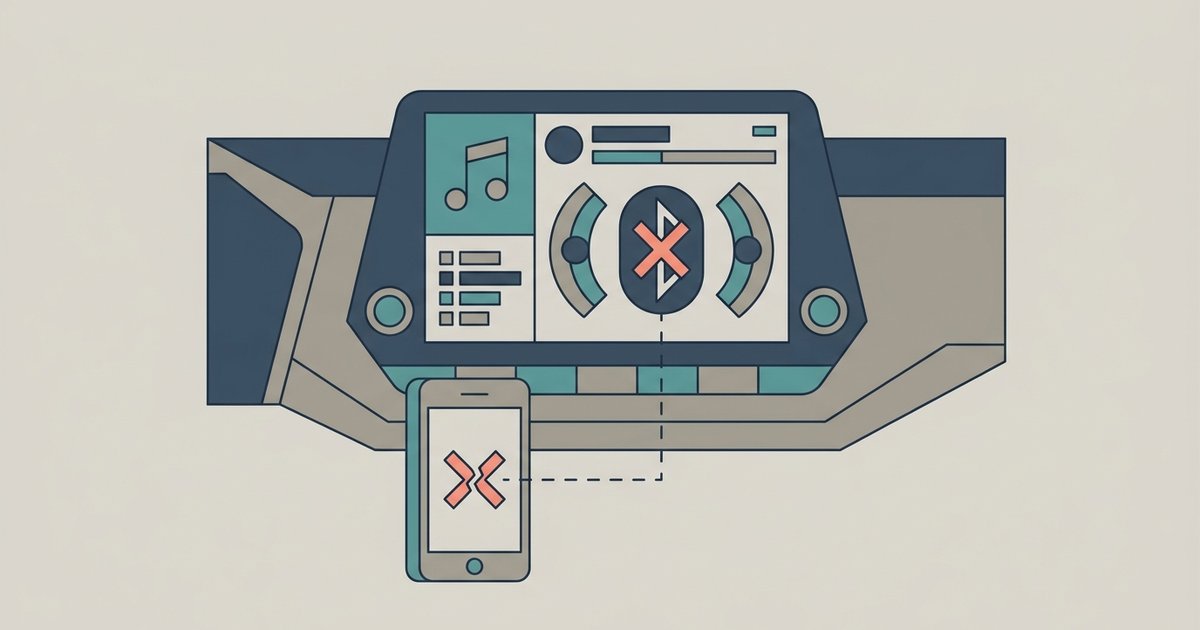
For persistent issues, try connecting a different phone to isolate whether the problem lies with your device or the car. If you're still stuck, contact Mercedes-Benz customer support or your phone manufacturer for model-specific assistance.
For the wider topic, see connect to nissan Bluetooth.