Check if your TV has Bluetooth connectivity
If you want to connect Bluetooth to TV, the first step is to check your model's specifications, as not every television sold in the last decade includes the feature. You can also look for a Bluetooth logo in the settings menu under "Sound Output" or "Audio." If you cannot find Bluetooth there, you will need an external transmitter that plugs into the TV's audio jack or optical port. Before buying anything, remember that many TVs can only send audio to one Bluetooth device at a time, though some newer Samsung and LG models support two simultaneous connections. Many models cannot play sound through both Bluetooth headphones and the built-in audio system simultaneously. This is a hardware limitation, not a setting you are missing. If your TV lacks Bluetooth, you can install Bluetooth in smart TV using a USB adapter or a dedicated transmitter, though compatibility varies by brand and operating system. Once you confirm your TV supports Bluetooth, you may still need to find instructions specific to your brand. For example, you might need to connect Bluetooth to Vizio TV or connect Bluetooth speaker to Vizio smart TV. Similarly, users with hearing aids might look for guides to connect hearing aids to LG smart TV or connect my hearing aid to my smart TV. You might even need to connect wireless microphone to smart TV for karaoke or live commentary. These articles are essentially the same process adapted for different product names and brand menus. Choose the one that matches your TV's manufacturer and the type of device you are pairing. Then follow the audio output selection steps for your specific model.
Pair a Bluetooth speaker or sound system
Begin by putting your speaker or sound system into pairing mode. This usually means holding a Bluetooth button until its indicator light flashes. On your TV, open the Settings menu. Then navigate to the Remotes & Accessories or Sound Output section and select Bluetooth. The TV will scan for nearby devices. When you see your audio gear listed, choose it to complete the connection. If you run into trouble, you might first need to connect a Bluetooth speaker to a separate source just to confirm the unit itself is working properly. For Roku TVs, the process is nearly identical, though you’ll specifically need to connect Roku TV to Bluetooth speaker by going to Settings > Remotes > Devices > Manage Bluetooth Devices. Note that most Roku TVs do not directly support connecting Bluetooth speakers for TV audio output. A common stumbling block is that many TVs treat an AV receiver differently than a simple soundbox. If you own one, you may need to set up Bluetooth on your yamaha av receiver from the receiver’s own menu before the TV can see it. For Samsung TV owners with a JBL device, follow the step-by-step guide to connecting JBL speaker to Samsung TV that ships with the product, as the pairing button sequence varies by model. Keep in mind that if you’ve previously been connecting your phone to a JBL speaker, that phone will remain paired until you disconnect it. Unpair the handset first to avoid the TV failing to link with your wireless output. Unlike phones, most televisions cannot pair with a device that is still actively tethered to another source.
Fix Bluetooth audio problems
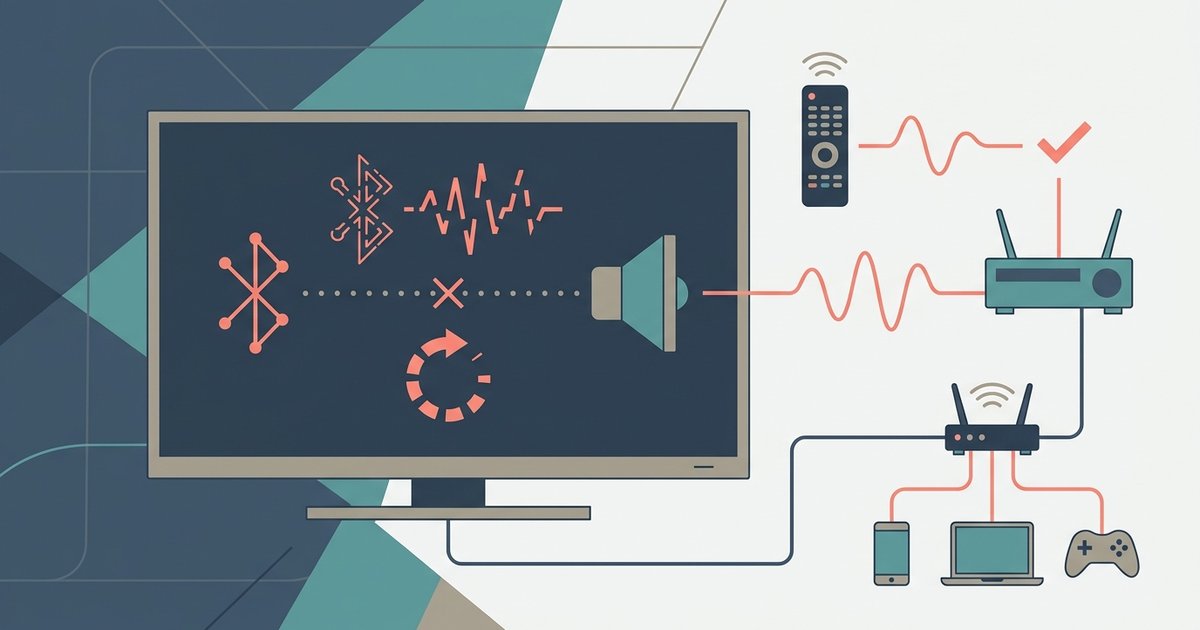
Audio delay between your TV and Bluetooth headphones is one of the most common frustrations. If the dialogue doesn’t match the lips moving, you are likely experiencing a sync problem. Before diving into complex settings, try restarting both the TV and the headphones if you're experiencing pairing issues. This clears temporary buffer issues more often than you’d expect. For persistent lag, the specific steps for fixing Bluetooth TV audio sync usually involve toggling any "A/V sync" or "lip-sync" adjustment in your TV’s sound menu. You can also adjust your TV's A/V Sync, Lip Sync, or Audio Delay settings found in the Sound or Audio Output menus. If the sound cuts out or skips, interference is the usual culprit. To stop Bluetooth audio stuttering on smart TV, move the headphones closer to the TV. Also turn off other nearby Bluetooth devices. A major point of confusion arises when you try to hear audio from both your TV speakers and headphones at once. Most TVs cannot do this. It is a hardware limitation, not a missing setting. The question of using Bluetooth headphones with TV speakers usually ends with you having to choose one or the other. Finally, if your phone connects to the TV via Bluetooth and you take a call, the TV may try to route the audio through its built-in soundbar or headset. For managing that behavior, a guide on routing phone call through Bluetooth speaker will show you how to set your phone to handle calls independently. This prevents the TV from hijacking your conversation. Unlike other guides, we explain that simultaneous TV speaker and Bluetooth output is blocked by the chipset, not a hidden menu option.