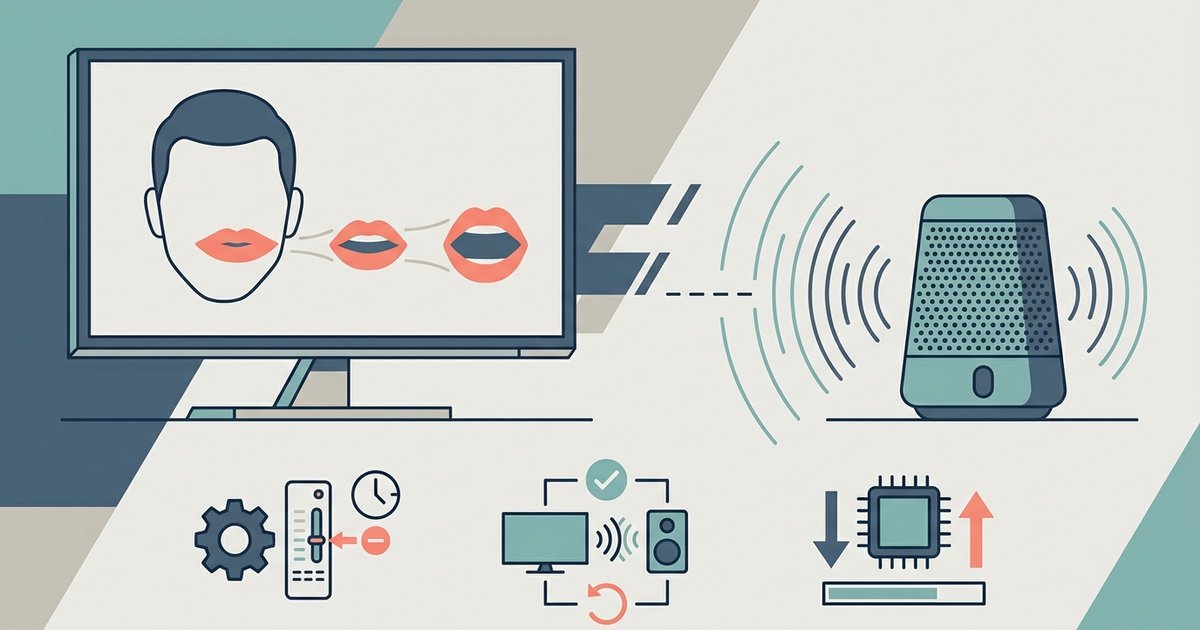
The delay is caused by the time it takes your TV to compress and transmit audio over Bluetooth, which doesn't match the instant video on screen. You can often fix this by enabling a 'Bluetooth Audio Sync' feature in your TV's sound settings or by using an external transmitter that supports a low-latency codec like aptX Low Latency.
Why Bluetooth Audio Delay Happens
Your TV processes video frames in real time, displaying each frame the instant it is decoded. Bluetooth audio must encode the sound into a compressed stream, usually the standard SBC codec. Then it must transmit that stream wirelessly and have your speaker or headphones decode it. This encoding and decoding cycle introduces a fixed processing delay of roughly 150 to 300 milliseconds for SBC. Your TV’s video pipeline has no way to automatically stretch or delay the image to match this Bluetooth lag. You see lips move a fraction of a second before you hear the word. Newer codecs like aptX Low Latency reduce this delay to around 40 milliseconds. But your TV must support that codec on both the transmitter and receiver sides. If your TV only uses SBC, the delay is baked in and cannot be eliminated by software alone.
Adjust the Audio Delay in Your TV Settings
Open your TV’s sound or audio output menu and look for a setting called “A/V Sync,” “Audio Delay,” or “Bluetooth Audio Sync.” On Samsung TVs, look in the sound or audio output settings for an option like “Audio Delay” or “A/V Sync.” On LG models, navigate to the sound settings and look for an option like “AV Sync Adjustment.” Play a test clip with a clear lip movement, like a news anchor speaking. Adjust the slider until the sound matches the mouth. This works well when the Bluetooth delay is within the slider’s range. However, this method will fail if your TV’s maximum delay is smaller than the actual Bluetooth lag. It will also fail if the slider only affects wired outputs and not Bluetooth. For example, if you want to connect a Bluetooth speaker to an older Sony TV, the slider might not apply to the Bluetooth path at all, so first confirm your setup by connecting Bluetooth audio to a TV properly.
When Your TV Can't Fix the Lag
Buy an external Bluetooth transmitter that supports aptX Low Latency, often labeled “aptX LL.” Plug this transmitter into your TV’s optical audio output or headphone jack. Then pair it with a speaker or headphones that also support aptX LL. This bypasses your TV’s internal Bluetooth stack entirely and gives you a consistent 40-millisecond delay that is barely noticeable. Alternatively, switch to a wired audio connection. Run an optical cable to a soundbar or a 3.5mm cable to powered speakers. This eliminates Bluetooth encoding delay completely. For users with hearing needs, specific scenarios require extra attention. When you connect Roku TV to Bluetooth speaker, open Settings → Audio → Audio Delay and use the “Audio Sync” adjustment, but know the range is limited. When you connect hearing aids to LG smart TV, skip the TV’s “AV Sync Adjustment” because it may not support hearing aid profiles. Instead, get a dedicated TV streamer that pairs directly with the hearing aids. If you need to connect your hearing aid to your smart TV, buy a third-party transmitter like the TV Streamer from Phonak or Oticon. This handles low-latency streaming without relying on your TV’s Bluetooth chip. In all cases, if the delay persists after trying the TV’s settings, a hardware transmitter is the only consistent fix.
If you have already tried turning both devices off and on again, the problem is almost certainly a codec mismatch or a fixed audio processing pipeline in your TV.