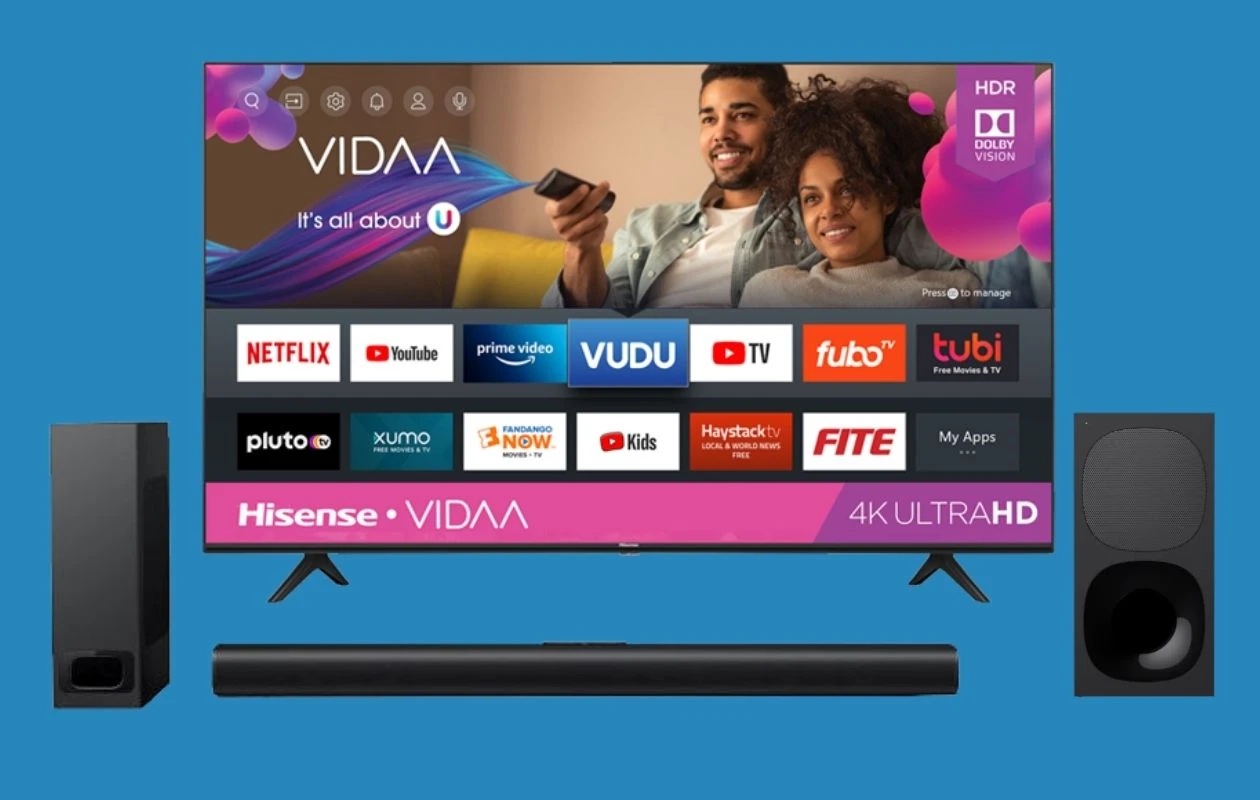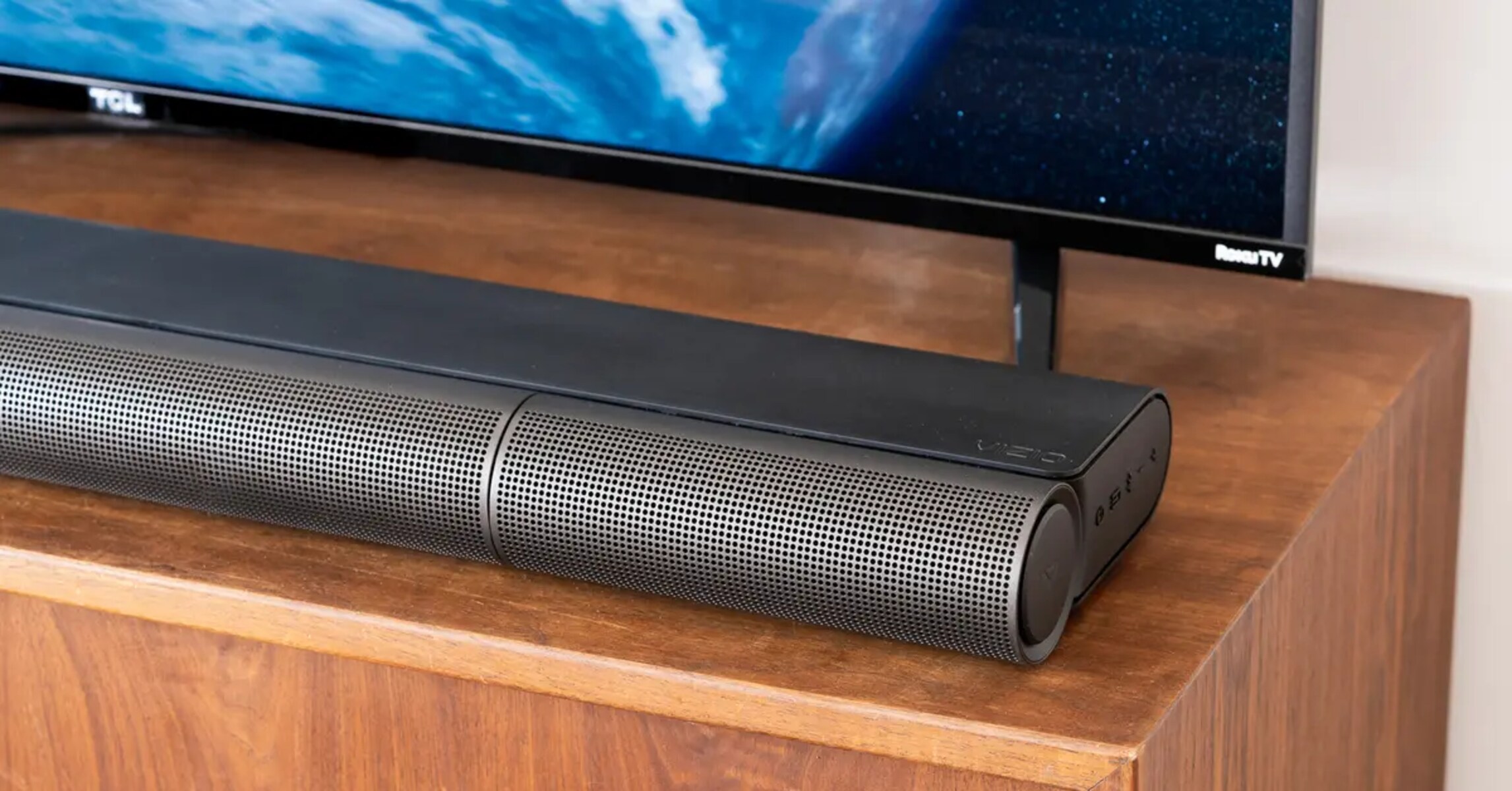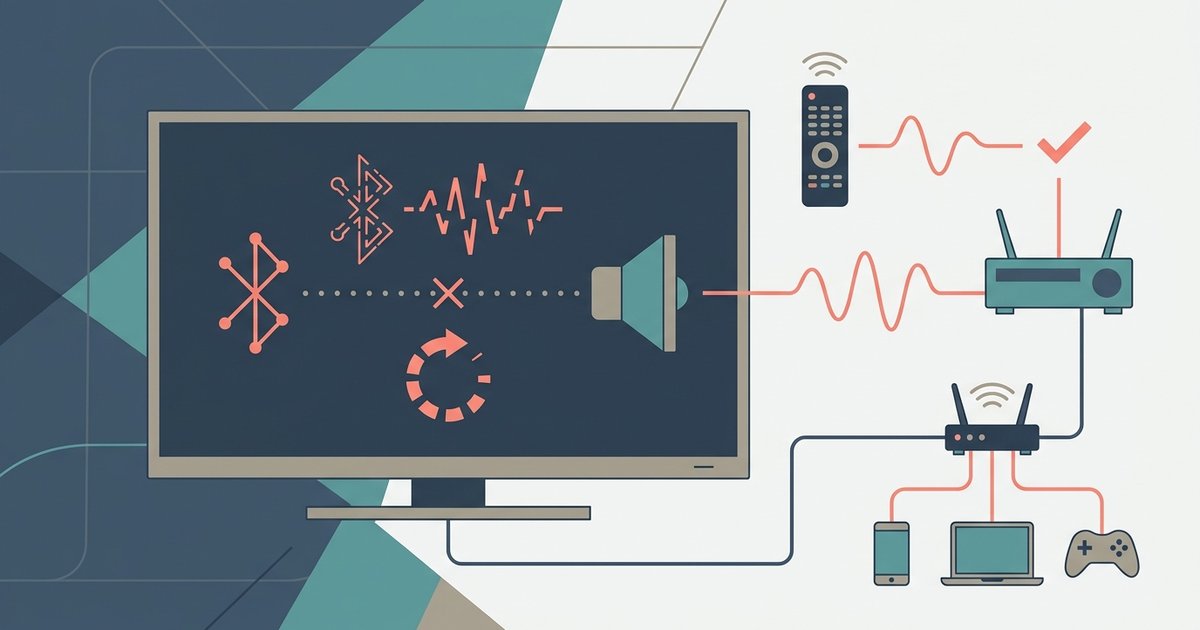
Bluetooth audio stuttering on a smart TV is almost always caused by wireless signal interference or bandwidth congestion, not a faulty pairing. Physically clear the space around your TV and speaker, and switch your Wi-Fi router to the 5GHz band to immediately reduce 2.4GHz interference.
Why Bluetooth audio stuttering happens
Your smart TV and Bluetooth audio device communicate on the 2.4GHz frequency band. That band is the same crowded highway used by most Wi-Fi routers, wireless keyboards, microwave ovens, and even USB 3.0 ports. When a USB 3.0 device is plugged into your TV, it can emit broadband noise that directly jams the Bluetooth signal within a few feet. Physical obstacles like metal shelving, thick walls, or a closed cabinet door further weaken the signal. The TV is then forced to retransmit packets constantly. This is the stutter you hear. The problem is TV-specific because smart TVs often pack Wi-Fi, Bluetooth, and USB 3.0 hardware into a single chassis. That creates internal interference a standalone phone or laptop rarely experiences. If your TV lacks built-in Bluetooth, you can install Bluetooth in smart TV using a low-latency transmitter, which lets you position the antenna away from interference sources. If you own a Roku TV, you can connect it to a Bluetooth speaker easily, but the same interference rules apply. The unit must be within clear line-of-sight and away from the TV’s USB ports. If you have a Vizio model, the process to connect Bluetooth speaker to Vizio smart TV differs, so confirming the correct pairing method helps avoid a weak initial connection that makes stuttering worse.
The quick fix that usually works
First, open your TV’s network settings and switch the Wi-Fi connection from the default 2.4GHz band to the 5GHz band. This immediately removes the biggest source of co-channel interference, because 5GHz uses different frequencies that Bluetooth does not share. Second, physically move the audio device to a spot where it has a direct, unobstructed view of the TV. Ideally, place it on a shelf at the same height as the screen, not behind furniture or inside a cabinet. Third, disable any unused wireless features on the TV. Turn off Wi-Fi Direct if you are not using screen mirroring, and unplug any USB 3.0 drives or hubs from the TV’s ports. If your TV has a “Bluetooth audio codec” setting, try switching from SBC to aptX Low Latency or LE Audio if available. Some TVs default to a low-bitrate codec that exacerbates stuttering when interference is present. For users who need to connect hearing aids to LG smart TV, the same steps apply. LG models often have expert settings that can reduce radio chatter disrupting Bluetooth.
When the problem isn't interference
If you have cleared the space, switched to 5GHz Wi-Fi, and unplugged USB devices but the stuttering continues, the bottleneck may be the TV’s Bluetooth chipset itself. Many smart TVs sold before 2020 use older Bluetooth 4.0 or 4.1 controllers. These lack the bandwidth to handle both audio streaming and simultaneous data from the remote or Wi-Fi. To confirm this, try the same unit with a phone or laptop. If it plays flawlessly, the TV hardware is the issue. Low battery in the peripheral can also cause dropouts, so charge it fully. If you need to connect your hearing aid to your smart TV and still hear stuttering after these steps, check the TV’s firmware update menu. Manufacturers like Samsung and Sony have released patches that improve Bluetooth stability. As a last resort, use a dedicated Bluetooth transmitter plugged into the TV’s optical audio output. This bypasses the TV’s internal radio entirely and gives you a fresh, interference-free signal.
Unlike generic audio guides, our fix targets the unique internal interference created when Wi-Fi, Bluetooth, and USB 3.0 hardware are packed into a single smart TV chassis, and for a broader look at the process, our guide on connecting Bluetooth audio to a TV covers the full setup from start to finish.