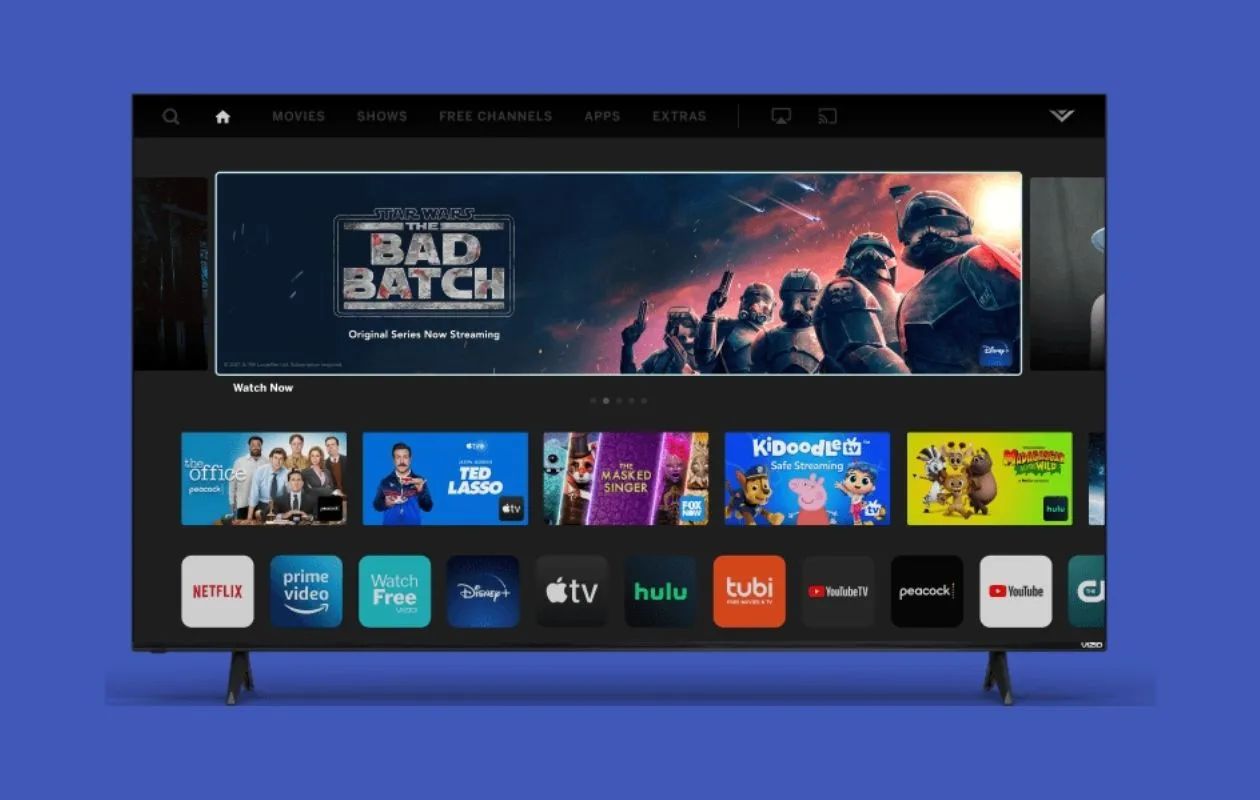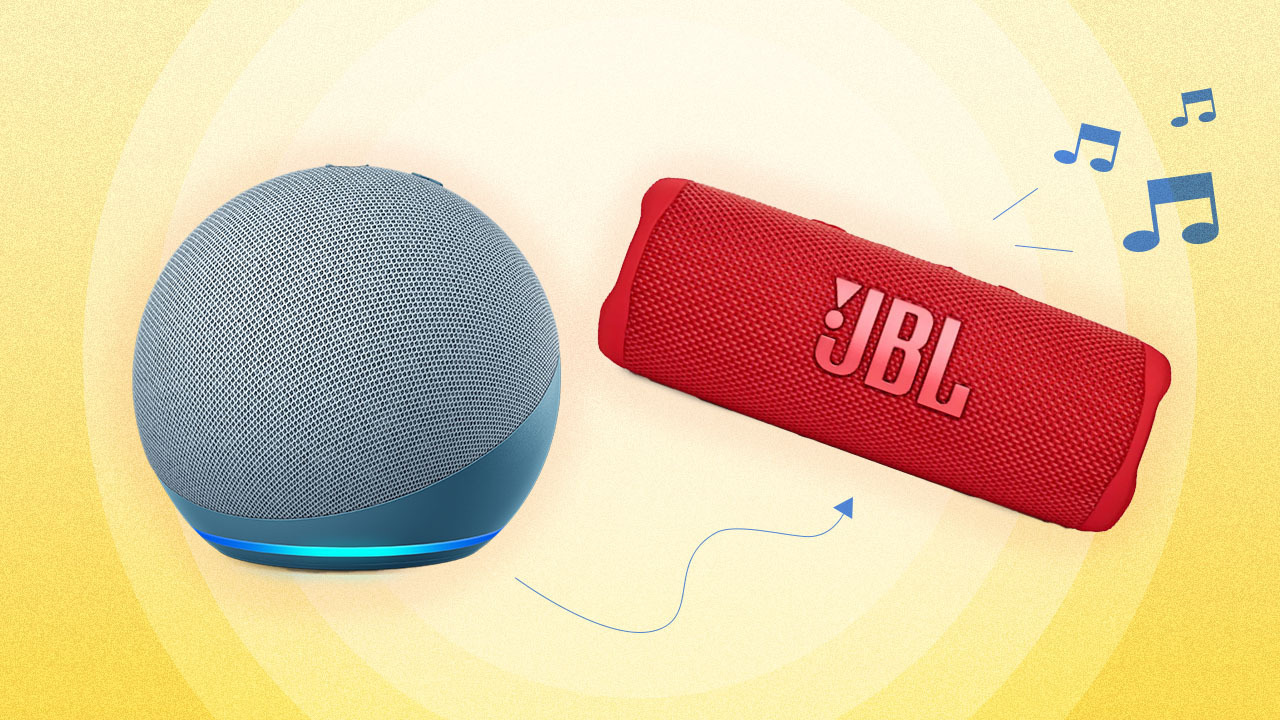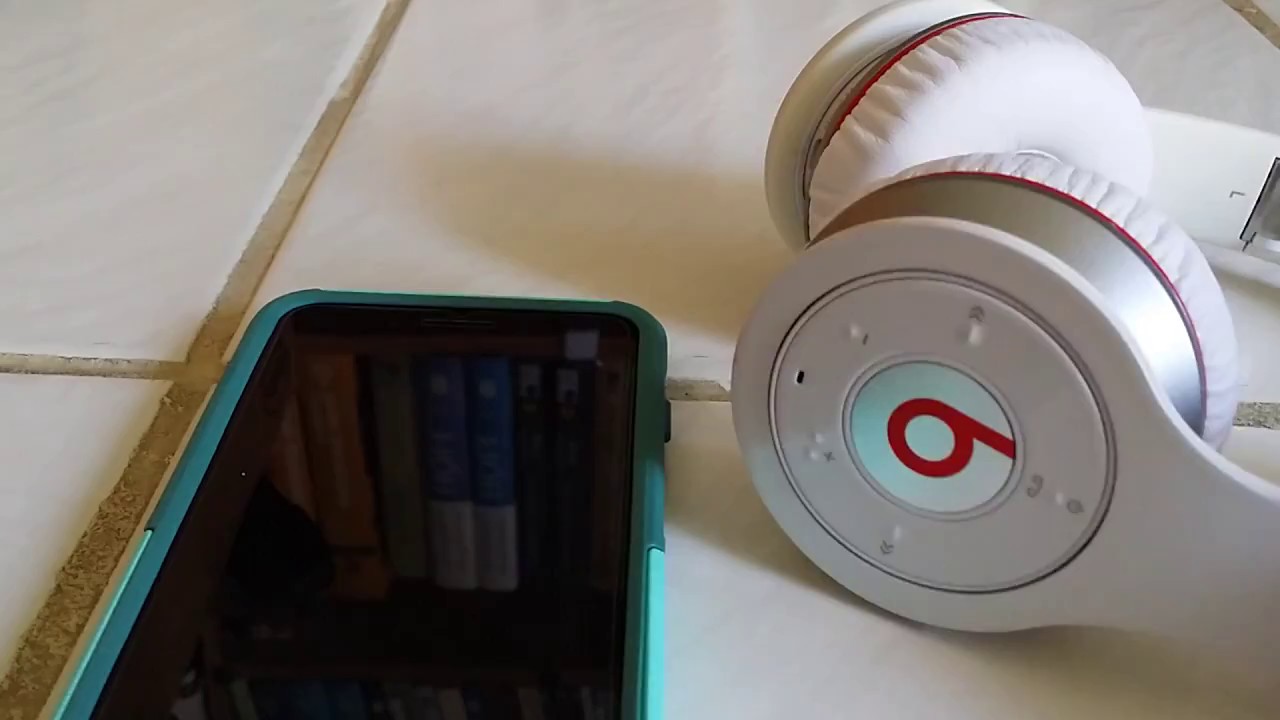
To connect Roku TV to a Bluetooth speaker, you first need to know that only specific 2025+ Roku TV models support direct wireless audio output to a generic Bluetooth speaker. If you own a Roku Plus Series TV, Roku Select Series HD TV (2025 or later), Roku Select Series 4K TV (2025 or later), or Roku Pro Series TV, you can pair a Bluetooth speaker directly; otherwise, you will need a workaround.
Which Roku TVs can connect to a Bluetooth speaker?
Not all Roku TVs support direct Bluetooth audio output to generic Bluetooth speakers. The models that natively support connecting Bluetooth audio to a TV are the Roku Plus Series TV, Roku Select Series HD TV (2025 and onward), Roku Select Series 4K TV (2025 and onward), and Roku Pro Series TV. For any other Roku TV model, you generally need to pair Roku Wireless Speakers or a Roku TV Wireless Soundbar to add Bluetooth capability for audio output. Older Roku Ultra models (4670, 4661, 4660, 4640) and the Roku Ultra LT model 4662 are not compatible with Bluetooth Headphone Mode or direct Bluetooth audio output. Roku Streambar, Streambar Pro, and Smart Soundbar devices have Bluetooth, but it is primarily for streaming audio from a phone or tablet to the soundbar, not for sending TV audio to a separate Bluetooth speaker. If your television lacks this feature, you can use a similar approach to connect Bluetooth speaker to Vizio smart TV via the Roku mobile app's private listening.
How to pair your Bluetooth speaker with a compatible Roku TV
If your Roku TV is one of the compatible models listed above, follow these steps to pair your Bluetooth speaker directly. Any Bluetooth speaker supporting Bluetooth version 4.2 or greater should be compatible.
- Press the Home button on your Roku remote.
- Navigate to Settings, then select Remotes & devices.
- Select Wireless headphones (the menu may also read Bluetooth, Wireless headphones and speakers, or Bluetooth audio device depending on your Roku OS version).
- Select Add new wireless headphones (or Add new Bluetooth audio device).
- Put your Bluetooth speaker into pairing mode.
- Wait for your Roku TV to scan for nearby Bluetooth devices, then select your Bluetooth speaker from the list and follow any on-screen prompts to complete the connection.
How to connect a Bluetooth speaker to any Roku TV using the mobile app
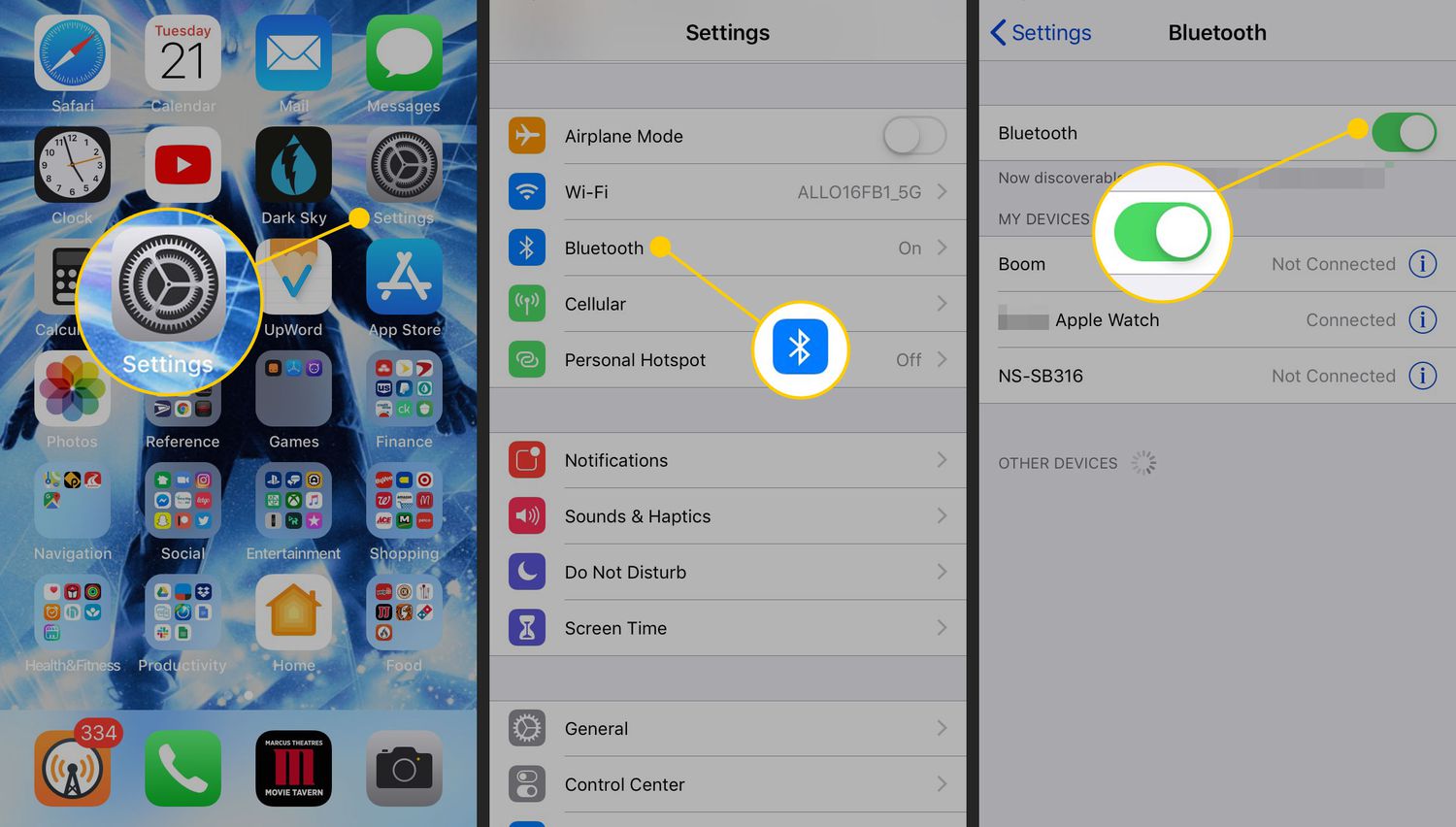
If your Roku TV does not have native Bluetooth output, you can use the Roku mobile app as a workaround. Connect your Bluetooth speaker to your smartphone or tablet, then open the Roku mobile app and use its Private Listening feature. This streams the TV audio to your mobile device, which then plays through the connected Bluetooth speaker. This method works on any Roku TV, regardless of model.
Adjusting audio settings for the best sound
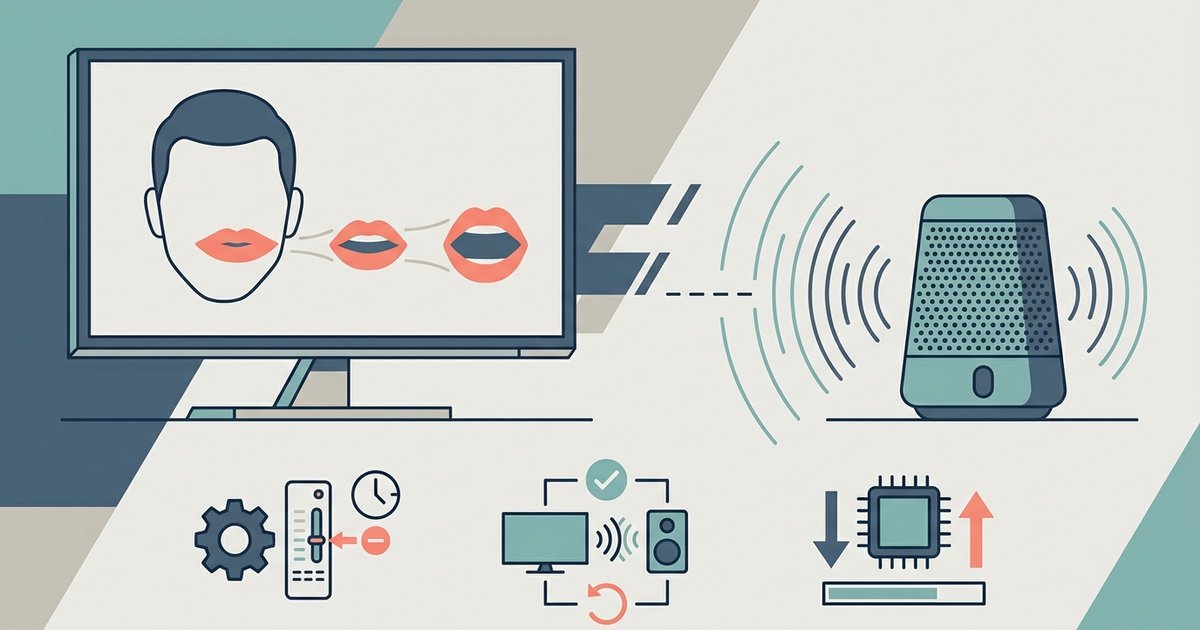
After a successful connection, you can fine-tune the audio. On your Roku remote, press Home, go to Settings, then Audio. From here, you can adjust volume leveling, dialogue enhancement, and other audio options to suit your preference. If you experience audio lag or synchronization issues, look for audio delay or lip sync settings in the same audio menu and adjust them accordingly. Also check the volume level on both your Roku TV and Bluetooth speaker to avoid distortion or imbalance.
Troubleshooting Roku Bluetooth speaker problems
If you encounter issues, start by ensuring your Bluetooth speaker is within range, Bluetooth connections typically work over short distances, usually less than 30 feet. Low battery levels can cause connectivity problems, so make sure both devices are charged or plugged in. Restart your Roku TV and Bluetooth speaker. Check for any Roku OS updates, as updating can fix bugs or compatibility issues. Ensure no other Bluetooth devices are interfering; turn off or move nearby devices. If problems persist, unpair the Bluetooth speaker from your Roku TV and repeat the pairing process from scratch.