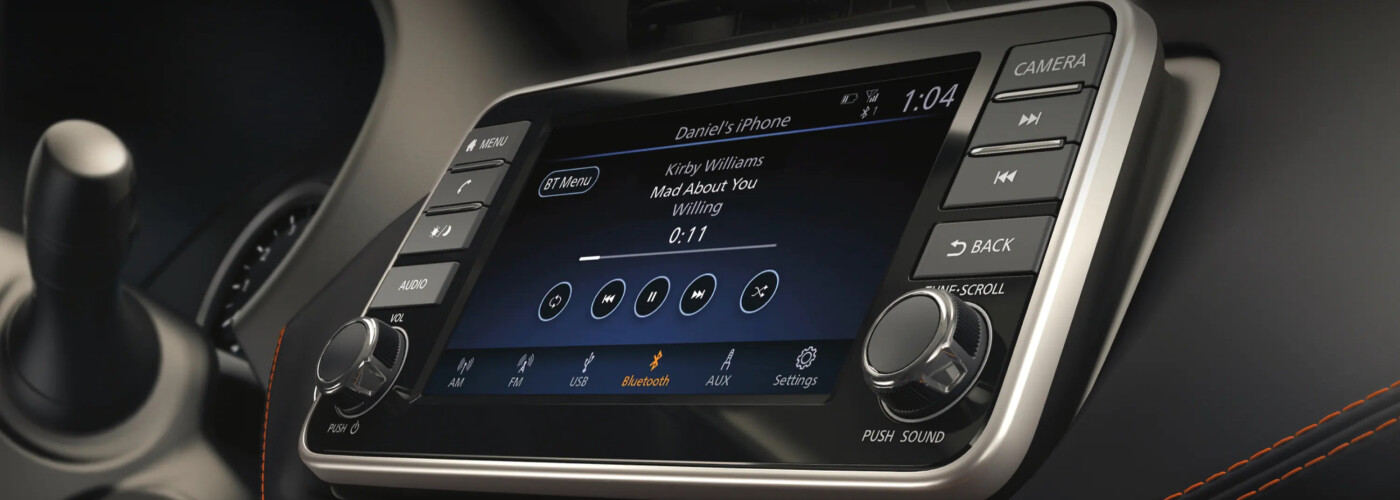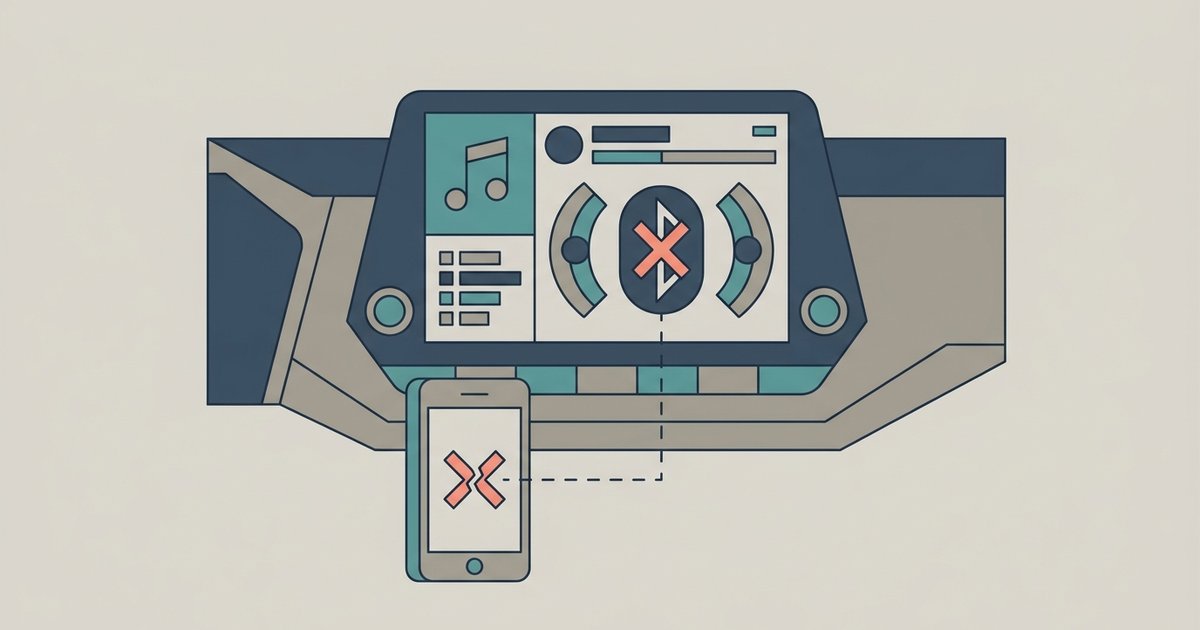
Your phone is likely connected only as a 'Hands-Free' device, not as an 'Audio' device. Go into your Nissan's Bluetooth device list, find your phone, and manually enable 'Audio' or 'Media' for that connection.
The Nissan Bluetooth audio vs hands-free connection split
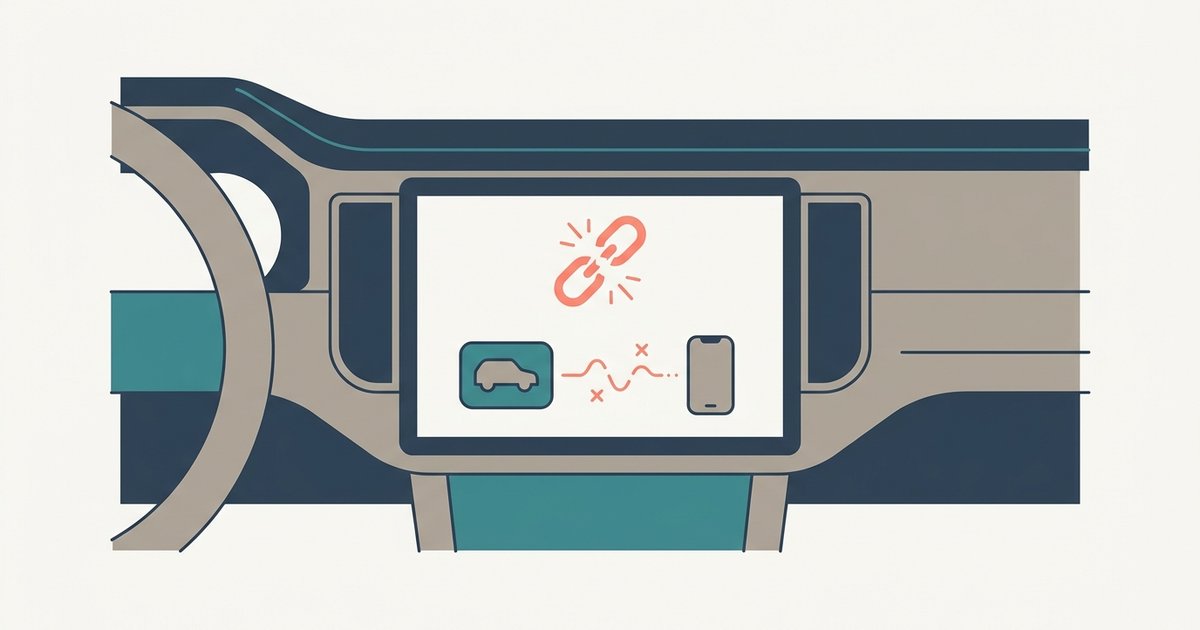
Nissan systems, like most modern car infotainment platforms, treat phone calls and music streaming as two separate Bluetooth profiles. The Hands-Free Profile (HFP) handles voice calls and uses the car’s microphone and speakers, while the Advanced Audio Distribution Profile (A2DP) handles stereo music streaming. When you first pair a phone, Nissan often enables only the HFP profile by default to simplify the setup. This means your phone can make and receive calls perfectly, but the car does not see it as a music source. The phone itself may still show a Bluetooth connection, but it will route audio to its own speaker or headphones because the car has not registered the A2DP service. This split is intentional: it prevents accidental music playback during calls and lets you keep your phone connected for calls without interfering with other audio sources like USB or satellite radio. To stream music, both profiles must be active on the same device, so if your car isn't even detecting the phone initially, you may need to troubleshoot the pairing process for nissan Bluetooth not finding my phone.
Selecting your phone as the audio source
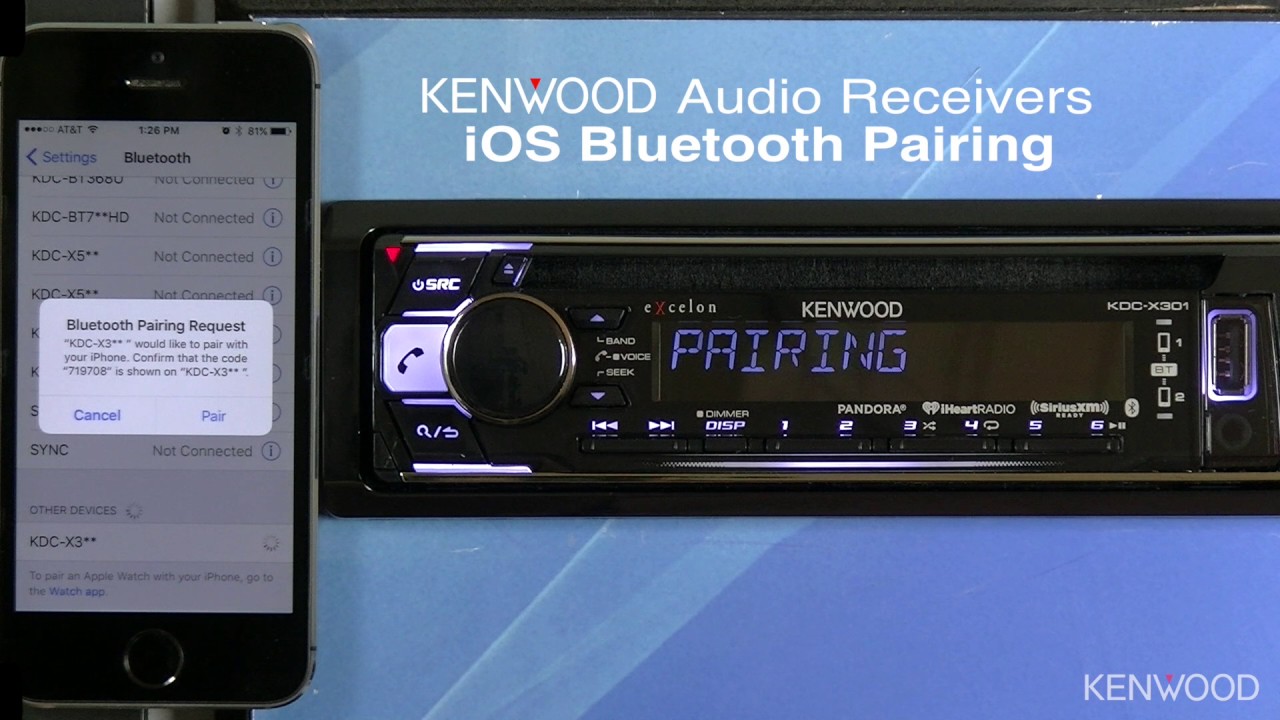
Once you toggle that setting, music should begin streaming through the car's speakers immediately. To fix this, you need to manually enable the audio profile on your already-paired phone. In most Nissan models, start from the home screen and press the Phone button or the Enter/Setting button, then select Bluetooth or Connect. Find your phone in the list of paired devices and press the Edit or Device Settings option. You will see two checkboxes or toggles: one for Phone (HFP) and one for Audio or Media (A2DP). If the Audio toggle is off, turn it on. After that, select the Bluetooth Audio source using the appropriate button on your dashboard or audio system. A common mistake is pressing AUX or MEDIA without checking the device list; the car may default to a different source like USB or FM radio even when the phone is connected. If the music still does not play, open your phone’s Bluetooth settings and verify that Media Audio is checked under the Nissan connection. Some phones require you to tap the gear icon next to the paired device to see this option. If you are connecting to Nissan Bluetooth for the first time, ensure you select both profiles during the initial pairing process, not just the phone calls option. If the system repeatedly rejects your profile changes, a mismatched PIN can block the connection entirely, so you may need to resolve your nissan Bluetooth PIN code not working first.
When the audio option is greyed out or missing
If the Audio toggle in your Nissan’s menu is greyed out or simply missing, the issue is usually one of three things. First, your phone may not support the A2DP profile at all. Older phones or certain budget models can handle calls but lack the codec for stereo streaming. Check your phone’s specifications under Bluetooth profiles, if A2DP is absent, you will need a different device or a Bluetooth adapter that plugs into the aux input. Second, the car’s Bluetooth audio system may already be connected to another device, such as a passenger’s phone or a previous pairing that was never removed. Go into the Nissan device list and delete any unused or duplicate entries, then re-pair your phone fresh. Third, a system restart is often required after changing profiles. Turn off the car, open the driver’s door, wait 30 seconds, then restart the engine. This resets the Bluetooth stack and forces the car to renegotiate profiles. In rare cases, a firmware update from the dealer may be needed if the car’s software has a bug. And if you want to download phone contacts to car, that uses a separate Phone Book Access Profile (PBAP), which is also independent from audio streaming. If none of these steps work, try deleting the phone from the car and the car from the phone, then re-pair from scratch, making sure to approve any “allow access to media” prompts that appear on your phone screen.