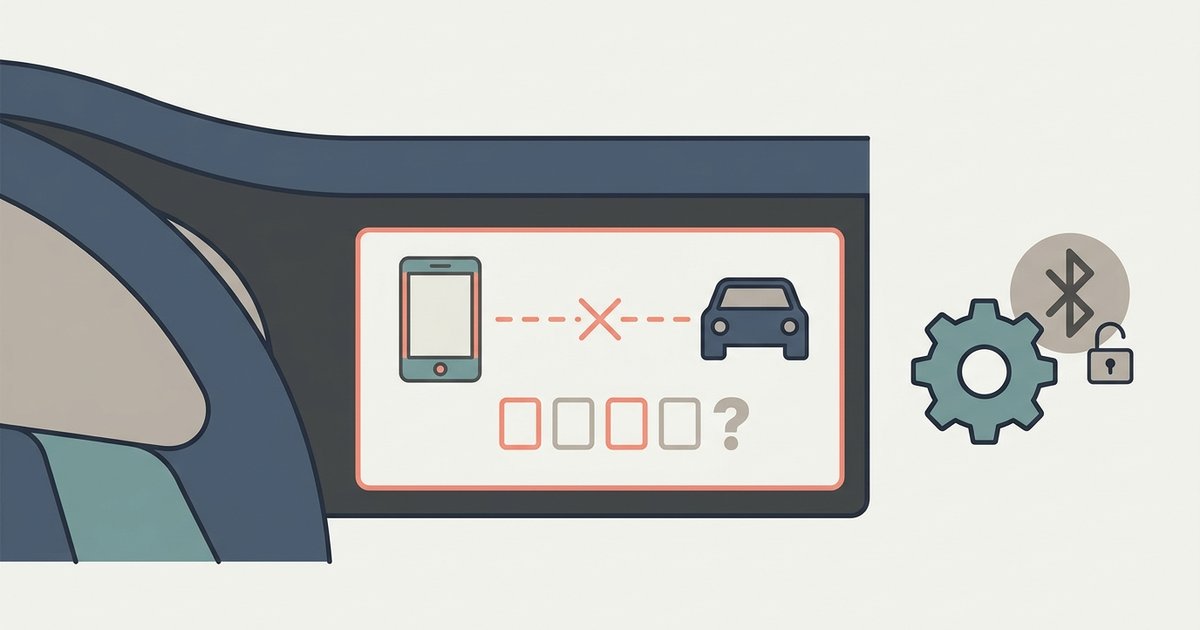
The default PIN is 1234, but the pairing will fail if your phone is asking for a code before the car displays one. Clear the failed pairing from both devices, initiate pairing from the car first, and only enter the PIN on your phone when the car's screen shows the number.
The Nissan Bluetooth PIN prompt is on the wrong device
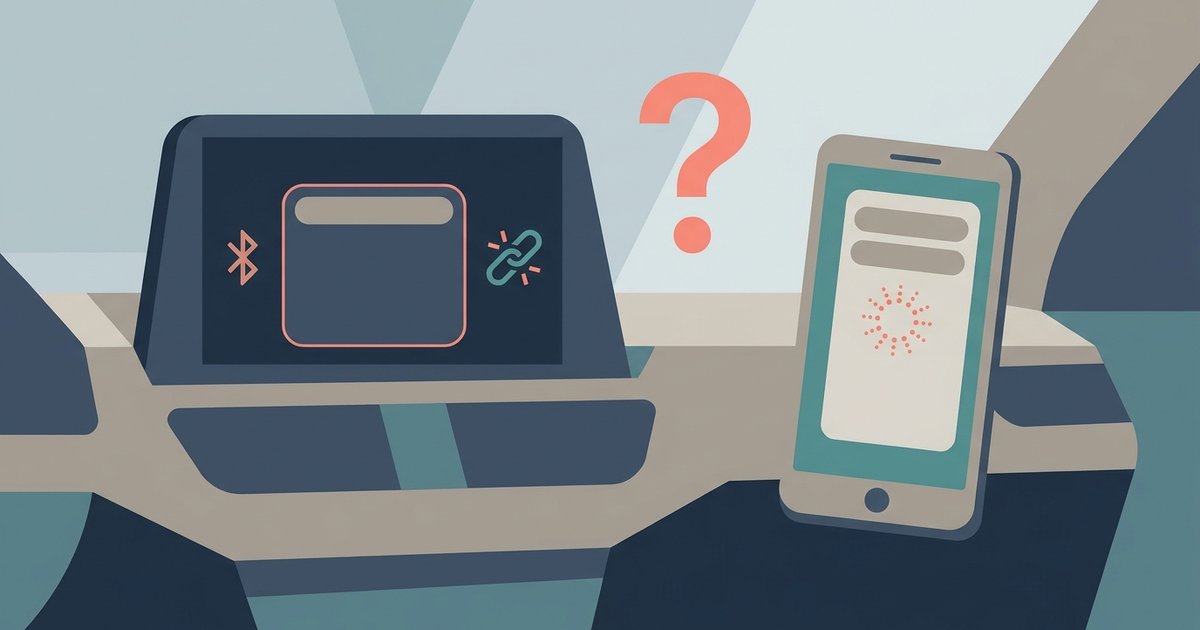
When you tap your phone’s Bluetooth settings and see a prompt for a PIN before the Nissan screen has shown any number, the car’s system rejects the attempt instantly. This happens because the Nissan expects to generate a random code and display it on its own screen. If your phone jumps ahead and sends a code like 1234 or 0000, the car sees it as an unsolicited, invalid request. To fix this, reverse the connection direction. On your phone, forget the Nissan entry. Then, on the car’s screen, go to Settings > Bluetooth > Add New Device and let the car search for your phone. Wait until the car displays a four-digit code. Only then type that exact code on your phone. This matches the flow used in guides for connecting to Nissan Bluetooth, where the car always leads the handshake. If the car never shows a code at all, your phone may not be discoverable, which is addressed in nissan Bluetooth not finding my phone. If the PIN is accepted but audio still fails, the issue may shift to nissan Bluetooth music streaming not working.
Clearing the failed attempt
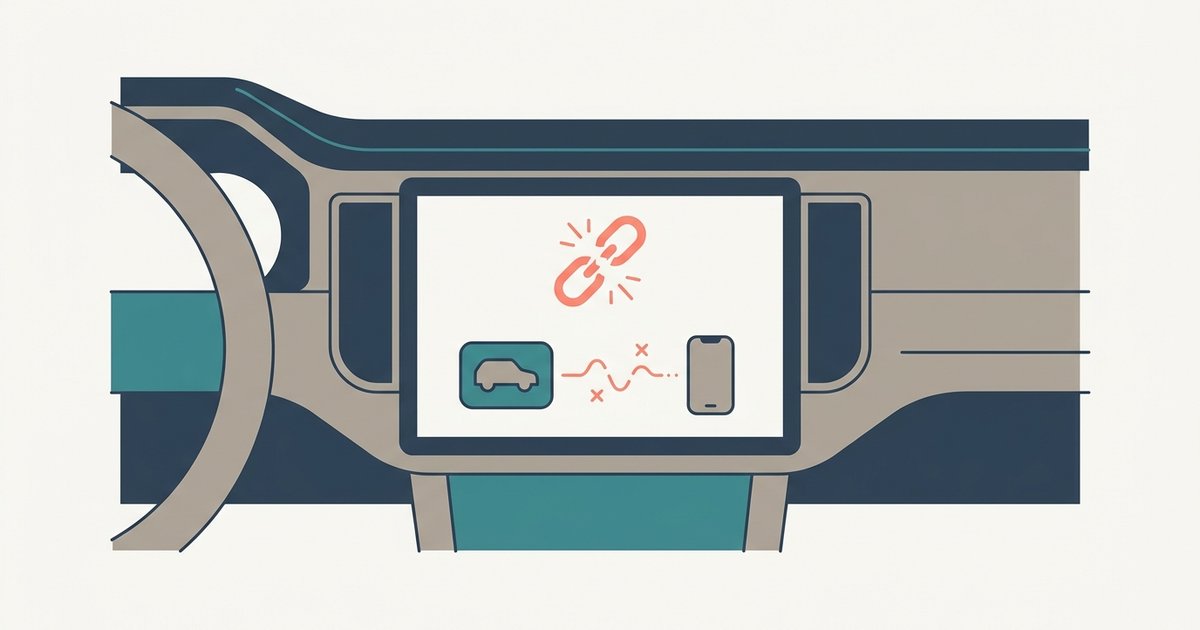
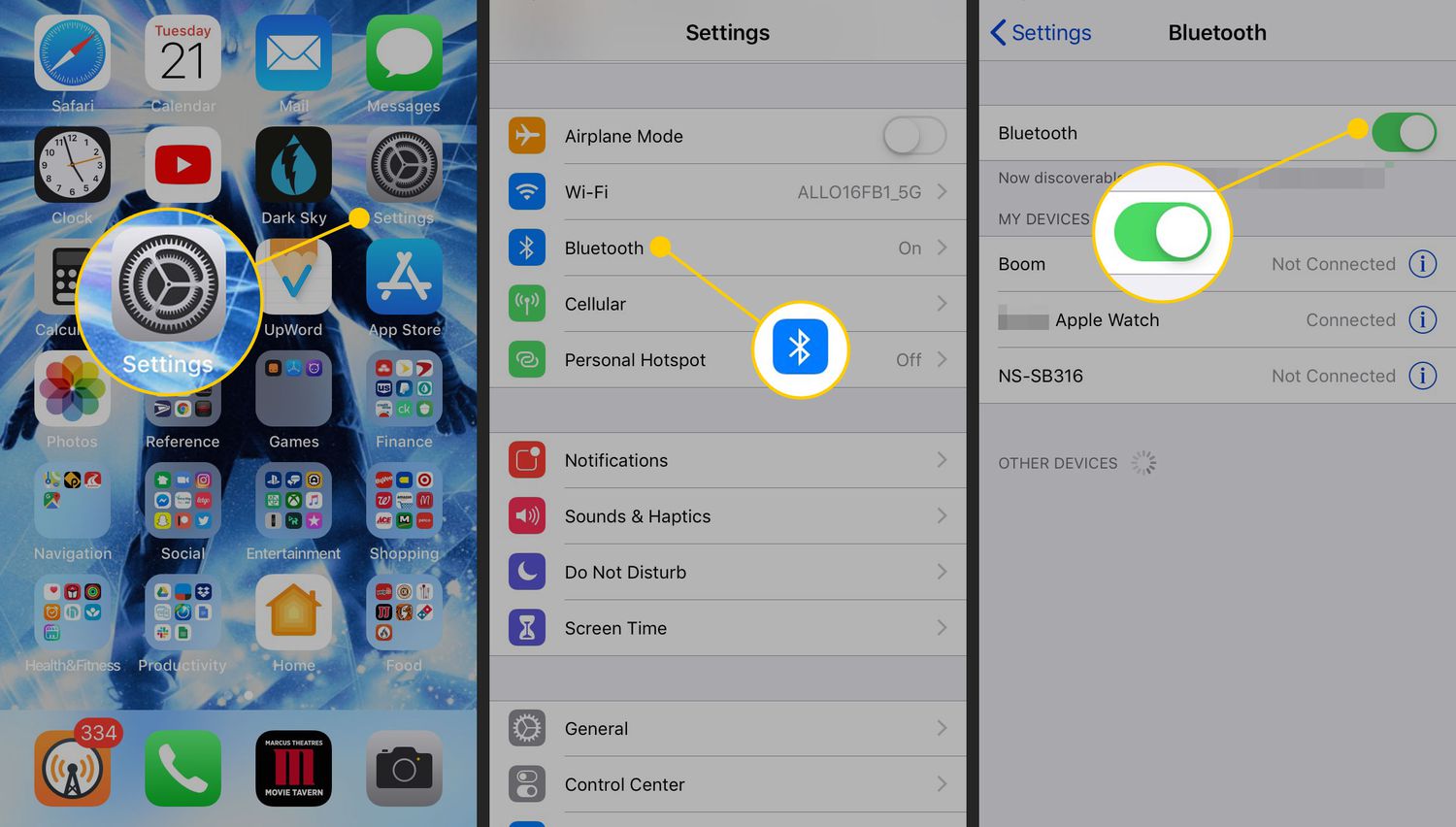
Every failed connection leaves a ghost profile on both devices. Those leftover records can block a fresh link. On the Nissan, delete your phone from the Bluetooth device list using the vehicle's Bluetooth settings menu. On your phone, go to Bluetooth settings, tap the gear or “i” icon next to the Nissan entry, and select Forget or Remove Device. This eliminates the old data that was causing the two to argue over a half-established link. After clearing both sides, restart the car’s infotainment system and your phone. Then start the connection process from the car again.
When 1234 is not the answer
Some Nissan models may use a default PIN like 1234 or 0000, while others display a confirmation code or require no PIN. Some older Nissan models with the factory Bluetooth module may require 0000 instead. Aftermarket head units installed in a Nissan may use a different default code or a custom code set by the installer. If the PIN was changed, you may need to consult your vehicle documentation or contact a Nissan dealer for assistance. The dealer can retrieve the original code. Hold the reset button or navigate to the Bluetooth settings menu.
The code never appears on the Nissan screen
If you initiate the handshake from the car but the Nissan screen stays blank or shows “Searching” indefinitely, the Bluetooth module may be stuck in a previous session. A common cause is your phone already being connected to another device. A smartwatch or a second car prevents the Nissan from establishing a clean link. To fix this, turn off Bluetooth on your phone entirely. Then restart the Nissan’s infotainment system using the appropriate method for your model until the screen reboots. Once the car restarts, turn your phone’s Bluetooth back on and try linking again. This reset clears the module’s temporary memory and forces it to generate a new PIN. After the connection succeeds, you can proceed to download your phone contacts to the car by accepting the phonebook access prompt that appears on your phone during the final step.
Clear the failed attempt from both devices. Initiate the link from the car first. Only enter the PIN on your phone when the car's screen shows the number. No other guide will tell you that the Nissan Bluetooth module prioritizes its own code-generation sequence over any PIN your phone suggests, and ignoring that order is the single most common reason for a failed connection. For a complete walkthrough on how to connect to Nissan Bluetooth, follow the same principle of letting the car lead the pairing process.