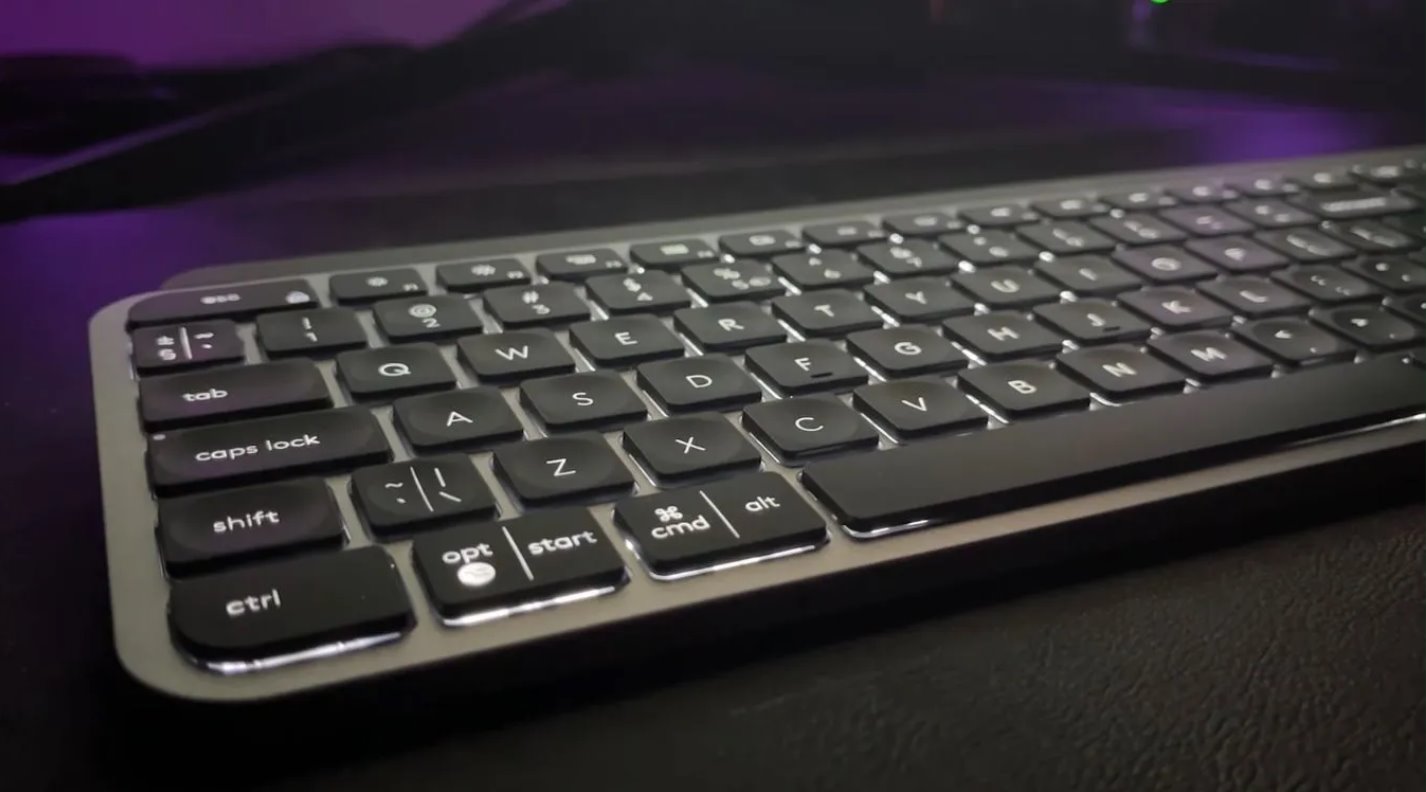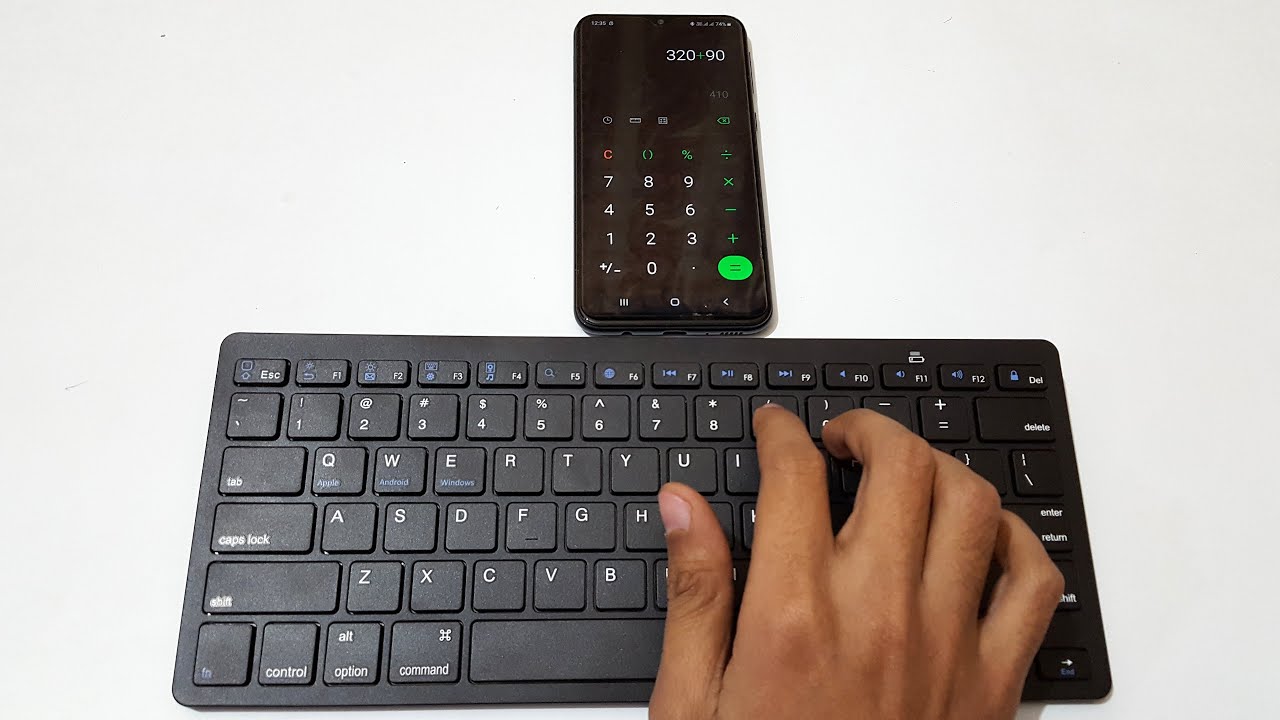
A wireless keyboard two devices setup does not mean simultaneous typing. Multi-device keyboards use a quick-switch system that lets you toggle between paired devices instantly. Only one receives input at any given moment. If you press a key while your keyboard is paired to both a laptop and a tablet, only the device currently selected by the Easy-Switch button or channel key will register that keystroke. The other device sees nothing until you toggle over to it.
What a wireless keyboard two devices connection really means
When a keyboard is labeled “multi-device,” it refers to its ability to store pairing information for up to three separate computers, phones, or tablets in its internal memory. The Easy-Switch keys let you instantly jump between those saved connections. They do not broadcast your typing to all paired devices simultaneously. Each press of an Easy-Switch key tells the keyboard to drop the current Bluetooth or 2.4GHz connection and establish a new one with the chosen device. This switching happens in under a second, which creates the illusion of simultaneous control. The keyboard’s transmitter can only talk to one receiver at a time.
The one-at-a-time rule
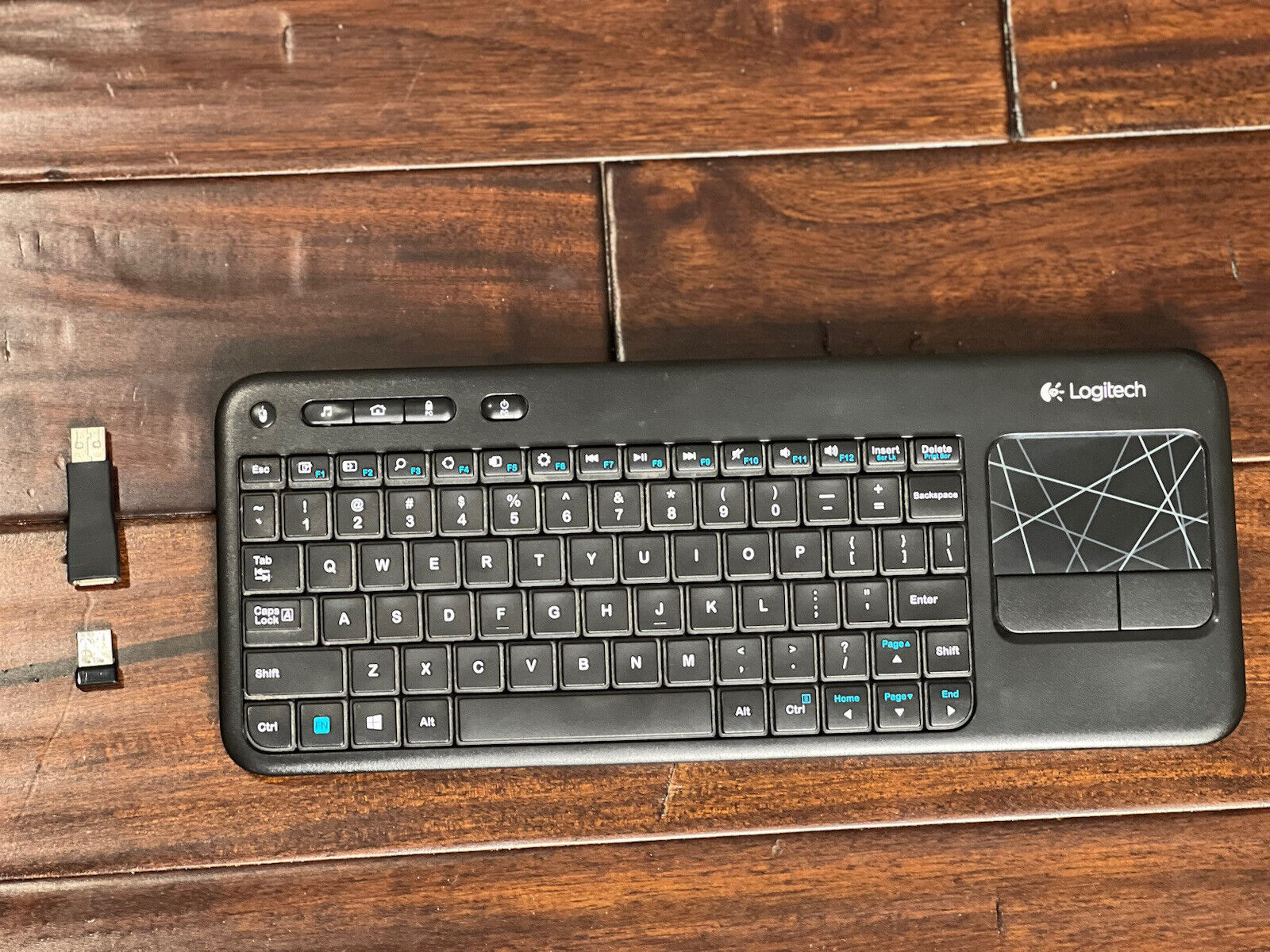
Bluetooth and proprietary 2.4GHz wireless protocols are designed for a single active data stream between a human-interface device and a host. When you attempt to type while physically pressing the Easy-Switch key to move from device A to device B, the keyboard’s firmware must first terminate the connection with device A before it can begin transmitting to device B. Any keystrokes you press during that transition window are lost. They are not buffered and sent to both devices. This is a hardware limitation: the radio chip inside the keyboard can only maintain one active pairing at a time. If you want to connect your keyboard to a second computer, you must press the corresponding channel key and wait for the LED indicator to confirm the link before you start typing again. If you rely on a single unifying receiver for this, lost wireless keyboard USB solutions can help you re-establish the connection without replacing the keyboard.
When you might think it works simultaneously
Software solutions like Logitech Flow or Synergy can create the impression that your keyboard controls two machines at once. With Logitech Flow enabled, moving your cursor to the edge of one screen instantly transfers control to a second computer on the same network. However, the keyboard itself is still following the one-at-a-time rule: it is physically connected only to the computer that currently has focus. Flow simply automates the channel switching behind the scenes, so you never have to press the Easy-Switch button manually. The same principle applies if you connect a Logitech wireless keyboard to a different receiver using a Unifying receiver. The keyboard still communicates with only that one receiver at any moment. Similarly, when you connect wireless keyboard and mouse to a shared receiver, each peripheral maintains its own single-device link. Even if you connect Logitech wireless keyboard without receiver by using Bluetooth directly, the keyboard’s radio chip still enforces the one-active-connection limit. The flow-based software is a clever automation layer, but it cannot override the hardware’s fundamental restriction.
The keyboard’s transmitter can only talk to one receiver at a time, so for guidance on setting up multiple connections, explore the broader topic of How To Connect Keyboard.