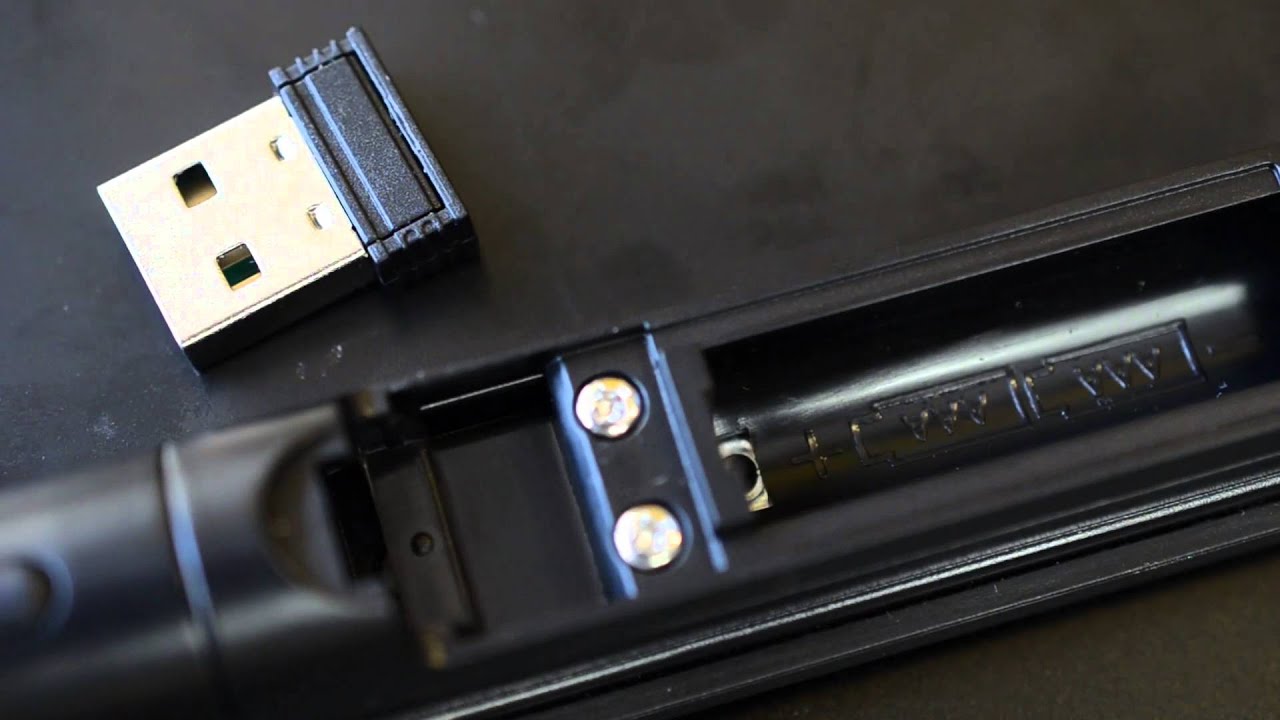
If you've lost your wireless keyboard USB, the solution depends entirely on whether your keyboard uses a proprietary receiver or a universal one. Identifying this one detail is the key to knowing if you can buy a replacement dongle or if you need a new keyboard entirely.
First, identify your lost wireless keyboard USB type
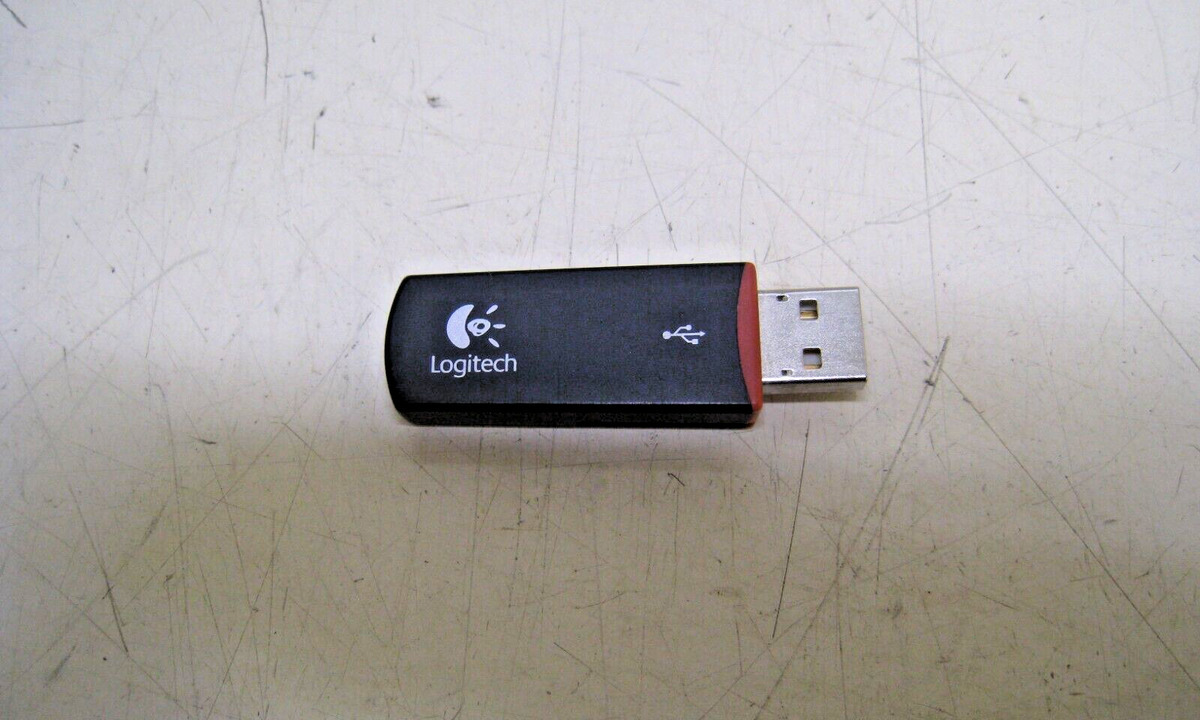
Not all wireless keyboard receivers are created equal. The most important distinction is between proprietary receivers and universal receivers. A proprietary receiver, commonly used by brands like Microsoft, is uniquely paired at the factory to a specific keyboard. This means the keyboard will only work with that exact dongle, and no other receiver can take its place. In contrast, a universal receiver, such as the Logitech Unifying receiver, can be paired with multiple compatible devices using software. Knowing which type you have determines whether a replacement is even possible.
What to do if you have a proprietary receiver
If your keyboard uses a proprietary receiver, most Microsoft wireless keyboards fall into this category, the manufacturer generally does not sell individual replacement dongles. Because the keyboard and receiver are factory-paired, there is no way to connect a new receiver to your existing keyboard through any official software or support channel. The only manufacturer-supported solution is to contact Microsoft Support for a full replacement if the device is under warranty, or to purchase a new keyboard and mouse set. The Microsoft Mouse and Keyboard Center software, while useful for configuring settings, does not facilitate pairing a lost proprietary 2.4GHz receiver, so that avenue will not help you reconnect.
What to do if you have a universal receiver
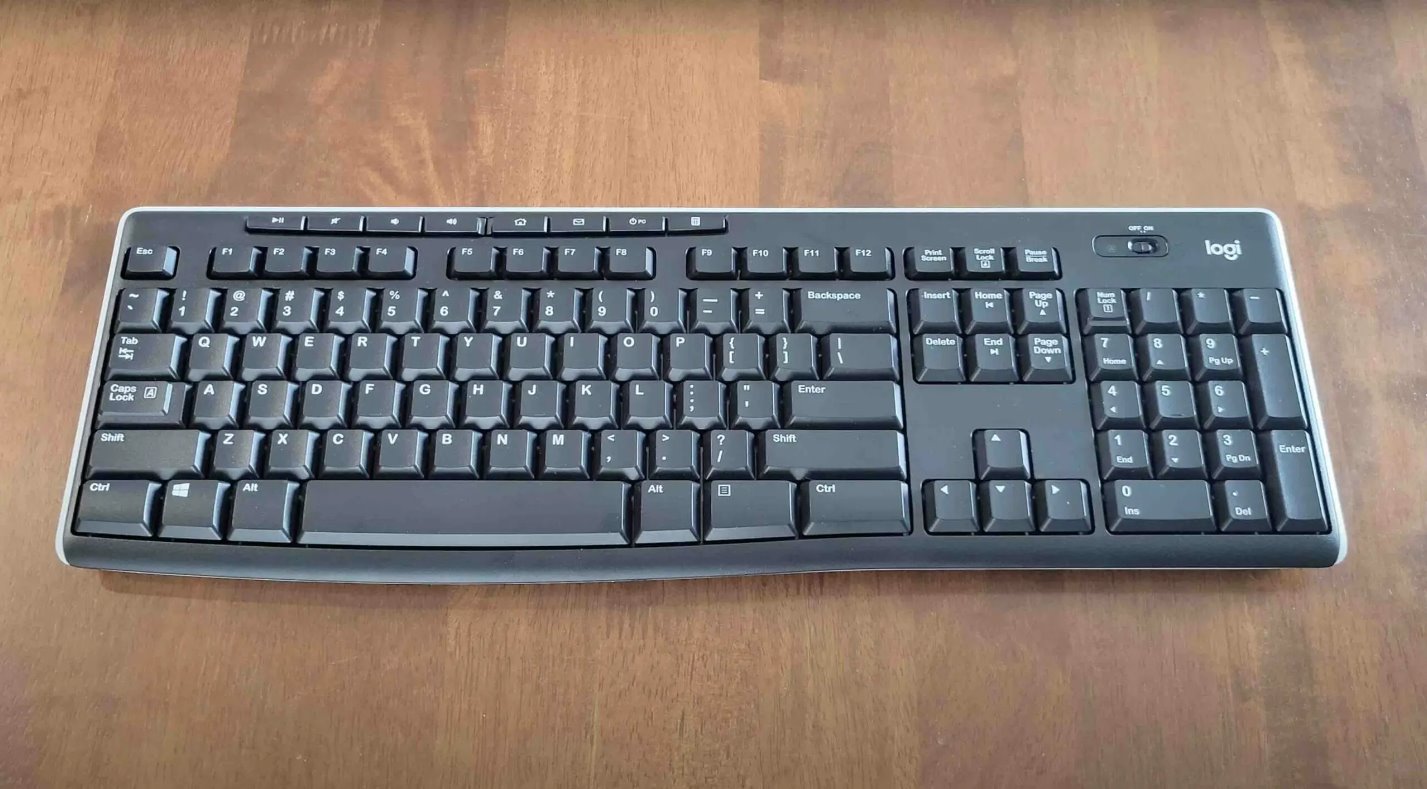
If your keyboard uses a universal receiver, such as a Logitech Unifying receiver, you have a straightforward path forward. You can purchase a compatible replacement receiver and use the manufacturer's pairing software to connect it to your keyboard. You can connect a Logitech wireless keyboard to a different receiver by simply acquiring a new Unifying receiver and running the Logitech Unifying software, which will guide you through the pairing process. If you lack a receiver entirely, you can connect Logitech wireless keyboard k270 without receiver by using Bluetooth if your model supports it. This method works because the receiver is designed to be reprogrammed, allowing you to restore full functionality without buying a new keyboard.
Use Bluetooth as a wireless alternative
You may be able to bypass the lost USB receiver entirely if your keyboard has built-in Bluetooth. First, check whether your keyboard supports Bluetooth natively, many modern wireless keyboards offer both 2.4GHz and Bluetooth connectivity. If it does, you can put the keyboard into pairing mode and connect it directly to your computer's Bluetooth settings. If your keyboard lacks built-in Bluetooth but your computer has a USB port, you can purchase a Bluetooth adapter. Once the adapter is installed, you can connect your keyboard to your computer via Bluetooth, completely sidestepping the need for the original dongle.
When to consider a replacement keyboard
If your receiver is proprietary and your keyboard does not have Bluetooth capability, the most reliable and cost-effective solution is to purchase a new keyboard set. Trying to find a third-party replacement for a proprietary receiver is rarely successful, and the time spent searching often outweighs the cost of a new keyboard. A new set will include a properly paired receiver, ensuring immediate and trouble-free operation. This approach also gives you the opportunity to upgrade to a model with Bluetooth or a universal receiver, making future losses easier to handle.