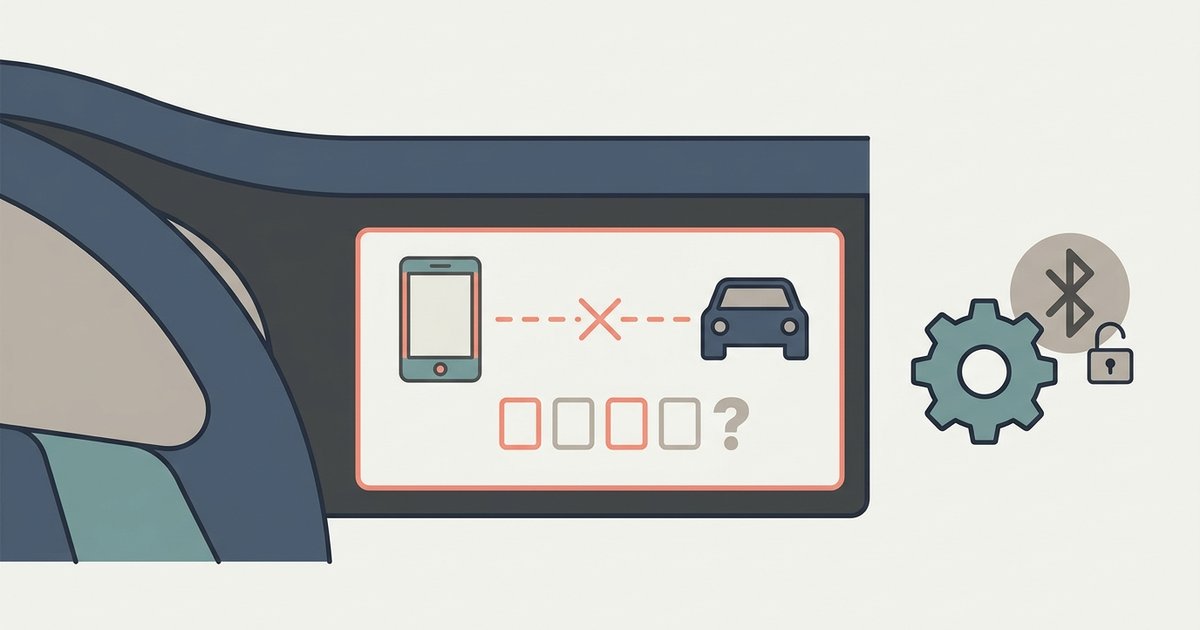
Your Nissan Bluetooth is not finding your phone because it's likely already paired under a different name or the system's memory is full. Delete your phone from the car's device list and delete the car from your phone's Bluetooth settings, then try pairing fresh.
Check if your phone is already paired with your Nissan
Nissan’s infotainment system often stores a paired phone under a name you don’t recognize. It might appear as “Unknown Device” or the phone’s model number from an old setup. Even if your phone no longer auto-connects, the car’s Bluetooth module treats that entry as a valid pairing. It will not scan for the same MAC address again. You must navigate to the Bluetooth settings menu on the car’s screen. This is usually under the Bluetooth settings menu on the car’s screen. Select “Delete” or “Remove” for every entry that could be your phone. Until you clear that record, the car’s scanner will skip your phone entirely, and if the system then rejects your pairing attempt, the nissan Bluetooth PIN code not working fix can resolve that next hurdle. It will show “No Devices Found” each time you hit “Search.”
Clear the car from your phone's Bluetooth memory
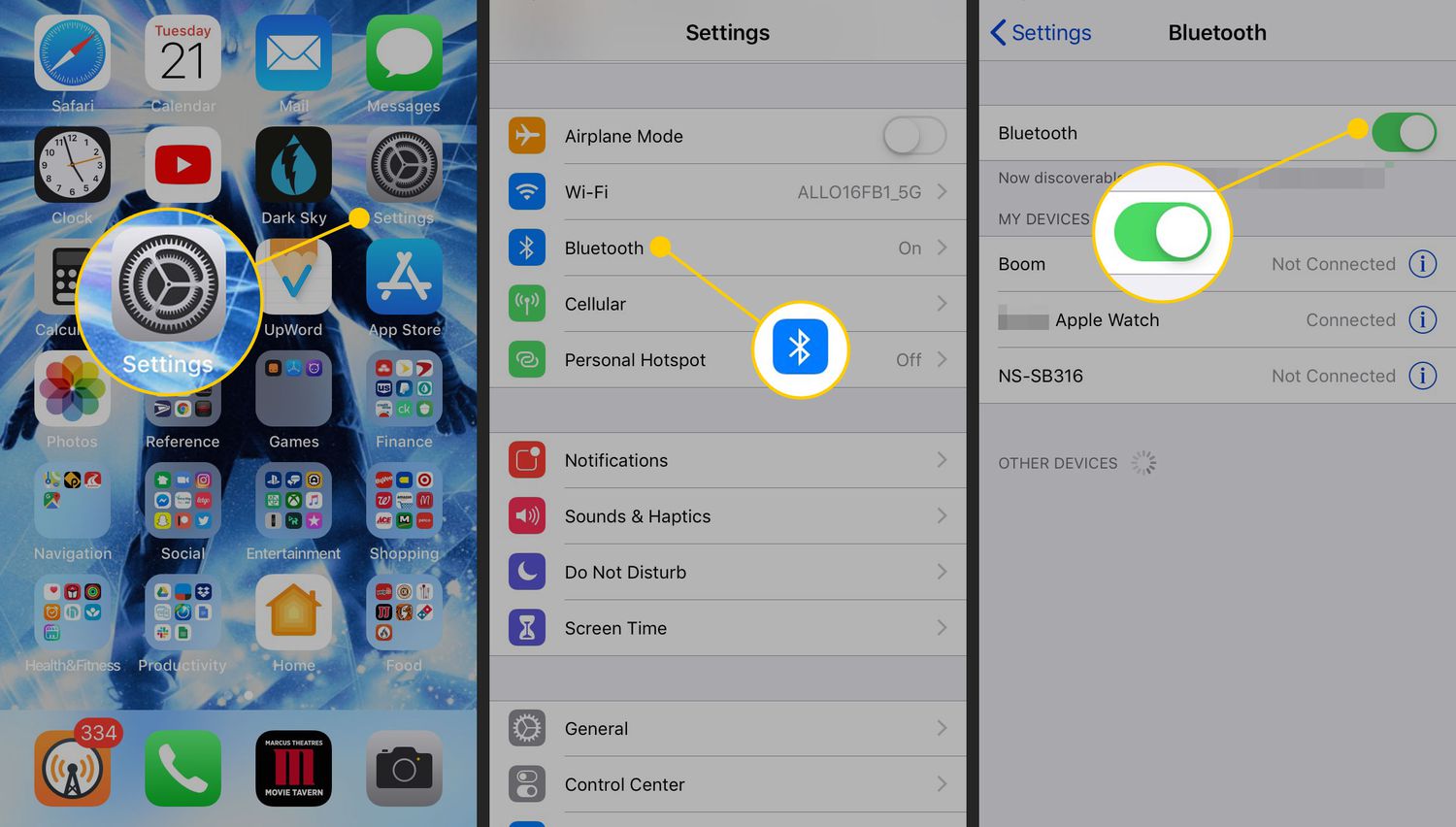
Once you’ve deleted the phone from the car’s list, you must also “Forget This Device” for the Nissan entry on your phone. Open your phone’s Bluetooth settings and find the Nissan name. It is often “Nissan” followed by a model name or “Hands-Free Link.” Tap the gear icon and select “Forget.” This step is mandatory because the phone retains a cached pairing profile. That profile tells it to reject any new handshake from the same car unless it sees a fresh pairing request. If you skip this, the car will broadcast its standard name. The phone will silently ignore it because it thinks it’s already connected. The scan will fail again. After forgetting, restart Bluetooth on both devices. This forces them to treat each other as unknown.
When the device list is full
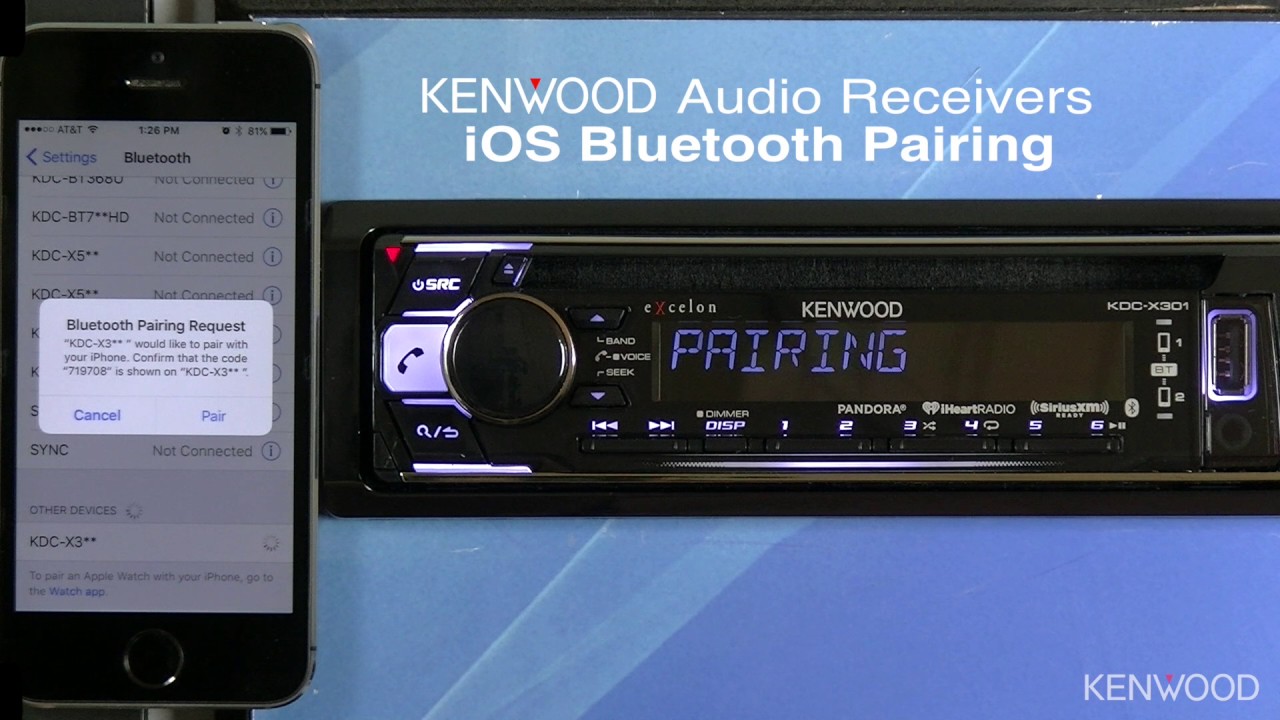
Most Nissan models limit the paired device memory to a set number of entries, depending on the year and trim. When that limit is reached, the system silently refuses to scan for new phones. It will show the “Search” button as active but return zero results. To diagnose this, check the count of devices under “Paired Devices” in the car’s Bluetooth menu. If it shows the maximum number of entries, you must delete at least one before the car will accept a new pairing. Remove an old phone or a guest device. After removing one, you can then proceed with the fresh pairing process. For a step-by-step walkthrough of the whole procedure, you can search online for “connect to nissan Bluetooth” guides. If you later need to pair that same phone with an aftermarket stereo, the process to connect phone to kenwood radio Bluetooth differs slightly from the Nissan system. The key takeaway for your Nissan is always to check the memory limit and clear both sides before attempting a new scan.