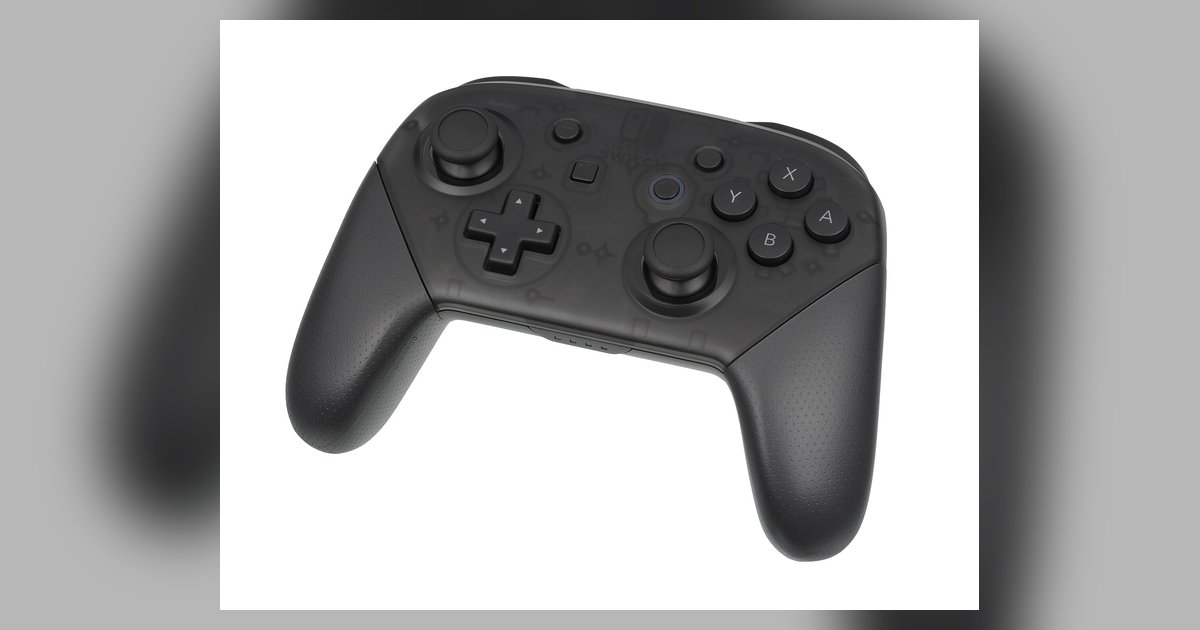
Get your controller ready to connect
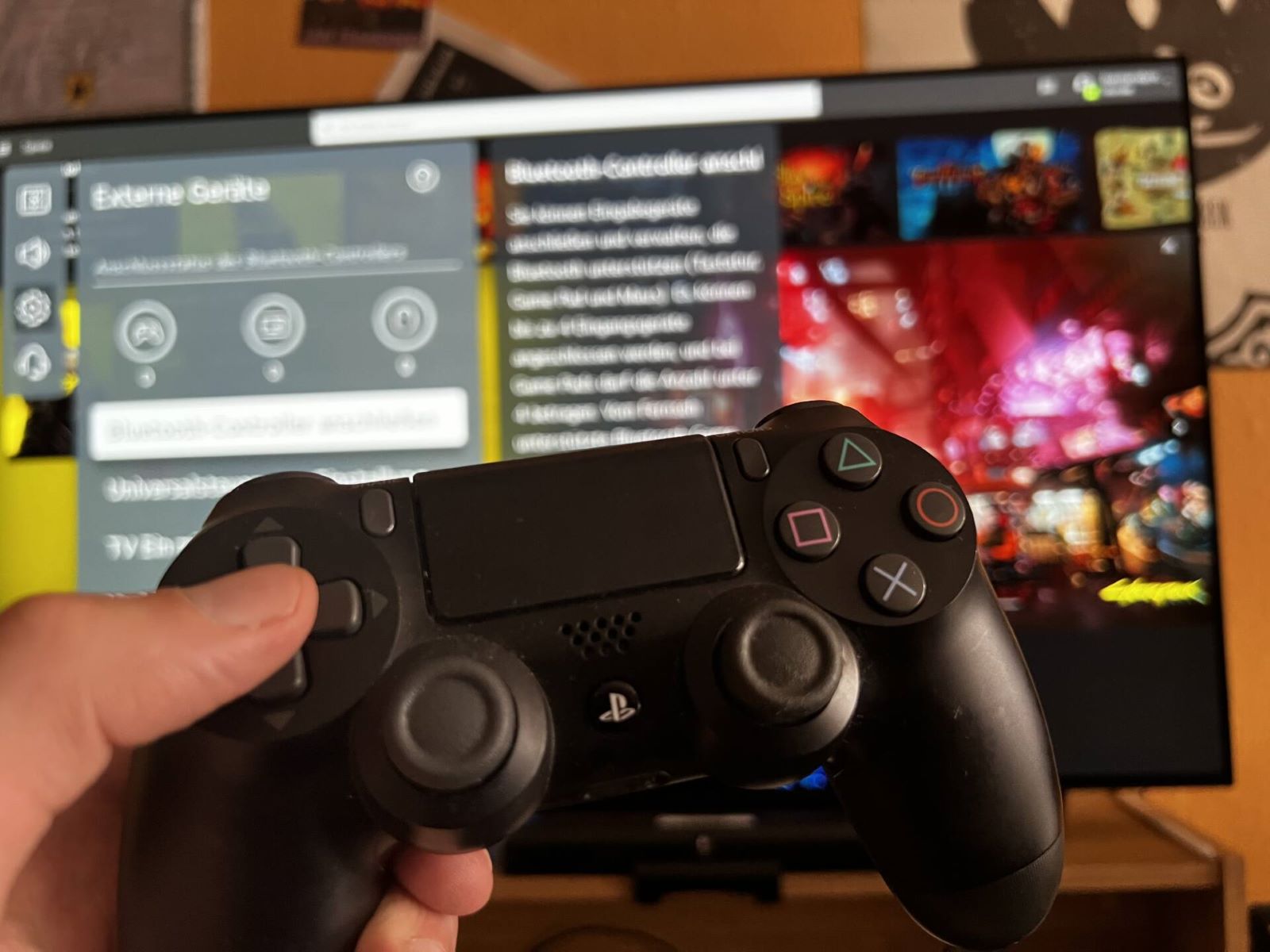
To connect a game controller to any device, first make sure it has enough charge, as most wireless controllers need at least a partial battery to enter discovery mode. For a PlayStation pad, you'll typically press and hold the Share button and the PlayStation button simultaneously until the light bar begins to flash (for a DualShock 4), or hold the Create button while pressing the PS button until the light bar blinks (for a DualSense). This is how you put PS5 controller in pairing mode, and the flashing indicates it's broadcasting a wireless signal. If you're working with an Xbox controller, press and hold the Pair button on the top edge for three seconds until the Xbox button starts flashing rapidly. For Nintendo Switch Pro controllers, hold the sync button on the top until the indicator lights cycle. On the device side, you may need to turn on PlayStation 5 or enable Bluetooth on your PC first. If the controller doesn't appear in your device list after a minute, check that no other device is actively connected to it, a common reason for my PS5 controller not connecting is that it's still linked to a console or phone. A quick reset clears old connections and lets you start fresh. Keep the controller close to the device during this process; walls and metal objects can interfere with the handshake.
Unlike most guides that treat every link as a simple button press, the real secret is understanding that your controller actively fights to reconnect to its last known host before it ever listens to a new one. This homeward bind is the single biggest reason a seemingly functional pad refuses to show up in a fresh device list, and knowing how to break that invisible tether is what separates a frustrating guessing game from a reliable setup every time.
Wireless gamepads cling to their most recent connection with a stubbornness that surprises many users. When you activate discovery mode, the controller doesn't immediately start hunting for new hardware. Instead, it first tries to re-establish the bond with whatever console, phone, or computer it was last tethered to. This automatic callback happens silently in the background, and while it's attempting that reunion, your new device remains completely invisible to it. The controller literally isn't looking for your tablet because it's busy knocking on a familiar door that isn't opening. This is why the most reliable method always begins with a clean slate. Before you even touch the sync controls, walk over to the original host device and actively tell it to forget this peripheral. On a console, navigate to the accessories menu and delete the saved profile. On a phone or PC, unpair or remove the device from the remembered list. This step alone solves the majority of failed attempts, because you're not just asking the controller to find something new, you're first releasing it from its old obligation.
Physical interference creates a second layer of invisible friction that generic instructions rarely address in detail. Modern short-range radio operates in the crowded 2.4 GHz spectrum, the same band used by Wi-Fi routers, microwave ovens, and even some USB 3.0 ports. When you hold a controller near a running laptop with an external hard drive plugged in, the electrical noise from that unshielded cable can flood the exact frequencies your sync attempt needs. The solution isn't just getting closer, it's getting cleaner. Move away from active USB hubs, turn off nearby wireless speakers temporarily, and if you're connecting to a desktop PC, use the front ports or an external adapter rather than the rear motherboard jacks, which are often nestled in a nest of interfering electronic chatter. The three-foot rule is a starting point, but a three-foot radius free of active electronics is the real target.
Battery psychology trips up even experienced users. A controller with a twenty-percent charge might power on, light up, and even appear to enter discovery mode, but many models intentionally throttle their radio output when the battery dips below a critical threshold. This is a power-saving measure designed to preserve enough juice for a wired connection, but the manual rarely warns you about it. The light bar flashes, the buttons respond, and by all visible signs the peripheral is ready to link, yet it never appears in your available devices list. The fix is counterintuitive because the controller looks functional. Plug it into a power source for at least ten minutes before attempting the wireless handshake, even if the indicator suggests it has life left. That brief charge pushes the voltage high enough for the radio to broadcast at full strength, and suddenly the device name pops up exactly where you expected it.
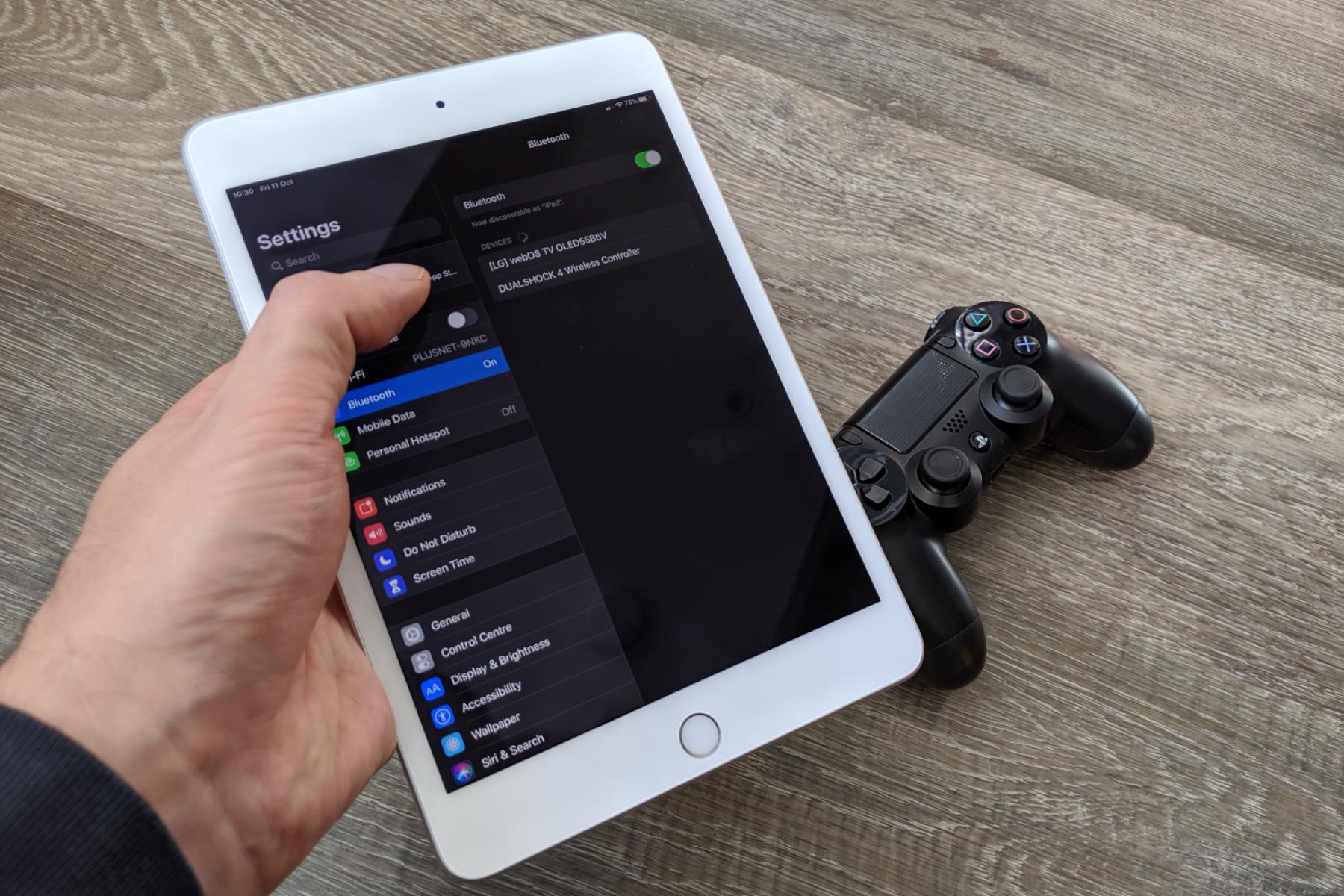
Operating system quirks demand different approaches depending on your platform. Windows often requires a quick visit to Start > Settings > Bluetooth & devices, where you can select "Add device" and then "Bluetooth" to force a fresh scan. Apple's ecosystem handles the initial handshake through the System Settings or System Preferences panel. Android offers a straightforward scan under Settings > Connected devices > Pair new device. ChromeOS provides a straightforward interface for connecting controllers. On a smart TV, the menu may be buried under a general settings heading rather than a dedicated wireless section, so don't hesitate to explore adjacent settings categories.
When a controller stubbornly refuses to appear after you've cleared old bonds, charged the battery, and eliminated interference, a forced hardware reset is your next move. Some gamepads include a recessed reset button, accessible with a paperclip or SIM tool. Holding this for several seconds doesn't just turn the controller off, it forces the firmware to reload from scratch. This is a deeper reset than simply removing and reinserting a battery pack, and it often resolves the mysterious my PS5 controller not connecting scenario where everything looks correct but the handshake never completes. After the reset, the controller wakes up with no memory of any previous host, behaving exactly as it did when it first left the factory. This virgin state is the most cooperative starting point for any fresh link, and it's the step professional technicians rely on when all the standard advice falls short.
Connect to consoles
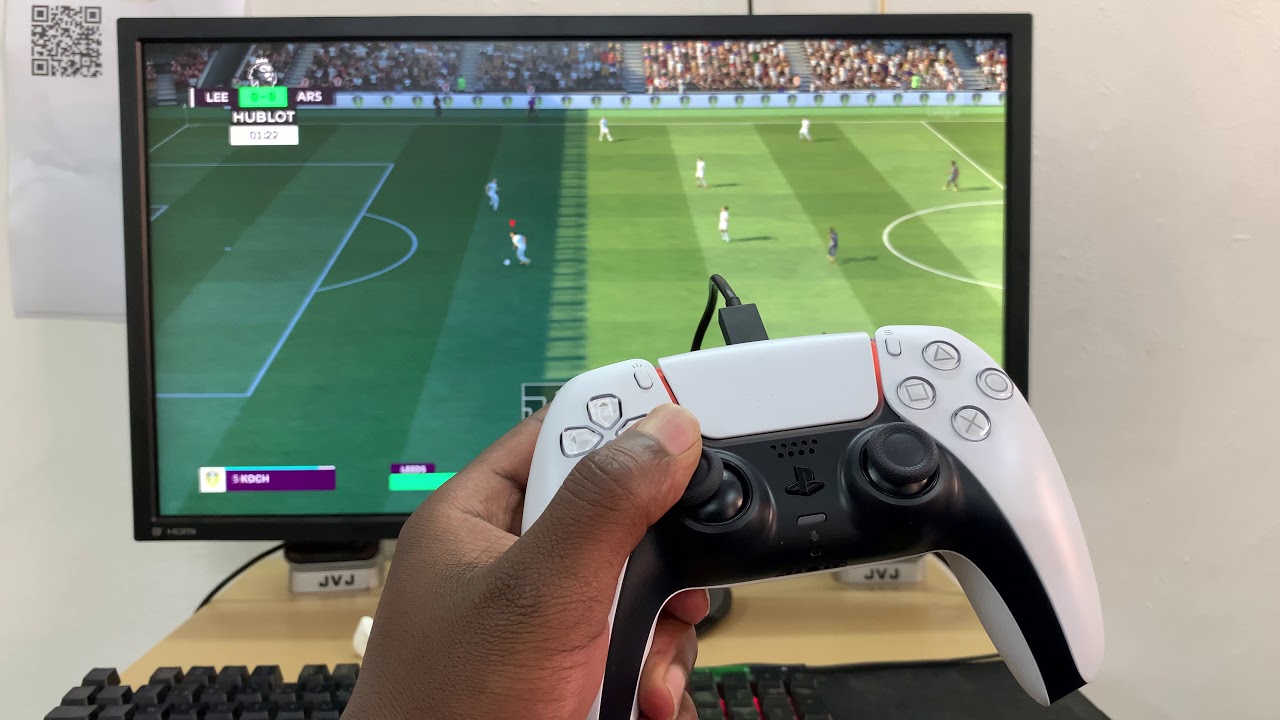
To link a controller directly with a console, start by putting the gamepad into discovery mode. For a PlayStation 5, connect the controller using the included USB-C cable and then press the PS button. The controller will pair automatically once you press the PS button, which is exactly what you do when you want to pair new PS5 controller. If you already have a primary controller connected and want to add a friend, you can simply connect a second PS5 controller by connecting it via USB cable and pressing the PS button; the console will recognize it as a new player as soon as it links up. For older Sony hardware, the method changes slightly: you must connect the controller via USB cable and press the PS button to connect PS4 controller Bluetooth, and you can find a dedicated guide for that process. Likewise, if you are using a PS4 controller on a PS5 for backward-compatible games, you need to connect PS4 controller Bluetooth via the PS5's Bluetooth settings, though the PS5 will restrict it to PS4 titles only. If the controller refuses to link, first check that no other device is actively connected to it, then hold the reset button on the back of the controller for five seconds using a paperclip. Also ensure your console’s system software is fully updated, as outdated firmware is a common cause of sync failures. If you are using a PS5 controller on a PC or mobile device, you will want to connect PS5 controller Bluetooth to enjoy wireless freedom without needing a USB cable, and a full article explains the steps in detail.
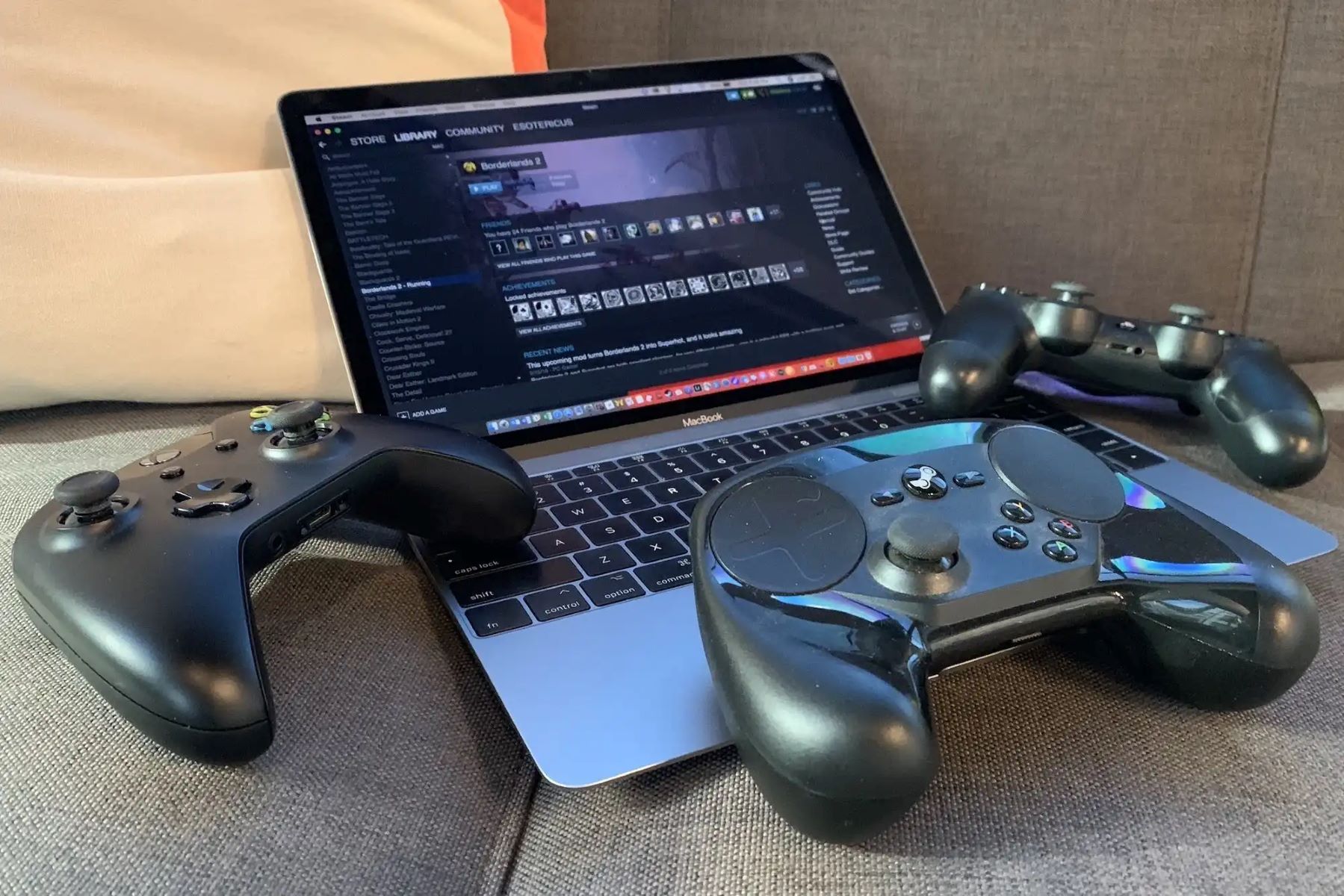
Connecting to a Windows PC gives you two distinct paths depending on your hardware, and the experience differs dramatically between a wired USB setup and a completely cable-free configuration. The most reliable method is a direct USB-C connection, which requires zero additional setup and provides the lowest possible latency for competitive gaming. Windows will automatically recognize the device and install the necessary drivers within seconds, making this the preferred approach for esports players who cannot afford a single frame of delay. When you go wireless, your PC needs to support the specific radio protocol, and not every desktop comes with that capability built in from the factory. You may need to invest in a dedicated adapter that plugs into a USB port and handles all the communication between your computer and the gamepad. Once your machine is ready, you will hold the sync button on the controller until the light bar pulses, then open the Windows settings to add a new wireless device. The system will scan for nearby accessories and display the controller as an available option, and a single click completes the handshake. One persistent issue that catches many users off guard involves Steam’s controller configuration layer, which can intercept inputs and cause strange behavior in non-Steam games. If your buttons are not responding correctly or the game shows keyboard prompts instead of controller icons, open Steam’s controller settings and temporarily disable the configuration support for that specific gamepad type. This single troubleshooting step resolves the majority of compatibility complaints on Windows machines.
Apple devices offer a surprisingly seamless experience that many gamers overlook, and the integration runs deep across the entire ecosystem from macOS to iOS and even tvOS. The process begins the same way on every Apple platform: you will put the gamepad into discovery mode by holding the appropriate button combination until the status indicator flashes rapidly. On a Mac, you then open System Settings, navigate to the wireless hardware section, and look for the controller name in the list of nearby accessories. Clicking it establishes the link immediately, and the controller will appear in the connected devices list with a battery percentage indicator that updates in real time. This battery readout is a small but meaningful quality-of-life feature that prevents the frustration of a dead controller mid-session. The same basic workflow applies to an iPhone or iPad, where you will find the controller option inside the wireless settings panel rather than a dedicated gaming menu. Once linked, the gamepad works natively with thousands of App Store titles that support MFi or modern console controllers, and Apple Arcade games are essentially guaranteed to work flawlessly. A lesser-known trick involves the Control Center on iOS, where you can quickly disconnect and reconnect the accessory without diving back into the full settings menu, saving valuable seconds when you are eager to jump into a game. If the controller appears to be connected but does not register any inputs, toggle the wireless radio off and back on from the Control Center, which forces a clean renegotiation of the signal without requiring a full restart of either device. This quick fix addresses the vast majority of intermittent connection drops on Apple hardware.
Android and Chromebook users have the most flexible ecosystem of all, but that openness comes with a slightly steeper learning curve and more variation between different phone manufacturers. The core process remains consistent: you will activate the controller’s discovery mode, then open the Settings app on your Android device and tap through to the connected devices section. From there, selecting the option to add a new accessory triggers a scan, and your gamepad should appear in the results within a few seconds. Tapping the name finalizes the bond, and the controller will typically vibrate briefly to confirm a successful handshake. Samsung Galaxy devices sometimes include a separate menu called Connections that serves the same purpose, and Pixel phones keep everything under the standard wireless settings category. Chromebooks follow an almost identical procedure, though you will access the settings through the quick settings panel in the bottom-right corner of the screen rather than a dedicated app. One critical step that many tutorials skip involves checking the input mapping immediately after linking, because some Android implementations default to incorrect button layouts that make games unplayable. You can verify the mapping by opening any gamepad testing app from the Play Store and pressing every button to confirm the correct signals are being sent. If the mapping is wrong, apps like Mantis Gamepad Pro can create custom profiles that translate the inputs into touchscreen coordinates, effectively making any Android game controller-compatible even if the developer never added native support. This capability to force compatibility with touch-only games is something no other platform can match, because Android’s accessibility framework allows third-party apps to intercept and remap controller signals at the system level.
- connect PS5 controller Bluetooth — How To Connect PS5 Controller Bluetooth
- connect PS4 controller Bluetooth — How To Connect PS4 Controller Bluetooth
- connect a second PS5 controller — How To Connect A Second PS5 Controller
- pair new PS5 controller — How To Pair New PS5 Controller
Connect to computers
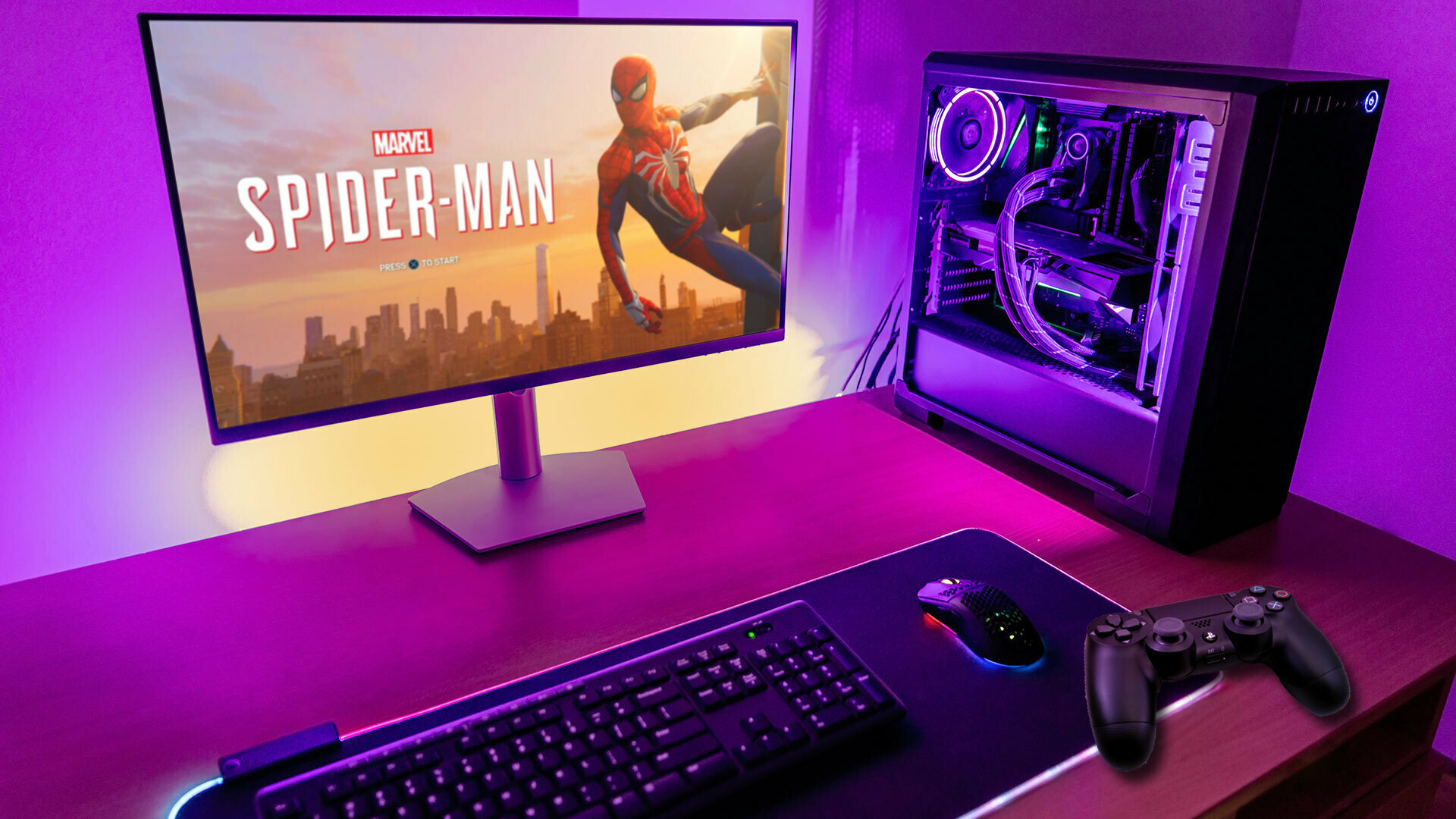
Start by checking whether your controller uses a standard USB cable, a wireless dongle, or native Bluetooth. If you have a wired Xbox or PlayStation pad, plug it into any USB port, Windows should automatically install the necessary drivers within a minute. For wireless setup, the simplest method is to connect controller to PC using the synchronization trigger on the front of the receiver or the controller itself. If you own a Sony pad, the buttons vary: for a DualShock 4, press and hold the Share and PS buttons simultaneously; for a DualSense, press and hold the Create and PS buttons simultaneously until the light bar begins flashing; this tells Windows you want to connect PlayStation controller to PC over a cordless link. Once the controller appears in the list of available devices, select it and click Pair. If you are running Windows 10, the process is nearly identical: open Settings, go to Devices, then Bluetooth & other devices, and choose Add Bluetooth or other device. That step is how you connect a Bluetooth game controller to Windows 10 without any extra software. For controllers that lack a dedicated synchronization trigger, you may need to add a game controller to Bluetooth by holding its home button for several seconds until it enters discovery mode. After the handshake completes, test the input in the Windows Game Controller settings panel to confirm all buttons and sticks respond correctly.
Use controllers across different platforms
When you try to use a controller across platforms, the biggest surprise is that compatibility isn’t guaranteed. If you want to use Xbox controller on PS5, for example, the console simply won’t recognize it wirelessly, you need a third-party adapter. That adapter adds a layer of software that translates button inputs, but it also introduces a real trade-off. Many gamers report that a PS5 adapter causing input lag is a common complaint, especially in fast-paced shooters where every millisecond matters. The lag might be barely noticeable in menus or slow games, but in a competitive match, that delay can cost you a round. There’s also a less obvious risk. Sony’s terms of service prohibit unauthorized hardware that modifies the console’s behavior. The possibility of getting banned for using a controller adapter on PS5 is rare, but it has happened when the adapter mimics a licensed device in a way that triggers anti-cheat systems. If you instead connect your Xbox controller to your tablet, the situation is much safer, Android and iOS both support wireless gamepads natively, so no adapter is needed. You just link it like any other accessory, and the tablet treats it as a standard HID device. The real danger zone is always the console that wasn’t built for the controller, so check reviews for adapter latency and read the fine print on compatibility before spending any money.