You can connect two Bluetooth headphones to an iPad using Apple's Audio Sharing feature, allowing two people to listen to the same audio from a single device. This works with compatible Apple and Beats headphones, making it easy to share a movie, podcast, or playlist without disturbing others.
Before you begin: what you need to connect two Bluetooth headphones to iPad
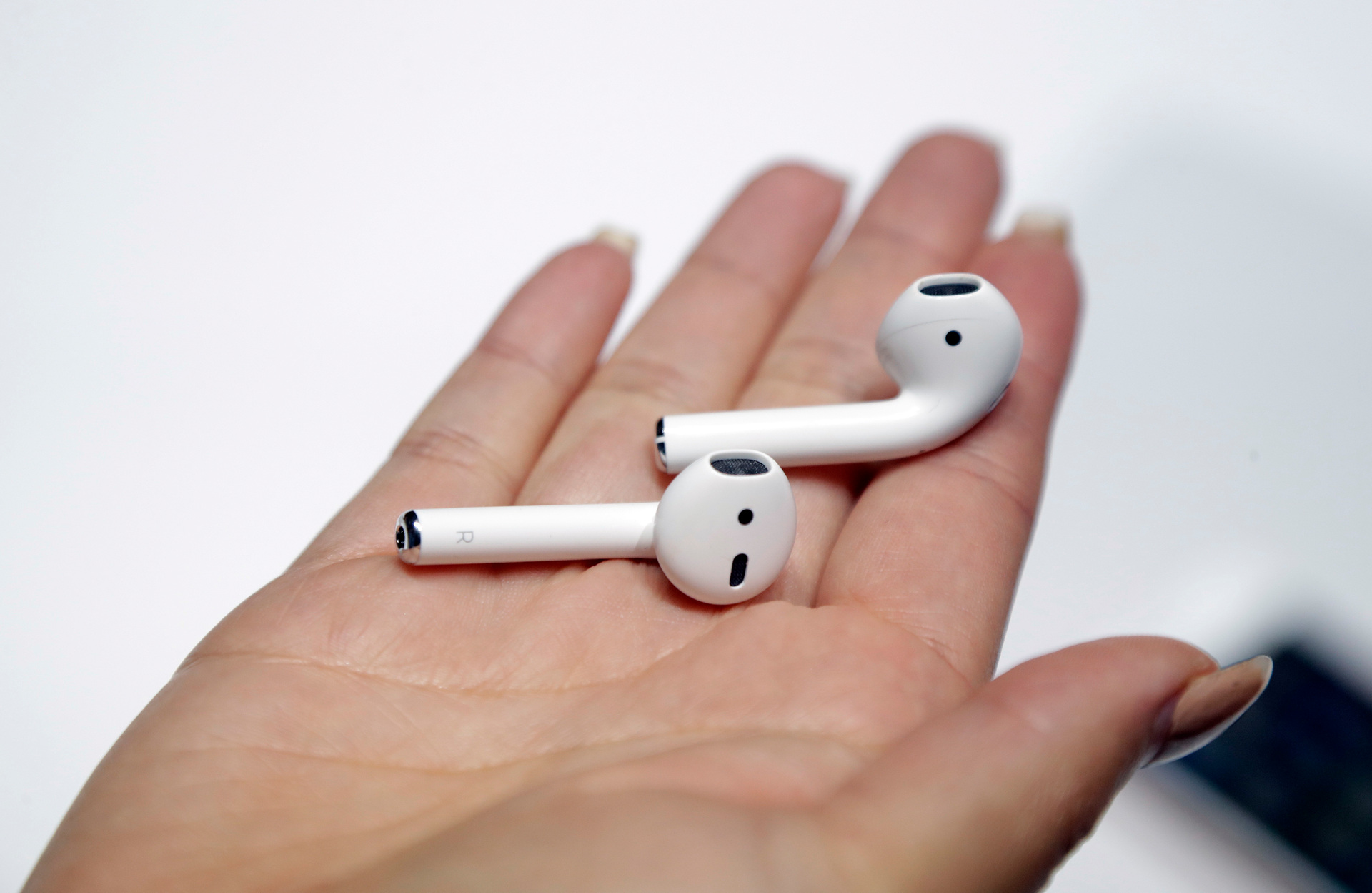
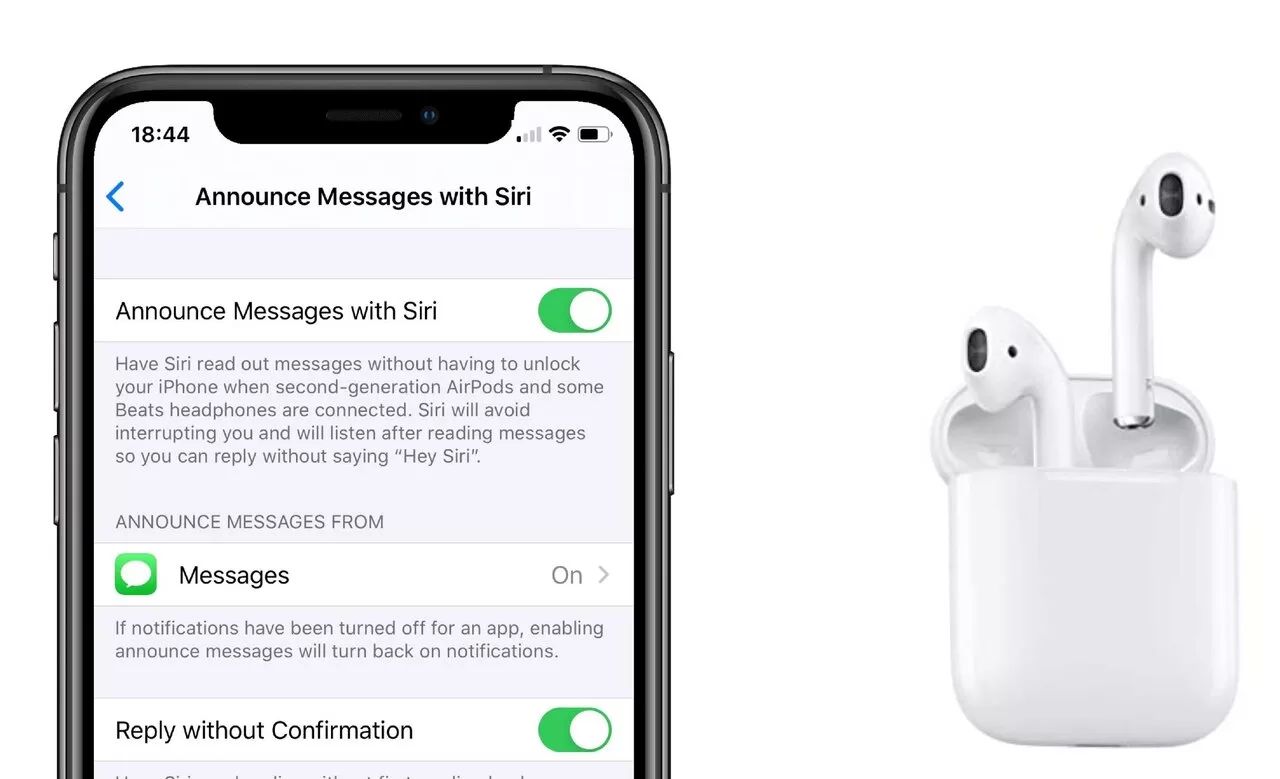
Audio Sharing is designed for specific headphones and iPads. To use it, both pairs of headphones must be from Apple or Beats, such as AirPods, AirPods Pro, AirPods Max, or Beats models with the Apple H1 or H2 chip. Your iPad must be a supported model, including iPad Pro, iPad Air, and iPad Mini with iPadOS 13 or later. Note that Audio Sharing only works with compatible Apple and Beats headphones; other brands like JBL wireless earbuds cannot share audio simultaneously through this feature, but you can still connect biconic wireless earbuds for solo listening on your iPad.
How to share audio with two headphones using your iPad
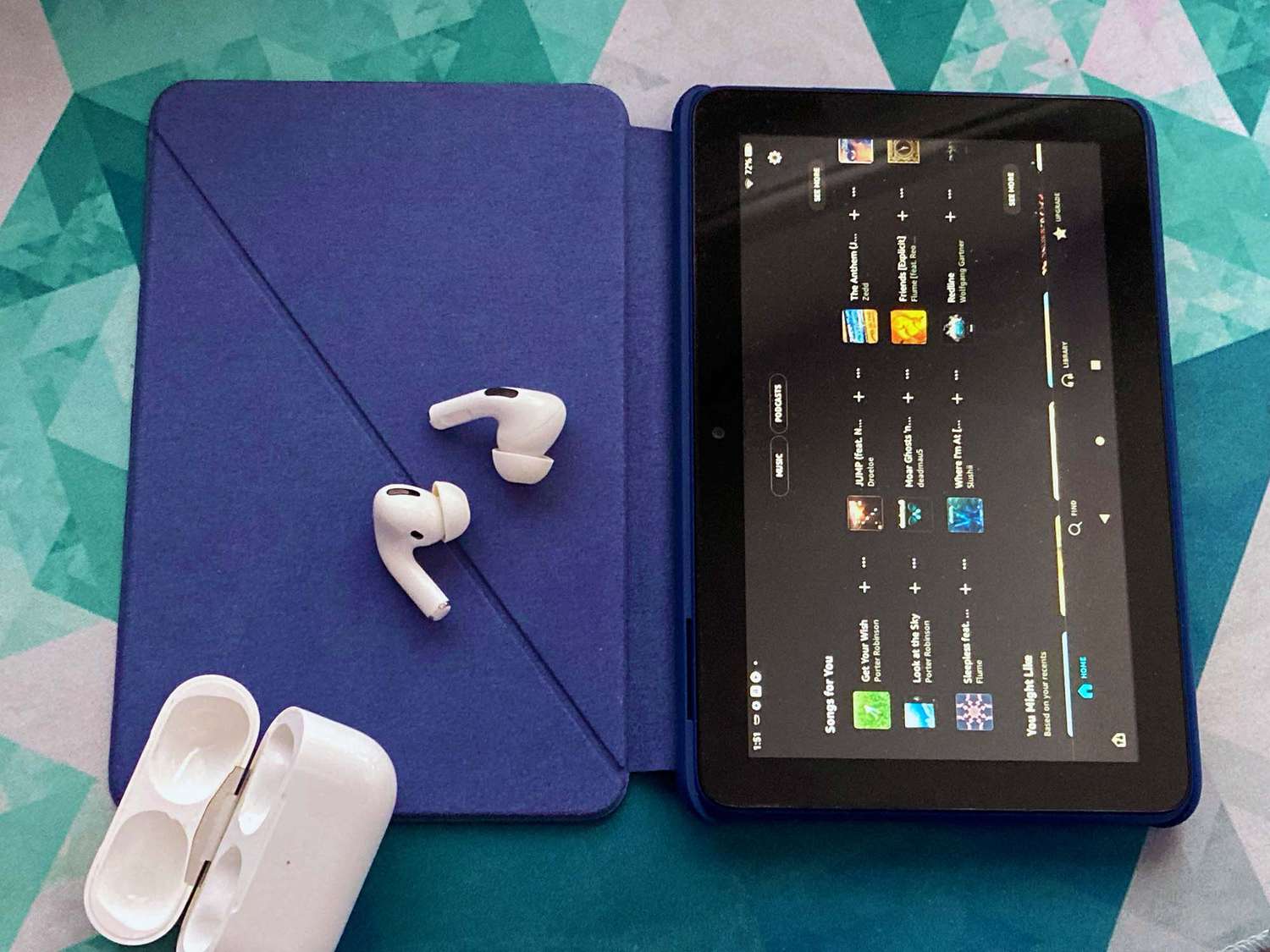
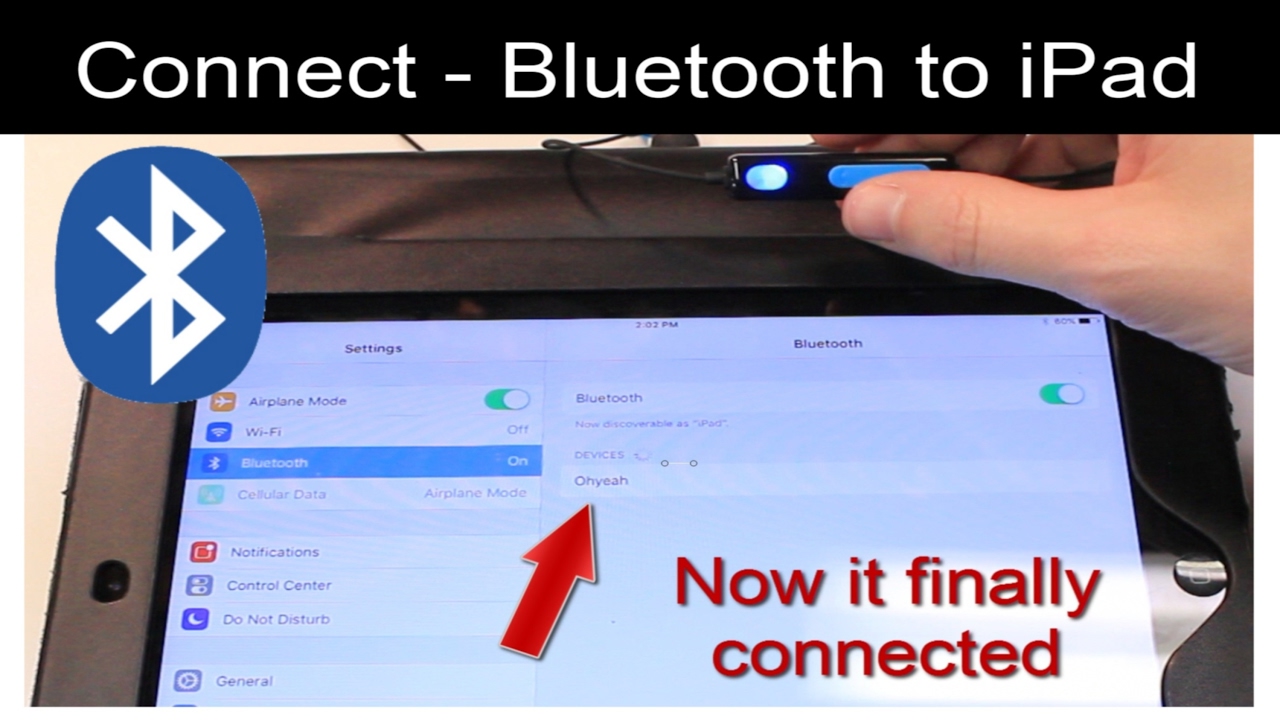
- Connect the first pair of headphones to your iPad as you normally would, go to Settings, tap Bluetooth, and select your headphones from the list.
- Start playing audio on your iPad, such as music, a video, or a podcast.
- Open Control Center by swiping down from the top-right corner of the screen.
- Tap the AirPlay icon (which may look like an AirPods icon or a triangle with three circles) in the music playback widget.
- Tap "Share Audio" on the screen.
- Bring the second pair of compatible headphones close to your iPad. You may need to put them into pairing mode, for AirPods, open the case lid; for Beats, hold the pairing button.
- Select "Share Audio" on your iPad's screen and follow any on-screen instructions to complete the pairing.
Once connected, both pairs of headphones will play the same audio simultaneously.
How to control volume and listening modes for each person
After sharing audio, you can adjust the volume independently for each listener. In Control Center, touch and hold the volume control to display two independent volume sliders, one for each pair of headphones. Each person can set their preferred level without affecting the other. For AirPods Pro and AirPods Max, you can also choose a different listening mode for each listener, such as Noise Cancellation or Transparency, by accessing the audio settings in Control Center.
What if share audio isn't working?
If Audio Sharing fails, try these troubleshooting steps. First, check the battery levels of both headphones, low battery can prevent a stable connection. Move both headphones closer to your iPad, as Bluetooth signals weaken with distance. Ensure the second pair of headphones is in pairing mode (e.g., open the AirPods case lid or hold the pairing button for Beats); if you need a refresher on entering that mode, you can connect beats to Bluetooth with a step-by-step walkthrough. If the issue persists, restart your iPad and try again.