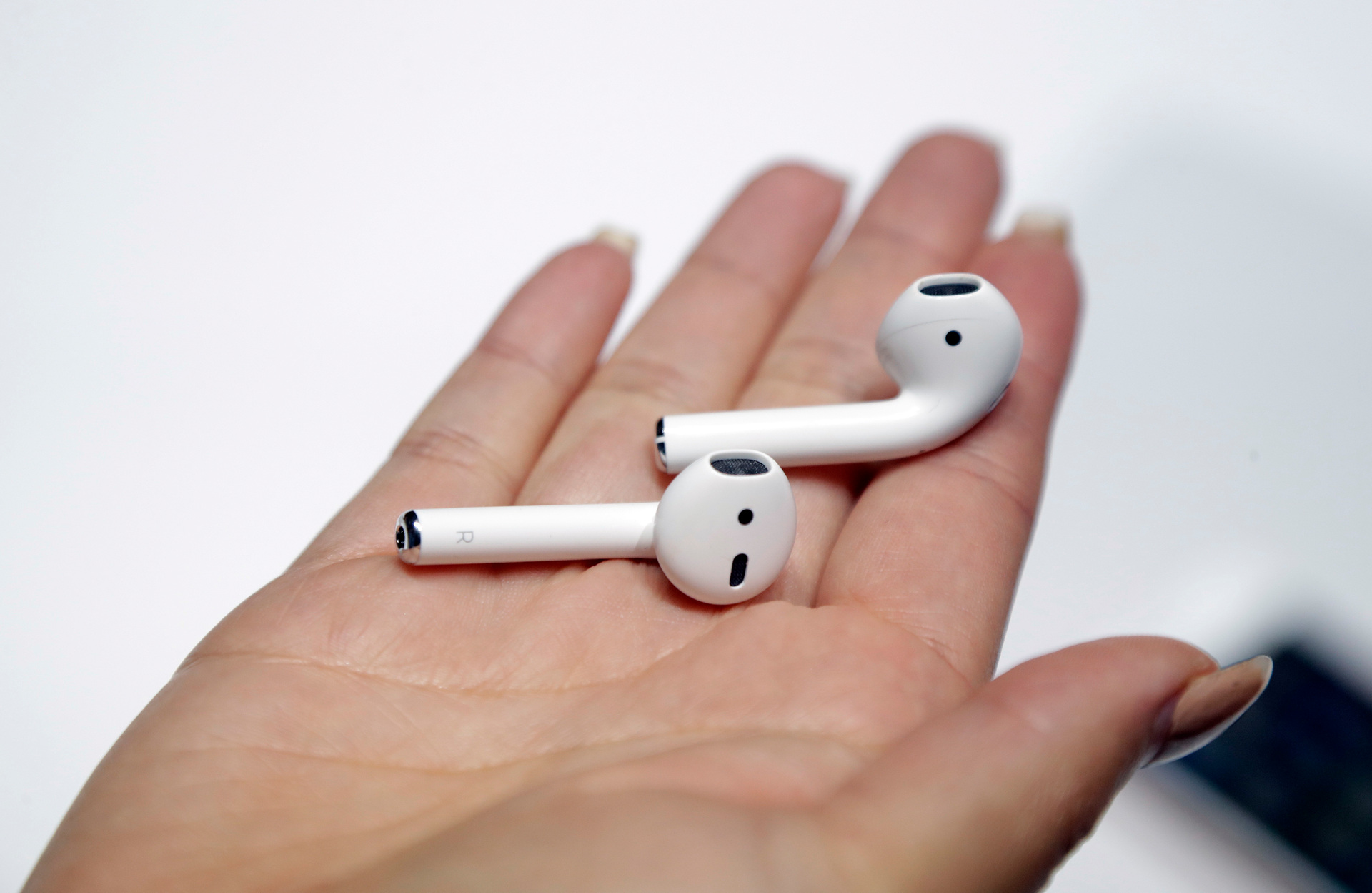
You can reset found AirPods to factory settings, but only if you understand the critical limits of what that reset actually accomplishes. Resetting found AirPods clears their pairing history, allowing you to connect them to your own device, but it does not remove them from the original owner's Apple ID or disable Lost Mode if it was activated.
Before you reset found AirPods: what you must know
Before you proceed, you need to know that resetting the AirPods is not the same as claiming ownership. The original owner can still track their location using the Find My app, and if they enabled Lost Mode, that lock stays in place no matter what you do. This means you should first check if the original owner left contact information. Open the Find My app on your own iPhone or iPad and look for the "Identify Found Item" feature. If the owner set up Lost Mode, they may have included a message with a phone number or email so you can return the AirPods. Skipping this step could mean you are taking someone else's property that they can still monitor.
How to reset found AirPods to factory settings
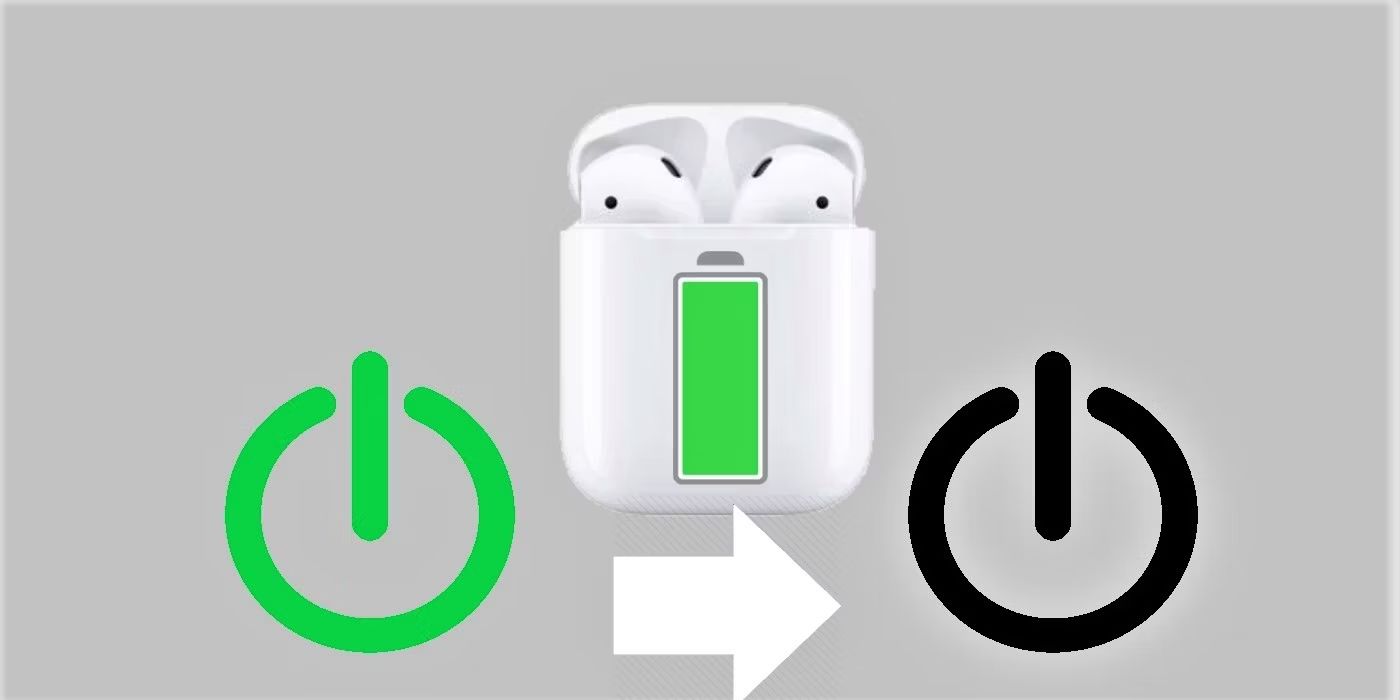
To prepare for a reset, place both AirPods in their charging case and close the lid for at least 30 seconds. After that, open the lid and follow the steps for your specific model. The status light on the charging case (or AirPods Max) will flash amber, then white, indicating a successful reset.
- For AirPods (1st, 2nd, and 3rd generation) and AirPods Pro (1st and 2nd generation): With the lid open, press and hold the setup button on the back of the case for about 15 seconds.
- For AirPods 4 and AirPods Pro 3: With the lid open, double-tap the front of the case three times.
- For AirPods Max: Press and hold both the Digital Crown and the noise control button on the right headphone for about 15 seconds.
After the status light flashes amber and then white, the factory reset is complete. If the AirPods were previously paired to your device, you must first go to Settings > Bluetooth, tap the "i" or "More Info" button next to the AirPods, and select "Forget This Device" before starting the reset process.
How to pair your reset AirPods with a new device
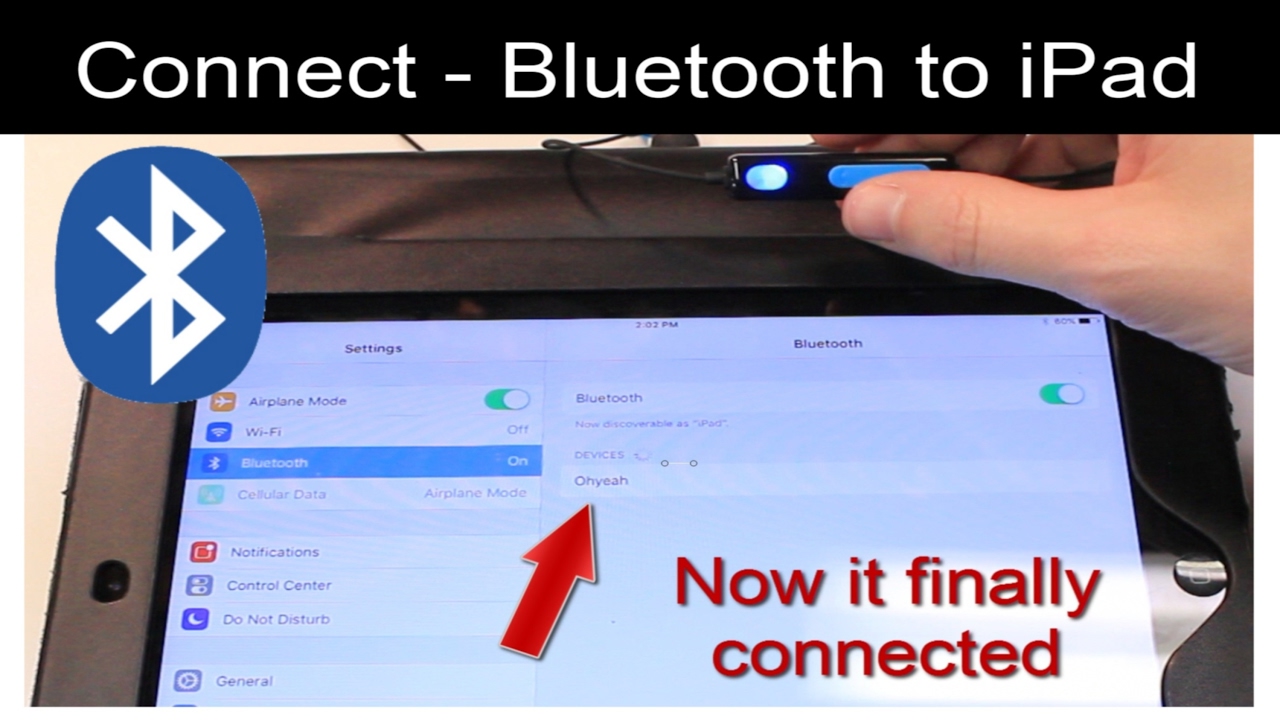
After a successful reset, the AirPods are ready to be paired with a new device. The easiest method is to open the case near an iPhone or iPad, a setup animation should appear on the screen. Follow the on-screen instructions to complete pairing. For non-Apple devices, you can manually pair via Bluetooth settings. This works for any model that has been reset.
What the original owner can still do
Even after you reset and pair the AirPods, the original owner retains significant control. They can still track their location using the Find My app, meaning they can see where the AirPods are whenever they are within Bluetooth range of any Apple device. Additionally, Lost Mode cannot be removed by a reset, only the original owner can disable it through their Apple ID. If Lost Mode is active, you may see a lock screen or a message when you try to use the AirPods, and the owner can receive notifications about their location. Resetting found AirPods does not grant you permanent ownership; it only allows you to use them until the owner takes further action.
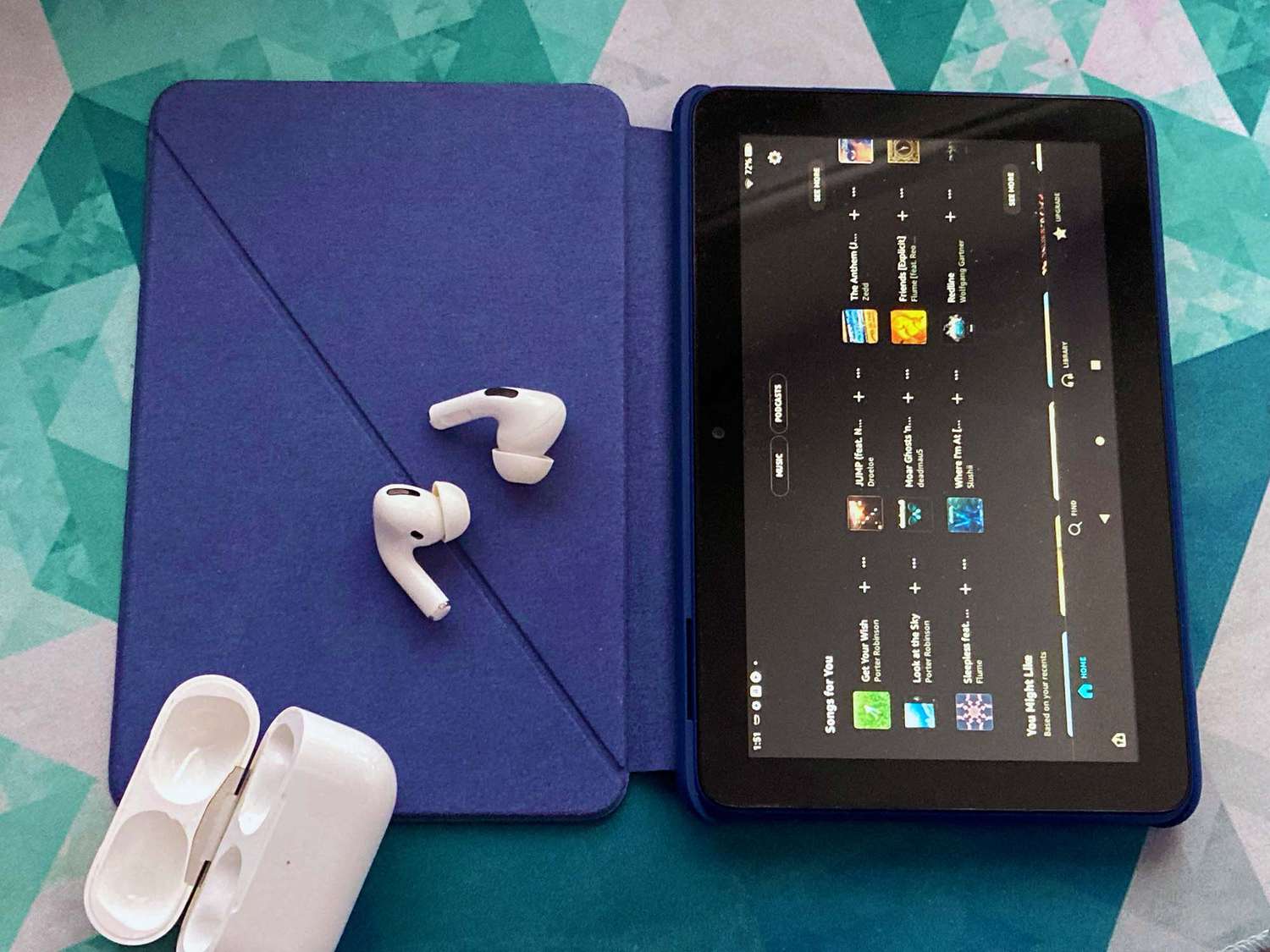
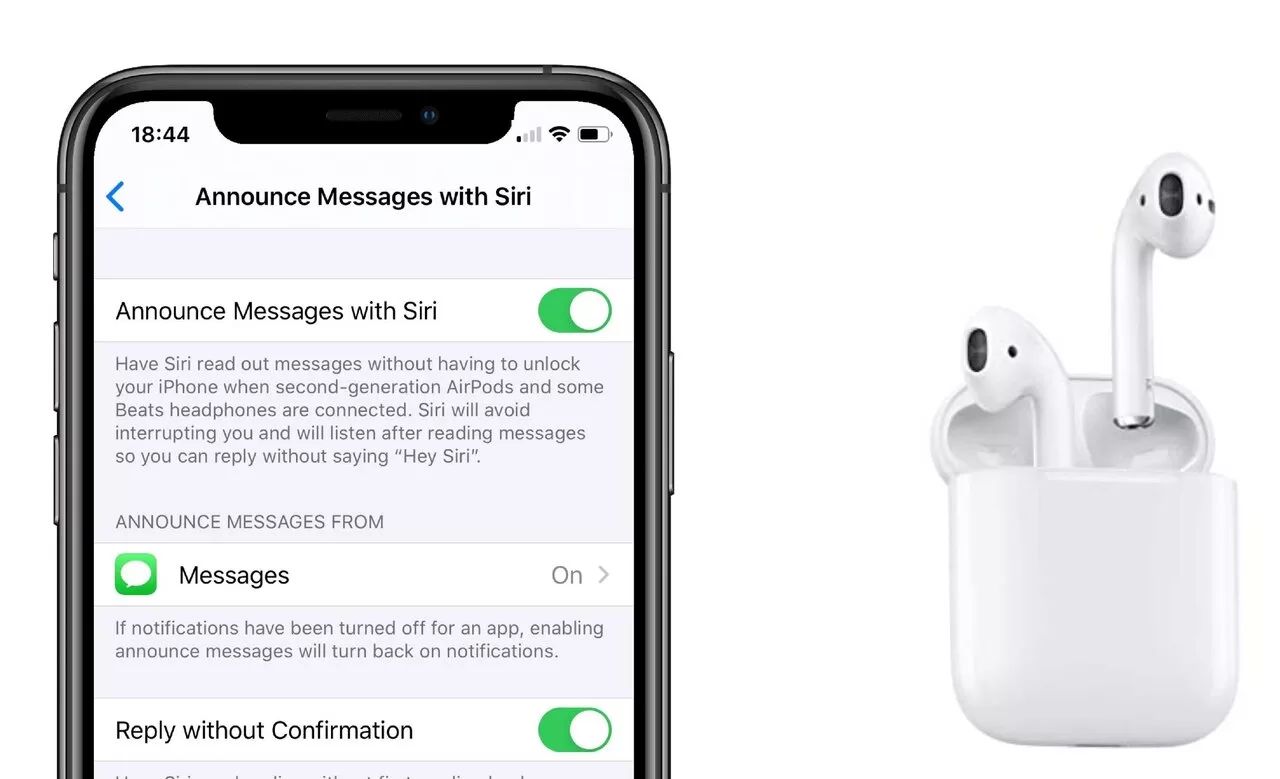
\nRelated reading: How To Eavesdrop With Airpods, How To Pair Airpods With Fire Tablet, and How To Turn Off Announcements On Airpods.