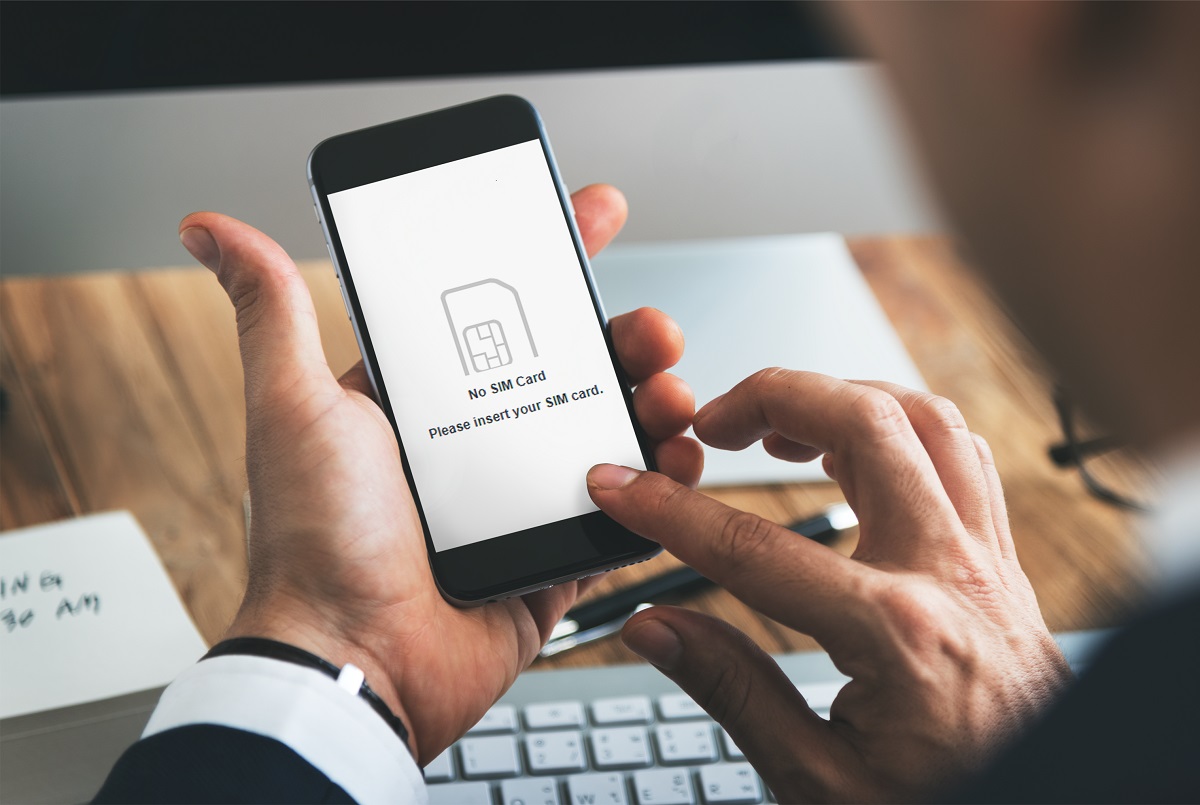
You can reset an iPhone to factory settings without a SIM card. A SIM card is not required to erase all content and settings on an iPhone, whether you use the Settings app or a computer.
Before you begin: crucial preparation steps
Before resetting your iPhone, you must take two essential steps to protect your data and avoid locking yourself out of the device. First, back up your iPhone to iCloud or a computer to save your photos, contacts, and other data. Second, sign out of iCloud and your Apple ID. This turns off Find My iPhone and disables Activation Lock, a security feature that prevents unauthorized use of a lost or stolen iPhone. Skipping this step means the device will remain linked to your Apple ID after the reset, requiring your password to activate it again.
Method 1: Reset directly in the Settings app
If you can access your iPhone normally, this is the simplest method. It works whether or not you have a SIM card installed, and it does not require inserting a SIM card at any point.
- Open the Settings app and tap General.
- Tap Transfer or Reset iPhone.
- Tap Erase All Content and Settings.
- Enter your iPhone passcode or Apple Account password when prompted to confirm the erase.
- When the eSIM prompt appears, you will be given the option to keep or erase the eSIM. Choose based on your needs.
- Confirm the reset. The iPhone will erase all data and settings and restart.
After the restart, you can set up the iPhone as new. If you chose to erase the eSIM, you may need to contact your carrier to reactivate your cellular plan.
Method 2: Restore with a computer if you forgot your passcode
If you cannot access the Settings app because you forgot your passcode, you can still reset the iPhone using a computer. This method also works without a SIM card and does not require resetting your iPhone SIM card beforehand.
- Connect your iPhone to a computer using a USB cable.
- Put your iPhone into Recovery Mode. The steps vary by model, but generally involve pressing and holding the correct button combination while connecting to the computer.
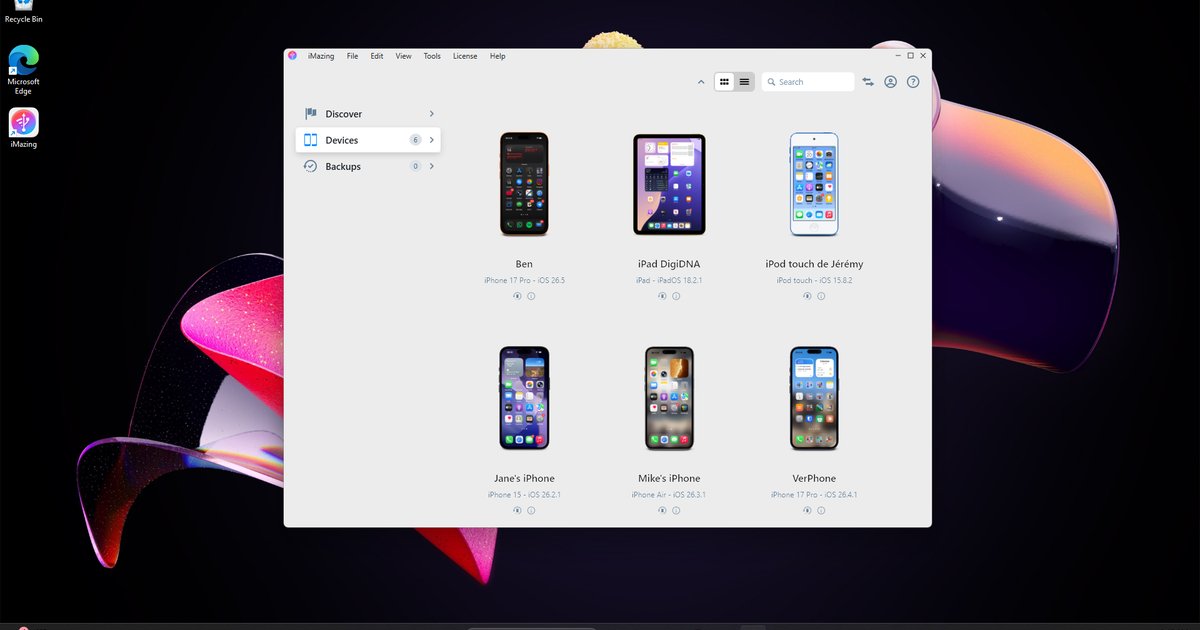
- Open Finder on a Mac (macOS Catalina or later), the Apple Devices app on Windows, or iTunes on older macOS or Windows versions.
- Select your iPhone when it appears in the software.
- Click Restore iPhone. Confirm the action when prompted.
- Wait for the software to download the necessary files and restore the iPhone to factory settings.
This process erases all content and settings, including the passcode. After the restore, you can set up the iPhone as new. Note that restoring via a computer does not automatically delete an existing eSIM.
How to remotely erase an iPhone you no longer have
If your iPhone is lost or stolen and you cannot physically access it, you can erase it remotely. This method does not require a SIM card and is useful for preparing a phone for a future owner.
- Go to iCloud.com/find on any computer or device.
- Sign in with your Apple ID.
- Select the lost iPhone from the list of devices.
- Click Erase [device]. This will remotely wipe all data and settings.
After the remote erase, the device will require your Apple ID and password to activate, protecting your data even if the iPhone is recovered.
What happens to your eSIM when you reset
When you erase your iPhone through Settings, a prompt appears asking whether you want to keep or erase the eSIM. If you choose to erase it, you may need to contact your carrier to reactivate your cellular plan. If you restore your iPhone using a computer (Finder, Apple Devices app, or iTunes), the existing eSIM is not automatically deleted. You can choose to remove it later through Settings or contact your carrier if you need to transfer the plan to a new device.
For the wider topic, see inserting a SIM card.
\nRelated reading: Transferring Photos From iPhone Without SIM Card: A Comprehensive Guide.