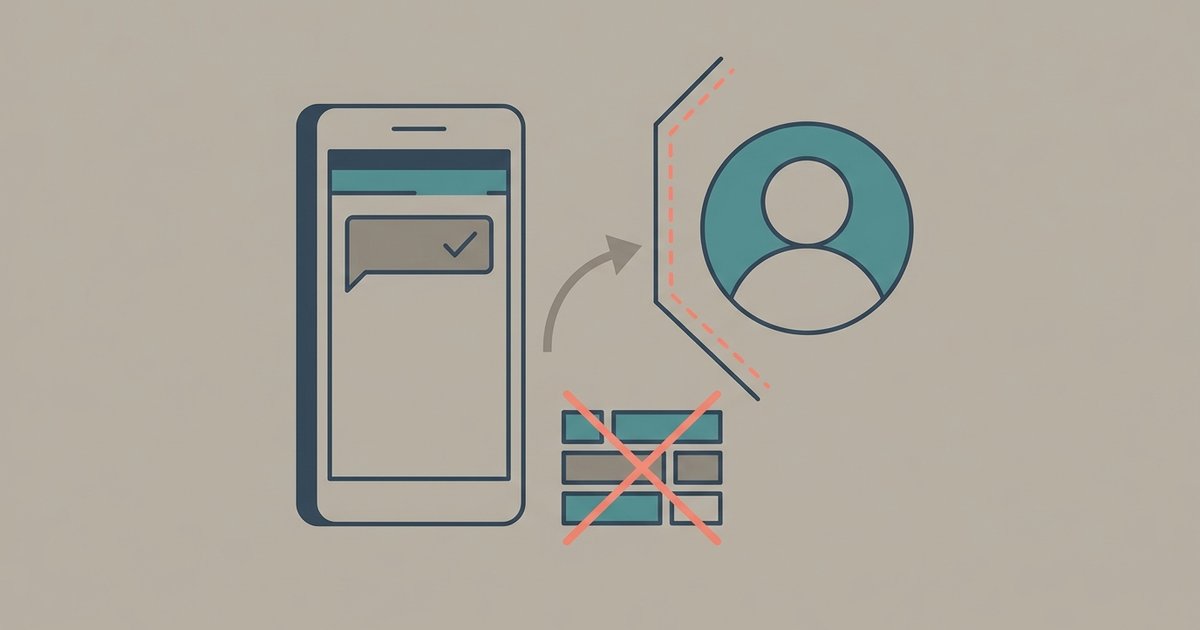
Moving WhatsApp from Android to iPhone uses Apple's Move to iOS app, not a backup restore. A Google Account backup cannot be read by an iPhone, so the only supported route is a direct device-to-device migration that happens while you are setting the iPhone up for the first time.
That timing is the whole trick. The iPhone has to be factory new or factory reset, and the transfer has to finish before you activate WhatsApp on it. If you have already opened WhatsApp on the new iPhone and verified your number, the only way to get your history across is to erase the iPhone and start again.
What comes across and what does not
WhatsApp transfers your account information, profile photo, chats including individual, group and community conversations, WhatsApp Channels updates, chat history, media and settings.
It does not transfer your call history, your display name, media received over WhatsApp Channels, or peer-to-peer payment messages. Chats cannot be transferred from Android to iPhone on the WhatsApp Business app at all.
What you need before you start
- Android 5 or above on the Android phone.
- iOS 15.5 or above on the iPhone.
- The Move to iOS app installed on the Android phone. Other migration apps are not supported and will cause problems.
- The latest version of WhatsApp from the App Store and the Play Store on the respective phones.
- The same phone number on both. A different number on the iPhone will not work.
- An iPhone that is factory new or has been factory reset.
- Both phones connected to power.
- Both phones on the same Wi-Fi network, or the Android connected to the iPhone's hotspot.
Set aside a block of time. This is not something to start ten minutes before you need the phone.
The transfer, step by step
- Begin setting up the iPhone until you reach the screen offering to move data from Android.
- Open the Move to iOS app on the Android phone and follow the prompts.
- A code appears on the iPhone. Enter that code on the Android phone when asked.
- Tap Continue and follow the prompts.
- On the Transfer Data screen, select WhatsApp.
- Tap Start on the Android phone and wait while WhatsApp prepares the data for export. You will be signed out of WhatsApp on the Android phone once it finishes preparing.
- Tap Next to return to Move to iOS.
- Tap Continue to send the data to the iPhone and wait for Move to iOS to confirm the transfer is complete.
- Install the latest version of WhatsApp from the App Store on the iPhone.
- Open WhatsApp and log in with the same phone number you used on the Android phone.
- Tap Start when prompted and let the import finish.
- Finish setting up the iPhone. Your chats will be there.
Do not try to shortcut this by opening Files and picking the WhatsApp folder inside Move to iOS. WhatsApp says that is not supported during migration.
What happens to your data
The transferred data does not go into any cloud storage as a result of the migration. It lands on the iPhone and stays local until you create an iCloud backup yourself, which is worth doing as soon as the move is done. WhatsApp cannot see the data you transfer.
Your Android phone keeps its copy of everything unless you delete WhatsApp or wipe the phone. Do not wipe it until you have confirmed the iPhone has what you expected, because it is your only fallback if something goes wrong partway through.
Why a backup will not do this
It is worth understanding the constraint, because a lot of time gets lost trying to work around it. WhatsApp backups are tied to the phone number and to the specific cloud account that created them, and the Android and iPhone backup formats are not interchangeable. A Google Account backup can only be restored onto Android, and an iCloud backup can only be restored onto an iPhone. There is no export, no conversion setting and no supported tool other than the Move to iOS app that bridges the two, which is exactly why the Move to iOS route exists and why it has to run before the iPhone is set up.
The same applies in reverse. Going from an iPhone to an Android phone uses its own separate migration flow rather than a restore, with its own requirement that the Android phone not be registered on WhatsApp yet.
When things go wrong
WhatsApp documents a handful of specific failures, and the fixes are not obvious from the error text.
- "Something went wrong." Your chat history may be corrupted. You are offered Retry or Skip Import.
- "An unknown error occurred. Please try again later." May point to possible corruption or a connection error. Restart both phones and try again.
- The import stops before finishing. This is usually a connection error rather than a data problem. Get both phones onto a stable network and retry.
- The QR code will not scan or reports as invalid. Turn the iPhone's brightness to maximum, clean the Android phone's camera lens, remove any screen protector from the iPhone, and check you are scanning the right code.
- Move to iOS force quits, fails or cancels. That is Apple's app, so WhatsApp directs you to Apple Support.
- Waiting on a verification code. If you have retried the migration several times you may hit a wait before WhatsApp will send another code. There is no way to speed it up. If you added an email address to your WhatsApp settings previously, you may be able to receive a code by email instead.
One outcome has no fix. If the migration completes but some chats did not come across, WhatsApp cannot retrieve them for you, because it never had them.
The two situations with no way back
WhatsApp is already active on the iPhone. You can only move chats before activating WhatsApp on the new phone. To recover the old history you have to factory reset the iPhone and start a fresh transfer with Move to iOS. New chats on the iPhone cannot be merged with old chats from Android.
The iPhone is on a different number. Chats cannot be moved to a new phone number. If you are changing numbers as well as phones, change the number on the Android phone first, using WhatsApp's change number feature, and only then run the migration.
Before you hand the old phone over
Open the new iPhone and scroll a long way back in two or three important conversations, check that media loads rather than showing a placeholder, and confirm that group chats you care about are present. Then create an iCloud backup so the history you just moved has a copy that survives the iPhone.
Only after that should the Android phone be wiped or traded in. Until the moment you confirm the transfer worked, that handset is the only complete copy of your WhatsApp history that exists anywhere, and no amount of contacting WhatsApp support will bring it back once it is gone.
\nRelated reading: How to Back Up and Restore Your WhatsApp Chats.