A PDF is a fixed page. It looks the same on every phone, laptop and printer, which is why it became the default format for contracts, forms, invoices and anything else that has to arrive looking exactly as it left. The tradeoff is that a PDF was never meant to be changed, so almost every job people want to do with one, from editing a sentence to shrinking it for email, needs a tool that either works around that design or temporarily undoes it.
PDF stands for Portable Document Format, a file format that is now an open international standard, ISO 32000, so any compliant app can read and create it.
Most of those jobs fall into a handful of categories: converting to and from other formats, making the file smaller, combining or splitting it, signing it, editing it, reading text out of a scan, and locking or unlocking it. Your computer and phone already handle some of them. For the rest, a browser-based PDF converter saves you installing anything. The sections below explain each task briefly and point to the full guide for it.
Where to do PDF jobs
There are three broad options. The first is what you already own. Microsoft Word opens and saves PDFs, macOS Preview can combine, compress, sign and password-protect them, Windows can print almost anything to a PDF, and the scanners built into iPhone and Android turn paper into PDFs. These are free and keep your file on your own device.
The second is Adobe Acrobat, the reference PDF editor, which does nearly everything but costs money for the full version.
The third is a set of online PDF tools, which run in any browser and cover the gaps the built-in apps leave. The guides in this series use the free online PDF tools on PDFBEAR as the recommended route for each task. Its standard tools are free without an account for a small number of files a day, a free account removes that daily cap, and a paid Premium plan adds OCR, AI features and larger batches. PDFs produced on the free tier can carry a small "PDFBEAR.COM - Free Ver." line in the corner of the page, which Premium removes. Online tools do mean uploading your file, which is worth weighing for anything confidential, and each guide says where a local option is the better choice.
Converting PDF to Word and back
When you need to change the words in a document and only have the PDF, the practical move is to convert a PDF to Word, edit it there and save it back as a PDF. Word can open a PDF directly and convert it, Google Docs can do the same from Google Drive, and online converters produce a DOCX you download. All of them work best on PDFs made from a text document. Complex layouts with columns, text boxes and tables usually need some tidying afterward, and a scanned PDF needs OCR before any of this produces editable text. Going the other way, from Word to PDF, is easy in every tool.
Making a PDF smaller
Email providers and upload forms often reject large attachments, so the most common reason to compress a PDF is simply to get it under a limit. Almost all of the weight in a large PDF is images, usually scanned pages or photos embedded at full resolution, so compression works by resampling those images. Text-only PDFs are already small and barely shrink at all. The skill is in choosing a level that makes the file small enough without turning scanned text soft or blurry.
Combining and splitting PDFs
You might need to merge PDF files into one packet for an application, or split a PDF so you send someone only the pages they asked for. Both jobs copy pages without changing how they look. Preview on a Mac does both by dragging page thumbnails, and on any computer you can print a page range to a new PDF as a quick way of pulling out a section. Online tools make the job faster when you have several files or want each page as its own document.
Turning PDF pages into images and images into PDFs
Chat apps, social posts and slide decks want pictures, not documents, which is why people convert PDF to JPG. Each page becomes its own image, and the text on it stops being selectable. The reverse, bundling phone photos of receipts or ID into a single PDF, is one of the most common requests on any upload form. Both are quick in a browser tool, and Preview and the phone scanner apps cover simple cases.
Signing a PDF
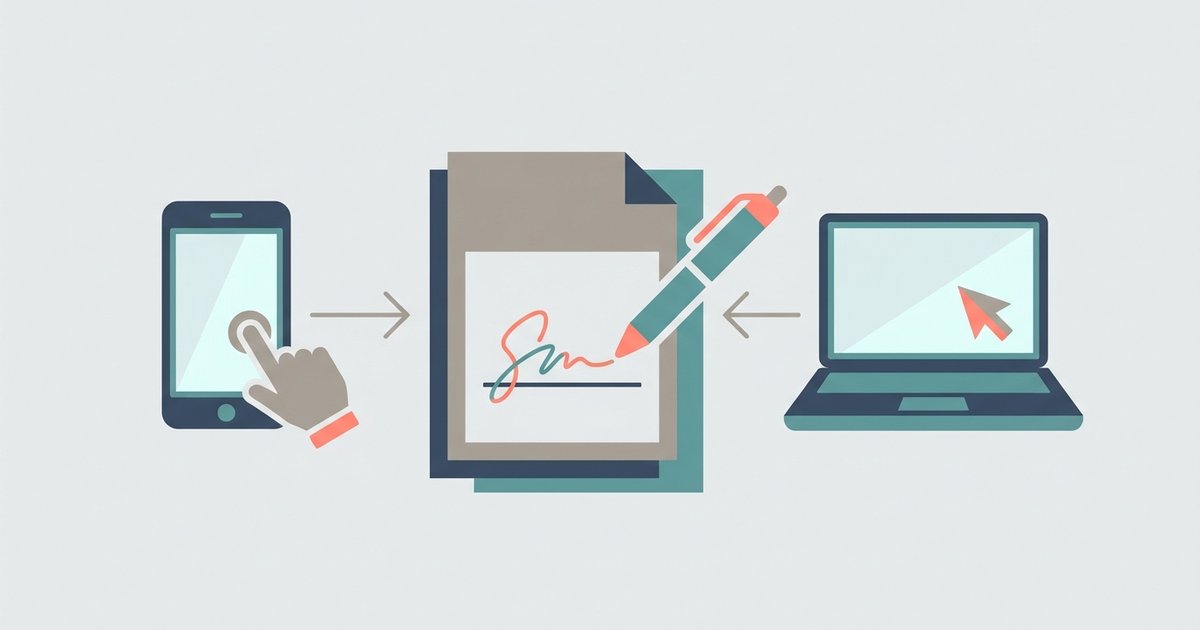
To sign a PDF without printing it, you place an image of your signature on the page, either drawn, typed or photographed. That is a simple electronic signature, and it is what most everyday approvals, leases and forms ask for. A certificate-based digital signature is a different thing: it cryptographically ties the document to a verified identity and shows if the file changes afterward. Preview, the iPhone Markup tools, Adobe Acrobat Reader and online eSign tools all handle the simple kind.
Editing a PDF
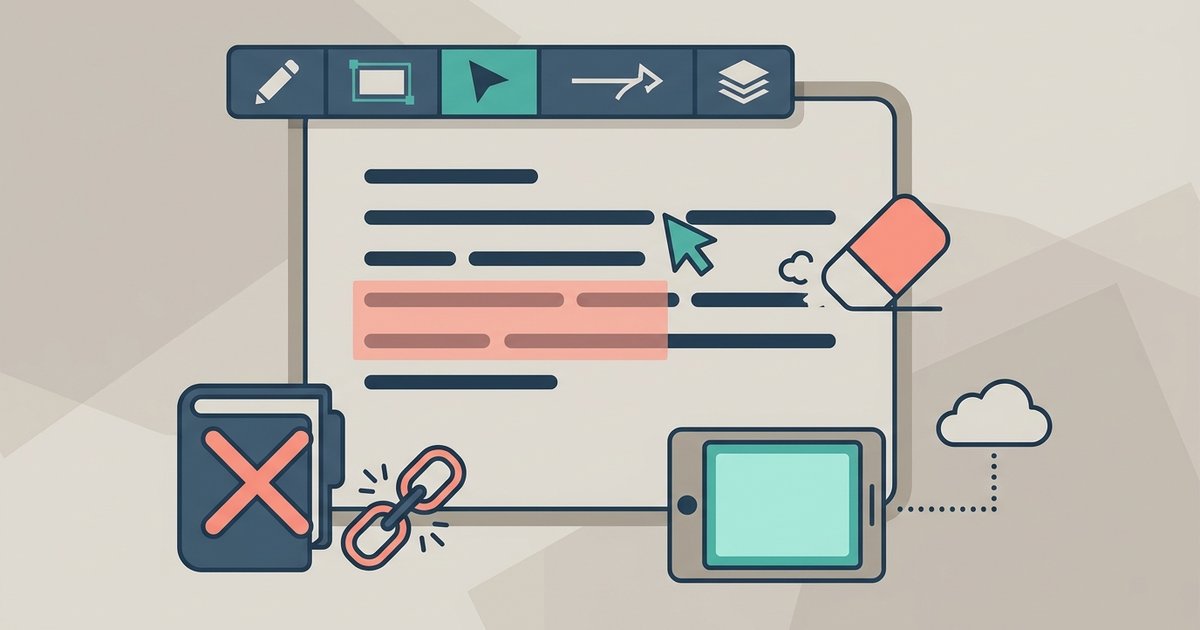
You can edit a PDF without Acrobat for most small jobs: fixing a typo, adding a note, filling a form that has no fillable fields, or placing a logo. Browser editors and Preview handle annotations and added text well. Changing existing paragraphs is harder because PDF text is positioned piece by piece rather than flowing, so larger rewrites are usually easier done by converting to Word. One warning belongs here: drawing a black box over sensitive text hides it on screen but can leave the original words in the file.
Making scanned PDFs searchable
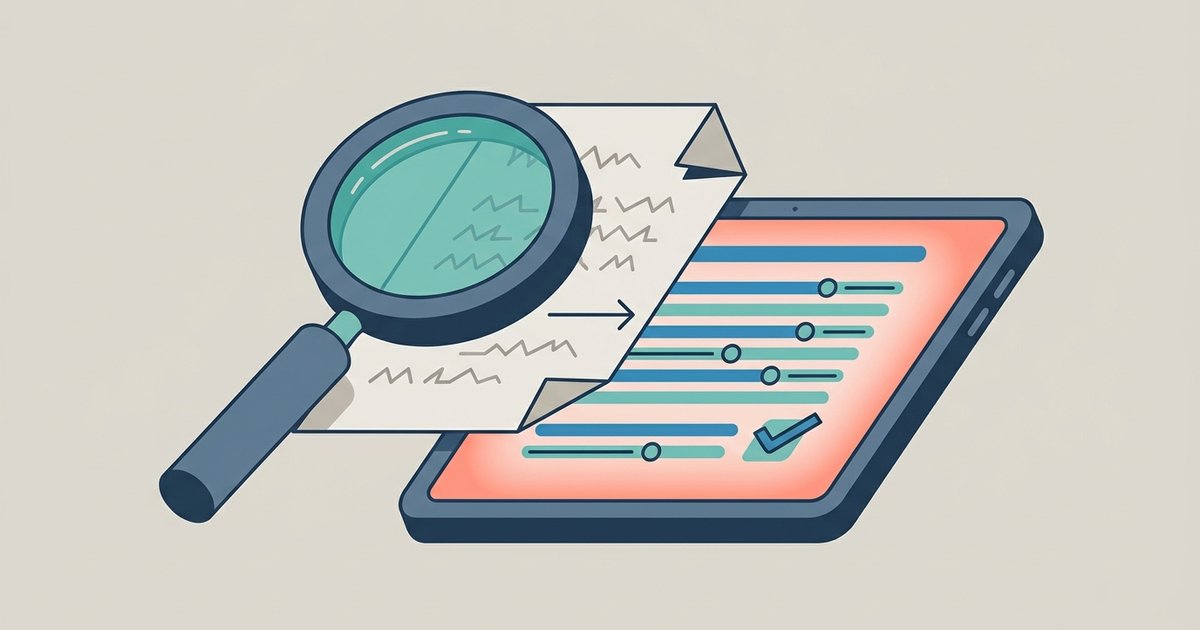
A scanned page looks like text but is really a photo, so you cannot search it, copy from it or convert it to editable Word. Optical character recognition, or OCR, reads the shapes of the letters and adds a text layer so that you can make a scanned PDF searchable while keeping the page looking the same. Results depend heavily on scan quality, and handwriting is mostly beyond it. Google Drive, Adobe Acrobat and dedicated OCR tools all offer it, as do the Live Text features on recent Apple devices for copying text out of an image.
Locking and unlocking PDFs
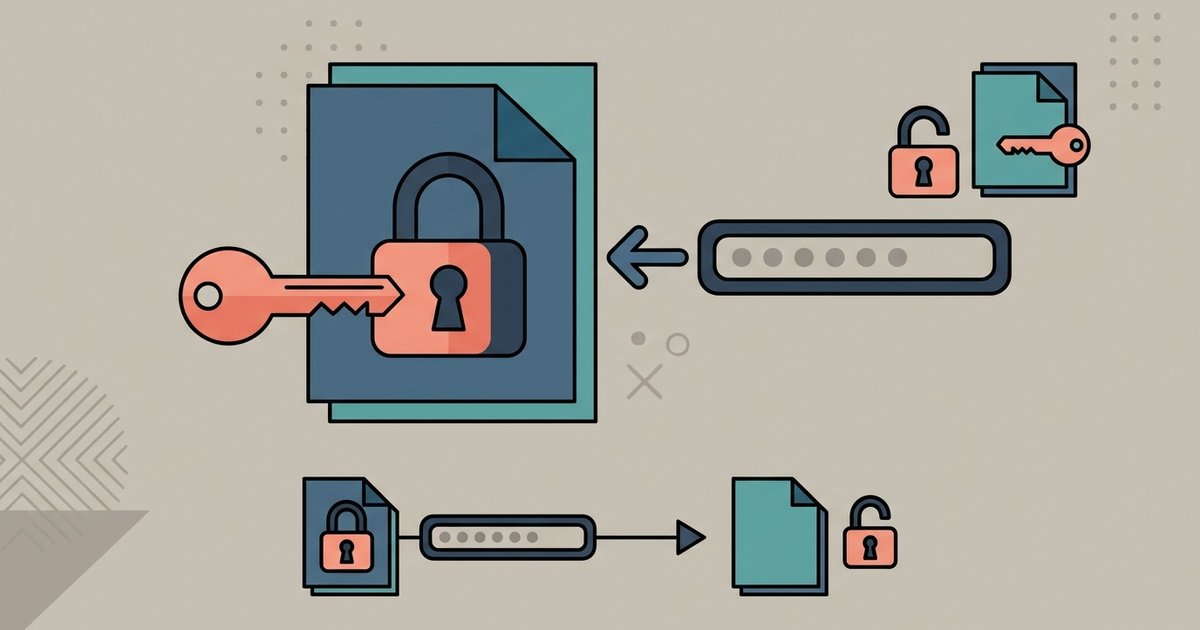
There are two kinds of PDF password. An open password stops anyone without it from viewing the file at all. A permissions password lets people open the file but restricts printing, copying or editing. You can password-protect a PDF in Word when saving it, in Preview through its export options, or with an online tool. Removing a password is only something to do on files you own or already have the password for, and a legitimate tool needs that password to remove it.
Saving and downloading things as PDF
A lot of PDF work starts with creating one from something else, and several of those tasks have their own quirks. If you review documents in Google Docs, you may want to download a Google Doc with comments as a PDF so that reviewers without access can still see the feedback. Presenters often need to download Google Slides as a PDF with speaker notes so that the handout includes what they plan to say, not just the slides.
Long PDFs raise a different question. Rather than downloading an entire report or manual, you can download only certain pages of a PDF by printing a page range to a new file. Browsers have their own habits too: if every PDF you download pops open in a tab, you can stop PDFs from opening automatically after download so that they go straight to your downloads folder instead. And once a PDF is open in the browser, the quickest way to find a clause or name is to search for a word in a PDF in Chrome with the same find shortcut you use on web pages, which works as long as the PDF has a real text layer.
Picking the right tool
For a one-off job on a file that is not sensitive, a browser tool is usually fastest. For confidential documents such as medical, legal or financial records, start with the tools already on your computer or phone, since nothing leaves your device. Keep the original file until you have checked the result, especially after compressing or converting, because neither step can be undone once you have overwritten it.