To merge PDF files, upload them to a merge tool, drag them into the order you want and download one combined file. To split a PDF, choose the pages or ranges you want and save them as separate files. Neither job changes how the pages look, because both simply copy pages from one file to another.
On a Mac, Preview does both for free. On Windows and on phones, a browser tool is usually the fastest way.
Merge PDF files with PDFBEAR
The recommended way to combine PDFs is PDFBEAR's Merge PDF tool. It runs in any browser, the site states that merging is free, and each file can be up to 50 MB. To merge PDF files online with PDFBEAR:
- Open the Merge PDF page and upload the PDFs you want to combine. You can select several at once or drop them onto the upload area.
- Drag the files into the order you want. The combined document follows the order of this list, not the file names.
- Click Merge PDF.
- Download the combined PDF from the result page.
If the order matters and you have many files, renaming them with a number prefix such as 01, 02 and 03 before uploading makes them easier to arrange. The site notes that password-protected files have to be unlocked before they can be merged, since the tool cannot read pages it cannot decrypt. It also warns that bookmarks from the source files may be renumbered and that internal page references can shift, which is true of merging in any tool.
Split a PDF with PDFBEAR
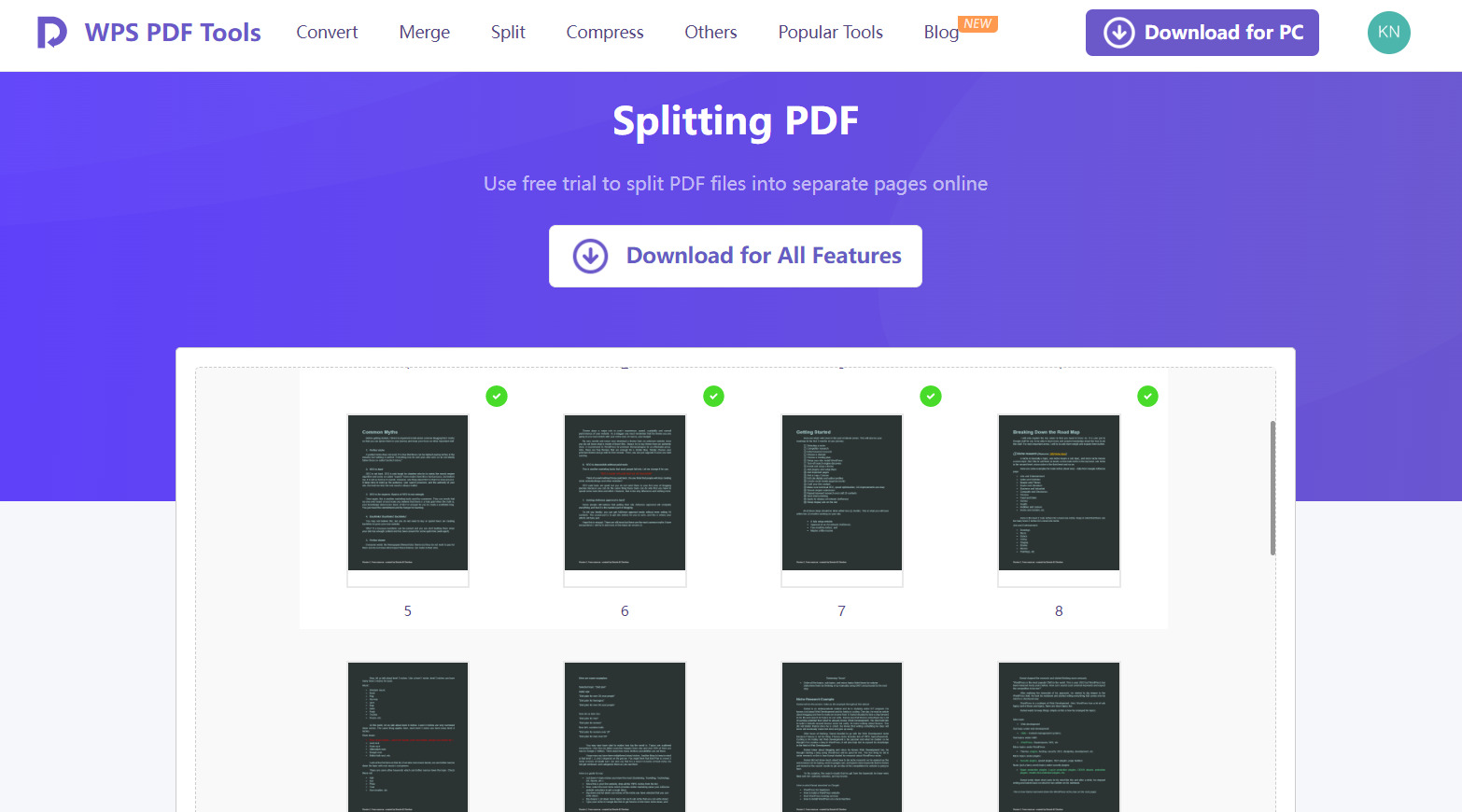
PDFBEAR's Split PDF tool sits next to Merge PDF on the same site and is free under the same terms. After you upload a file, it shows the pages and offers three ways to split:
- Range lets you set one or more page ranges, such as pages 1 to 3 and 8 to 10. With Custom you enter each range yourself, and Fixed cuts the file into equal chunks. You can tick Merge all ranges in one PDF file if you want the selected ranges combined into a single document instead of separate files.
- Pages works with individual pages, including one file per page.
- Size splits by file size, which is useful when an upload form has a limit.
Click Split PDF and the results download as a ZIP archive. Unzip it with the built-in tool on your computer or phone to get the individual PDFs. Split pages are copied without re-encoding, so they look exactly like the originals, but bookmarks and links that point to pages in a different part of the document may stop working.
As with any upload, free downloads can wait briefly in a queue, and guests have a small daily limit on free files that a free account removes. In testing, PDFs downloaded on the free tier carried a small "PDFBEAR.COM - Free Ver." line in the bottom corner of the page, and the pricing page lists removing it as a Premium feature.
Merge and split PDFs on a Mac with Preview
Preview combines PDFs by moving page thumbnails between documents. Apple's steps:
- Open the PDFs you want to combine in Preview.
- In each one, choose View then Thumbnails to show the page thumbnails in the sidebar.
- Drag the thumbnails you want from the sidebar of one PDF to the sidebar of the other. You can drop them at the end or between pages, and drag thumbnails to reorder them.
To add a whole PDF, drag its icon from the Finder into the sidebar of the open document. Apple points out that Preview saves changes automatically, so if you want to keep the original files unchanged, use File then Duplicate to make copies before you start.
To remove pages, select them in the thumbnail sidebar and press Delete. To split off a section, the simplest method is to use File then Print, choose the page range, and save it as a PDF from the print dialog. You can also drag thumbnails out of the sidebar, though the exact behavior depends on your macOS version.
Split a PDF on Windows by printing a page range
Windows includes a virtual printer called Microsoft Print to PDF. Any program that can print a PDF can use it to save selected pages as a new file:
- Open the PDF in your browser or PDF reader.
- Choose Print.
- Select Microsoft Print to PDF as the printer.
- Enter the pages you want, for example 4 to 7.
- Click Print, then name and save the new file.
Browsers such as Chrome and Edge have a similar Save as PDF destination in their print dialog. This works well for one section at a time. The catch is that printing re-creates the pages rather than copying them, so links, bookmarks and form fields may be lost, and the file can come out larger or flattened. Merging is harder on Windows without extra software, since there is no equivalent of Preview's thumbnail dragging, which is the main reason people reach for a browser tool.
On a phone
Browser tools work the same way on a phone. Upload from the Files app on iPhone or your file manager on Android, then save the result back. The phone's print dialog can also save a page range as a new PDF on most devices, though the steps differ between iPhone and Android and between Android manufacturers.
Common problems
- Files in the wrong order. Merge tools follow the upload list order. Rearrange the list before merging.
- One file will not merge. It is usually password-protected. Unlock it first if you own it or have the password.
- Merged file is huge. Merging does not compress anything, so five large scans make one very large file. Compress the merged result afterward.
- A ZIP instead of PDFs. Splitting produces several files, so they arrive together in a ZIP. Unzip it to reach them.
- Broken links or table of contents. Split at chapter boundaries so each part keeps its own internal links.
If you only need to remove a few pages rather than split a file into parts, deleting them is simpler than splitting. Preview does this in the thumbnail sidebar, and PDFBEAR has a separate Delete PDF Pages tool.
A word on sensitive documents
Merging a loan application or splitting a medical record means handling personal data. PDFBEAR states that uploads use HTTPS, that files are deleted automatically after a period and that no person reviews them. If your document is covered by a confidentiality obligation, use Preview or the print-to-PDF method so that nothing leaves your computer. Splitting is actually a privacy tool in its own right, since it lets you send only the page someone asked for instead of the whole file.
When you are building a packet for an application, merge last, after each part is final and correctly ordered. Then open the combined file once and scroll through it from start to finish, since a missing or doubled page is much easier to catch before you submit than after.
\nRelated reading: PDF File Management Tools That Belong in Every Tech Stack, How To Download Certain Pages Of A PDF, and How to Convert a PDF to Word (and Word to PDF).