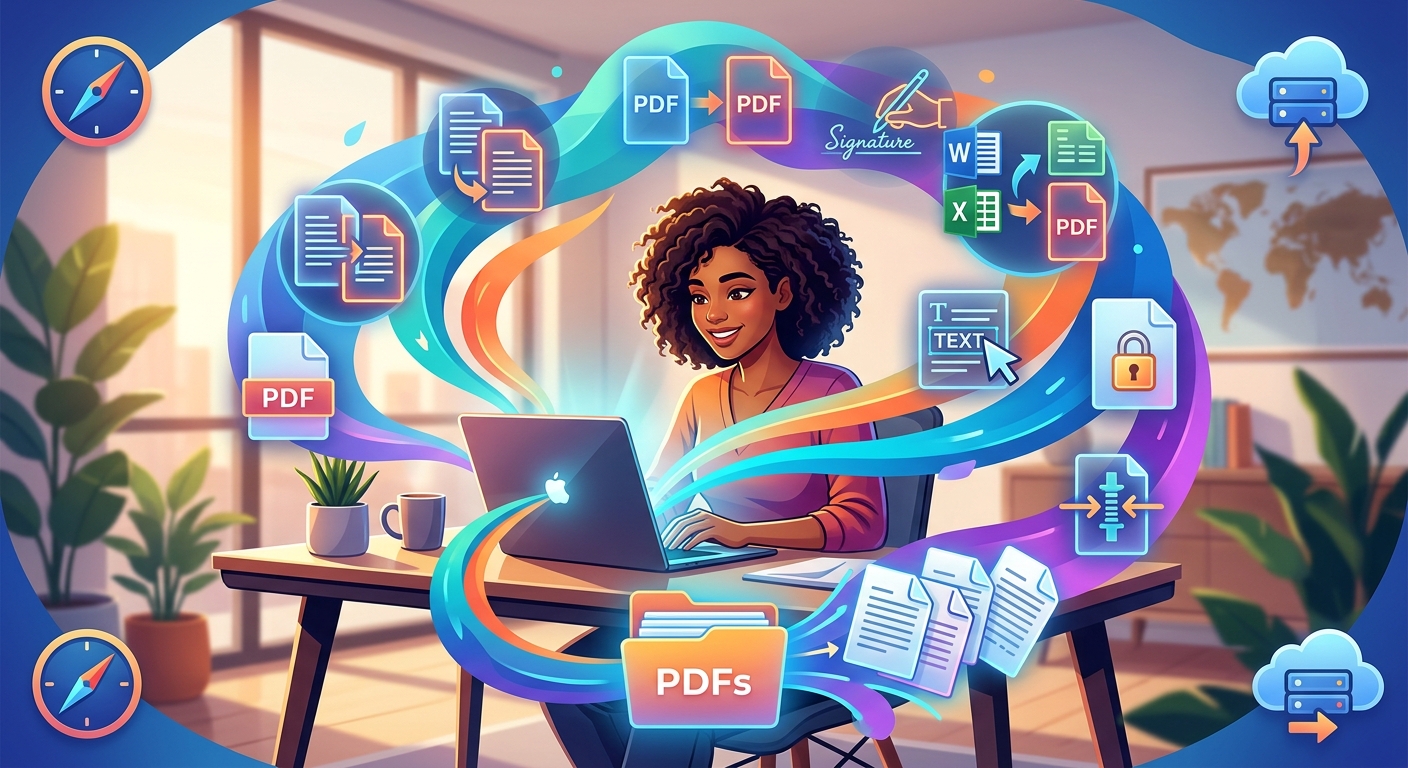
Working remotely means living in your inbox and your shared drives. Files travel constantly between you, your clients, and your team. And somewhere in that flow, PDF problems always show up. A presentation too big to send. Five separate reports that need to become one. A Word doc your client needs in a format they can actually open without editing it. These are not edge cases. They happen every week, and they slow you down more than they should.
What You'll Learn: Remote work runs on documents, and PDFs are the backbone of most professional file sharing. This piece walks through three common friction points that distributed workers hit regularly: oversized files blocking email delivery, scattered reports that need combining, and format mismatches between collaborators. Each problem has a straightforward fix, and the tools that solve them all live in one place, no software installs required.
When Your Presentation Is Too Large to Send
You finish a client deck. It looks great. You hit send, and the email bounces back. Attachment too large.
This happens constantly with presentation files. Images inside slides are rarely optimized. A ten-slide deck with a few screenshots can easily hit 20MB or more, which puts it well above the standard 25MB attachment limit most email providers enforce. Some providers cap even lower, and file-sharing links feel clunky for something as simple as a presentation.
The fix is file compression. But not the kind that leaves your slides looking pixelated or your charts unreadable. Good PDF compression strips unnecessary metadata, re-samples embedded images at a more appropriate resolution, and reduces the overall file weight without visibly degrading the content.
You do not need desktop software for this. Upload your file, compress PDF, and download a leaner version that actually clears the inbox. Most compressed presentations land under 5MB, which gives you room to spare even with strict server-side limits.
A few things worth knowing before you compress:
- Always keep your original file before running compression, especially if the PDF contains high-resolution artwork or print-ready graphics that someone may need later.
- Review the compressed output before sending. Zoom in on text-heavy slides to confirm that readability has not suffered, particularly on slides with small font sizes or dense data.
- If your client plans to print the document at a commercial printer, ask whether they need a separate high-resolution version, since compressed files may not meet print specifications.
The PDF format was designed from the start around portability, and compression is built into the specification at a fundamental level. Modern browser-based compressors take advantage of that without any specialist knowledge on your end. You get a smaller file without touching a single setting.
Pulling Five Reports Into One File for a Client
Month-end arrives and you have five separate PDF reports sitting in your downloads folder. One is the analytics summary. One is the budget breakdown. One is the project status update. One covers team capacity. One holds the campaign results. Your client expects a single, coherent monthly briefing.
Sending five separate attachments creates friction for everyone involved. The client has to open each file individually, track which is which, keep them organized in their own system, and hope they do not accidentally miss one. A single merged document is a cleaner, more professional handoff and signals that you have thought about the reader's experience.
The workflow is simple. Gather your files, merge PDF into one document, and arrange the pages in an order that tells a clear story. Analytics first, then financials, then status and capacity, follows the same logic as a standard executive briefing. The reader moves through it the same way they would a report that was written as one piece.
This approach goes well beyond month-end reporting. It works any time you need to consolidate:
- Separate invoice files covering a single billing period into one statement for accounts payable
- Onboarding documents for a new team member, so they receive one organized package rather than a scattered pile of attachments
- Research reference materials assembled into a single file ahead of a presentation or workshop
The order you choose matters as much as the merge itself. Think about what your reader needs to see first, and what context they need before reaching the denser material. Most merge tools let you drag files into sequence before processing, which means you can arrange everything before committing to the final output.
Three Tools, Three Jobs: A Side-by-Side View
| Tool | Best For | Typical Input | Output |
|---|---|---|---|
| Compress | Reducing file weight before sending | Oversized PDF | Smaller PDF, same content |
| Merge | Combining multiple files into one | Several PDFs | Single unified PDF |
| Convert | Locking in formatting across devices | Word, Excel, image files | Consistent, non-editable PDF |
Turning a Word Draft Into a PDF for Review
Your colleague finishes a proposal in Word and sends it to you as a .docx file. You need to pass it to a client for review, but you want two things: for the formatting to stay intact on their device, and for them not to edit it directly.
This is one of the most persistent format headaches in remote collaboration. Word documents render differently depending on which version of Office the reader has installed, which fonts are available on their machine, and whether they are on Windows or Mac. What looks polished and well-spaced on your screen can arrive with broken indentation, shifted images, or scrambled bullet points on theirs.
Converting to PDF locks in the layout. The fonts, the spacing, the page breaks, the header alignment, all of it stays exactly as you intended. The reader sees what you see, regardless of their setup.
You can convert to PDF directly in a browser, no Office installation required. That matters for remote workers who use Chromebooks, shared machines, or lightweight setups that do not include the full Microsoft suite. The converter does not care what software you have installed. It takes the file and handles the conversion in the cloud.
Remote work has pushed more professionals toward browser-based tools precisely because they work consistently regardless of the operating system or software stack on any given device. A conversion tool that runs in the browser removes the "I don't have that program" problem entirely, which comes up more often than it should in distributed teams.
Why Browser-Based PDF Tools Fit the Remote Workflow
The common thread across all three scenarios is that the tool needs to be available anywhere, without setup time or software licensing concerns. Remote workers tend to move between devices, work on networks they do not fully control, and often operate without access to the same software stack their office-bound colleagues have.
Browser-based PDF tools handle this environment well. Nothing to install. No license to renew. No version that only runs on one operating system. You open a tab, upload the file, process it, and download the result. The full workflow takes a few minutes at most, even on a slow connection.
The three tools covered here address the three most common PDF friction points in distributed work. They are distinct tasks, but they share an important quality: each one is something you will run into repeatedly, and having a reliable method for each means you are not improvising every time the problem shows up.
Staying Productive When Files Get in the Way
Remote work rewards people who know how to move files cleanly. A presentation that clears the inbox and reaches the client intact. A monthly handoff that arrives as one organized package. A draft that renders correctly on the first open, on any device.
None of these require expensive software or a background in document management. The tools exist, the workflows are straightforward once you have run through them, and the time you recover adds up over the course of a month. Less troubleshooting on file size. Less back-and-forth over format issues. Less time chasing down which of five attachments had the data your client actually needed.
Knowing which tool handles which problem is most of the work. The rest is just following through.
\nRelated reading: PDF File Management Tools That Belong in Every Tech Stack, How Do You Create A New Folder On Samsung Tablet?, and How To Download Certain Pages Of A PDF.