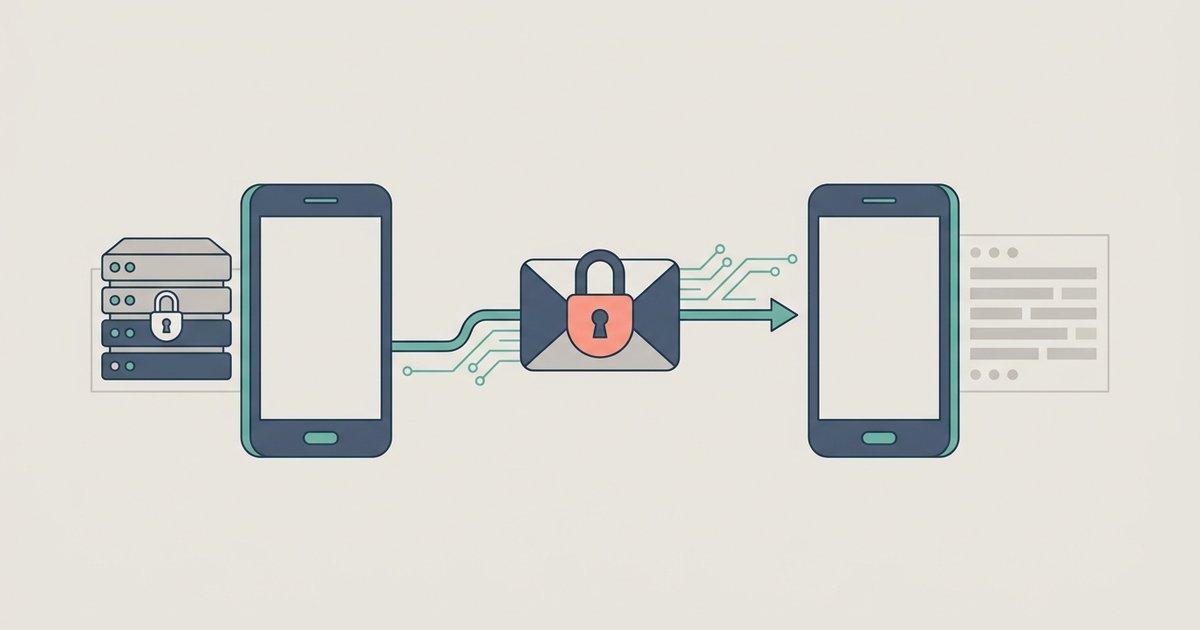
WhatsApp is a messaging and calling app built around your phone number. It carries text, photos, video, voice messages, documents and voice or video calls over your internet connection rather than over your carrier's SMS allowance and minutes, which is why messaging someone in another country costs nothing beyond the data. Your personal messages and calls are end-to-end encrypted by default, so no one outside the chat can read or hear them.
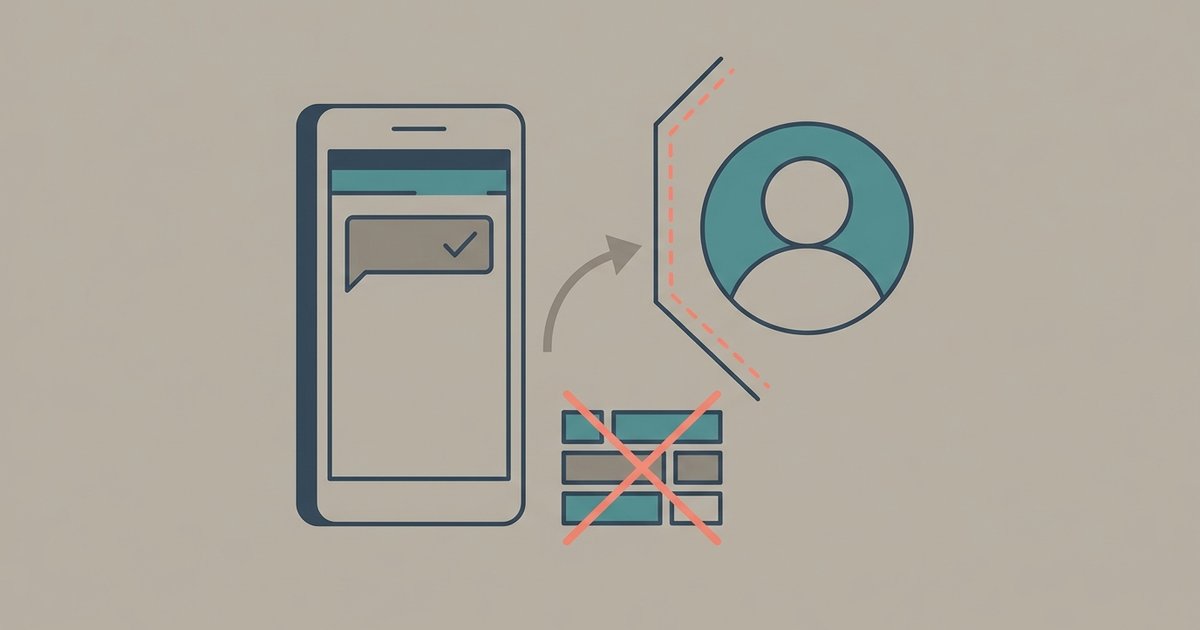
Almost everything else about the app follows from one design decision: the account lives on a single phone. That phone is the primary device. It is what registers the number, and everything else you use WhatsApp on, whether that is a browser, a laptop, a tablet or a second phone, attaches to it as a linked device. You can link up to four devices at a time, and you need to open WhatsApp on the primary phone at least every 14 days to keep them connected.
The same design explains the parts people find awkward. Backups belong to one phone number and one cloud account. Moving to a different operating system is a one-shot migration rather than a sync. A number is required to sign up, and there is no way around that. The sections below introduce each of those topics in turn so you can tell which one you actually need.
WhatsApp Web and the desktop apps
WhatsApp Web lets you use your account from a browser at web.whatsapp.com without installing anything, and there are separate apps for Windows and Mac if you want a permanent window and calls with larger groups. Both are linked devices: you open the site or app and either scan the QR code with your phone or link with your phone number and an eight-character code. Once linked, they keep working even when your phone is switched off, though they will log out if the phone goes unused for more than 14 days. A linked device only receives a copy of recent message history, so old conversations may not be searchable there even when they are intact on your phone.
Using WhatsApp on two phones with linked devices
A second phone can join your account the same way a laptop does, as a companion device, so both phones show the same chats without you signing out of either. You install WhatsApp on the second phone and choose the option to link it as a companion device rather than registering a number, then scan the code it shows using your primary phone. This is the supported way to run one account on two handsets, and it counts against the same limit of four linked devices. A handful of things do not work on companion devices, including viewing a live location.
Backing up and restoring your chats
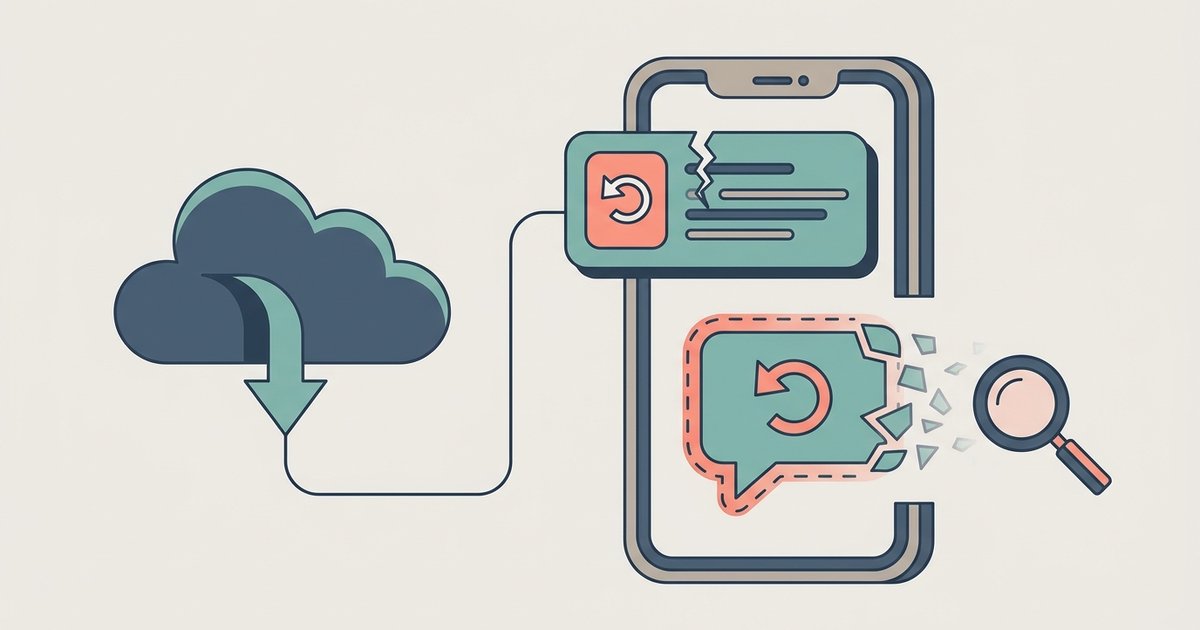
WhatsApp does not keep your chat history on its servers, so a backup is the only thing standing between you and a permanent loss. Android phones back up to a Google Account and iPhones back up to iCloud, and in both cases the backup is tied to the phone number and the cloud account that created it. You can add end-to-end encryption to the backup itself, protected by a passkey or a 64-digit key, and if you lose that credential nobody can recover the backup for you. Restoring means reinstalling the app on the same number and choosing to restore before you finish setting up.
The important limits are that each new backup overwrites the last one, and that anything sent after the most recent backup cannot be recovered. That is the case for an upgrade you planned and for a phone that fell in a river.
Moving WhatsApp from Android to iPhone
A backup made on Android cannot be restored on an iPhone, and the reverse is also true, so switching platforms uses a separate one-time migration instead. Going from Android to iPhone runs through Apple's Move to iOS app, which means the iPhone has to be factory new or factory reset and the transfer has to happen before you activate WhatsApp on it. Chats, media, group and community history and settings come across; call history and your display name do not. If you have already set WhatsApp up on the new iPhone, the only way back is to erase it and start the migration again.
Using WhatsApp without a SIM card or a second phone number
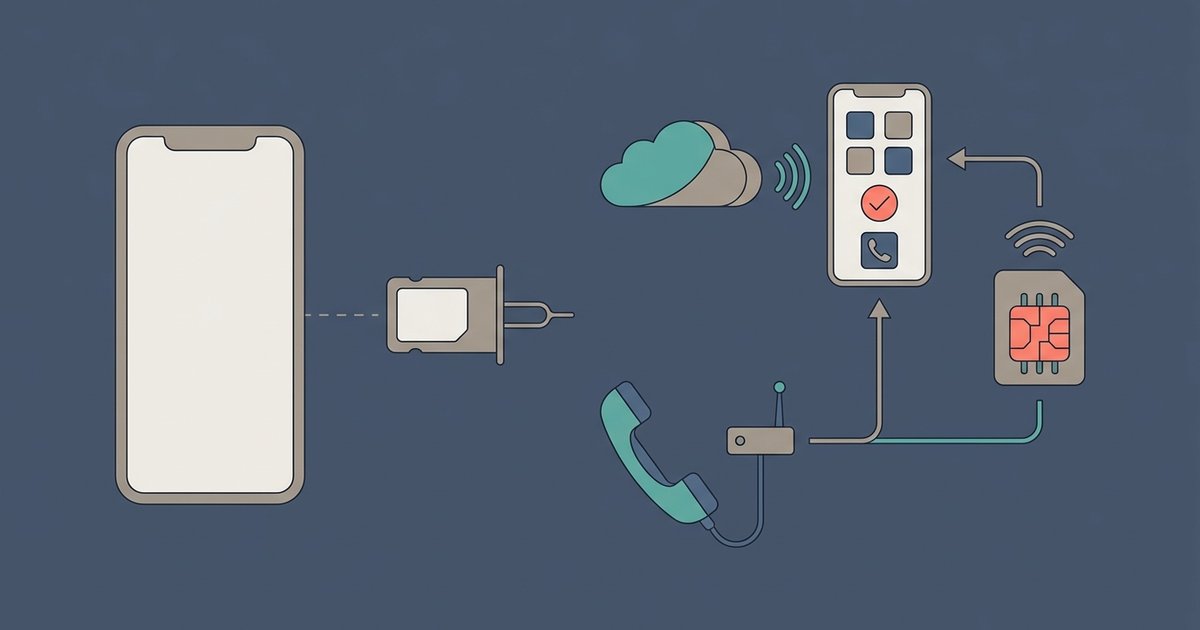
A phone number is required to create a WhatsApp account, and the number has to be able to receive an SMS or a phone call at the moment you register. That rules out signing up with no number at all, and it rules out VoIP numbers, toll-free numbers and several other categories. There are real workarounds for the problems people are usually trying to solve, though: a landline can be registered on the WhatsApp Business app because the code arrives as a voice call, an eSIM gives a second line on one handset, and linking a second phone as a companion device avoids needing a second number in the first place.
Finding, making and sharing stickers
Stickers sit behind the emoji icon then the sticker icon in any chat, alongside packs you have downloaded from WhatsApp's own store and packs that ship as separate apps from the Play Store. You can also create a sticker from any photo on your phone through the sticker creation tools and add text, drawings or emoji to it before sending. Saving those into a named pack is a couple of taps, and static stickers have to be 512 by 512 pixels and under 100 KB if you want to import them yourself. Publishing a pack for other people to install is a bigger job, because a downloadable pack is technically a small app.
What WhatsApp's encryption does and does not hide
End-to-end encryption on WhatsApp is genuine and it is on by default for personal messages, calls, status updates and media, using the Signal protocol. What it protects is content. It does not hide the fact that you have an account, your profile name and photo, your contacts, which groups and communities you belong to, or the technical records WhatsApp needs to deliver anything at all. Cloud backups are outside the encrypted channel unless you specifically turn on encrypted backups, and a chat with a business may not be end-to-end encrypted if handled by staff, vendors or Meta's own hosting.
Channels, communities and groups
These three look similar in the app and behave nothing alike. A group is a conversation of up to 1,024 people where everyone can post and everyone sees each other's phone numbers. A community is an umbrella over as many as 100 related groups with a shared announcement channel that only admins can post to, capped at 5,000 members in total. A channel is a one-way broadcast in the Updates tab, where followers can only react or vote in polls, cannot reply, and cannot see who else is following.
Hiding your online status and last seen
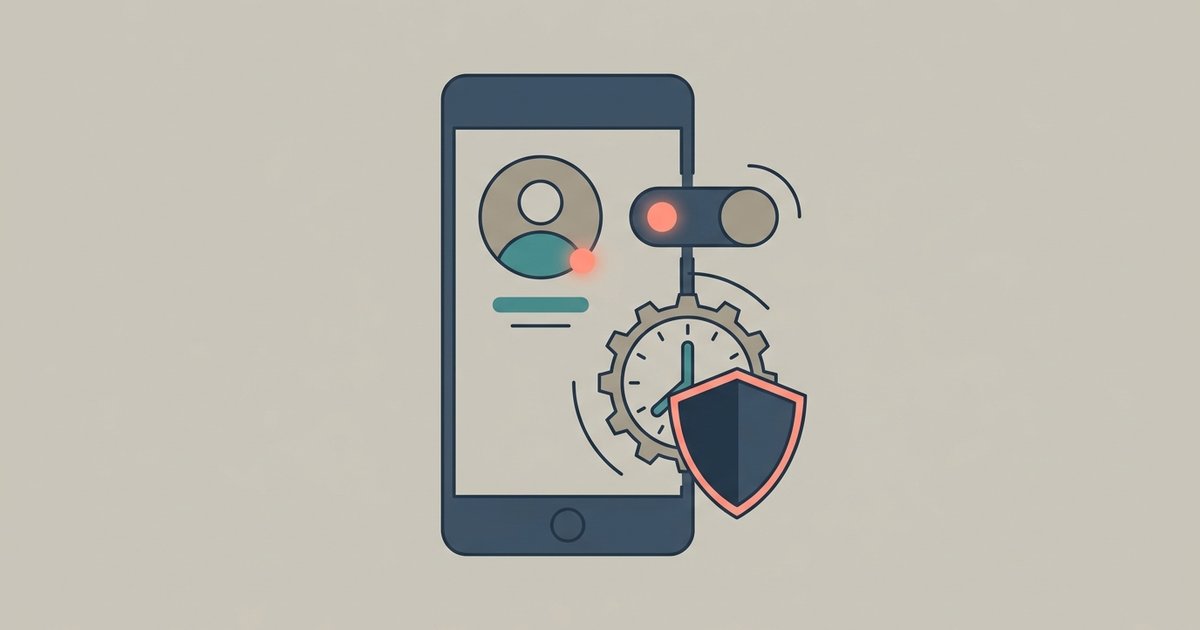
WhatsApp shows your contacts when you were last active and shows anyone you have chatted with when you are online right now. Both are controlled from the Privacy screen, where you can limit them to your contacts, exclude specific people, or hide them from everyone. The catch is reciprocal: if you hide your last seen, you cannot see anyone else's. Read receipts are a separate switch, and they are always sent in group chats.
Recovering a hacked account
If someone takes over your WhatsApp, the fix is to register your number again on your own phone with the six-digit code sent by SMS or call, which logs every other device out. Changing a password will not remove an attacker who is already in. Once you are back, turning on two-step verification and checking your linked devices stops the same trick from working twice.
Seeing messages someone deleted
WhatsApp cannot recover a deleted message for you, and a message deleted for everyone is replaced in the chat with a short notice. The only supported way to get one back is restoring a backup made before it was deleted, which replaces everything newer. On some Android phones, notification history can show the text of a message that arrived before it was removed, within tight limits. Apps that promise to recover deleted messages are mostly a privacy or account risk.
Telling whether someone blocked you
WhatsApp never tells you that you have been blocked, and it keeps the signs ambiguous on purpose to protect the person who did the blocking. A blocked contact's last seen, profile photo updates and statuses vanish from your view, messages stop at one gray check mark, and calls fail. Each of those signs also has an ordinary explanation, from privacy settings to a phone that is switched off.
WhatsApp Business or regular WhatsApp
The WhatsApp Business app is a separate free app for people who talk to customers, and it works like WhatsApp with extra tools on top: a business profile, a catalog, quick replies and away messages. One phone number can only be active in one of the two apps at a time. Moving a personal account to the Business app brings your chats along, but moving back leaves business-only data behind.
Disappearing messages and view once
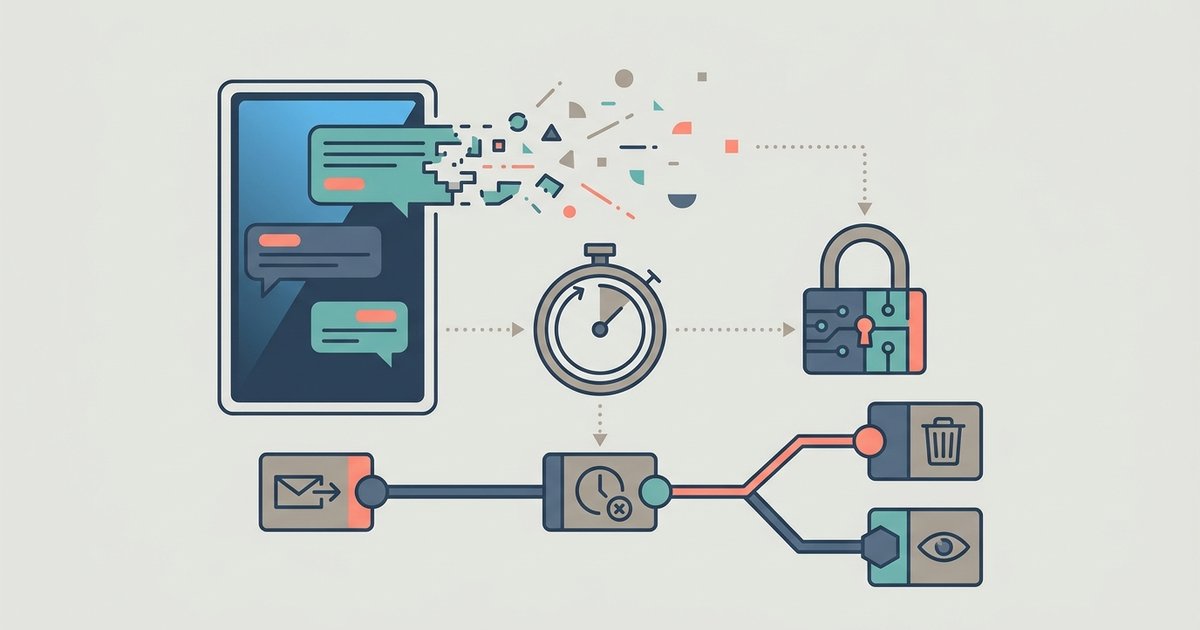
Disappearing messages remove new messages from a chat after 24 hours, 7 days or 90 days, for everyone in it. View once works on a single photo, video or voice message, which vanishes after the recipient opens it. Neither is a guarantee of secrecy: messages can be kept, quoted, backed up or photographed with another phone.
Spotting and stopping scams
Most WhatsApp scams are after one of two things: your account or your money. The account thieves ask you to forward a six-digit registration code, while the money scams pose as a relative with a new number, a recruiter, an investment opportunity or WhatsApp support. WhatsApp is free, never asks you to pay to use it, and its only official chat account carries a verified badge.
Freeing up storage
When WhatsApp fills a phone, the culprit is nearly always media rather than message text. The Manage storage screen lists your largest files and heavily forwarded items chat by chat, so you can delete them and keep every conversation. Changing the media auto-download settings is what stops the space from filling up again.
Where to start
If you are setting WhatsApp up for the first time, do two things before anything else: turn on a chat backup and turn on end-to-end encrypted backup with a credential you have actually written down. Almost every unrecoverable WhatsApp problem is a backup problem wearing a different hat. After that, link whichever second device you need, check your privacy settings once, and leave the rest alone until you have a reason to change it.