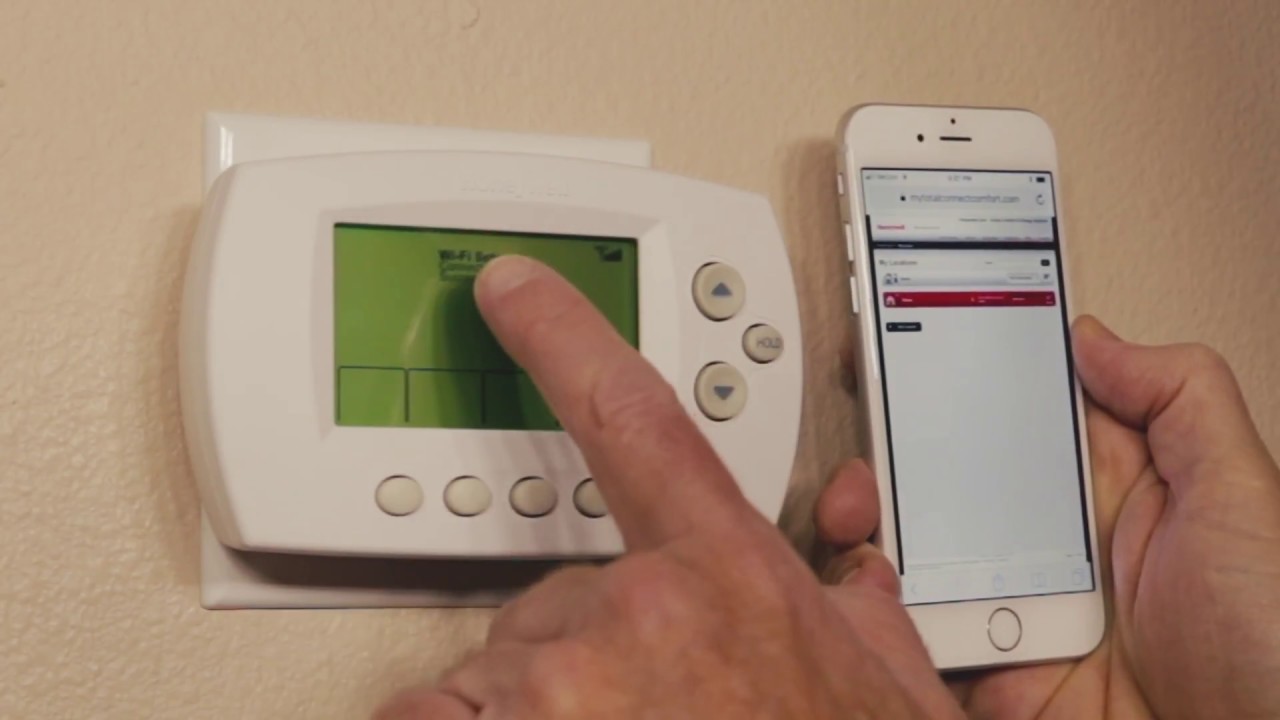
How To Set Up Wifi On Honeywell Thermostat
To set up wifi on your Honeywell thermostat, use the touchscreen menu to select Wi-Fi Setup, choose your home network, and enter your password, the process takes less than two minutes on most models. The fastest method works directly on the thermostat itself, and after connecting, you can link it to the Resideo Smart Home app for full remote control from your phone. Once online, you may also want to set time on honeywell smart thermostat automatically via the network to keep your schedules accurate.
Before you begin: Check your Honeywell thermostat's Wi-Fi compatibility and requirements
Before attempting to set up wifi on your Honeywell thermostat, confirm your model actually supports wireless connectivity. Locate the model number printed on the thermostat body or in the user manual, then search Honeywell's official website for the specifications. Look for terms like "Wi-Fi enabled," "wireless connectivity," or "smart home compatibility", if none appear, your thermostat cannot connect to your network and you may need to upgrade to a newer model. Once you have confirmed compatibility, you can connect honeywell smart thermostat to Wi-Fi network by following the step-by-step pairing process.
Your home network must meet three critical requirements for a successful setup:
- 2.4 GHz network band: Most Honeywell Wi-Fi thermostats require a 2.4 GHz network. The only exceptions are the Honeywell T9 and T10 models, which work with both 2.4 GHz and 5 GHz networks. If your router broadcasts a combined network name (SSID) for both bands, you may need to split them temporarily or check your router settings to ensure the thermostat can find the 2.4 GHz signal.
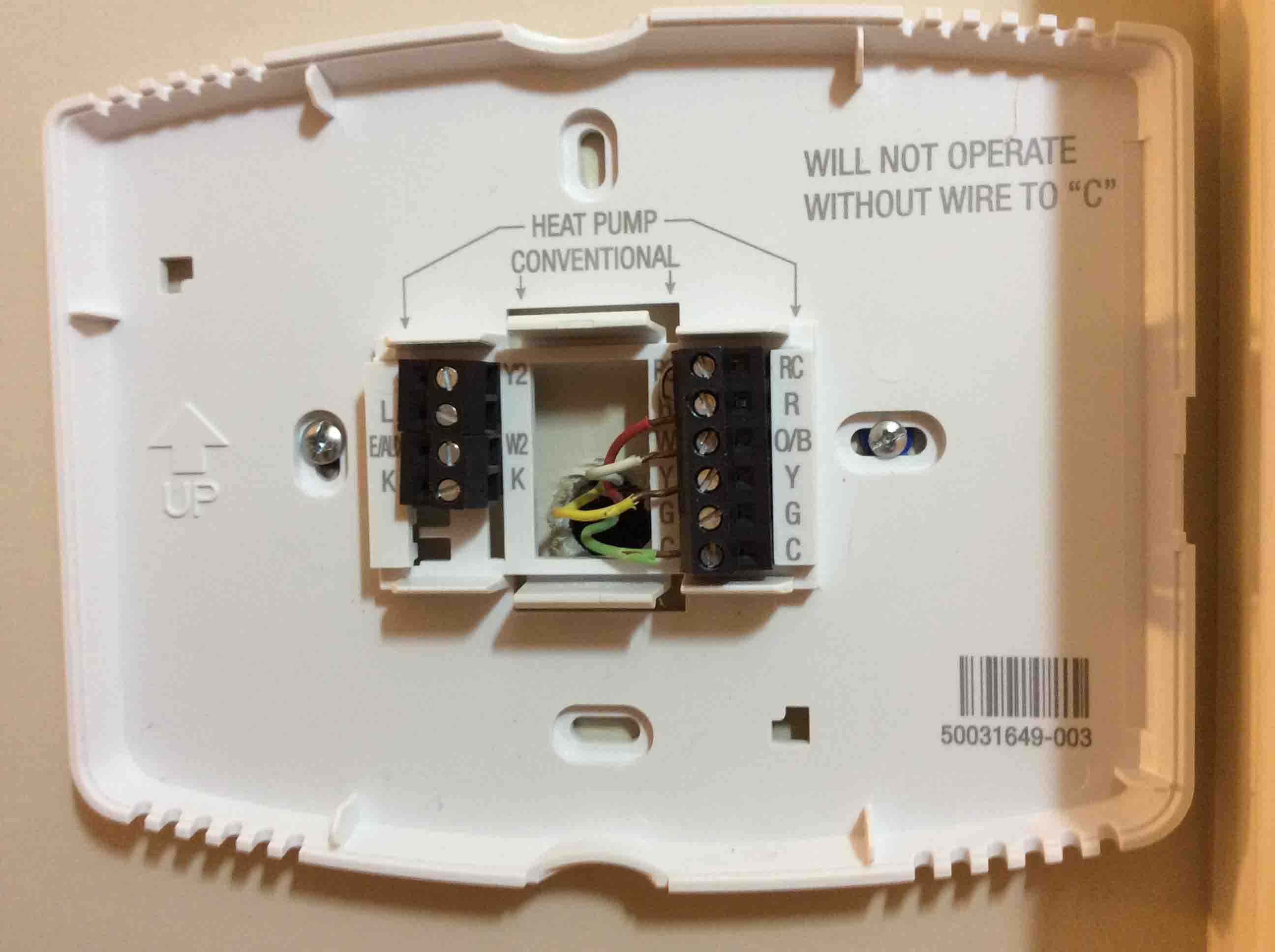
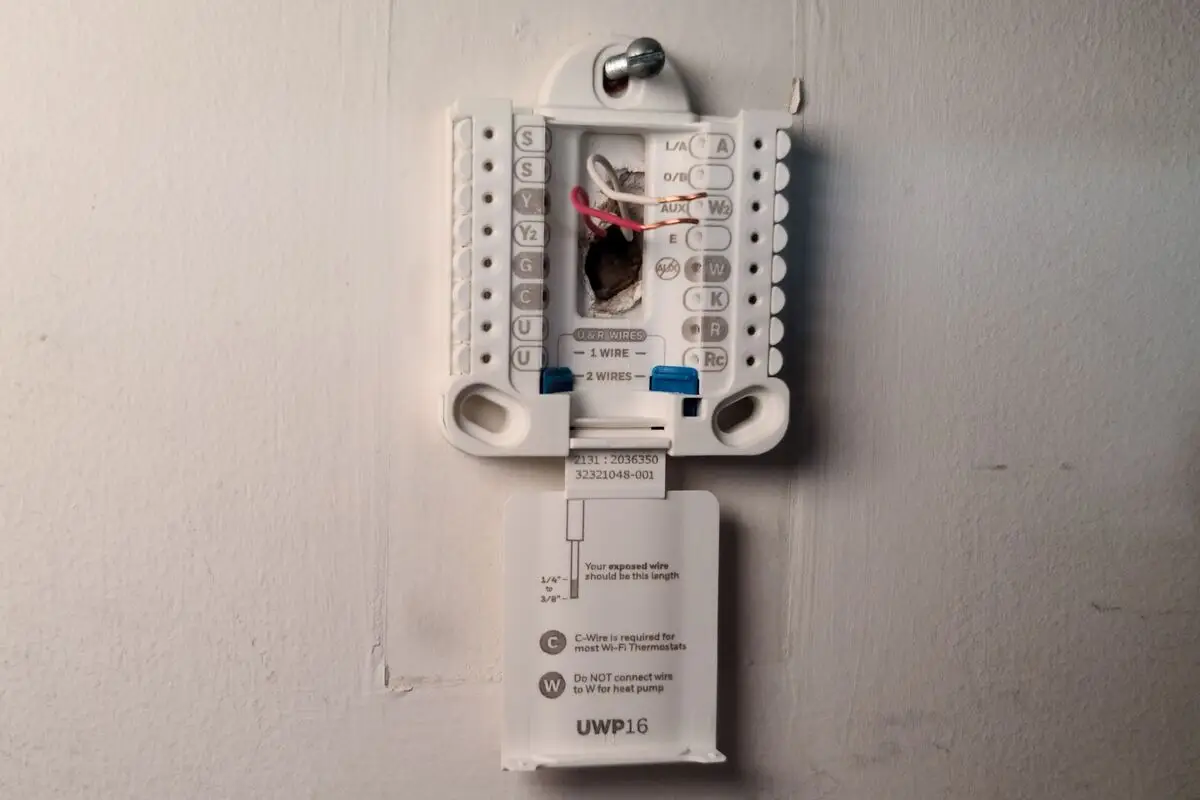
- C-wire (common wire): Many Honeywell Wi-Fi thermostats, including the T9 and RTH9585WF, require a C-wire for continuous power. Without it, the thermostat may not have enough power to maintain a Wi-Fi connection. Check your thermostat's installation guide or look for an unused wire at your HVAC control board if you're unsure.
- Standard home network: The network must be a private residential network, not a guest network or business network that requires a web page login (captive portal). These networks block the thermostat's ability to communicate with Honeywell's servers.
Your smartphone or tablet should also be connected to the same Wi-Fi network you plan to use for the thermostat during the setup process. This ensures the Resideo app can discover and sync with your device.
How to set up wifi on your Honeywell thermostat using the touchscreen menu
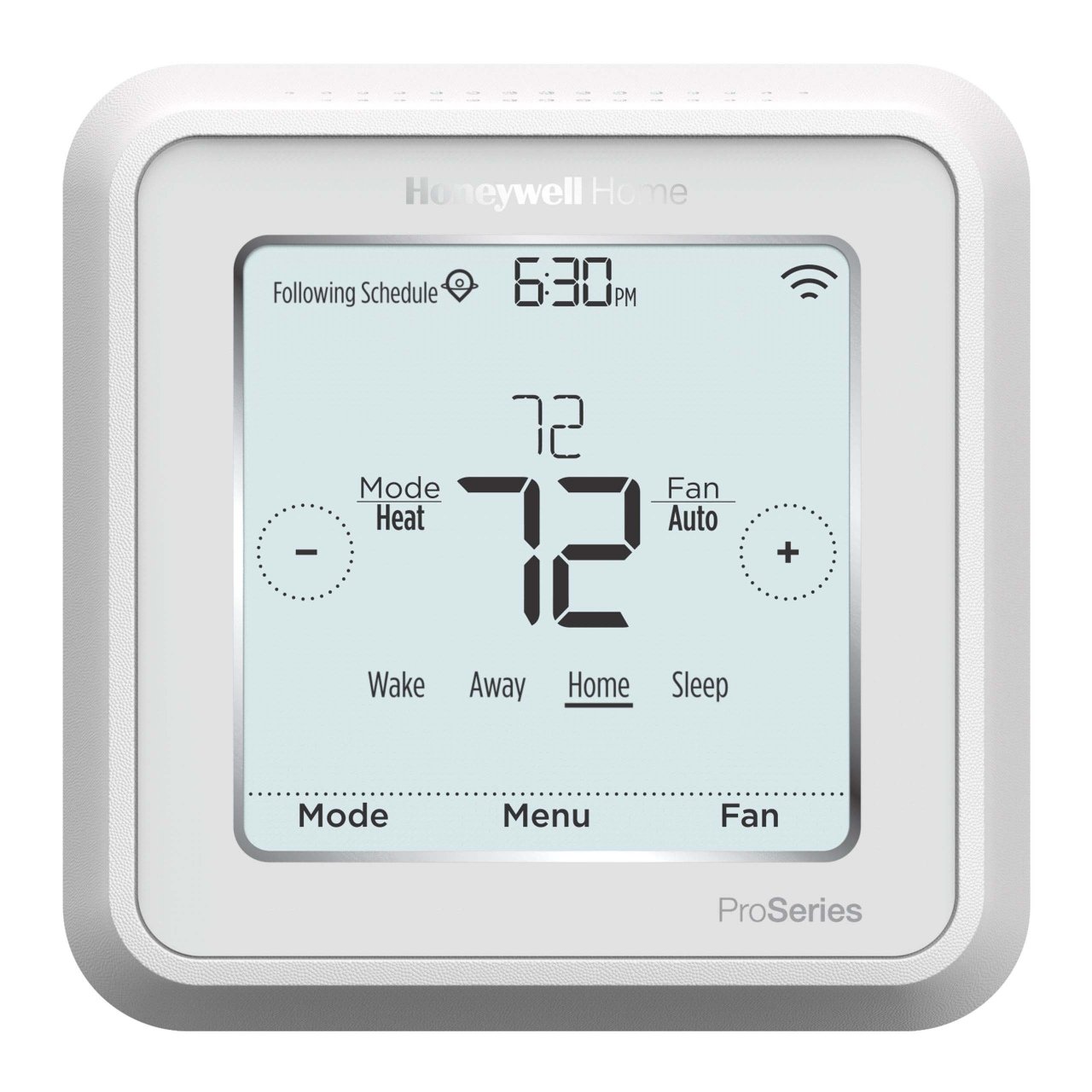
For the majority of Honeywell Wi-Fi thermostats, the entire setup happens directly on the thermostat's touchscreen. Follow these steps exactly:
- Access the menu: Press the Menu button on your thermostat.
- Select Wi-Fi Setup: Scroll through the menu options until you find Wi-Fi Setup or simply Wi-Fi. Tap it to begin the wireless configuration process.
- Choose your network: The thermostat will scan for available wireless networks and display a list. Select your home Wi-Fi network name (SSID) from the list. If you don't see your network, make sure your router is powered on and broadcasting, then rescan.
- Enter your password: Use the on-screen keyboard to type your Wi-Fi password carefully. Passwords are case-sensitive, so double-check uppercase and lowercase letters, numbers, and special characters. Tap Done or Next when finished.
- Confirm the connection: Wait a few seconds while the thermostat connects. A "Success!" message or confirmation page will appear on the screen if the connection was successful. If you see an error message, proceed to the troubleshooting section below.
Once you see the success message, your thermostat is connected to your home network. You can now move on to setting up the Resideo app for remote control.
Alternate Wi-Fi setup methods for specific Honeywell models
Some Honeywell thermostat models do not display the Wi-Fi Setup option in the standard menu. If your model is the TH6320WF or RTH6580WF, use the hidden setup mode instead:
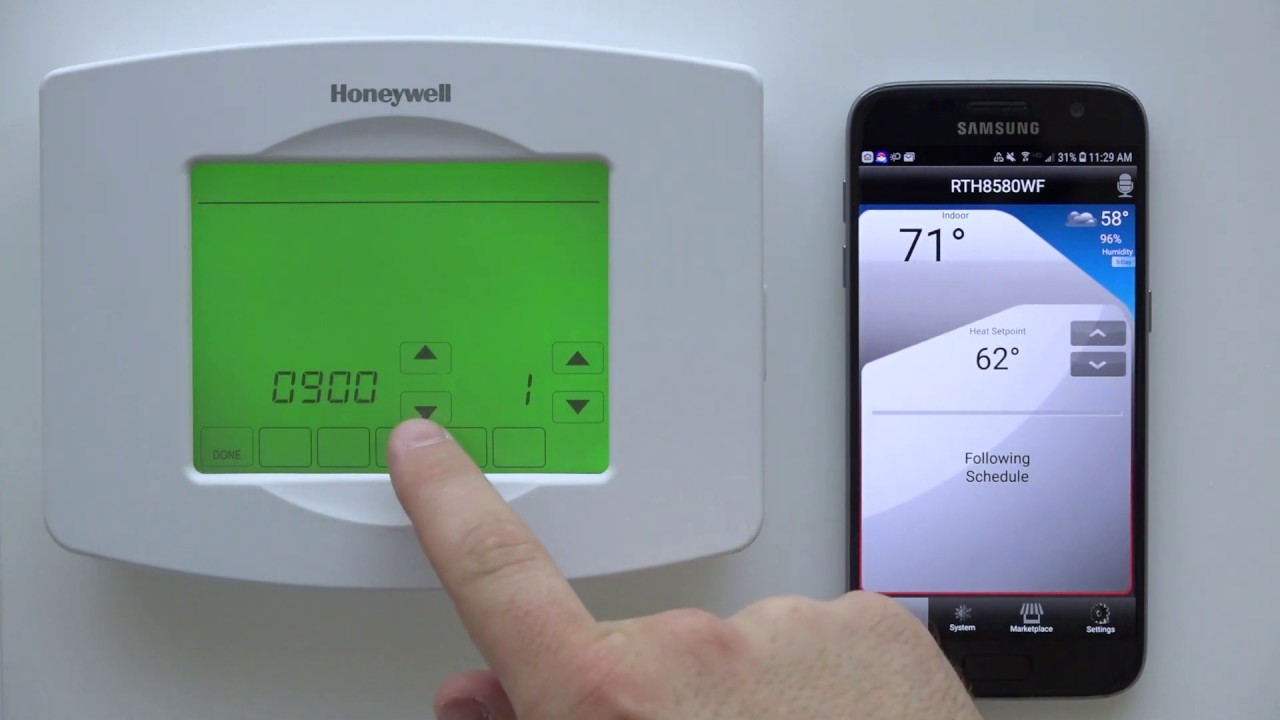
- Press and hold the FAN and UP arrow buttons simultaneously for about 3 seconds.
- The display will change to show two numbers. Use the arrow buttons to change the left number to 39 and the right number to 0.
- Press DONE to enter the Wi-Fi setup mode.
- Follow the on-screen prompts to select your network and enter your password, as described in the standard method above.
For certain older models, you may need to use a browser-based method:
- On your thermostat, navigate to the Wi-Fi setup menu and select the option to create a temporary network. The thermostat will broadcast a network name like "NewThermostat".
- On your smartphone or computer, open the Wi-Fi settings and connect to that temporary network.
- Open a web browser and go to http://192.168.1.1.
- In the browser-based interface, select your home Wi-Fi network from the list and enter your password.
- Save the settings. The thermostat will disconnect from the temporary network and join your home network.
How to connect your thermostat to the Resideo Smart Home app
After your thermostat is connected to Wi-Fi, you need the companion app to control it remotely. The correct app is now called Resideo Smart Home (formerly the Honeywell Home app). Download it from the Google Play Store (Android) or App Store (iOS).
Follow these steps to sync your thermostat with the app:
- Create or log in to your account: Open the Resideo Smart Home app and tap Sign Up if you're new, or log in with your existing Honeywell/Resideo credentials. Enter your name, email address, and a strong password. Verify your email address if prompted.
- Add your thermostat: The app will search for available devices on your network. Make sure your smartphone is connected to the same Wi-Fi network as your thermostat. When the app finds your thermostat, select it.
- Enter the pairing code: Depending on your model, the app may display a code that you need to enter on the thermostat, or the thermostat may display a code for you to type into the app. Follow the on-screen instructions carefully.
- Confirm the sync: Once the devices pair, the app will display a confirmation message. Your thermostat is now ready for remote control.
After syncing, you can adjust the temperature, switch between heating and cooling modes, set schedules, enable vacation mode, and monitor your energy usage, all from your smartphone, no matter where you are.
Troubleshooting: What to do if your Honeywell thermostat won't connect to Wi-Fi
If your Honeywell thermostat fails to connect to Wi-Fi, work through these steps in order:
- Verify your router is on and broadcasting: Check that your router is powered on and that other devices in your home can connect to the network. If your router has a guest network enabled, make sure you're selecting your main home network, not the guest network.
- Reboot your router: Power cycle your router and wait for it to fully reboot (usually 1-2 minutes) before attempting to connect your thermostat again.
- Confirm the network type: Ensure your network is a standard home network. If it's a guest network, business network, or requires a web page login (captive portal), the thermostat will not connect. You may need to create a separate standard network for the thermostat.
- Check the 2.4 GHz band: If your router broadcasts both 2.4 GHz and 5 GHz bands under the same SSID, the thermostat may struggle to find the correct signal. Temporarily disable the 5 GHz band in your router settings, or split the SSIDs so the thermostat can find the 2.4 GHz network specifically.
- Verify your password: Re-enter your Wi-Fi password carefully on the thermostat. Remember that passwords are case-sensitive and may include special characters. Try entering the password on another device first to confirm it's correct.
- Move the thermostat closer to the router: If the thermostat is far from your router, walls and interference can block the signal. Temporarily move the thermostat closer to the router during setup, then move it back once connected.
- Reset the thermostat's network settings: On some models, you can reset the Wi-Fi module by navigating to the settings menu and selecting Reset Wi-Fi or Network Reset. This clears any incorrect configurations and allows you to start fresh.
If none of these steps resolve the issue, consult your thermostat's user manual or contact Honeywell/Resideo customer support for model-specific assistance.
Related guides
- How To Connect Honeywell Smart Thermostat To Wi-Fi Network
- How To Reset A Smart Thermostat
- How To Install Honeywell Smart Thermostat
For the wider topic, see reset a smart thermostat.