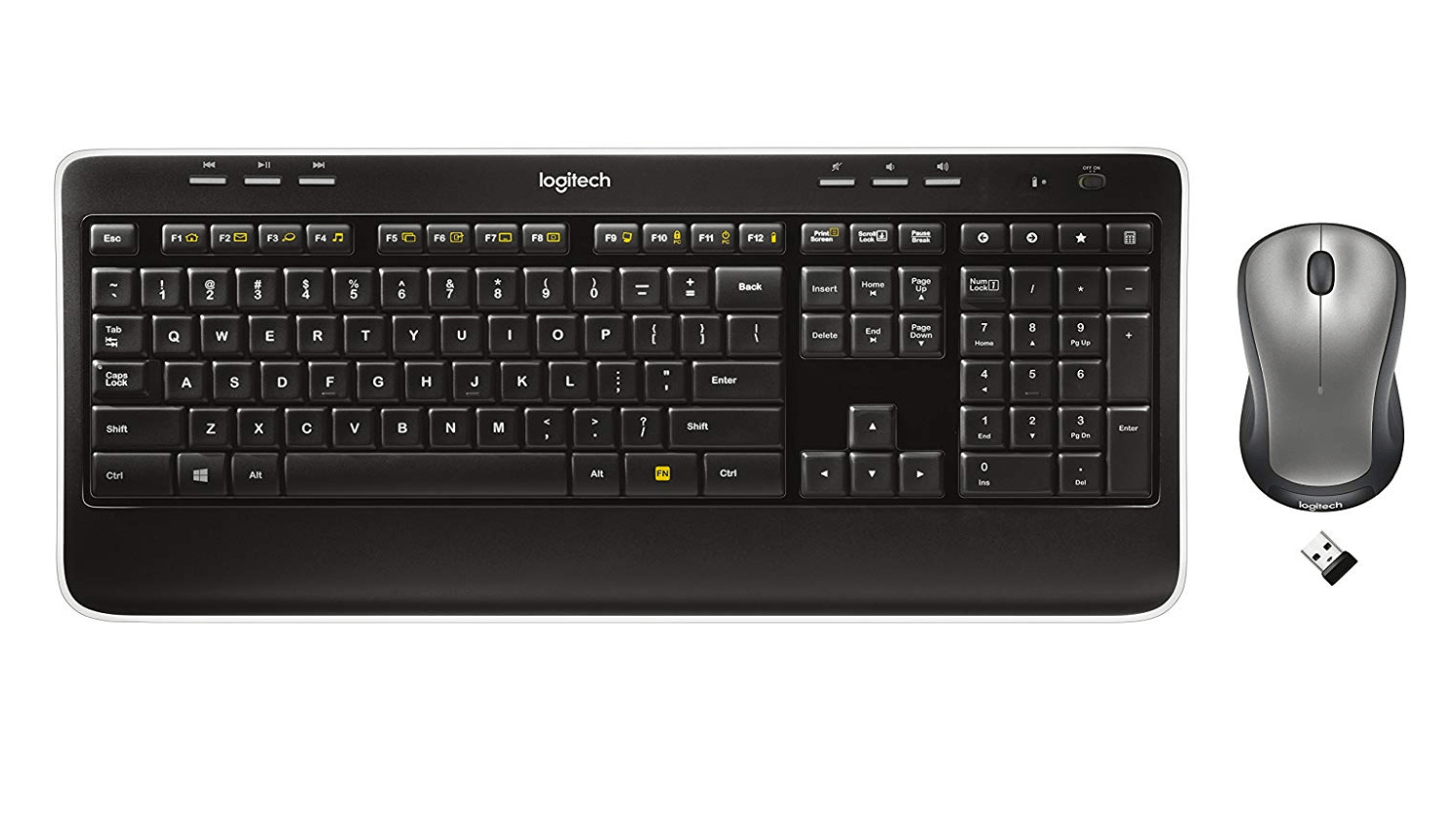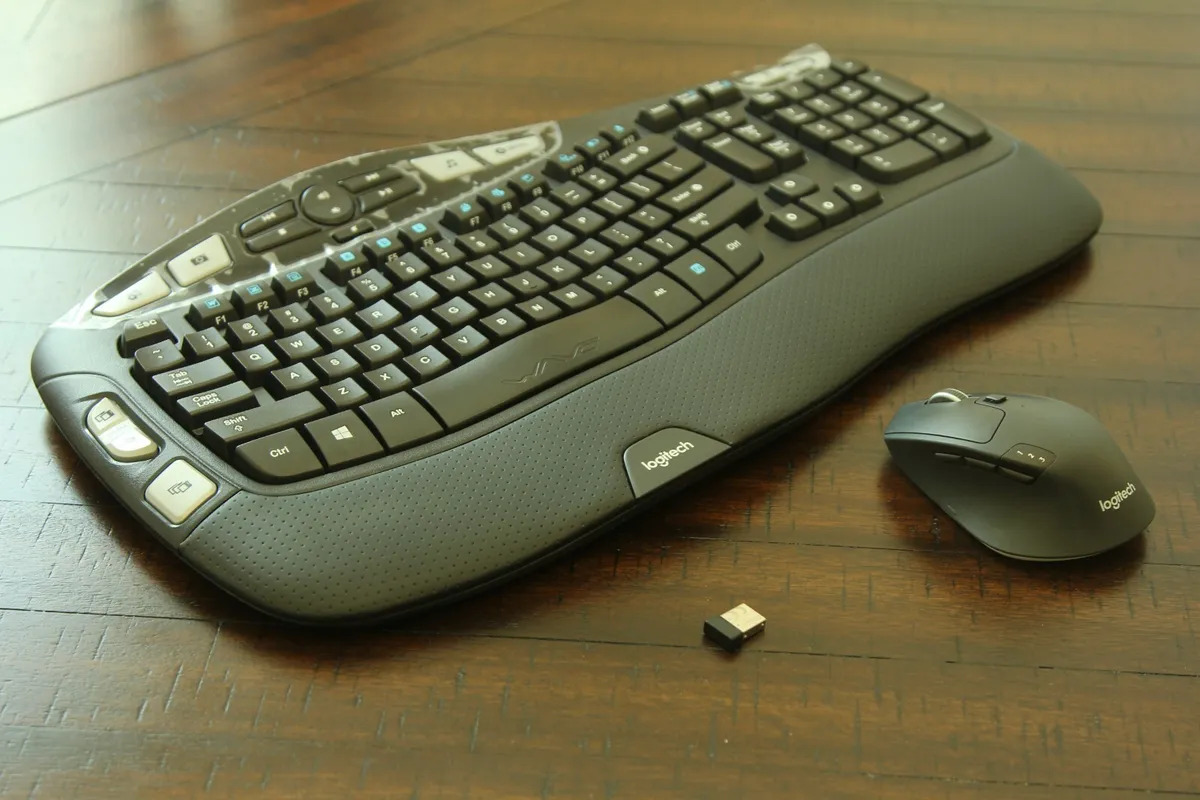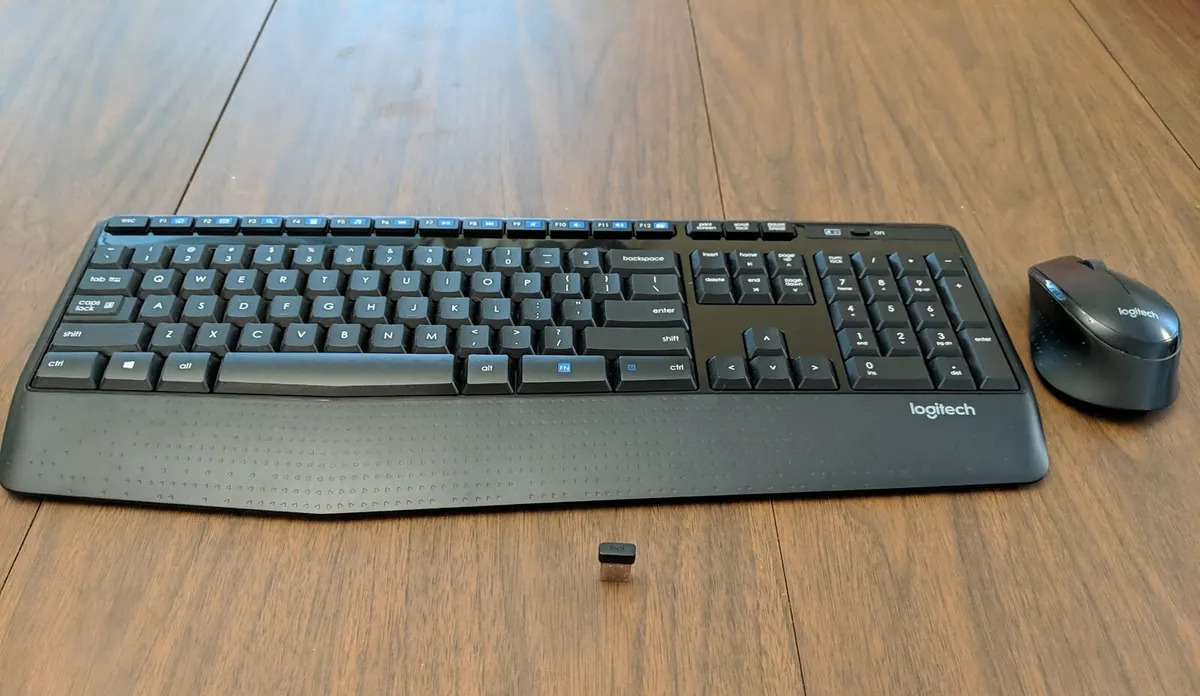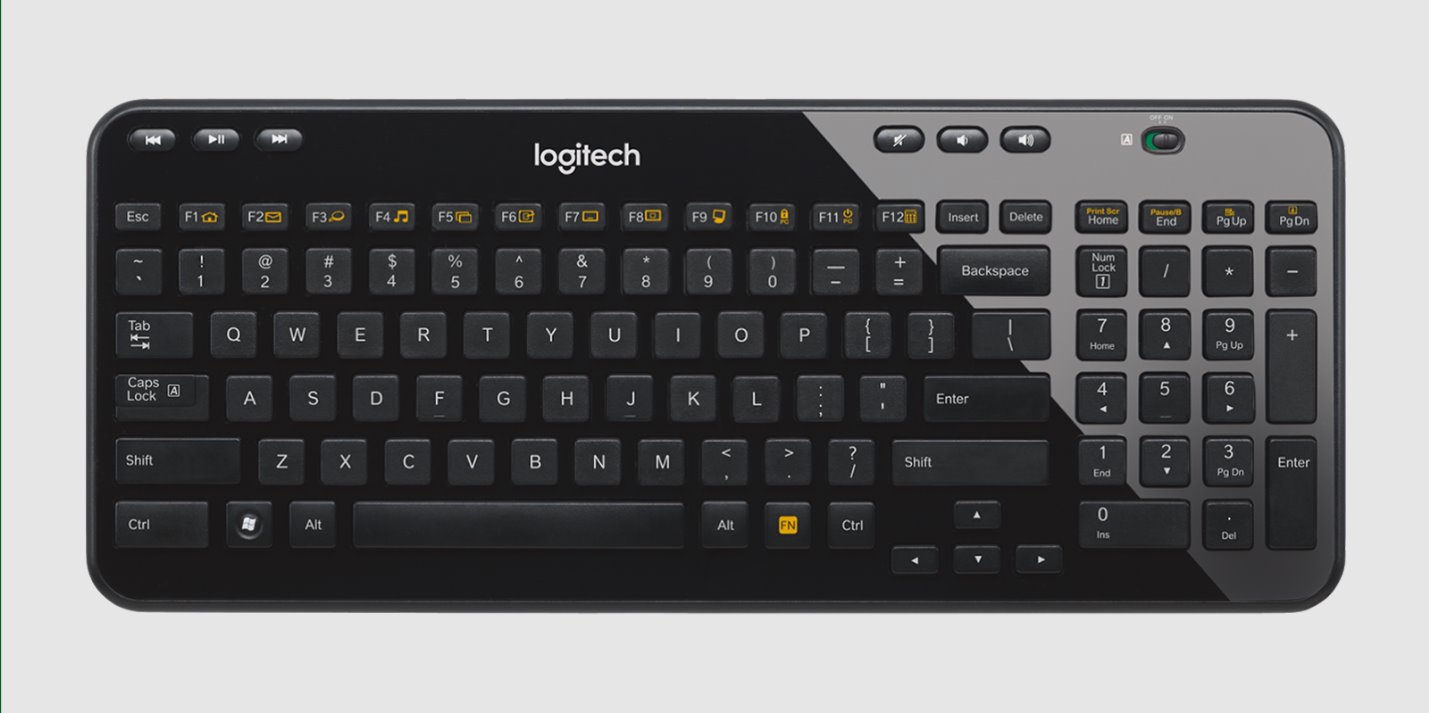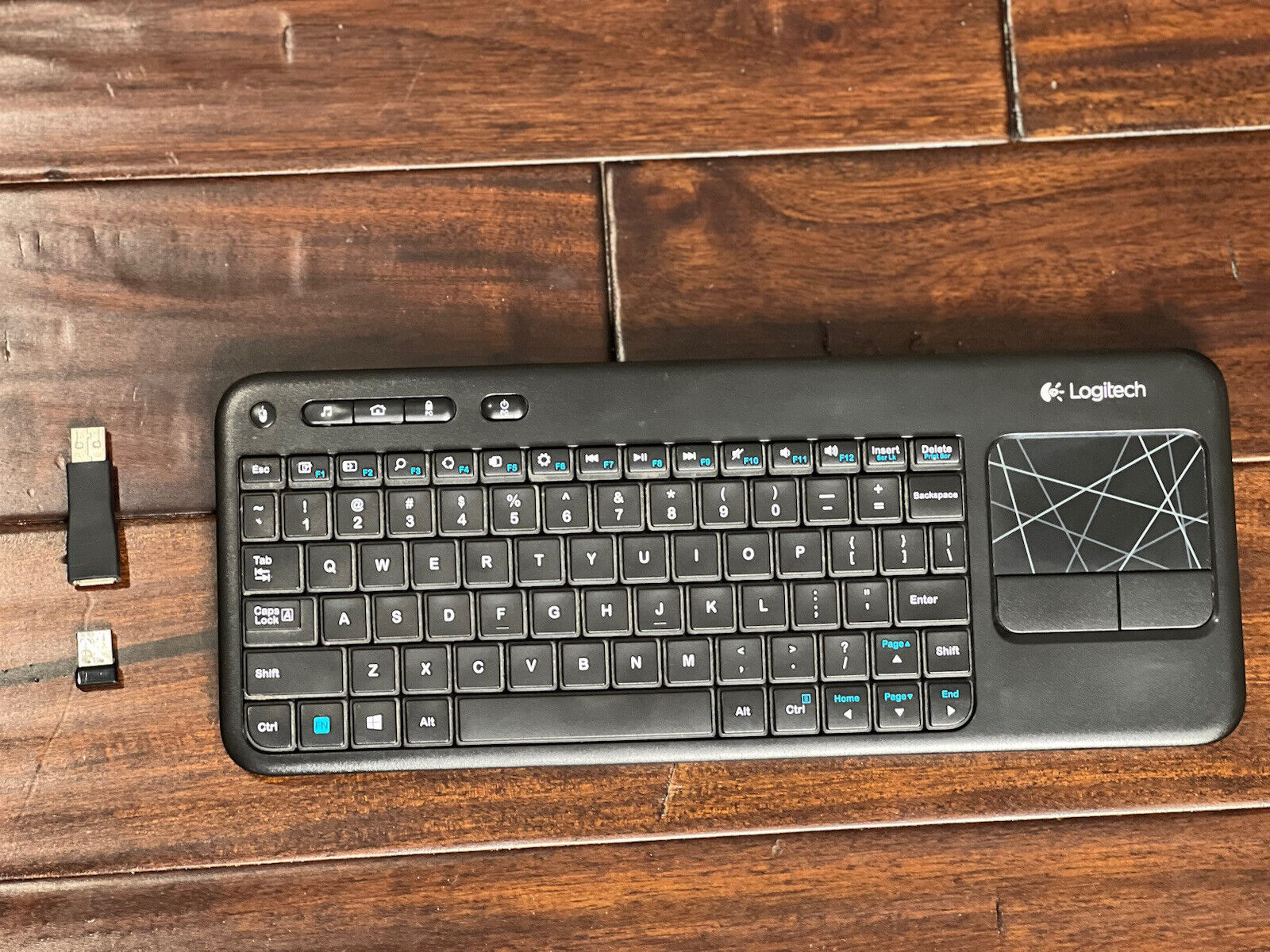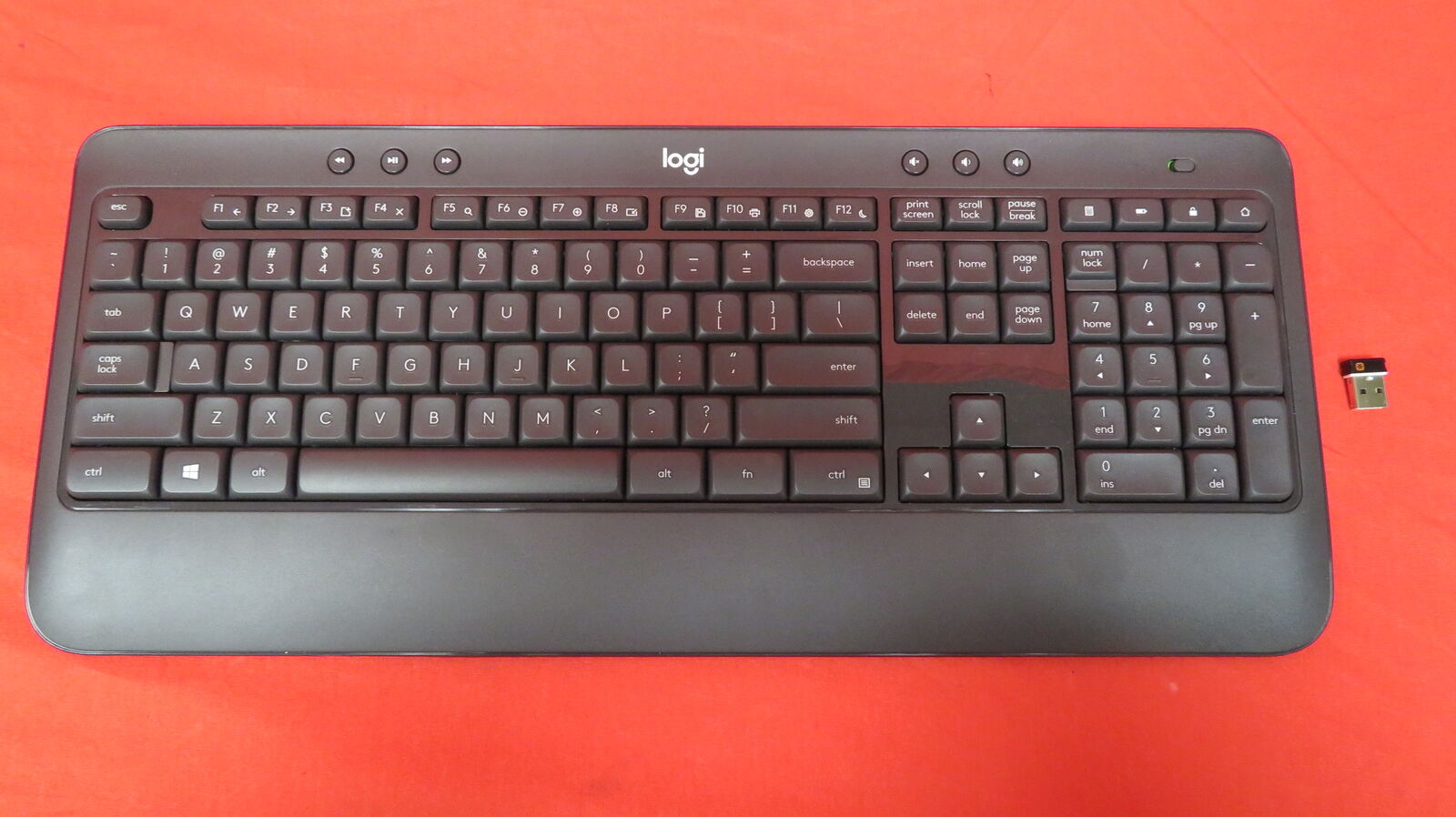
To connect Logitech Keyboard K540, insert the included Unifying USB receiver into your computer's USB port, then turn on the keyboard, the two are pre-paired and will connect automatically. This keyboard uses Logitech Unifying Protocol (2.4 GHz) technology and does not connect via Bluetooth, so the setup is a straightforward three-step process.
How to Connect Your Logitech Keyboard K540
The Logitech K540 keyboard is pre-paired with its Unifying receiver at the factory, meaning you do not need to run any pairing software. The connection is established as soon as both the keyboard and receiver are powered and connected. Follow these three steps to get started.
- Insert the batteries and turn it on. Open the battery compartment on the bottom of the keyboard and insert two AA batteries, observing the correct polarity markings inside the compartment. Then slide the power switch, located at the top right of the keyboard, to the "On" position.
- Plug in the Unifying USB receiver. Take the small Logitech Unifying receiver and insert it into an available USB port on your computer. Because the keyboard and receiver are pre-paired, the connection will establish automatically within a few seconds.
- Test the connection. Open any text document or application that accepts typing, place your cursor in a text field, and begin typing. If characters appear on screen, your keyboard is successfully connected and ready to use.
What to Do If Your K540 Keyboard Is Not Working
If your keyboard does not type after following the steps above, work through these verified troubleshooting checks:
- Ensure the keyboard is turned on by checking that the power switch at the top right is in the "On" position.
- Confirm the Unifying receiver is securely plugged into the computer's USB port. Try a different USB port if the connection seems loose.
- Move the keyboard closer to the receiver, the wireless range is approximately 33 feet (10 meters), but interference from other devices or obstacles can reduce this distance.
- Open the battery compartment and check that the batteries are correctly oriented. Replace them with fresh AA batteries if necessary.
Optional: Customize Your Keyboard with Logi Options+
To customize the keyboard's F-keys and hotkeys, download and install the Logi Options+ software from Logitech's website. This is the recommended software for the K540. Note that older software such as Logitech Options, Unifying Software, SetPoint, and Logitech Connection Utility are no longer supported and should not be used.
If you need to connect keyboard to a different computer, simply move the Unifying receiver to that computer, the pre-paired connection works on any system that meets the compatibility requirements (Windows 7 or later, and Chrome OS). To connect a Logitech wireless keyboard to a different receiver, you would need to use the Logi Options+ software's pairing tool, though the K540 is designed to stay paired with its original receiver for the most reliable experience. If you've misplaced that receiver entirely, you can still connect Logitech wireless keyboard k270 without receiver using Bluetooth as a workaround.
For the wider topic, see connect keyboard.