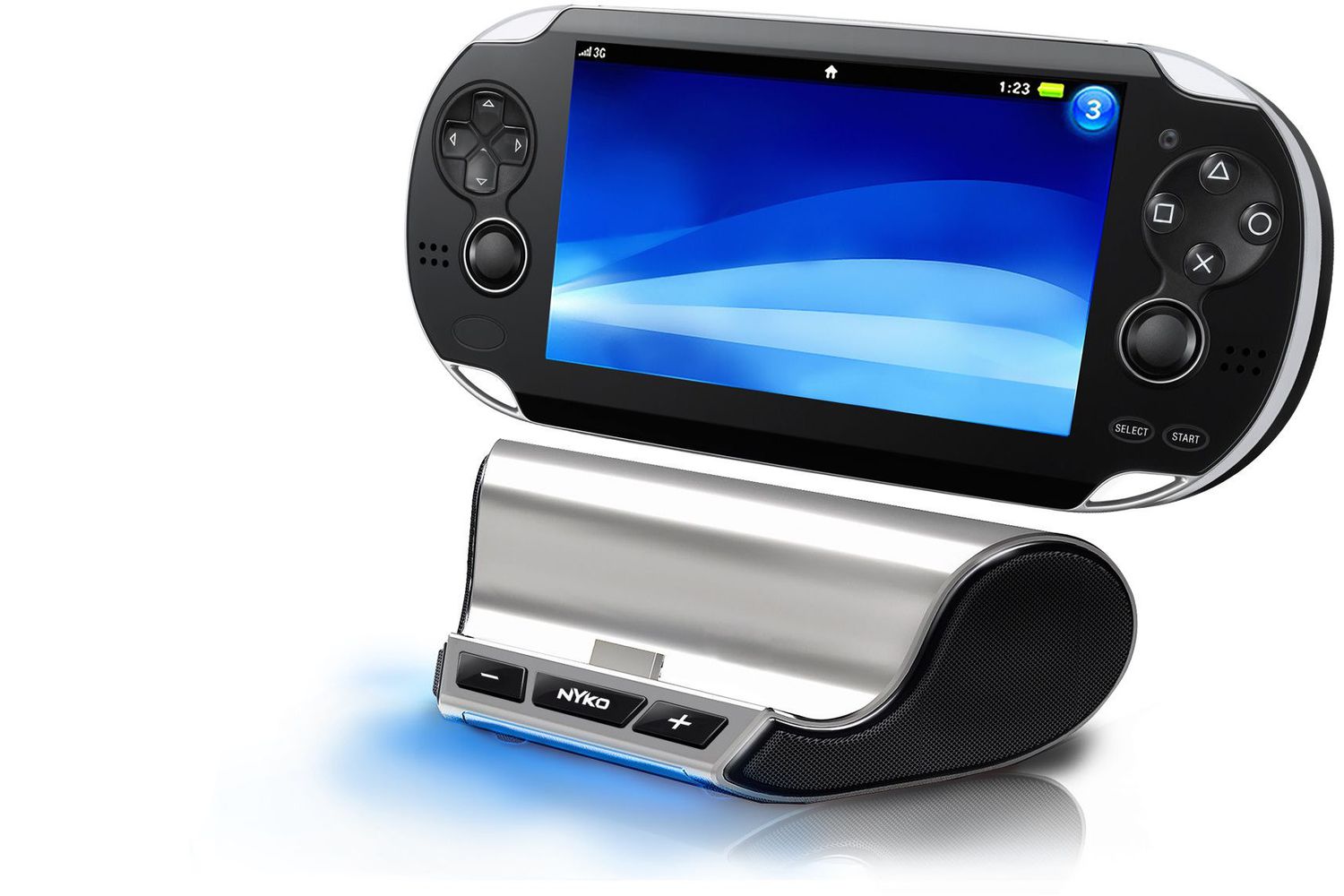
To download music on a PSP, you connect the handheld to a computer with a USB cable and copy supported audio files into the MUSIC folder on the Memory Stick Duo. This manual transfer method is the most reliable way to get your songs onto the device without extra software.
What you need to download music on a psp
Before you start, gather the required hardware: a PSP with a Memory Stick Duo inserted, a compatible USB cable, and a computer with a USB port. Your audio files must be in a format the PSP can play: MP3, AAC (MPEG-4 AAC), WAV (Linear PCM), or WMA. If you plan to use WMA files, your PSP firmware must be version 2.60 or higher, and you must enable WMA playback in the system settings. This activation step may require a network connection and your agreement to the license terms, and it is important to note that copyright-protected WMA files will not play on the PSP under any circumstances.
Step 1: Connect your PSP to the computer
Turn on the PSP by sliding the power switch. Locate the USB port on the top of the device, under a small plastic flap, and connect one end of the USB cable there. Plug the other end into an available USB port on your computer. On the PSP, navigate to the Settings menu, scroll to "USB Connection," and press the X button. This puts the device into USB mode, and the PSP will display a USB connection icon in the corner of the screen. On your computer, the Memory Stick Duo will appear as a removable drive in File Explorer on Windows or Finder on Mac.
Step 2: Transfer music files to the PSP memory stick
Open the removable drive that represents your PSP's Memory Stick. Create a folder named "MUSIC" in the root directory of the drive, using all uppercase letters. Alternatively, you can create the MUSIC folder inside an existing "PSP" folder, such as \PSP\MUSIC. Then, open a second window on your computer, locate the audio files you want to transfer, and drag-and-drop them into the MUSIC folder. The PSP recognizes subfolders up to the second level under MUSIC, so you can organize tracks by artist and album, for example \MUSIC\Artist\Album. For playlist support, you can create .m3u text files that specify the order of tracks and place them inside the folder. If you need to build your MP3 library first, you can download music from Spotify to my computer for offline listening before transferring it to your handheld, or you can download music as MP3 from Spotify to ensure the files are in a format the PSP natively supports. The amount of music you can store depends on the Memory Stick Duo's capacity; a 2GB stick holds roughly 35 CDs worth of audio, assuming about 50MB per CD.
Step 3: Safely disconnect and play your music
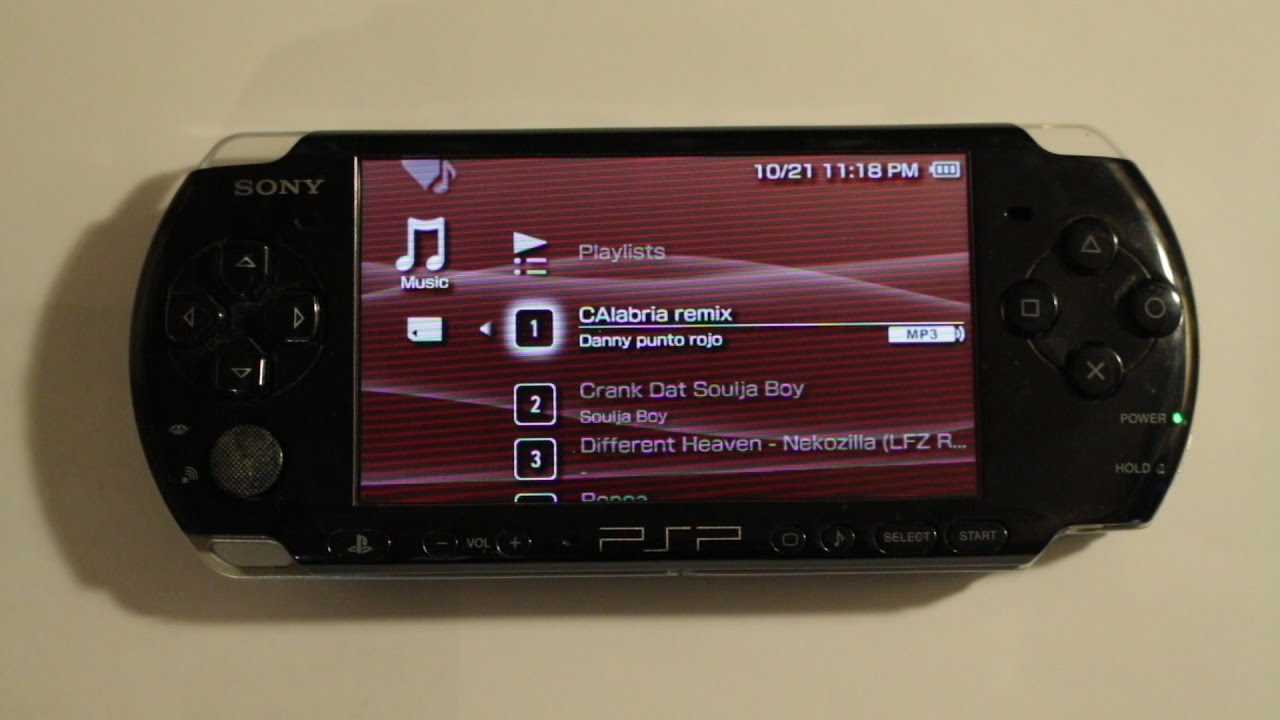
After the file transfer finishes, safely eject the PSP from your computer. On Windows, click the "Safely Remove Hardware" icon in the system tray and select your PSP; on Mac, drag the drive icon to the Trash. Wait for the confirmation message before unplugging the USB cable. On the PSP, press the Home button to end USB mode and return to the main menu. Navigate to the Music menu, where you will see your transferred tracks listed. Browse by song, artist, album, or playlist using the directional buttons and the X button to select and play. The Music menu also lets you adjust shuffle, repeat, and volume settings to customize your listening experience.
Alternative method: using Media Go software
If you prefer a more automated approach, Sony's Media Go software can handle the transfer for you. When you connect your PSP and launch Media Go, the program automatically creates the MUSIC folder on the Memory Stick and converts audio files to PSP-compatible formats as needed. This is especially useful if you have files in formats the PSP does not natively support, since Media Go handles the conversion in the background. Simply drag your music library into the Media Go interface, select your PSP as the destination, and let the software manage the folder structure and file formatting for you. This method also works well for organizing large collections, as Media Go can sync playlists and maintain consistent folder naming across transfers.
For the wider topic, see download music MP3.