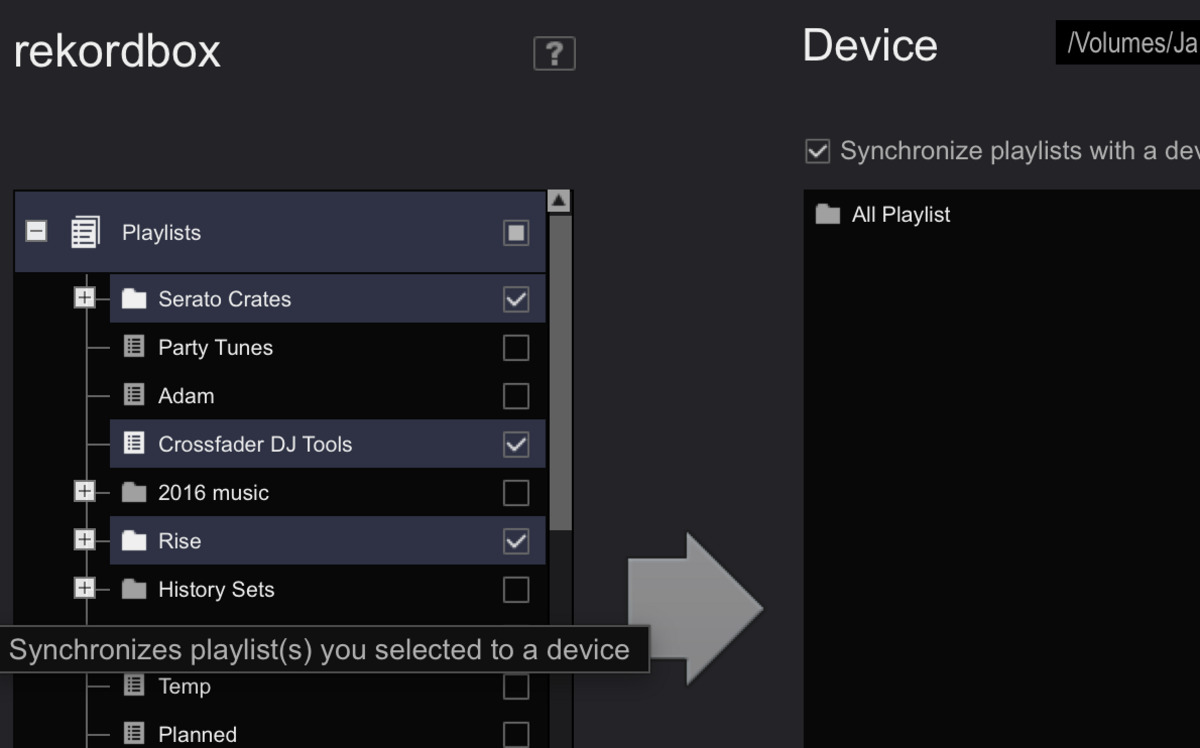
To download music on Rekordbox, you have two real methods: import music files you already own from your computer, or subscribe to a supported streaming service for offline playback. Rekordbox itself is not a music store, so every track you want to use must come from either your local library or an authorized streaming provider.
How to download music on rekordbox from your local files
If you already own MP3, WAV, FLAC, or ALAC files on your hard drive, importing them into Rekordbox is the most straightforward way to build your DJ library. This method works for tracks you’ve purchased, ripped from CDs, or received from record pools, and it requires no subscription beyond the free Rekordbox tier.
- Open Rekordbox and go to the “Collection” view, where your playlists and full library are displayed.
- Click the “Import” button or use the “File” menu and select “Import Track” to open a file browser.
- Navigate to the folder where your music is stored. You can select individual files or highlight an entire folder to import multiple tracks at once.
- Click “Open” to start the import. Rekordbox will automatically analyze each track for BPM, key, and waveform data.
- Once the import finishes, your tracks appear under “Collection” and are ready to drag into any playlist.
For a smoother workflow, you can also set Rekordbox to automatically watch a specific folder on your computer. If you regularly add new downloads to that folder, the software will pick them up without manual importing. Properly tagging your files with artist, title, genre, and BPM before importing makes later searching much faster.
Method 2: Downloading for offline use with streaming services
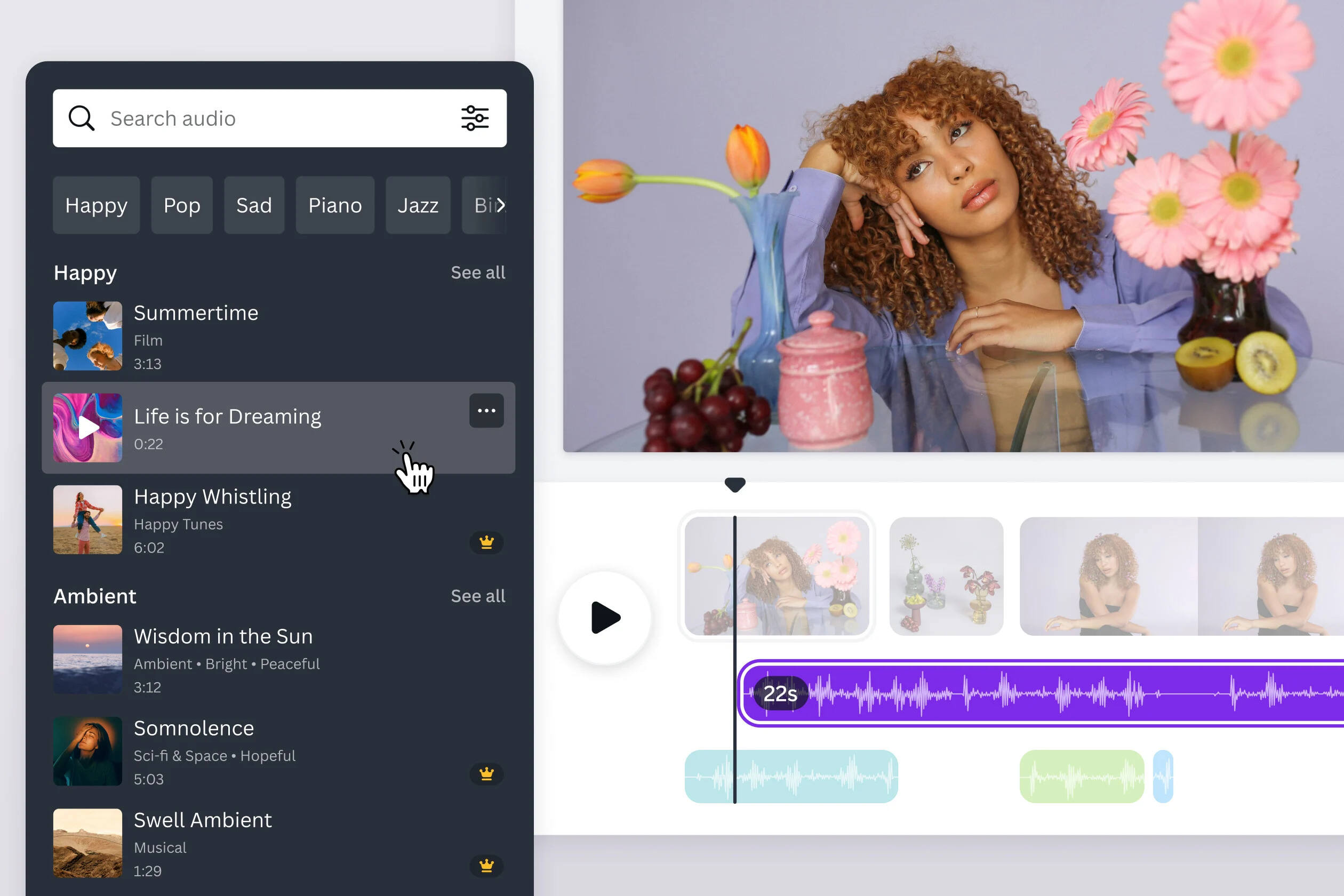
Rekordbox integrates directly with several streaming services, letting you browse, load, and play tracks from within the software. Supported services include Beatport LINK, SoundCloud Go+, TIDAL, and Apple Music. To download music for offline playback from these services, you need a premium subscription tier, for example, Beatport LINK PRO or LINK PRO+, because the free tiers only allow streaming while connected to the internet.
- In Rekordbox, go to the “Browse” view and open the “Online” panel on the left side of the screen.
- Select your streaming service (Beatport LINK, SoundCloud Go+, TIDAL, or Apple Music) and sign in with your account credentials.
- Search for tracks using keywords, genres, artists, or labels. You can preview snippets to check suitability for your sets.
- When you find a track you want for offline use, look for the download or offline sync option within that service’s interface.
- Confirm the download. Rekordbox will save the track to your local library, and it becomes available even when you’re not connected to the internet.
After downloading, the track appears in your “Collection” alongside your local files. You can add it to playlists, apply tags, and use it in your DJ sets just like any other file. Remember that offline downloads from streaming services are tied to your active subscription, if your subscription lapses, those tracks may become unplayable until you renew.
A note on Spotify and rekordbox
Spotify is not supported for DJ performance or offline downloads within the main Rekordbox software. While the Rekordbox mobile app may list Spotify as a streaming option for general listening, you cannot load Spotify tracks into a DJ set or download them for offline use in the desktop version. If your workflow depends on Spotify, you’ll need to source those tracks from a supported service or purchase them as local files.
Setting up rekordbox for the first time
Before you can download or import anything, you need Rekordbox installed and running. Download the software from the official Pioneer DJ website, choosing the version that matches your operating system. After installation, launch Rekordbox and create a user account when prompted, this account lets you sync your library across devices and access certain features. Connect your DJ controller or mixer via USB if you plan to perform with it, then go into the settings menu to configure audio output, file management, and controller mappings. Run the library analysis on any tracks you already have so Rekordbox can calculate BPM, key, and waveform data. Keep the software updated, as Pioneer DJ periodically releases fixes and new features.
Creating a playlist for your downloaded tracks
Playlists are the backbone of an organized Rekordbox library. They let you group tracks by genre, mood, energy level, or a specific upcoming gig. To create one, open the “Collection” view and right-click anywhere in the playlist panel on the left. Select “New Playlist” and give it a descriptive name, for example, “Warm-Up” or “Peak Hour.” Drag tracks from your library into the playlist, or right-click a track and choose “Add to Playlist.” You can reorder tracks within a playlist by dragging them into your preferred sequence, which helps you plan the flow of a set. Add comments, star ratings, or colored labels to individual tracks for extra organization. Maintain multiple playlists for different occasions, and update them regularly as you discover new music or refine your sets.
Exporting your music to a USB drive
Once your library is organized, exporting to a USB drive or external device ensures your tracks are available on any CDJ or DJ setup. Connect your USB drive to your computer, then in Rekordbox navigate to the playlist or “Collection” view containing the tracks you want. Select the tracks, hold Ctrl (Windows) or Command (Mac) to pick multiple, or press Ctrl/Cmd+A to select all in a playlist. Right-click the selection and choose “Export.” In the export window, specify the destination folder on your USB drive; you can create a new folder or use an existing one. Configure export settings such as file format and quality if needed, then click “Export” to transfer the files. When the export completes, safely eject the USB drive. You can then plug it into any compatible DJ system and access your tracks directly. Regularly re-export your library to keep the USB drive current with your latest additions and playlist changes.
For the wider topic, see download music MP3.
\nRelated reading: How To Download Music To PS Vita and How To Download Music To Aiworth MP3 Player.