To remove DoorDash from your tablet, the exact steps depend on whether you're using an iPad or an Android tablet, but in both cases, you can permanently delete the app in under a minute. The most common reason to remove DoorDash from tablet is to free up storage or stop notifications, and both platforms offer a direct uninstall option from the home screen or settings. Note that deleting the app will permanently erase its data, including any saved addresses or order history, so be sure you're ready before you proceed.
Remove DoorDash on an iPad
On an iPad, you have two verified ways to delete the DoorDash app, both of which permanently remove the app and its data from the device. Choose the method that feels quickest for you, but know that both achieve the same result, no leftover files or settings.
- Touch and hold the DoorDash app icon on the Home Screen or in the App Library until a menu appears.
- Tap Remove App from the menu, then select Delete App to confirm.
Alternatively, you can go to Settings > General > iPad Storage, scroll to find DoorDash, tap it, and then select Delete App. This method is especially useful if you're checking how much storage the app uses before deleting it. Also, if you have an Apple Watch paired to your iPhone, deleting DoorDash from the iPhone will automatically remove it from the watch, so you don't need to repeat the process there.
Uninstall DoorDash on an Android tablet
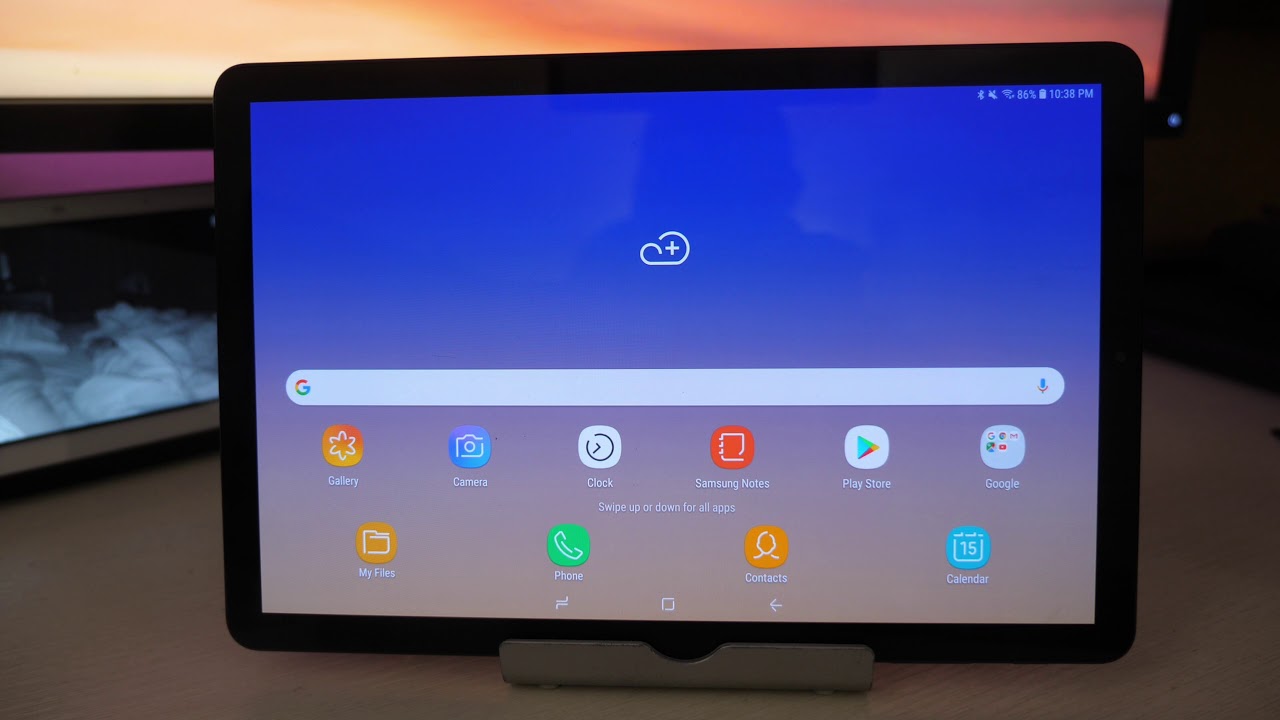
Android tablets offer three verified methods to uninstall DoorDash, so you can pick the one that fits how you usually manage apps. All three permanently delete the app and its data, and you can reinstall it later from the Play Store without paying again.
- From the Home Screen, touch and hold the DoorDash icon, then drag it to the Uninstall option that appears at the top or in a menu.
- Open the Google Play Store, tap your profile icon (top right), select Manage apps & devices, then Manage. Find DoorDash in the list, tap it, and choose Uninstall.
- Go to Settings > Apps (or Applications / Apps & notifications), scroll to DoorDash, tap it, and select Uninstall.
If you're a Dasher (delivery driver), uninstalling the app is the recommended way to stop receiving Dasher notifications. However, if you want to fully deactivate your Dasher account, that requires contacting DoorDash Support directly, uninstalling alone won't close the account.
What to do if you can't uninstall DoorDash
In that case, the uninstall button may be grayed out or missing entirely. First, check if DoorDash is listed as a device admin by going to Settings > Security > Device administrators and unchecking it if present, this often unlocks the uninstall option. If the app is truly pre-installed and cannot be removed, look for a Disable button instead. Disabling the app will stop it from running in the background, stop all notifications, and remove it from your app drawer, though it will still occupy a small amount of storage. As a last resort, a factory reset (via Settings > System > Reset) will remove all apps and data, but this wipes your entire tablet, so only do this if you're comfortable backing up everything first.
Reinstalling DoorDash and next steps
If you ever change your mind, reinstalling DoorDash is completely free, just open the App Store (on iPad) or Google Play Store (on Android), search for DoorDash, and tap the download button. You won't need to repurchase anything, and you can sign back into your existing account to restore your order history and preferences. If you're removing the app to free up storage, you might also want to check which other large apps are taking up space on your tablet, deleting unused games or streaming apps can have a bigger impact than you think.
\nRelated reading: How To Remove Apps From Jitterbug Smartphone, How To Block Apps On Amazon Fire Tablet, and How To Watch DVDs On Android Tablet.