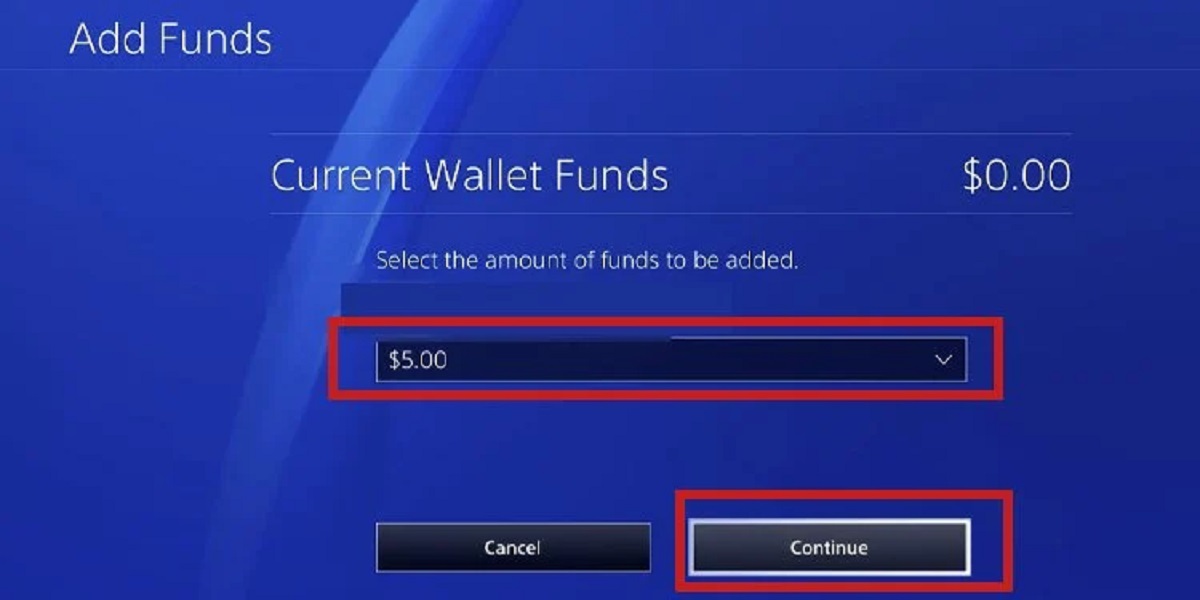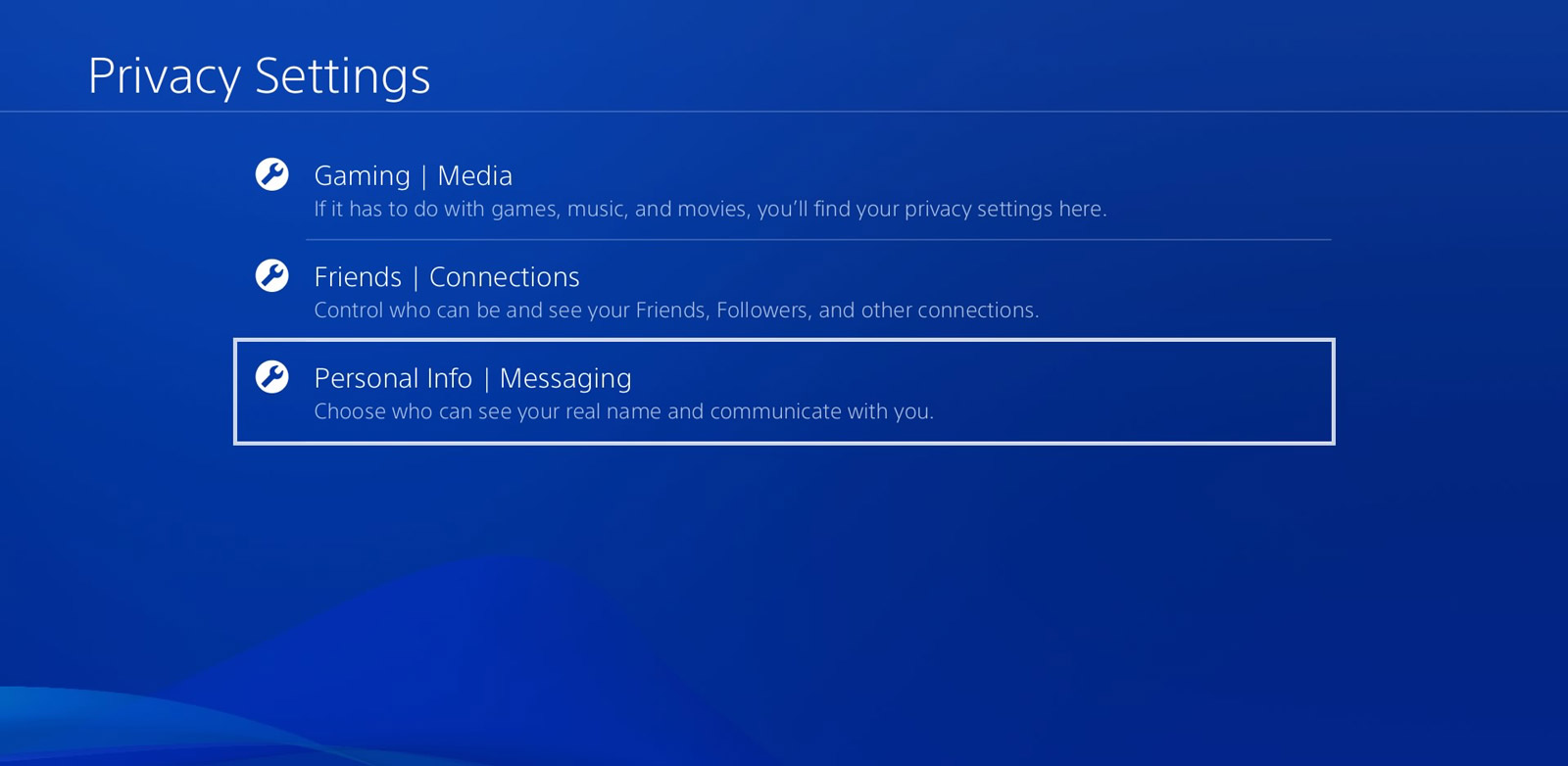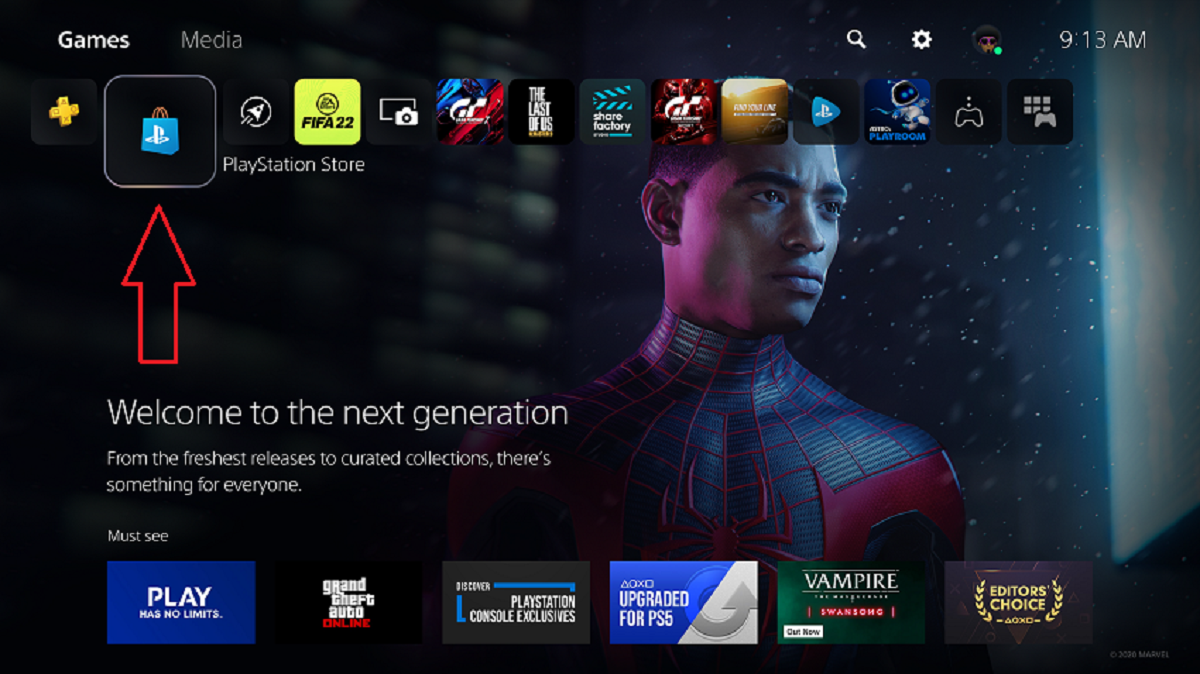
To add funds to your PlayStation account, go to Settings > Users and Accounts > Account > Payment and Subscriptions > Add Funds on your PS5, or use the equivalent menu on PS4 and the web. This action loads money into your wallet, which is required before you can buy games, DLC, or subscriptions from the PlayStation Store.
How to add funds to your PlayStation account on PS5
On your PS5 console, adding funds takes about 30 seconds. Here’s the exact path:
- Press the Settings gear icon on the top-right of the home screen.
- Go to Users and Accounts.
- Select Account.
- Choose Payment and Subscriptions.
- Select Add Funds.
- Pick your payment method (credit/debit card, PayPal, or Pay by Mobile if available in your region).
- Review the transaction details, then select Continue to confirm.
The funds appear in your wallet instantly, and you can start shopping right away. You’ll spend wallet funds first before any other payment method when making a purchase.
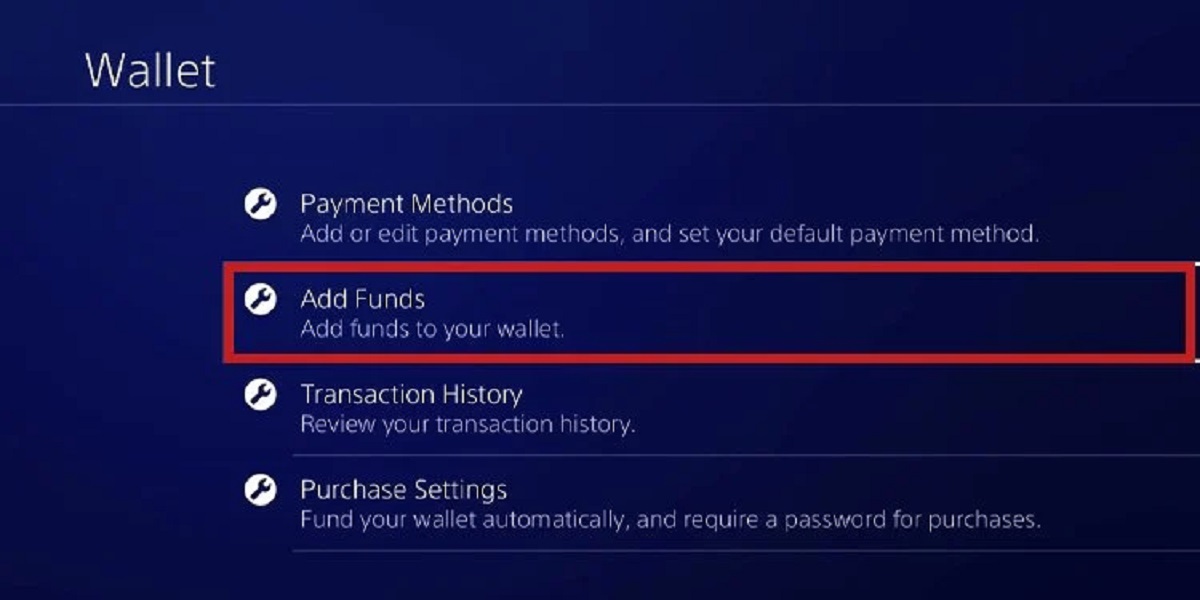
How to add funds on PS4
On PS4, the menu path is slightly different but just as straightforward:
- From the PS4 home screen, go to Settings.
- Select Account Management.
- Choose Account Information.
- Select Wallet (you may need to sign in again).
- Choose Add Funds.
- Pick your payment method (credit/debit card, PayPal, or Pay by Mobile where available).
- Select the amount, review it, and confirm.
Alternatively, you can open the PlayStation Store, scroll to the bottom of the sidebar, and select Add Funds directly from there. The funds will be added to your wallet immediately after confirmation.
How to add funds on the PlayStation website
If you’re away from your console, you can top up via any web browser:
- Go to PlayStation.com and sign in to your account.
- Click on your avatar (top-right corner) and select Payment Management.
- Under “Wallet,” choose Add Funds.
- Select a payment method (credit/debit card or PayPal).
- Enter the amount you want to add.
- Click Add Funds and confirm the payment.
This method works on both desktop and mobile browsers. The funds sync across your PS5, PS4, and PlayStation Store web purchases instantly.
How to add funds with a PlayStation gift card
PlayStation Store gift cards (also called PlayStation Network Cards) are a great option if you prefer not to use a card online. To redeem one:
- On your PS5: go to Settings > Users and Accounts > Account > Payment and Subscriptions > Redeem Codes.
- On your PS4: go to Settings > Account Management > Account Information > Wallet > Redeem Codes.
- On the web: sign in at PlayStation.com and go to Redeem Codes under Payment Management.
- Enter the code exactly as shown (including hyphens).
- Select Redeem or Add Funds.
The balance is added to your wallet right away. Note that redeemed funds cannot be refunded or transferred to another account, so double-check the code before confirming.
How to add funds with PayPal or a credit card
Both PayPal and credit/debit cards are accepted payment methods for adding funds on all PlayStation platforms. When you select either option during the Add Funds process, you’ll be asked to log in (for PayPal) or enter your card details (for credit/debit).
For active subscriptions like PlayStation Plus, you can enable automatic funding. If your wallet doesn’t have enough for renewal, the system automatically charges your card or PayPal for either the shortfall or the minimum wallet top-up amount (whichever is greater). You can manage this in Settings > Users and Accounts > Account > Payment and Subscriptions > Automatic Funding on PS5, or Settings > Account Management > Account Information > Wallet > Automatic Funding Settings on PS4.
How to add funds using mobile payment
In some regions, you can add funds directly to your phone bill. This is called “Pay by Mobile” and works on both PS5 and PS4:
- On PS5: Go to Settings > Users and Accounts > Account > Payment and Subscriptions > Add Funds, then select Pay by Mobile. Follow the on-screen instructions to receive a text message with a confirmation code.
- On PS4: Go to Settings > Account Management > Account Information > Wallet > Add Funds, then select Pay By Mobile. You’ll get a text with a code to verify the transaction.
This option is only available in participating countries and may have a minimum/maximum amount per transaction. The charge appears on your next mobile phone bill.
Adding funds for a child account
Child accounts (also called sub accounts) do not have their own wallet and cannot add funds directly. Instead, children make purchases using the family manager’s wallet. The family manager can set a monthly spending limit, by default, this is set to $0, meaning you must manually raise it if you want your child to buy anything.
To adjust this: sign in as the family manager, go to Settings > Parental Controls > Sub Account Management (on console) or Account Management > Edit Parental Control Settings (on web). From there, you can set a spending cap for each child account. When your child tries to buy something, it will deduct from your wallet up to that limit.
Troubleshooting when you can’t add funds
If you’re having trouble adding funds, work through these steps in order:
- Check accepted payment methods: Some regions restrict certain cards or PayPal. Visit the PlayStation support page for your country to see which credit/debit cards are accepted. For PayPal, ensure your account is verified and linked to a bank account or card.
- Verify PlayStation service status: If the PlayStation Store is undergoing maintenance, adding funds may be temporarily disabled. Check the official PlayStation Network status page or their social media for announcements.
- Review your transaction history: Go to Settings > Users and Accounts > Account > Payment and Subscriptions > Transaction History (PS5) or Settings > Account Management > Account Information > Wallet > Transaction History (PS4). Look for any failed attempts or duplicate charges.
- Double-check card details: Verify the card number, expiration date, security code, and billing address match what your bank has on file.
- Contact PlayStation support: If none of the above resolves it, reach out to PlayStation Support directly, they can see backend errors and help with region-specific payment issues.
Most funding problems are caused by outdated card info or temporary regional restrictions, so these checks usually fix things quickly. If you’re trying to get Discord on PlayStation, you’ll first need to add funds to your account to purchase a PlayStation Plus subscription, which is required for Discord voice chat on PS5, the same Add Funds menu works for that.