Your PSN wallet acts as a digital purse that stores funds for purchases on the PlayStation Store. When you buy games, add-ons, or subscriptions, the wallet balance is automatically used first before any other payment method you have on file.
What is the PSN wallet?
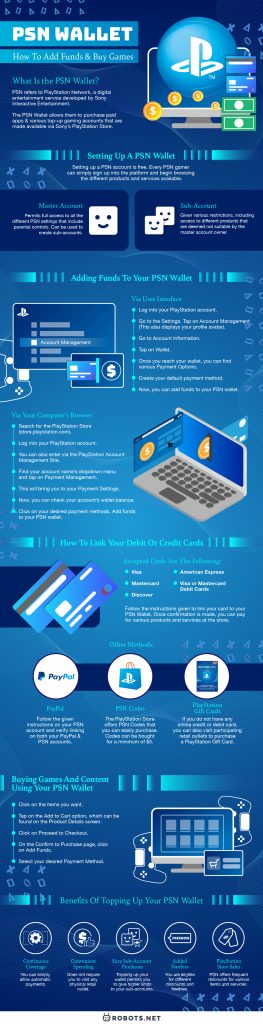
The PSN wallet is a built-in feature of every adult PlayStation Network account. It functions like a prepaid balance that you can fill with money using accepted payment methods or PlayStation Store gift cards. Whenever you make a purchase on the PlayStation Store, the system deducts the cost from your wallet funds first. If your wallet doesn't have enough to cover the full price, you can top it up during checkout or use another payment method for the remainder.

How to add funds to your PSN wallet
You have three main ways to add money to your wallet: directly through your PlayStation console, via a web browser on your computer or phone, or by redeeming a physical or digital gift card. Each method is straightforward and takes only a few minutes.
Add funds on a PS5 console
- From the PS5 home screen, go to Settings.
- Select Users and Accounts, then Account.
- Choose Payment and Subscriptions, then select Add Funds.
- Pick your payment method (such as a credit card, PayPal, or Venmo).
- Enter the amount you want to add and confirm the transaction.
Once confirmed, the funds appear in your wallet immediately and are ready to use.
Add funds on a PS4 console
- On your PS4, navigate to Settings from the main menu.
- Select Account Management, then Account Information.
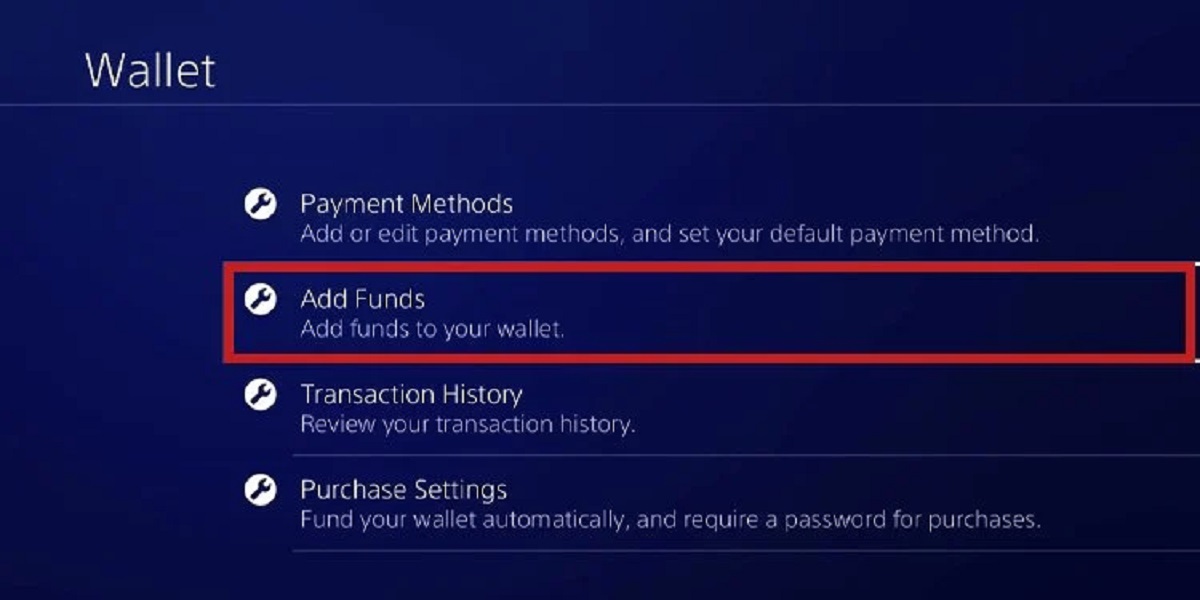
- Choose Wallet, then select Add Funds.
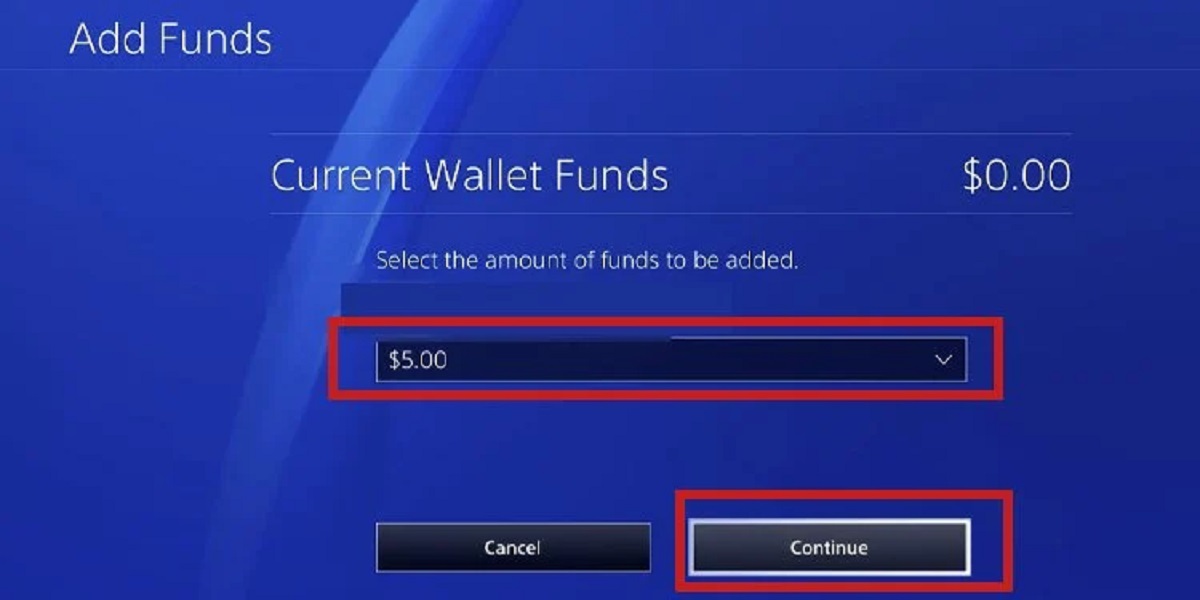
- Choose your preferred payment method and the amount you want to add.
- Confirm the payment to complete the top-up.
The funds are credited to your wallet instantly, allowing you to start shopping right away.
Add funds via a web browser
- Open a browser and go to the PlayStation Store website.
- Sign in to your account (you'll need to login to PlayStation network first).
- Click your profile icon in the top-right corner and select Payment Management.
- Choose Add Funds from the available options.
- Select a payment method and enter the amount you wish to deposit.
- Click Add Funds and follow any on-screen prompts to complete the transaction.
This method is ideal when you're away from your console but want to add money quickly.
Redeem a PlayStation gift card or voucher code
If you have a physical gift card or a digital voucher code, you can add its value to your wallet by redeeming the 12-digit code. On your console, go to the PlayStation Store, scroll to the bottom of the sidebar, and select Redeem Codes. Enter the code exactly as it appears, including any hyphens. The funds are added to your wallet balance immediately. To redeem a PlayStation gift card via a web browser, sign in to the PlayStation Store, click your profile icon, select Redeem Codes, and enter the 12-digit code. This is the same process you would follow to redeem a PlayStation gift card purchased from a retailer or received as a digital code.
Accepted payment methods for your wallet
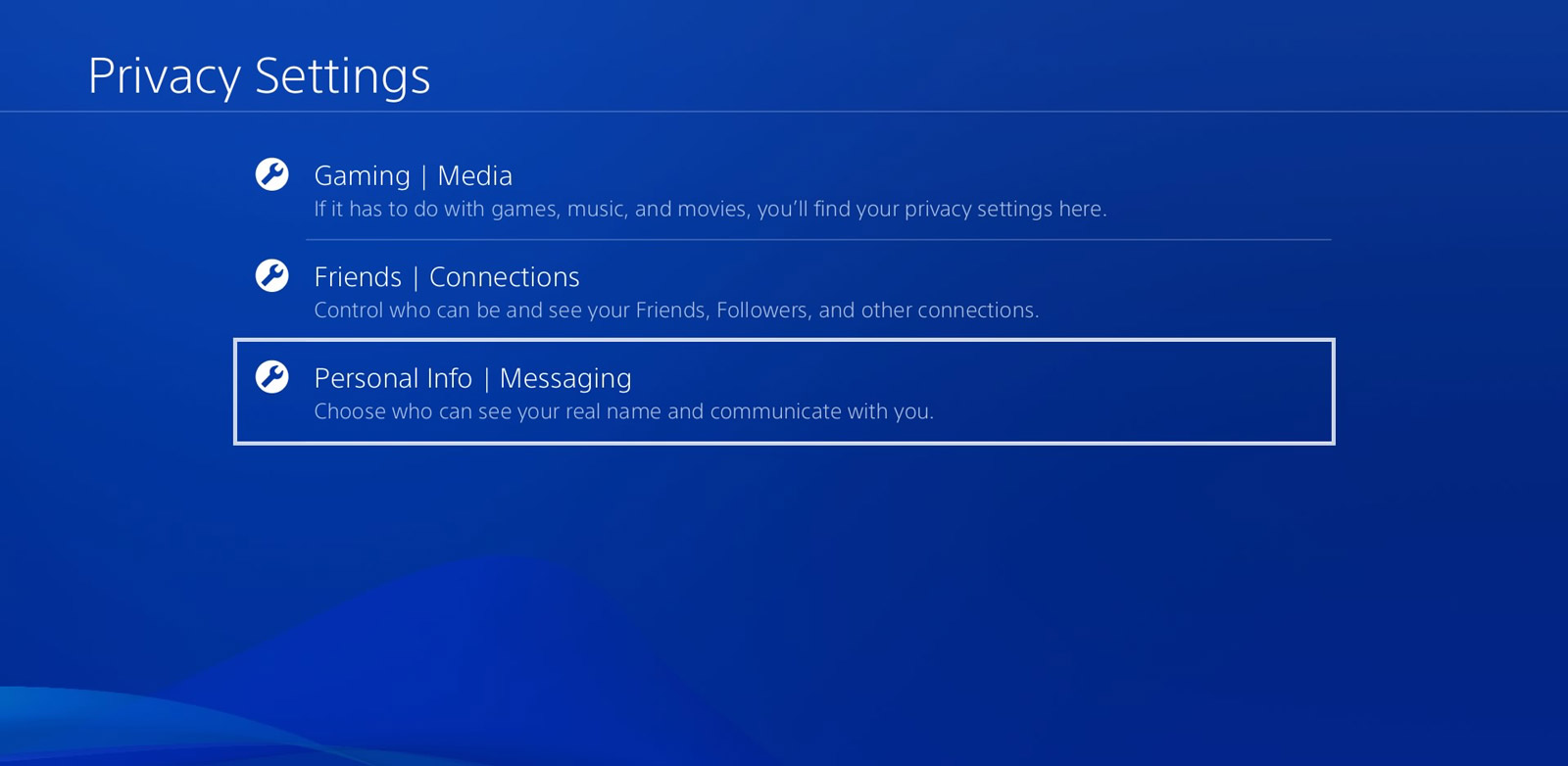
PlayStation accepts a wide range of payment methods for adding funds to your wallet. You can use Visa, Mastercard, American Express, and Discover credit or debit cards. Digital wallets like PayPal, Venmo, Apple Pay, and Cash App Pay are also supported in many regions. Mobile payment options may be available depending on your location. Note that you can link a maximum of three credit or debit cards to your account at any time. You can add or remove payment methods through Account Management on your console or via the PlayStation Store website under Payment Management.
How to buy games with your PSN wallet
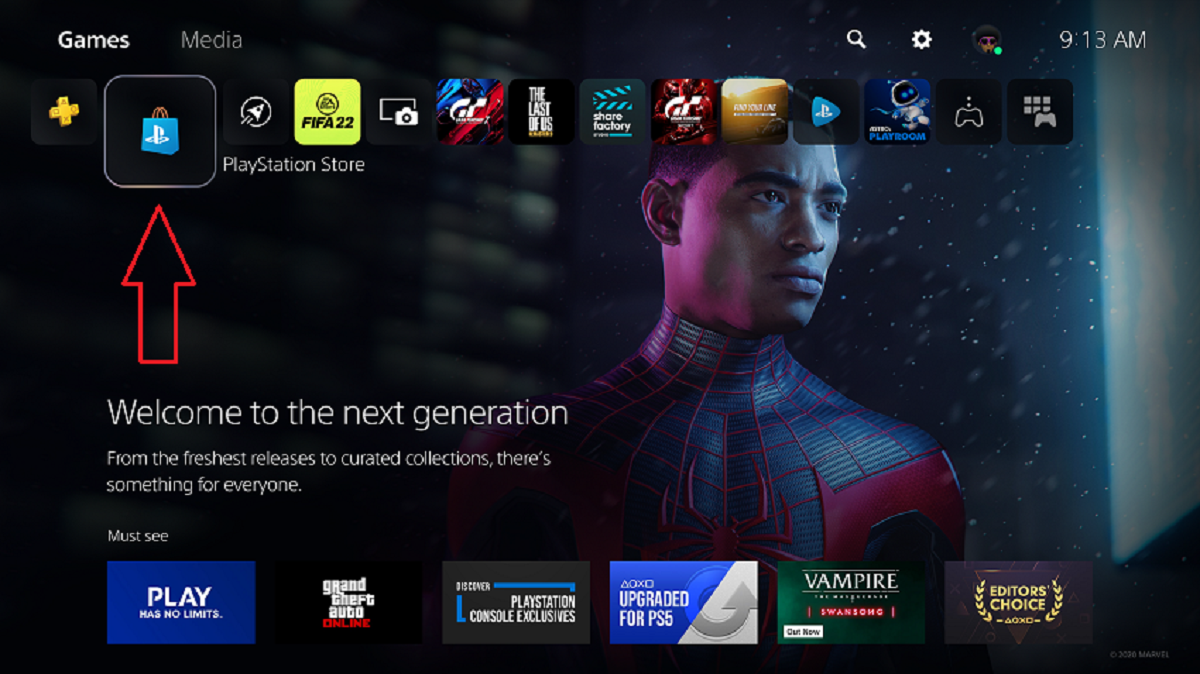
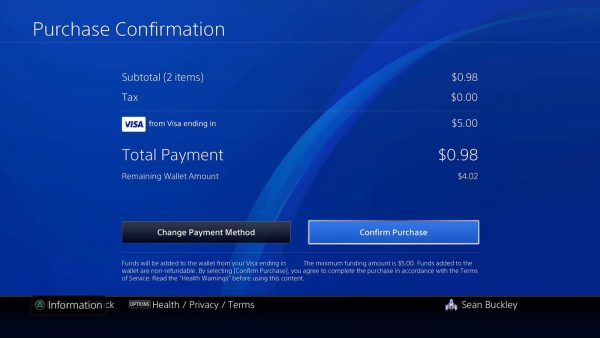
Once your wallet has funds, purchasing games is simple. On a PS5, select the PlayStation Store icon from the home screen. Browse or search for the game you want, select it, and read the description and available editions. Choose the price button for the correct edition, then follow the on-screen instructions to complete the purchase. On a PS4, open the PlayStation Store, find your game, and select Add to Cart (or Pre-Order if applicable). Go to Proceed to Checkout, then Confirm Purchase. Your wallet funds are used automatically. If you prefer to buy from a web browser, sign in to the PlayStation Store, search for the game, select Add to Cart, and follow the checkout steps. The system will deduct the cost from your wallet balance first.
Managing child account spending limits
Child accounts on PlayStation do not have their own wallets. Instead, they can only make purchases using funds from the family manager's wallet. When a child account is created, its monthly spending limit is automatically set to 0, meaning no purchases can be made until a limit is set. The family manager can adjust this limit by going to Settings on their console, selecting Parental Controls, then Spending Limits for the child's sub-account. This allows you to control how much your child can spend each month while still letting them access games and content. Setting appropriate spending limits ensures everyone can enjoy online multiplayer and monthly games without exceeding your budget.
Essential security reminders for your wallet
Keeping your PSN wallet secure is important. Enable Require Password at Checkout in your account settings to prevent unauthorized payments. Use a unique, strong password for your PlayStation account that you don't reuse on other sites. Be cautious of phishing emails or messages that ask for your login details or payment information, PlayStation will never request these through unsolicited messages. Regularly check your wallet balance and transaction history to spot any unusual activity. If you ever need to find your PlayStation ID to verify your account or troubleshoot issues, you can find it in your profile settings on the console or the PlayStation website. Also, remember that wallet funds are non-refundable and cannot be transferred back to a credit card, so only add what you plan to spend. If you want to get Discord on PlayStation for voice chat while gaming, ensure your account security is up to date before linking third-party services. By following these practices, you can safely manage your wallet and enjoy everything the PlayStation Store has to offer.