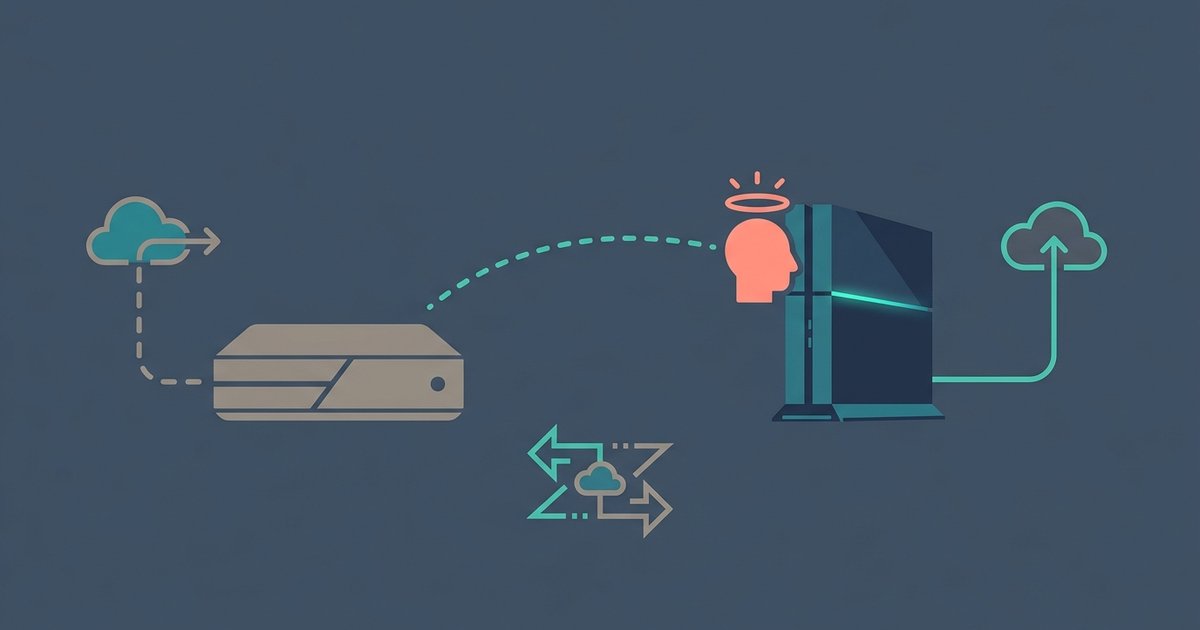
You don't need the old console to sign into your account on a new one; just log in with your email and password. However, any game saves not backed up to the cloud via PlayStation Plus are lost forever if the old console is gone. You can prevent future losses by managing a PlayStation account to enable automatic cloud backups.
Signing in to transfer your PlayStation account
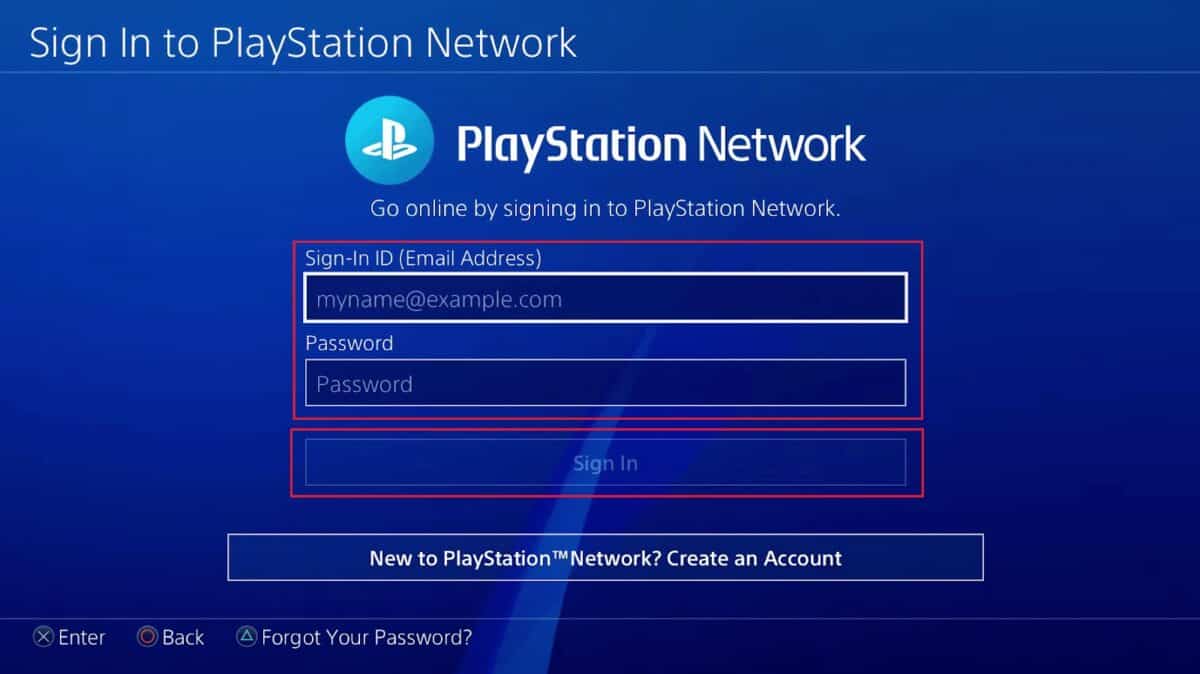
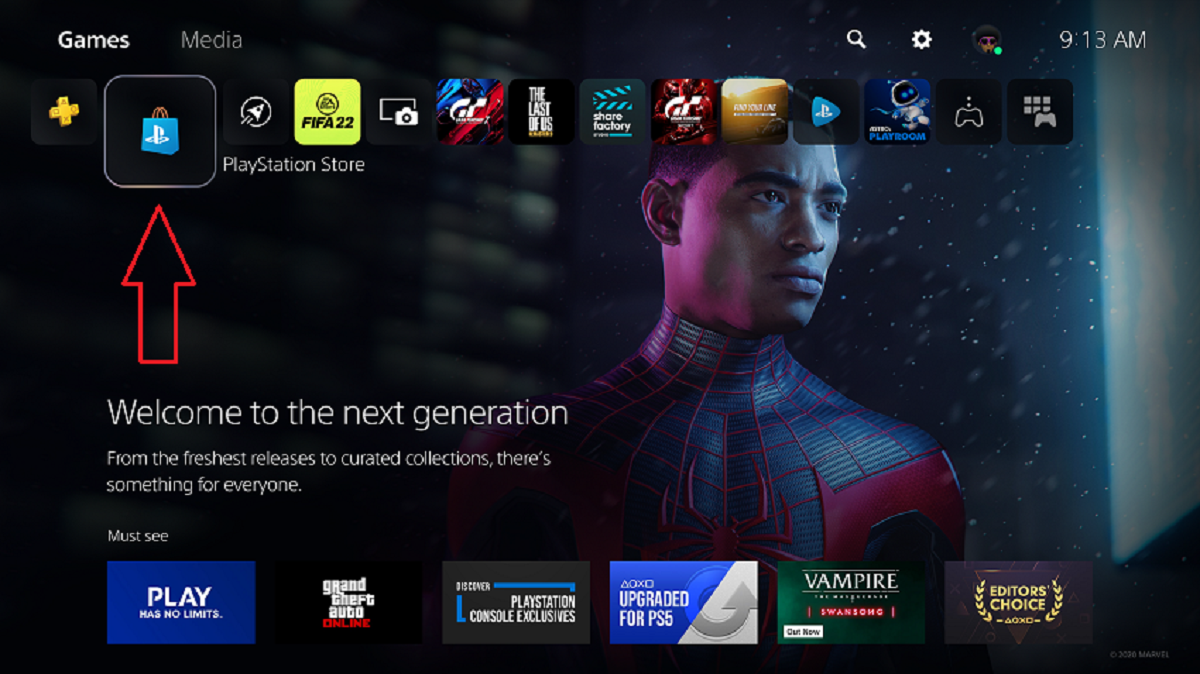
On your new PS5, navigate to Settings > Users and Accounts > Account > Sign in. On PS4, go to Settings > Account Management > Sign In. Enter the email address and password associated with your PlayStation Network (PSN) account. After signing in, go to Settings > Account Management > Activate as Your Primary PlayStation (on PS4) or Settings > Users and Accounts > Other > Console Sharing and Offline Play > Enable (on PS5). Setting the new console as your primary device ensures that any other user on that system can play your digital games and that you can access your content offline. The entire process requires only your login credentials. No data from the old machine is needed.
What you lose when the old console is gone
If your old console is lost, sold, broken, or factory reset, the game save data stored only on its internal hard drive is unrecoverable. PlayStation does not store local saves on its servers by default. You must have previously enabled auto-upload through a PlayStation Plus subscription. With an active membership, your console uploads saves to the cloud automatically when in rest mode. You can download them on the new machine from Settings > Saved Data and Game/App Settings > Saved Data (PS5) or Application Saved Data Management > Saved Data in Online Storage (PS4). Without that prior backup, there is no way to retrieve local saves. Any progress tied to those files is permanently gone. This is why PlayStation Plus auto-upload matters: it is the only safety net when you no longer have access to the original hardware.
If you've also lost access to your email or password
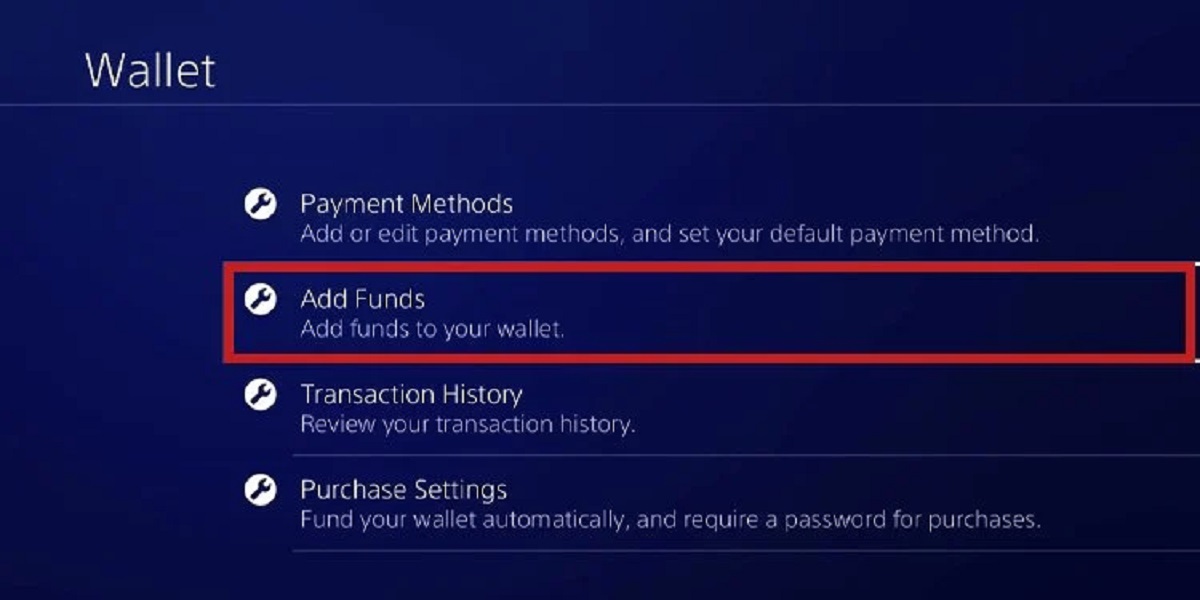
If you cannot sign in because you forgot your password, no longer have access to the sign-in email address, or have lost your two-factor authentication method, you must contact PlayStation support to verify your identity and regain control. Before calling, gather any proof of ownership you can, such as the serial number of the old console, the original purchase receipt for your PSN wallet funds, or the transaction IDs from recent digital game purchases. If you still have access to the email account but cannot remember the password, use the "Forgot Password" option on the sign-in screen to reset it. When the email itself is unreachable, support agents can guide you through account recovery. They will ask security questions and may require documentation. If your new console fails to connect to the network during sign-in, check your internet settings and router. A common error message like "cannot connect to the internet" often points to a DNS or firewall issue. And if you realize that your account’s birth date is incorrect, preventing you from accessing certain features, you will need to request a change age on PlayStation account through support as well. Sony does not allow self-service modifications to the date of birth field.