No, changing your DNS settings on a PlayStation will not get you banned. Sony only penalizes network manipulation that bypasses security or payment systems, not standard connection settings.
Why a DNS PSN ban is a myth
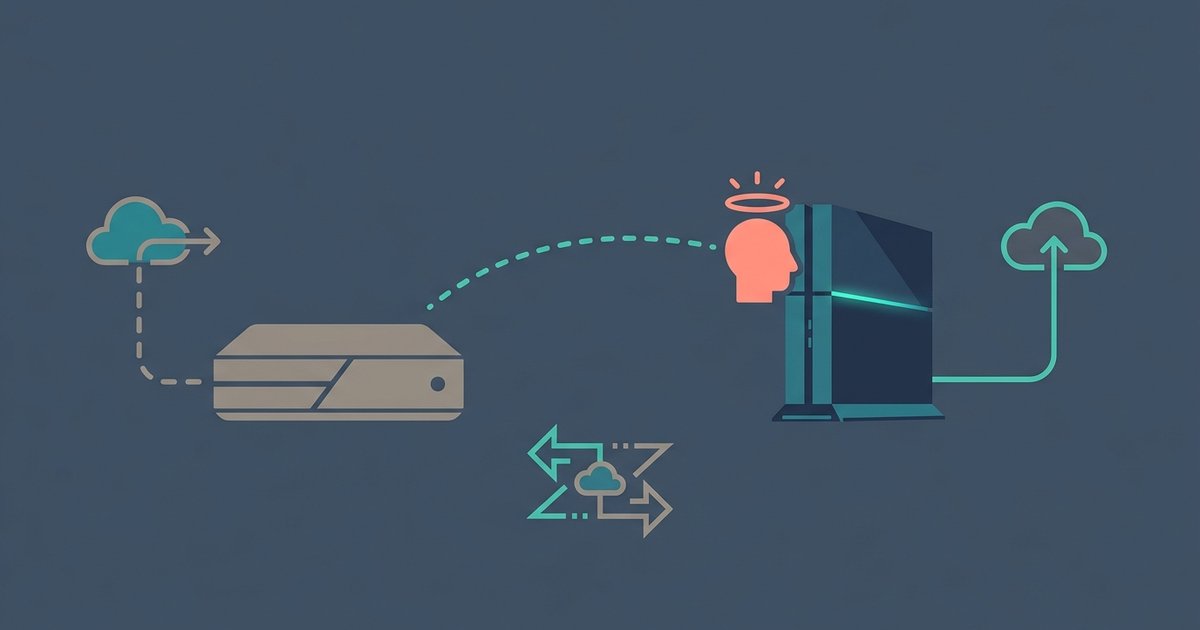
DNS, or Domain Name System, works like a phonebook. It translates a human-readable name such as “store.playstation.com” into a numeric IP address. Changing your PlayStation’s DNS server changes only which phonebook you consult. It does not alter the data you send to Sony’s servers or the way the console authenticates your account. Sony’s terms of service target actual cheating, account theft, or payment fraud, not the choice of resolver. When you set a custom DNS to potentially make PlayStation download faster, you are simply asking a different directory for the same IP address, which can route you to a less congested server to get PS5 to download faster. The download itself still flows directly from Sony’s content delivery network. No rule in the PlayStation Network terms prohibits using Google, Cloudflare, or any other public DNS, because the console’s security layer operates above the DNS level.
What actually triggers a ban
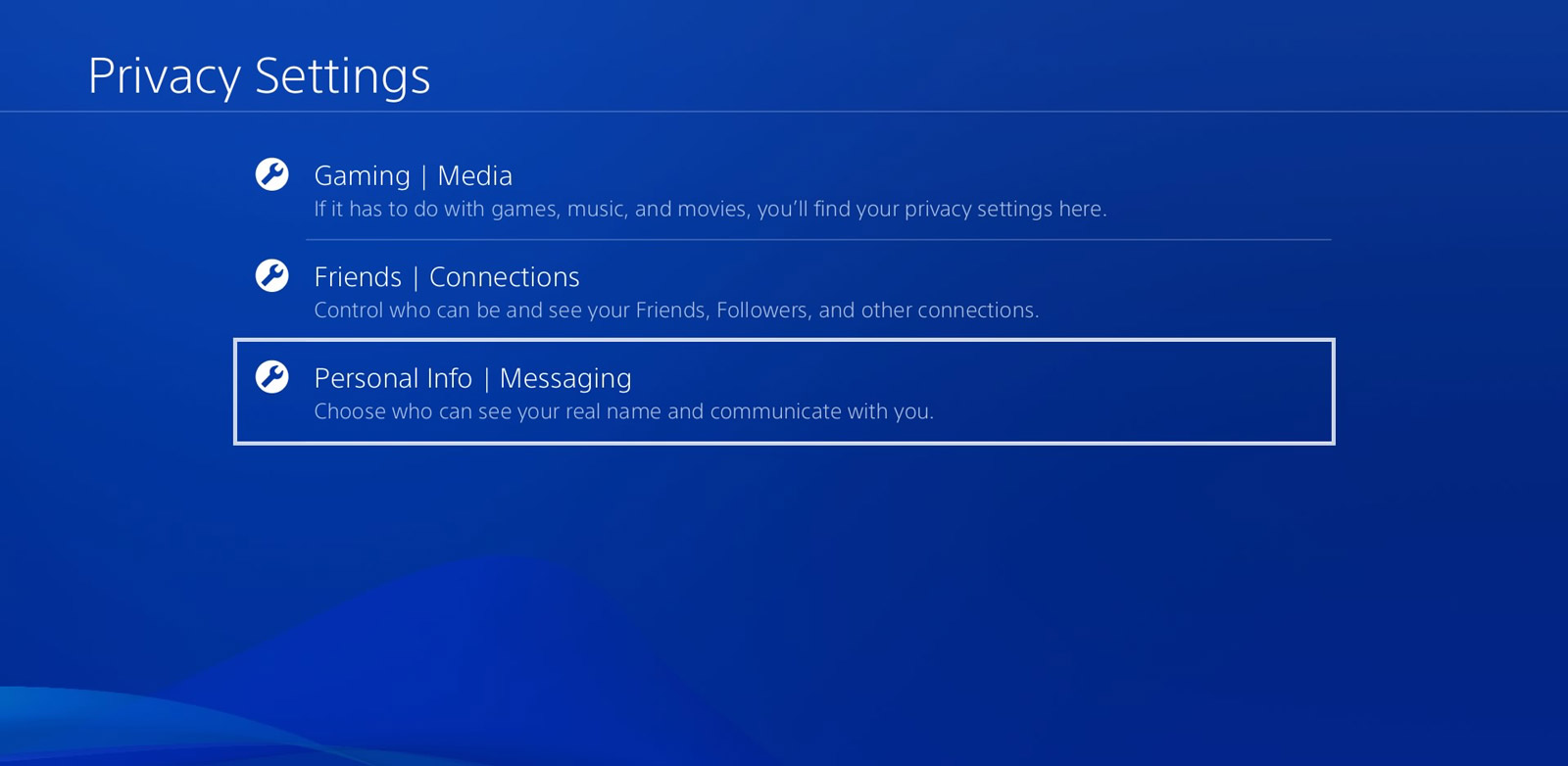
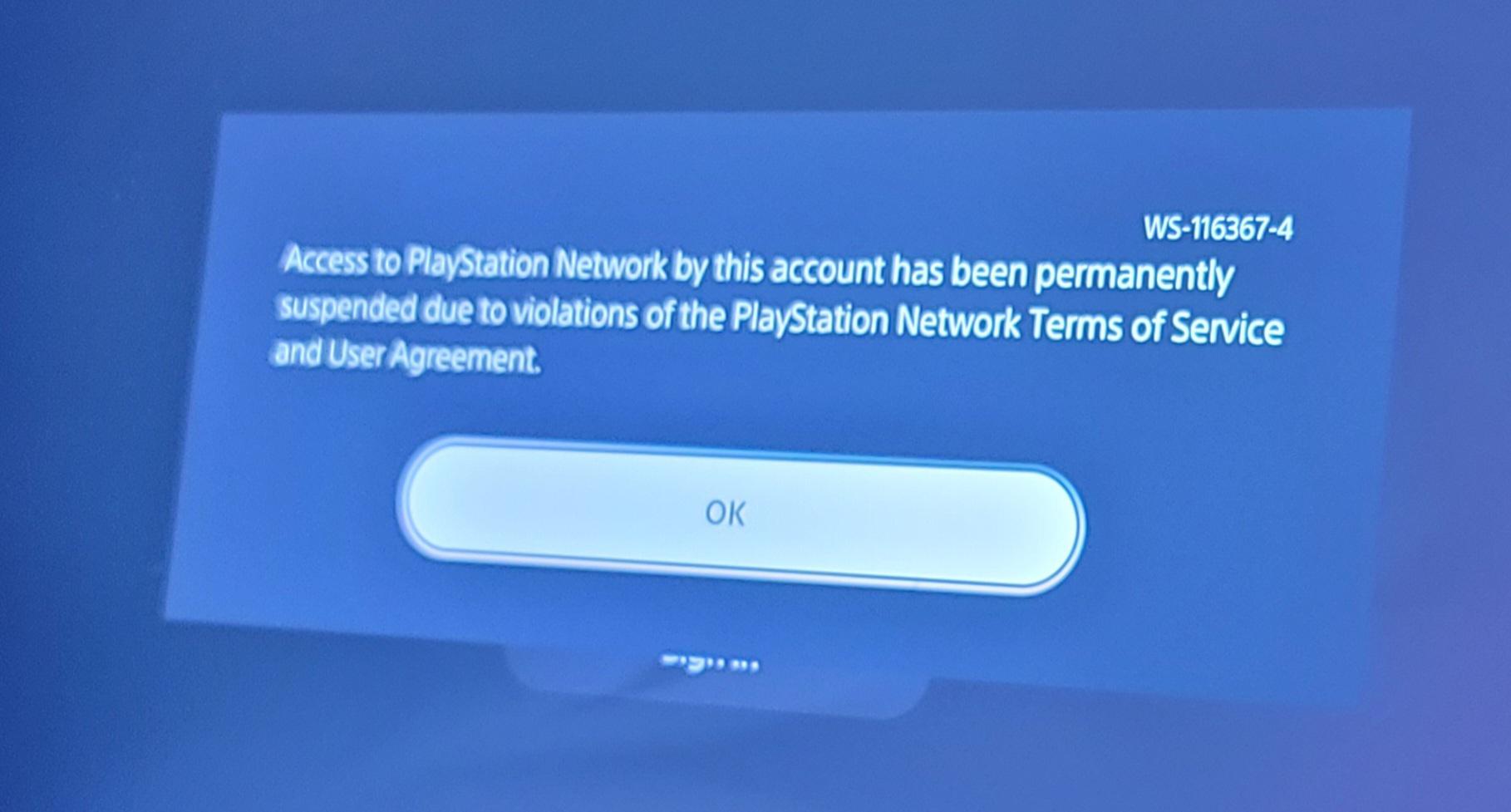
The behaviors that do violate the PlayStation Network terms involve circumventing Sony’s security or payment controls. Using a proxy or VPN to hide your real IP address while making purchases from a different region is a clear violation. For example, buying a game at a lower price in a foreign store will get you banned. Running jailbreak software, custom firmware, or any unauthorized code that modifies the operating system can result in a permanent console ban and account suspension. Similarly, attempting to spoof your console ID to access services without a valid subscription will trigger enforcement. Using tools to manipulate trophy data will also trigger enforcement. Sony’s monitoring systems look for anomalies in authentication, payment authorization, and software integrity. They do not look at the DNS resolver you configured under “Settings > Network > Set Up Internet Connection > Custom > DNS Settings.” If you are changing DNS to reduce lag, you will get far better results if you set up QoS for PlayStation on my specific router instead.
When a DNS change can backfire
While DNS changes are safe from a policy standpoint, they can create technical problems that feel like a ban. If you choose an unreliable or overloaded public DNS server, your PlayStation may fail to resolve the PSN login servers or game update domains. This leads to error codes such as NW-31297-2 or CE-33987-0. It can also cause long loading times, failed downloads, or disconnections from online matches. A user who suddenly cannot connect to PSN after changing DNS might assume they are banned. The real culprit is a slow resolver that cannot keep up with requests. To avoid this, always test your chosen DNS with a tool like “ping” on a PC before applying it to the console. A resolver with high latency will degrade performance for every kind of task possible. If you are unsure whether your home connection itself is adequate, check that you have a good internet speed for uploading and downloading files. A baseline of 15 Mbps download and 5 Mbps upload is usually sufficient for PSN, though faster speeds help with large patches. For comparison, the same principle applies on other platforms. You can make games download faster on PC by switching DNS or using a wired connection, but the safety of the change remains identical. It is the method, not the resolver, that matters.
Sony’s monitoring systems look for anomalies in authentication, payment authorization, and software integrity, not in the DNS resolver you configured.