First, understand what's actually making your PlayStation download slow
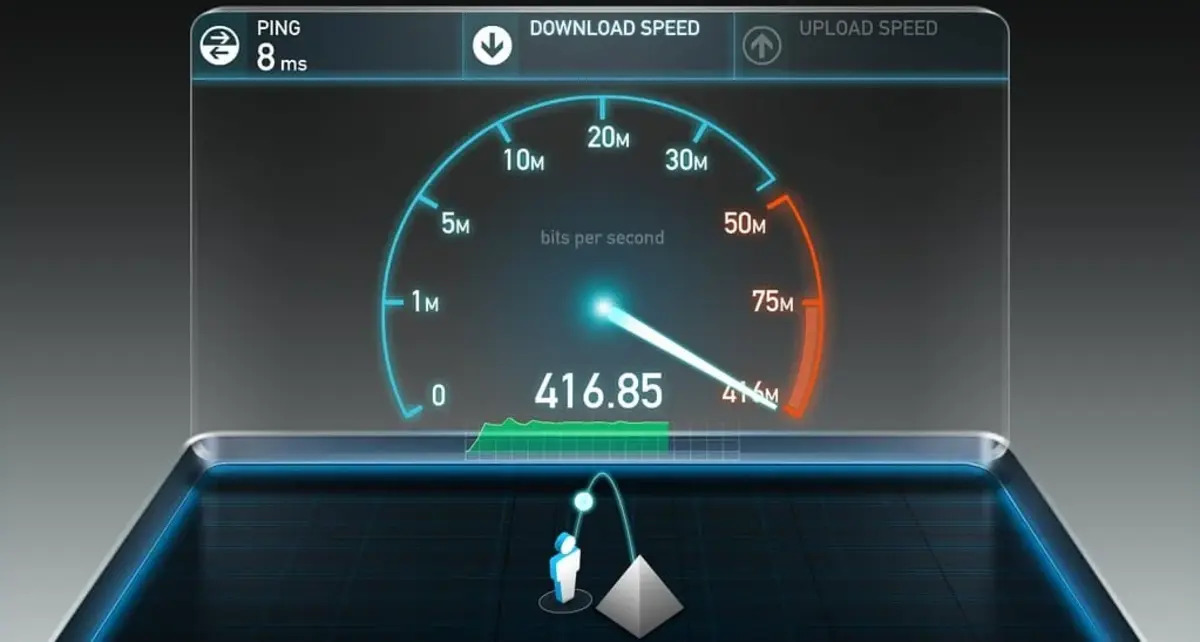
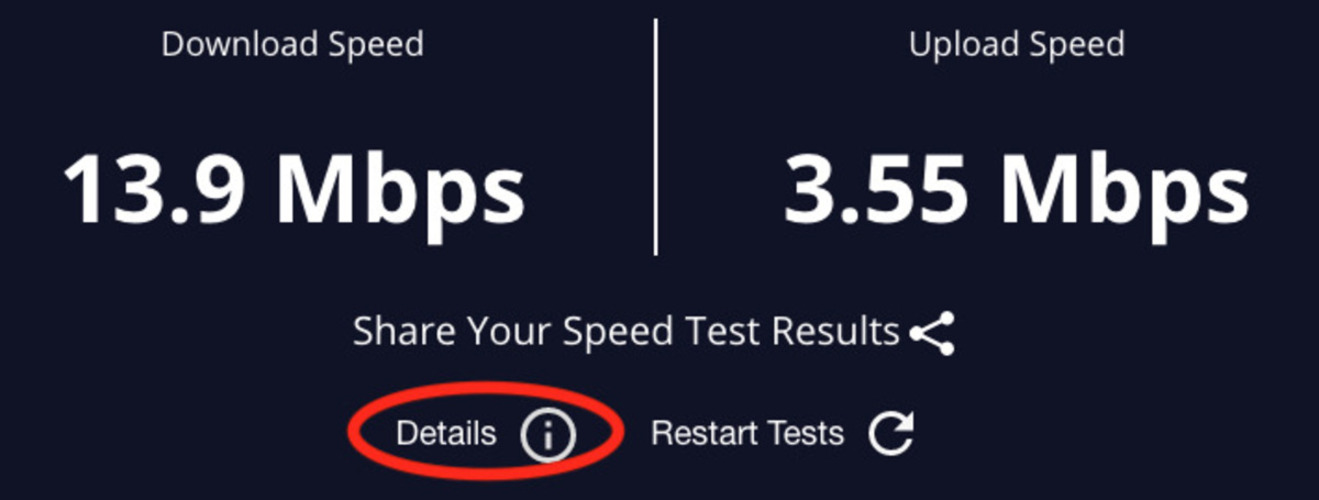
Before you try to make PlayStation download faster by digging into console menus, take five minutes to figure out what is actually throttling your download. A slow speed often has nothing to do with the PlayStation itself. Start by checking whether other devices on your home setup are hogging bandwidth. Someone streaming 4K video on a tablet or a laptop running a large update can easily starve your machine. If that is the case, you do not need to change your internet plan. You need to manage traffic. It is also worth verifying that you actually pay for a good internet speed to upload & download files. If your plan tops out at 25 Mbps, no amount of console tweaking will push a 100 GB game through any faster. Next, look at your router's Quality of Service (QoS) settings. Many home routers automatically deprioritize game system traffic. Your PlayStation gets the leftovers. Log into your router admin panel and check whether QoS is enabled. Then make sure your device is set to a high priority. If you notice that transfers start fast but then stall or stutter, you may need to fix high download latency by switching to a wired Ethernet connection or adjusting your router's DNS servers. Switch to a wired Ethernet connection or adjust your router's DNS servers. Finally, remember that game servers themselves can be a bottleneck. Trying to grab a brand-new title at launch hour will never let you have faster download speed than waiting a day or two. Diagnose the real bottleneck first, and the fixes will actually work.
- have faster download speed — How To Have Faster Download Speed
- fix high download latency — How To Fix High Download Latency
Optimize your home network for gaming downloads
Before you blame your console, log into your router’s admin panel and look for Quality of Service (QoS) settings. QoS lets you tell the router which device gets bandwidth first. Your PlayStation traffic then won't fight with a Netflix stream or a laptop backup. If you are unsure how to do this on your hardware, the practical steps are the same across most brands. Find the LAN or traffic-shaping menu. Enable QoS. Assign your PlayStation’s MAC address the highest priority. You can usually locate the MAC address in your system’s network settings menu. If you are worried about whether changing DNS getting banned from PlayStation Network, rest assured that altering your DNS server only changes how your system resolves domain names. It does not violate Sony’s terms of service and will not result in a ban. Similarly, concerns about rest mode downloads damaging a console or drive are unfounded. The machine is designed to fetch files safely while in low-power mode. It will not harm your hardware. The real fix is stopping other devices from hogging your connection. Once QoS is active, test a transfer again. If you still need to set up QoS for PlayStation on my specific router, the process is nearly identical across models. It requires only a few minutes of configuration.
Apply PlayStation-specific speed fixes
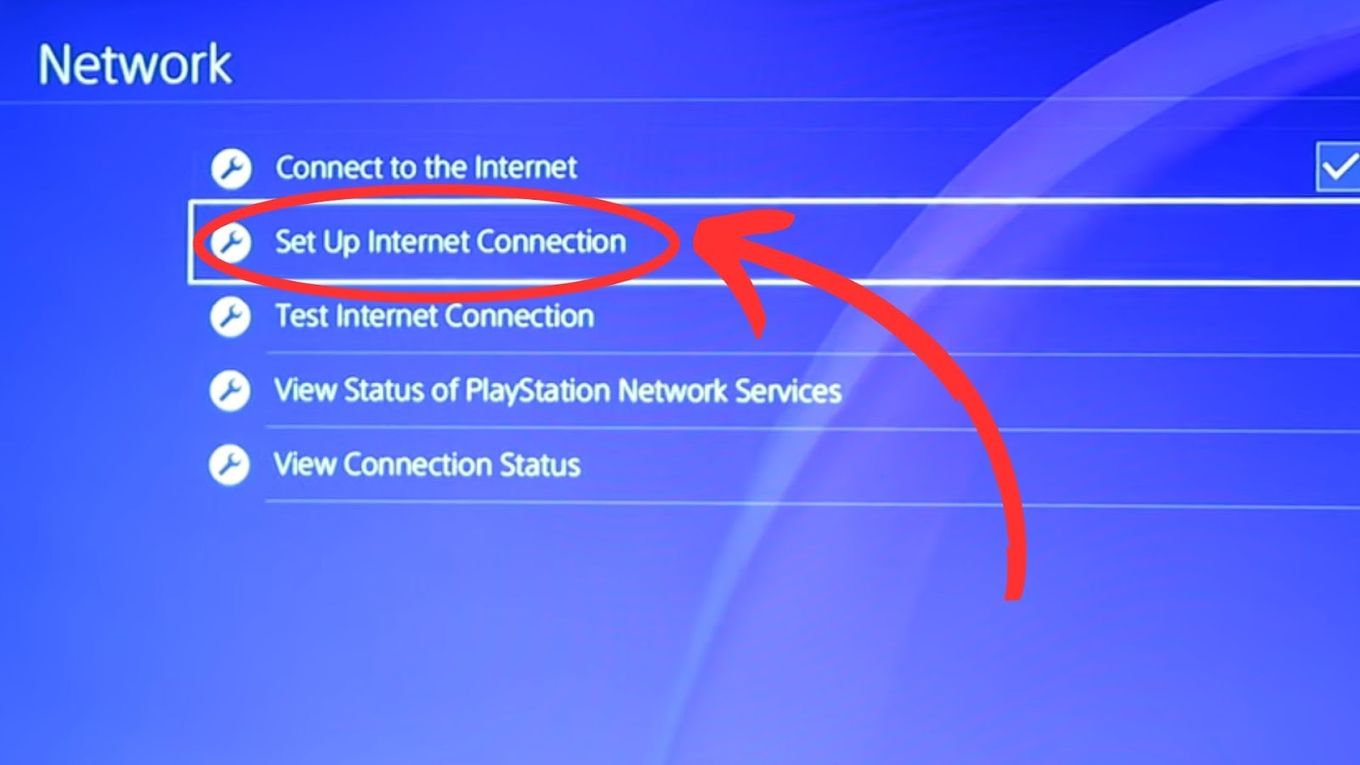
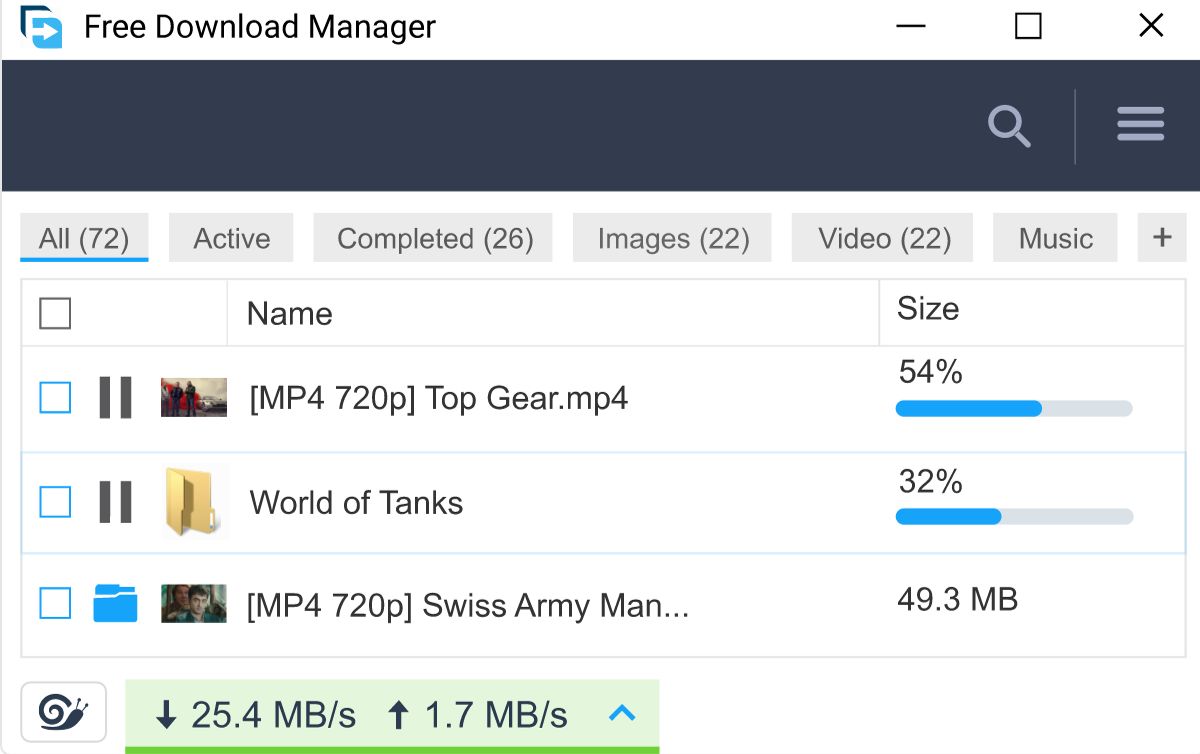
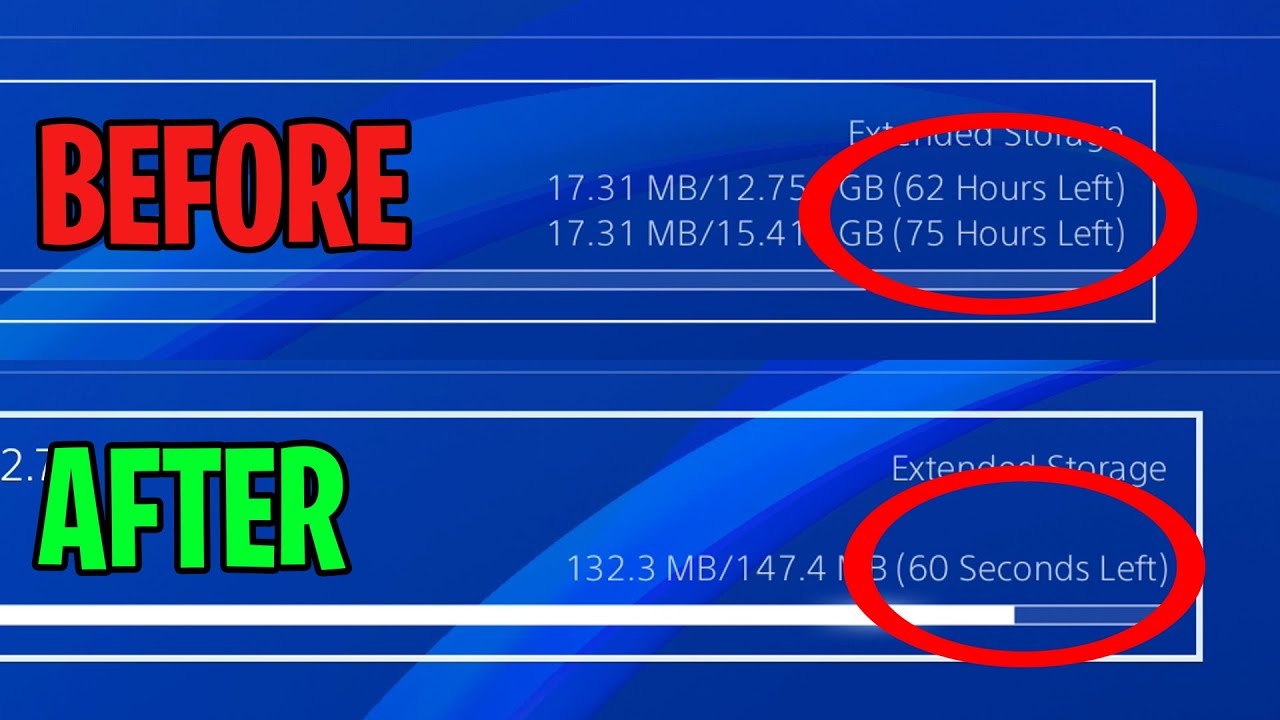
Start by putting your PS4 or PS5 into Rest Mode. Downloads continue in the background while the system uses far less power. Many users report that this alone can make your PS5 games download faster. The machine isn’t splitting resources between a game you’re playing and the connection. For the PS5 specifically, head to Settings > Network > Connection Status and run the “Test Internet Connection” twice in a row. The second test often applies a more aggressive data buffer that can get PS5 to download faster. On both devices, disable automatic uploads of saved data to the cloud while you’re grabbing a new title. Go to Settings > Saved Data and Game/App Settings and disable auto-upload options for saved data. This prevents your hardware from competing with itself for bandwidth. If you are using a third-party tool on PC to manage multiple transfers, you might find that you can make free download manager faster by limiting its concurrent connections. On PlayStation the trick is to pause any other active file pulls and prioritize the one you want first. Finally, on PS4, rebuild the database from Safe Mode (hold the power button until you hear two beeps) to clear fragmented system files that can throttle throughput.
Speed up downloads on other gaming platforms
Your PlayStation isn’t the only device that can bog down large file transfers. If you have a PC, Xbox, or Nintendo Switch on the same home setup, each one is competing for the same limited bandwidth. To make games download faster on PC, start by closing any active launchers or streaming services that are pulling updates in the background. Steam, Epic, and Battle.net all have settings that can affect download performance. On the Microsoft side, you can make games download faster on Xbox series s by first pausing any active game or app in Quick Resume. Then check that the system isn’t set to “download while you play,” which reserves bandwidth for the game you’re running. For Nintendo’s handheld, you can speed up download on Nintendo switch by placing the unit in sleep mode with a wired connection. The Wi-Fi chip is slower when the screen is on and you’re browsing the eShop. If you need to make Nintendo switch games download faster while the system is docked, toggle Airplane Mode on and off to force a fresh handshake with your router. The same principle applies for every kind of task possible on these devices. Pause all other data pulls, close any game that’s running, and temporarily disconnect phones or tablets from the Wi-Fi to clear the congestion. This cross-device traffic jam is the single biggest reason a gigabit connection still feels slow on a PlayStation, because your router’s buffer gets overwhelmed long before your internet plan’s limit is ever reached.