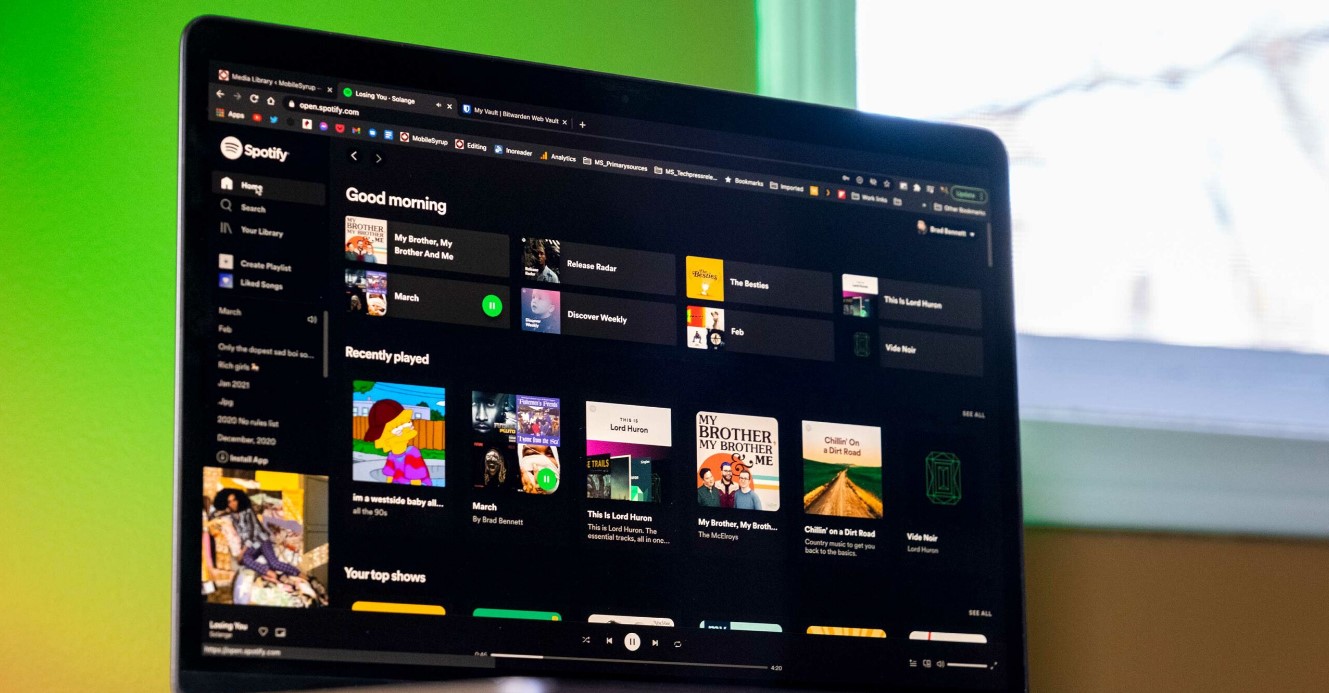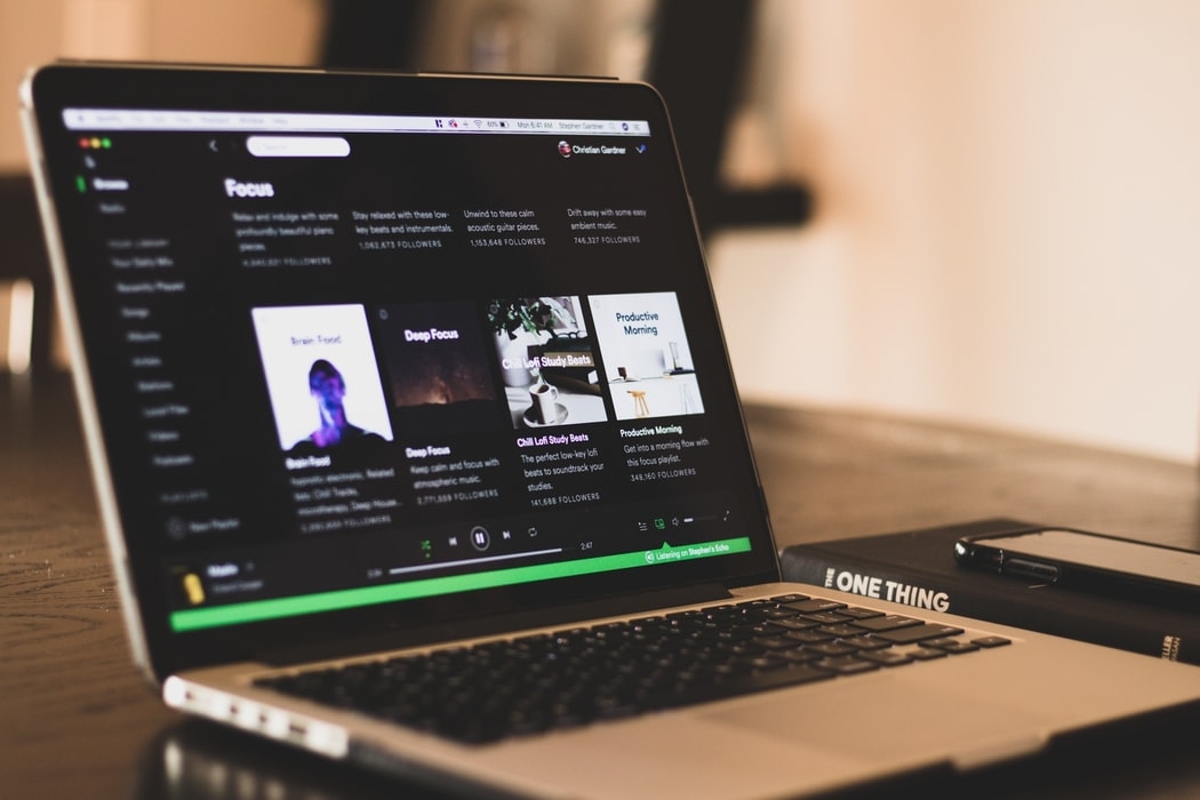
To download music from Spotify to your computer, you need a Spotify Premium subscription, which enables the official offline listening feature within the desktop app. This is the only direct method provided by Spotify, and it allows you to save albums and playlists for playback without an internet connection, though the files remain encrypted and are not standard audio files you can move or share. If you want tracks you can actually own and transfer freely, you can download purchased music from iTunes to my computer instead.
What you need to download music from Spotify to your computer
Before you begin, confirm you have a Spotify Premium subscription. Free accounts can only download podcasts for offline listening, not music. You will also need the Spotify desktop app installed on your computer, at least 1GB of free storage space, and an internet connection for the initial download. Keep in mind that downloaded music is encrypted and can only be played within the Spotify application; it is not a standard, transferable audio file like an MP3. With Premium, you can download up to 10,000 tracks on each of up to five different devices.
How to download albums and playlists with the Spotify desktop app
This is the official and simplest method to save music for offline listening. Follow these steps:
- Open the Spotify desktop app on your computer and log in to your Premium account.
- Navigate to an album or a playlist you want to save. Note that you cannot download individual songs directly; you must add them to a playlist or download an entire album.
- Locate the Download toggle or button, often represented by a downward arrow, and click it to start the download.
- A green arrow icon will appear next to the album or playlist once the download is complete, confirming the content is saved for offline playback.
How to listen to your downloads in Offline Mode
To ensure you only play your downloaded music and avoid using mobile data or streaming, enable Offline Mode in the Spotify desktop app. The steps differ slightly by operating system:
- On Windows: Click the three dots (or "File") at the top-left of the screen, then select "File" and choose "Offline Mode".
- On Mac: Click "Spotify" in the Apple menu at the top of the screen, then select "Offline Mode".
Once enabled, Spotify will only play content you have downloaded. Remember, you must connect to the internet at least once every 30 days to keep your downloaded music available for offline playback.
How to manage and remove your Spotify downloads
Managing your offline library helps you stay within the 10,000-track limit and free up storage space. To see your downloaded content, go to "Your Library" in the Spotify app. To remove an album or playlist, simply click the green arrow or the Download toggle again to delete the download from your computer. This action frees up space without removing the content from your Spotify account, so you can always download it again later.
Why you can't download Spotify music as MP3 files
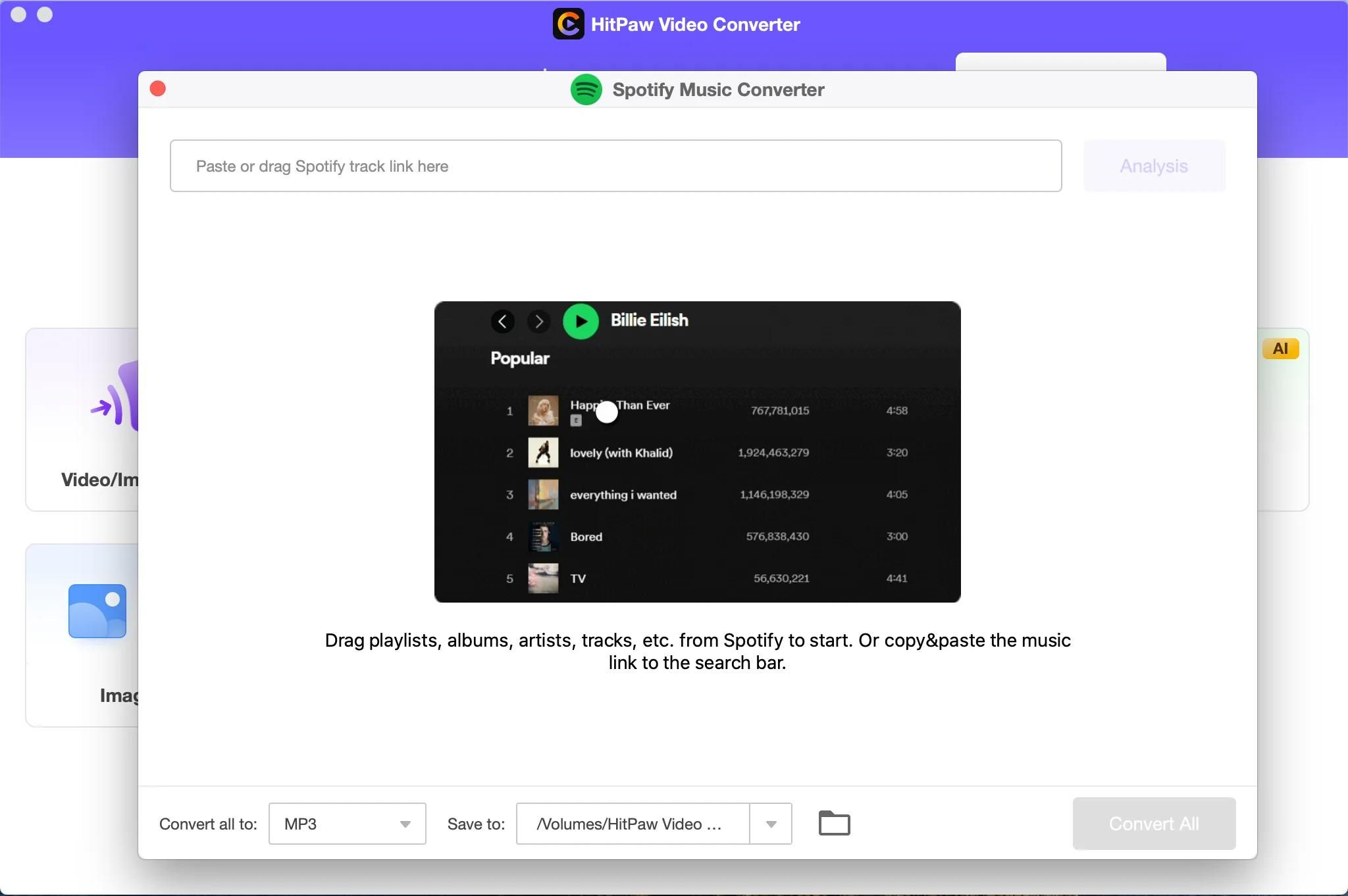
A common misconception is that you can download music as MP3 from Spotify directly through the app. This is not possible because all downloaded music is protected by Digital Rights Management (DRM) and encrypted specifically for playback within Spotify. The official method does not produce standard, portable files. If you need to download music MP3 files for use outside of Spotify, that requires third-party converter tools, which are not endorsed by Spotify and may violate its terms of service.