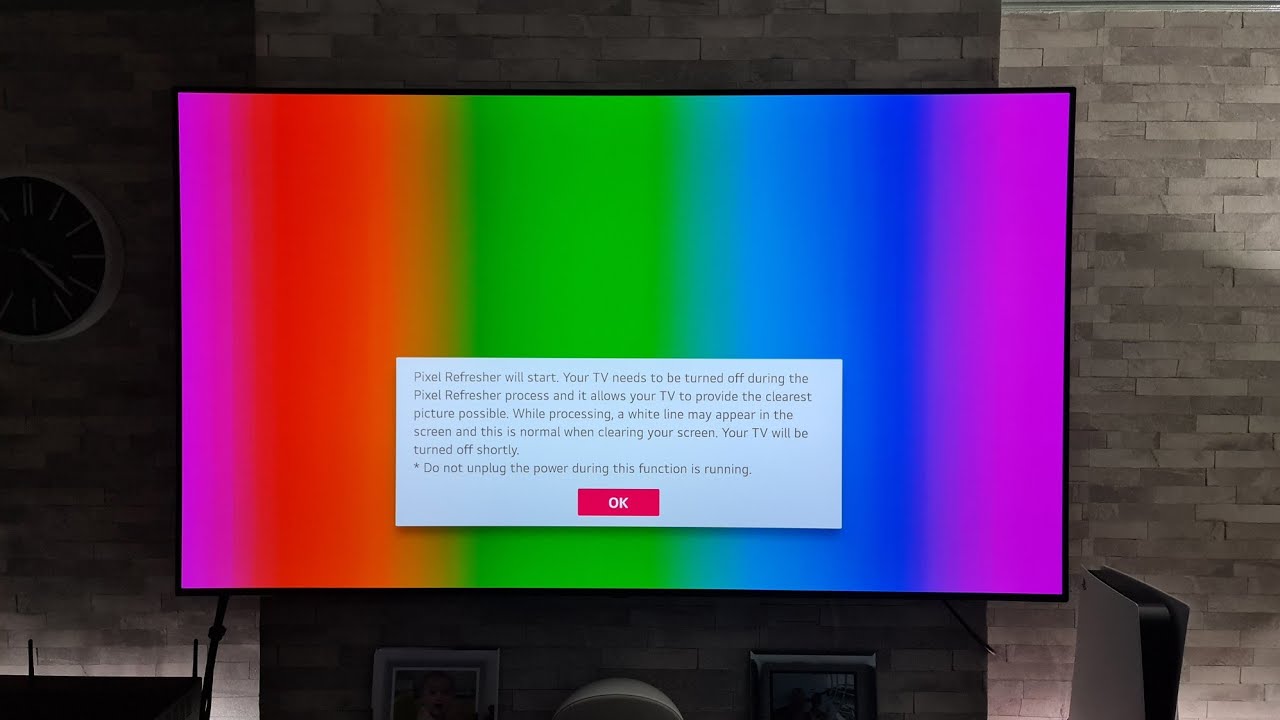
A manual pixel refresh on an LG OLED TV typically takes one to two hours of pixel refresh time to complete. The automatic pixel refresh, which runs after the TV is turned off, completes in just a few minutes without any action needed from you.
What is a Pixel refresh and why is it necessary?
A pixel refresh is a built-in maintenance feature that recalibrates individual pixels on your LG OLED TV. Over time, static elements like channel logos or game HUDs can cause temporary image retention, where faint outlines of previous images linger on screen. If left unchecked, this can develop into permanent burn-in. The pixel refresh process evens out the wear on each pixel by adjusting their voltage levels, helping to prevent both temporary ghosting and permanent damage. This keeps your picture quality consistent and extends the life of your OLED panel, and you can also adjust the sound on LG OLED TV to match the pristine visuals with clear audio.
How to manually start a Pixel refresh on your LG OLED TV
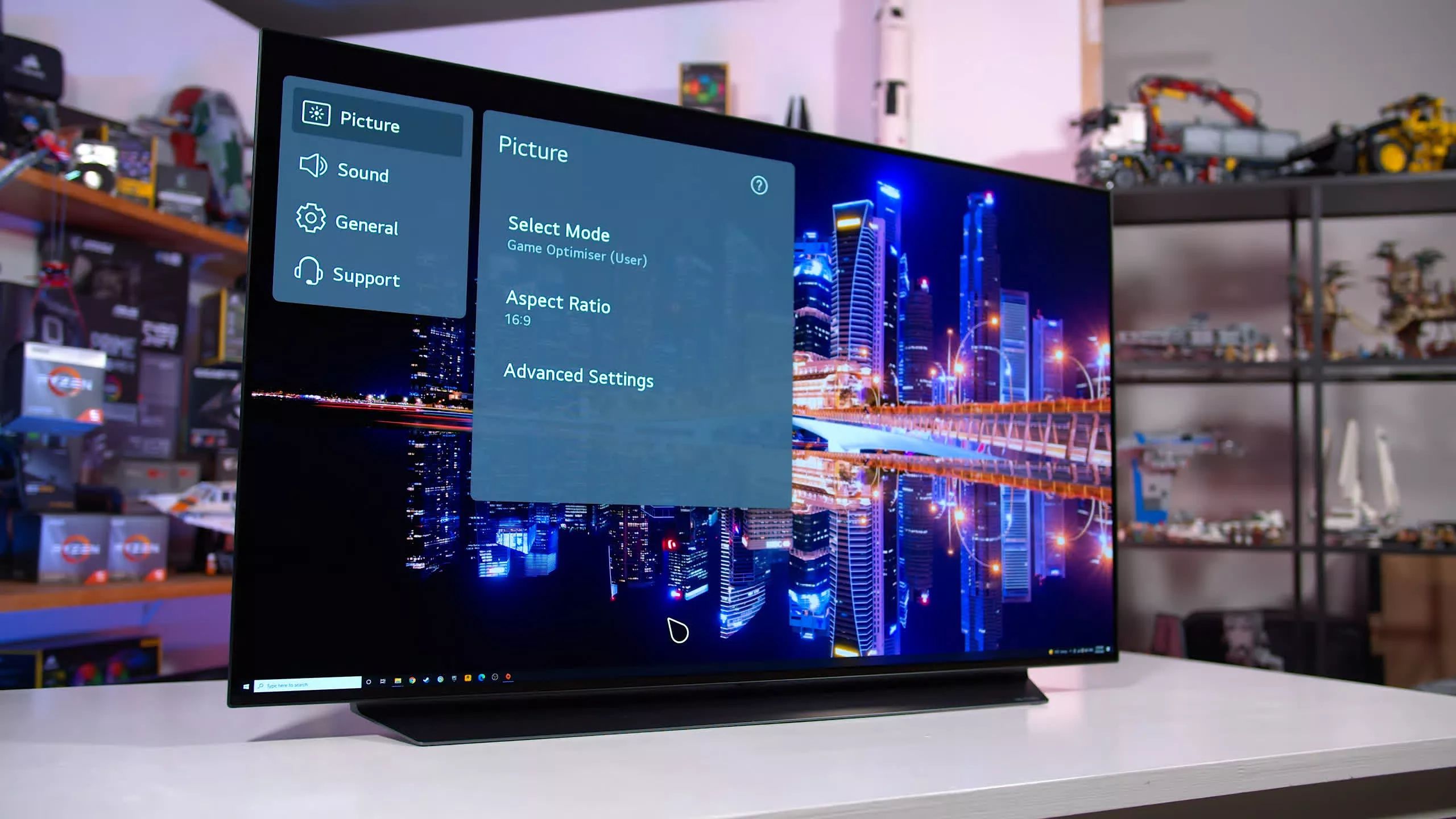
The menu path to start a manual pixel refresh depends on your TV's model year. Follow the correct path below for your TV.
- 2022 and newer models (webOS 22+)
Press the [Settings] button on your remote, then navigate to [All Settings] → [General] → [OLED Care] → [OLED Panel Care] → [Pixel Cleaning]. - 2021 models (webOS 6.0)
Press [Settings] → [All Settings] → [Support] → [OLED Care] → [OLED Panel Care] → [Pixel Cleaning]. - 2020 models (webOS 5.0)
Press [Settings] → [All Settings] → [Picture] → [OLED Screen Saver] → [Pixel Refresher]. - 2019 models (webOS 4.5)
Press [Settings] → [All Settings] → [Picture] → [Additional Settings] → [OLED Panel Settings] → [Pixel Refresher]. - 2018 and older models (webOS 4.0 and earlier)
Press [Settings] → [All Settings] → [Picture] → [OLED Panel Settings] → [Pixel Refresher] (or Clear Panel Noise).
When you reach the Pixel Cleaning or Pixel Refresher option, you will see two choices: "Start now" or "Operate once When TV is Off." Selecting "Start now" begins the process immediately and the TV will be unusable for one to two hours. Choosing "Operate once When TV is Off" schedules the refresh to run automatically the next time you turn the TV off, as long as it remains plugged in.
What to expect during the refresh process
Once a manual pixel refresh begins, the TV must stay plugged into a power outlet and cannot be turned on or used until the process finishes. The screen will go dark and a progress indicator may appear. Interruptions from a power loss or external devices, such as a connected soundbar or game console waking the TV via SIMPLINK/HDMI-CEC, will halt the process. If the refresh is interrupted, it will not complete and you will need to restart it from the settings menu. The automatic refresh that runs after the TV is turned off is much shorter and happens without any on-screen indication, but the same rule applies: the TV must remain plugged in.
Troubleshooting a Pixel refresh that won't finish
If your pixel refresh appears stuck or was interrupted, try these steps in order.
- Power cycle the TV. This clears any temporary software glitches. After the TV powers on, navigate back to the pixel refresh menu and start the process again, making sure to select "Start now" and avoid any interruptions.
- Disable HDMI-CEC (SIMPLINK). If external devices keep waking the TV during the refresh, go to the TV's settings and turn off SIMPLINK. This prevents connected devices from interrupting the process. You can re-enable it after the refresh completes.
- Check for persistent burn-in. If the refresh completes but you still see visible ghosting or permanent marks, the issue may be beyond what a pixel refresh can fix. Contact LG support for further assistance.
- Contact LG support. If the TV becomes unresponsive or error messages appear during the refresh, and a power cycle does not resolve it, reach out to LG customer support for hardware or software diagnosis.
If you have adjusted your LG OLED TV settings to reduce static content visibility and still encounter image retention, running a pixel refresh is the first recommended step. In cases where the screen move feature is not working, the pixel refresh can still help mitigate any uneven pixel wear that may have occurred from static elements.