Getting started with your Fitbit setup
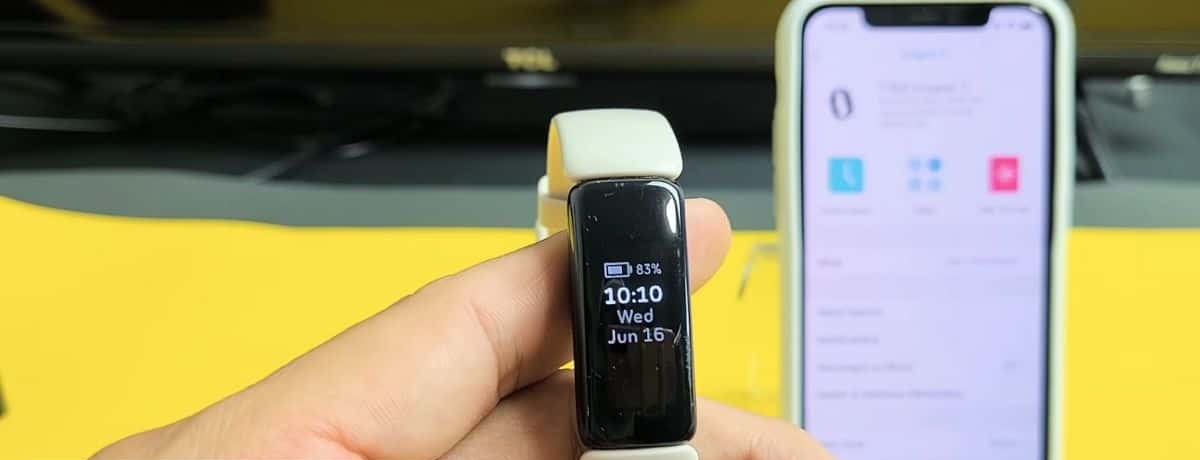
For a smooth Fitbit setup, take two minutes to check for updates before unboxing. Open your phone's system configuration and install any pending update. Then visit your app store and update the Google Health app to the latest version. This single step prevents most common issues, including black screens, missing vibrations, and sync failures that otherwise lead users deep into troubleshooting guides. With everything current, you are ready for pairing your Fitbit. Charge the device fully. Most models need at least 40 minutes. Then open the Google Health app and tap "Set Up a Device." Follow the on-screen prompts. If you are new to the ecosystem, the app will ask you to sign in with your Google Account. For families sharing devices, familiarizing yourself with Fitbit family account setup beforehand ensures each member's data stays separate and private. Once your account is active, the app guides you through connecting your Fitbit to Bluetooth. Keep your phone within ten feet during this process. After a successful connection, spend a few minutes with a beginner's guide to operating a Fitbit. Swipe down for notifications. Tap the side button to wake the screen. Hold it for quick controls. If you own a Sense model, a step-by-step guide to pairing your Fitbit Sense with your phone is built into the app's device setup flow, handling the additional ECG and skin temperature sensors automatically. Your device should now sync automatically throughout the day. If it does not, confirm Bluetooth is on and the app is running in the background.
Understanding your Fitbit's screen and symbols
When your Fitbit screen appears to show nothing but a blank face, the first thing to check is whether you are looking at a fully charged device. It may have simply dimmed its display to save battery. A single tap or a flick of your wrist should wake it. If it does not, the problem could be a depleted battery, a hardware issue, or an outdated phone OS or app version.
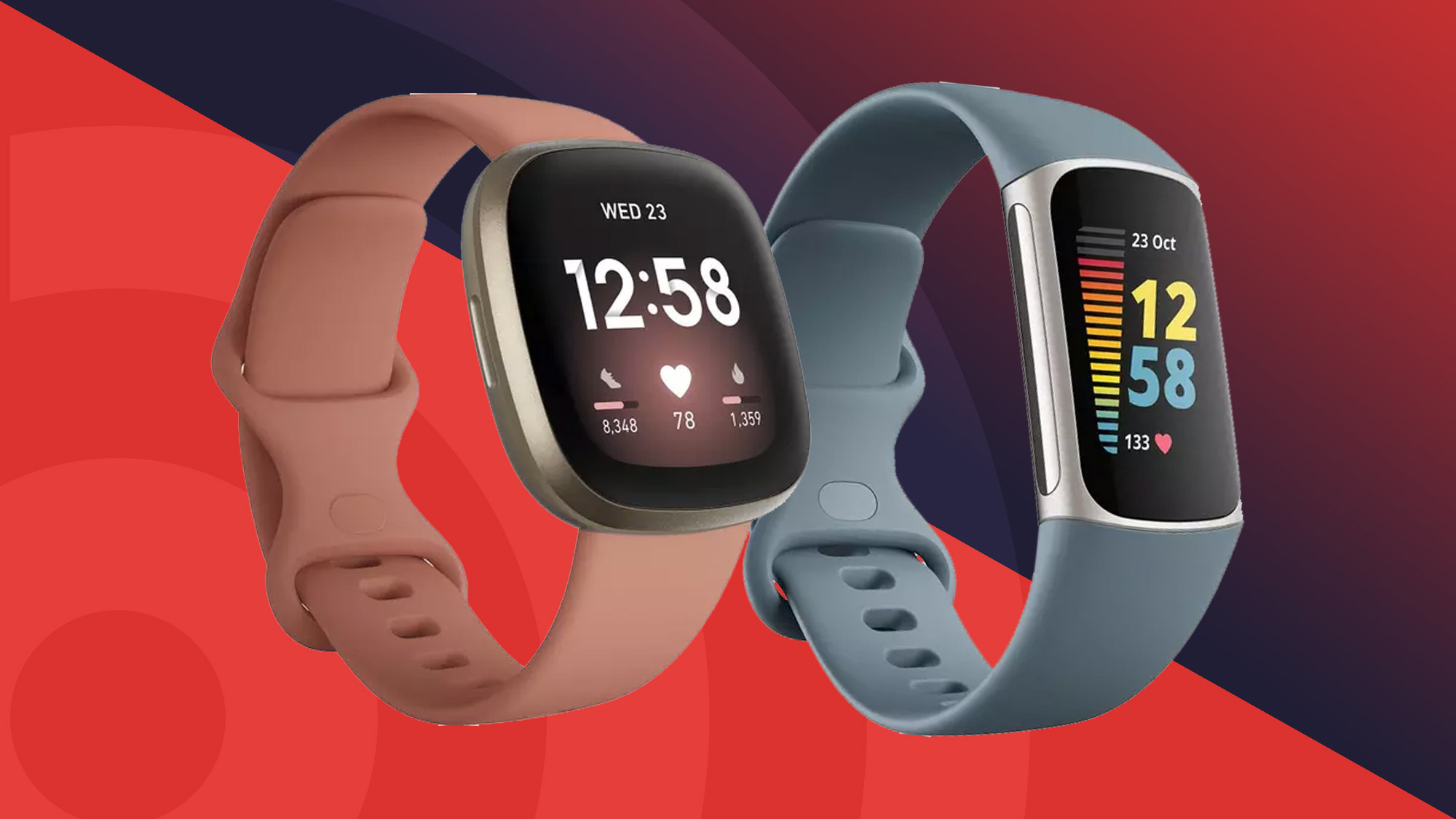
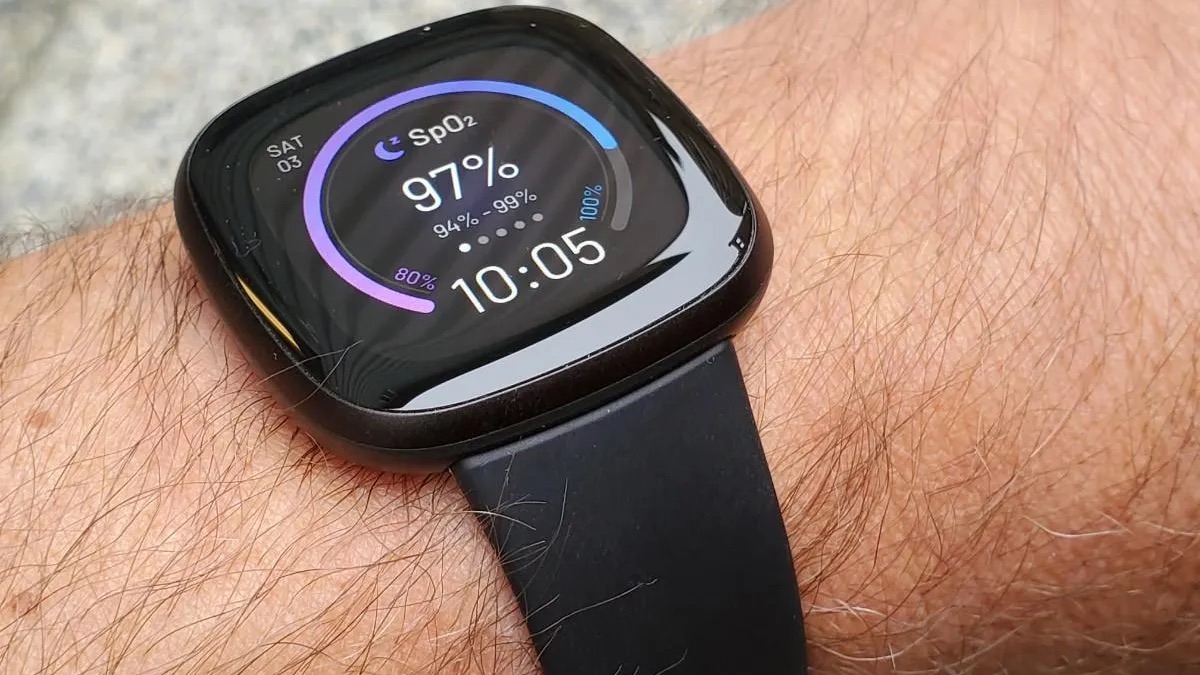
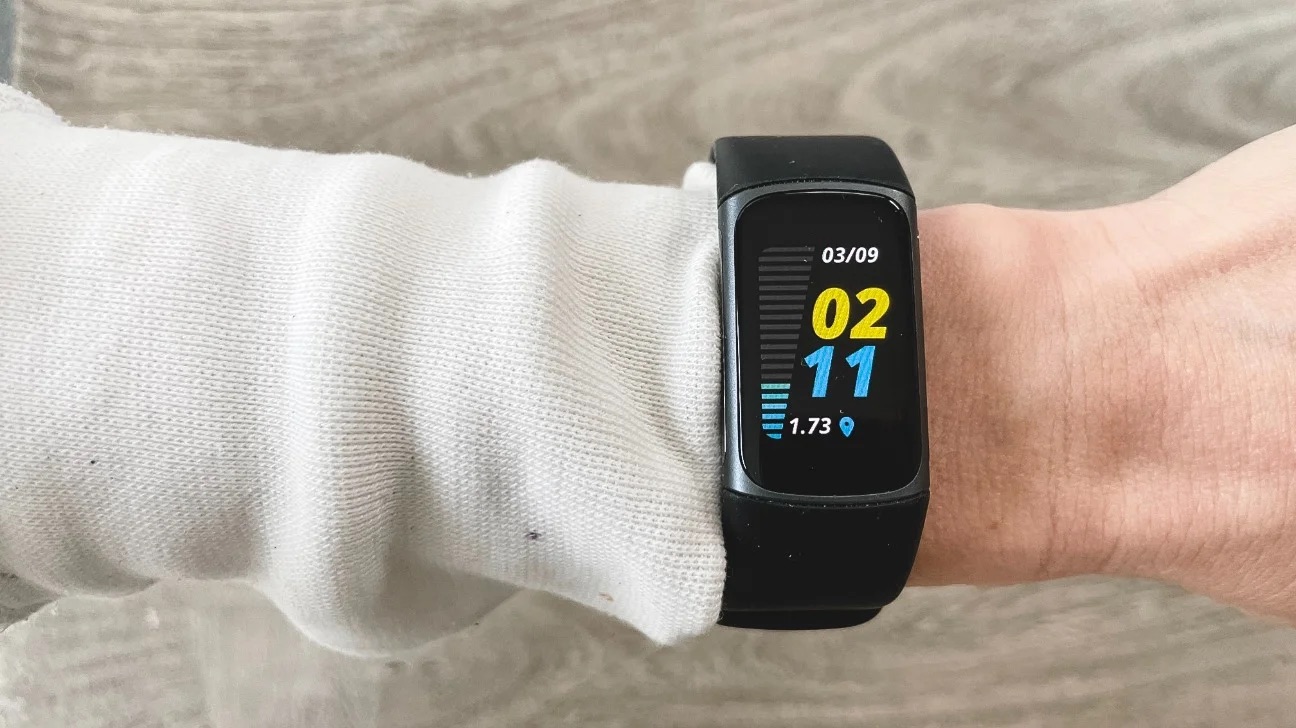
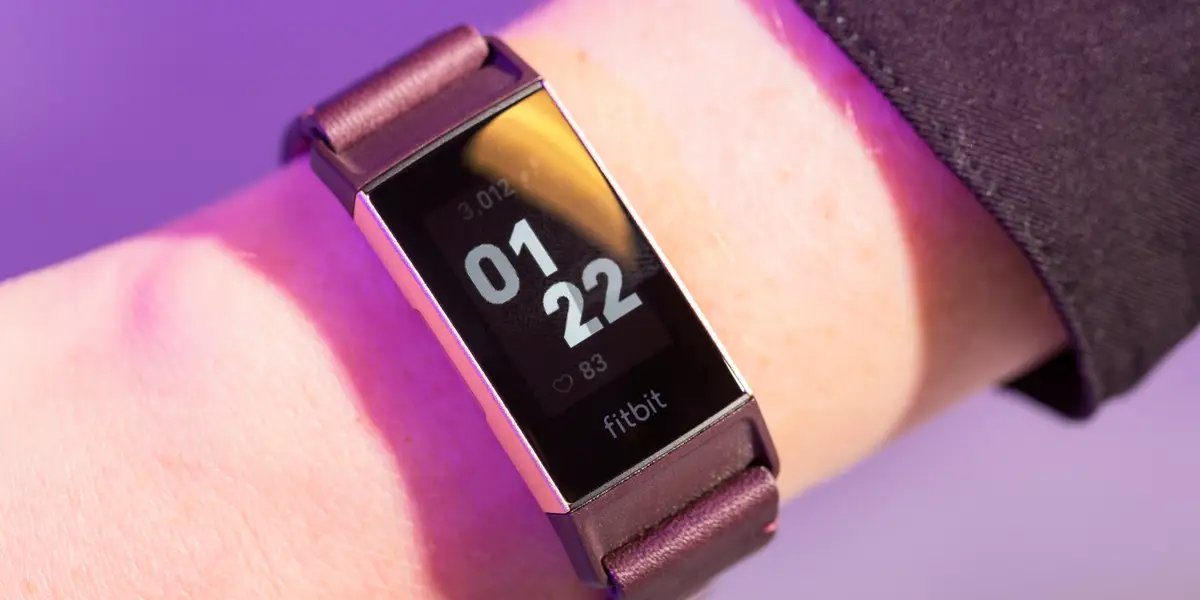
Once the display is active, you will see a variety of symbols that report your activity and device status. For example, the fire symbol on Fitbit represents the active-zone minutes you have earned during high-effort movement. It is not a literal calorie count. If you see a red circle with a line through it, that may indicate a blocked or unavailable feature. Check your device's on-screen configuration options in the app to confirm its meaning. Understanding your Fitbit icon meanings is essential for interpreting the small images that appear during a workout. You might see a running figure for an outdoor run or a set of stairs for a climb.
If a metric seems off, such as the pace on Fitbit showing an unusually high number, remember that pace is calculated from your stride length and step count. A few inaccurate steps can throw off the reading. Should a sync fail, you might see the meaning of the red x on Fitbit versa. This may indicate that the device has lost its Bluetooth connection to your phone. Check that Bluetooth is enabled and the device is in close proximity, and consult the app's troubleshooting options.
Finally, the various icons on your Fitbit, such as the battery bar, the heart-rate zone indicator, and the Bluetooth symbol, all follow a simple rule. If you cannot recall what a particular icon means, check the device’s on-screen configuration options in your app rather than guessing. A misinterpreted symbol can lead you to believe the device is malfunctioning when it is merely showing a normal status.
Customizing your Fitbit experience
Your Fitbit should feel like your own, not a generic fitness tracker. Start with the most personal change: swapping the band. You can follow a step-by-step guide on changing your Fitbit band to match your outfit or activity. The process is straightforward and requires no tools for most models. Once the hardware feels right, turn to the screen. Many people want to stay connected without pulling out their phone. You will want to look into getting text messages on your Fitbit Versa 4. This requires enabling notifications for your Fitbit in the app's settings. If you find your wrist is silent when you expect a buzz, check the vibration motor by reviewing the instructions for making your Fitbit vibrate. Often the issue is simply a silent mode that got toggled during a workout. For daily health nudges, consider setting up a water reminder on Fitbit to keep hydration on track. When you are ready to pay on the go, focus on setting up your wallet in Fitbit through the app. This requires your bank's support and a secure PIN. Finally, to confirm everything is working, check the metrics by looking at the section on displaying steps on Fitbit app. There you can verify the dashboard shows your current count. If any of these customizations fail to take effect, remember to update your phone's OS and the Fitbit app first. An outdated app can be a reason a new configuration simply refuses to stick.
Syncing your Fitbit with other devices and apps
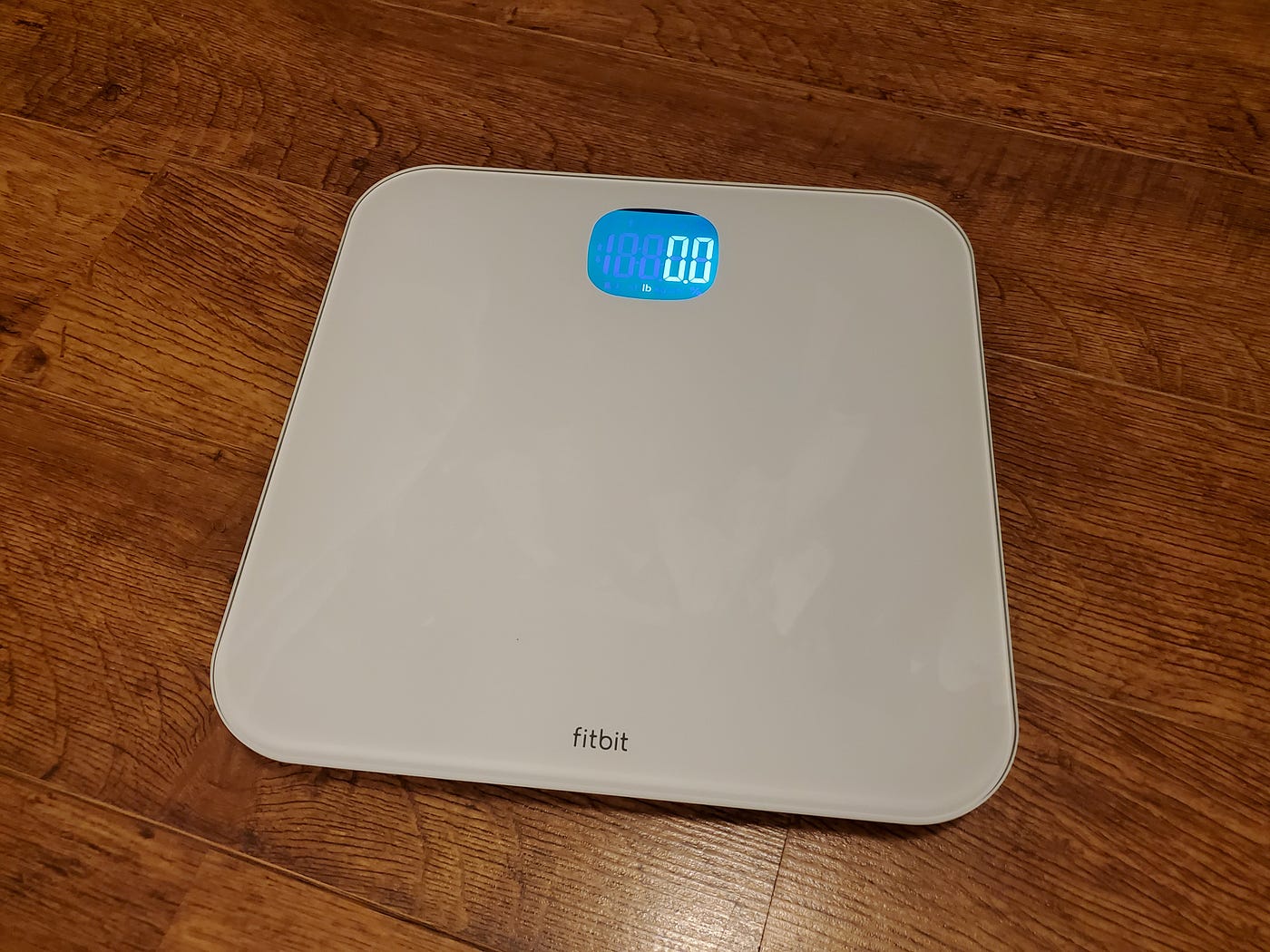
To keep your health data in one place, start by ensuring your phone or tablet is running the latest operating system. The Fitbit app must also be fully updated, because this simple step prevents the majority of sync failures. For example, if you are syncing Fitbit with your iPad, make sure the app is current. Older versions often lose the Bluetooth connection mid-transfer. If you use a smart scale, consider syncing Renpho data with your Fitbit to automatically log weight trends alongside your activity. Just open the Renpho app, go to its settings, select Fitbit, log into your Fitbit account, and authorize the data you wish to share. Similarly, follow a step-by-step guide to syncing your Fitbit aria air scale by placing the scale on a hard floor and stepping on it. Check the Google Health app for the new reading, and if it doesn’t appear, try syncing again. For other brand scales, linking a withings scale to your Fitbit requires authorizing the connection through the Withings app first. Then you can adjust which data points share. If your Aria scale keeps dropping off, try changing wifi settings on Fitbit aria. Enter your router password again and ensure the scale is within range of the router. These direct actions consolidate your metrics without needing extra cables or manual entry.
Managing devices on your account
Your account can hold multiple Fitbit devices. When you upgrade or replace a tracker, the process involves deleting old and adding new devices to your Fitbit account through the Connections menu in the app. If you are giving away or selling a used tracker, you must first complete the steps for removing a Fitbit device from your account. This action disconnects it from your history and frees it for the next owner. Before contacting support, you may need to verify the exact model you own, which means locating your Fitbit's serial number printed on the back of the device or inside the device’s information screen. Remember that a Fitbit working without a smartphone stores detailed data in its internal memory, then uploads the full history when it reconnects to the app. If you switch phones or encounter persistent sync errors, consider uninstalling the Fitbit app completely and reinstalling the latest version from your app store. After reinstalling, sign back in and the app will prompt you to set up your device again, preserving your past data.
Fixing screen and power issues
Before diving into specific hardware fixes, confirm your phone's operating system and the Fitbit app are both fully updated. An outdated app version is a surprisingly common culprit behind what looks like a dead screen or failed charge. This step alone resolves many issues before you touch the device itself.
If you are troubleshooting why your Fitbit screen is dim, start by checking your brightness configuration in the Fitbit app's device controls. The screen may simply be set to a low level. Swipe to the quick-access panel on the device itself to adjust the slider upward. A dim display can also result from the sleep mode schedule overriding your manual preferences, so verify that quiet hours are not actively suppressing the screen.
For a device that seems completely unresponsive, a forced restart often resolves the issue. You might find yourself troubleshooting Fitbit not displaying when you turn your wrist, which is usually solved by adjusting the "wake" sensitivity or ensuring the wrist detection feature is enabled in the app. This gesture relies on a specific motion sensor that can be toggled off accidentally during workouts or water exposure.
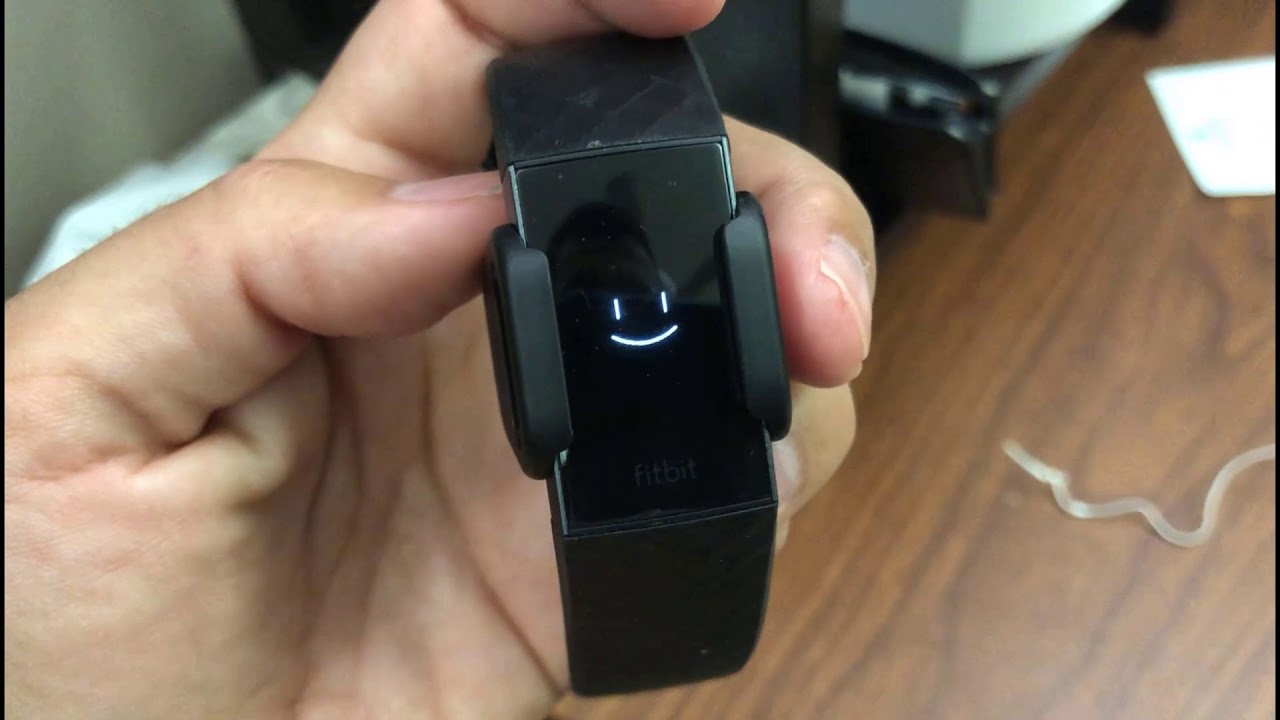
If the screen remains black, your next step involves a hardware reset. If you are resetting Fitbit Charge 5 with a black screen, you need to use the physical button on the charging cable, not the device itself. This process requires locating the reset button on Fitbit Charge 5, which is a small pinhole on the charger's clip. Use a paperclip to press it while the device is plugged in. Hold the button down for a full ten seconds and then release it. The Fitbit logo should appear shortly after, signaling that the internal firmware has been reloaded without erasing your personal data.
For older models, a different approach is needed. If your Fitbit versa 2 won't turn on? here's how to fix it, press and hold the buttons until you feel a vibration. A long press on these two physical points sends a low-level interrupt signal directly to the processor, bypassing the touchscreen entirely.
Finally, charging issues often look like power failures. When troubleshooting why your Fitbit luxe is not charging, clean the gold contacts on both the device and the charger with a cotton swab and rubbing alcohol, as oils and dirt are frequent blockers. Align the pins precisely with the recessed grooves on the back of the tracker. A magnetic connection that feels secure can still fail if the pins are even slightly misaligned by a case or debris. If none of these steps work, the battery may need professional service.
Troubleshooting sensors and notifications
If your Fitbit isn't showing your heart rate during a workout or at rest, begin by checking that the device is snug against your skin, it should not slide around, but also not leave a mark. Wearing it on your non-dominant wrist and positioning it about 2-3 finger widths above your wrist bone often resolves the issue. If that doesn't work, you may find yourself troubleshooting why your Fitbit isn't detecting heart rate. This process typically involves cleaning the optical sensors on the back with a lint-free cloth and restarting the device.
When your wrist remains silent during an incoming call or text, the problem is usually in the notification configuration within the Fitbit app. Confirm that "Notifications" is toggled on for your device. Also verify that your phone's own notification permissions allow the Fitbit app to relay alerts. If the phone itself is set to Do Not Disturb, the vibration may be blocked. You might then need to start troubleshooting why your Fitbit does not vibrate when you get a message. This often points back to a phone OS update that reset the app's permission to send alerts. Similarly, if the vibration has stopped altogether, even for alarms or goal celebrations, you are troubleshooting why your Fitbit no longer vibrates. This can sometimes be fixed by adjusting the vibration intensity in the device controls or performing a forced reboot.
For notification failures, also check that Bluetooth is active. Make sure your phone isn't connected to another Bluetooth device that could be intercepting the signal. A less obvious culprit is incorrect personal data in your profile. This is relevant when you are measuring your stride length on Fitbit. If the app has the wrong height or walking style, it can affect motion-based alerts that rely on step detection to trigger vibrations. As a final step, revisit the core advice: update both your phone's operating system and the Fitbit app. A surprising number of sensor and notification glitches vanish after these updates are applied.
Advanced fixes, compatibility, and maintenance
When a device becomes unresponsive, the first action is often a full restart. For the Charge series or Inspire models, plugging the charger into a USB port and then inserting the tracker into the charger often forces a reboot. If you need a complete factory reset, you can follow a step-by-step guide to resetting your Fitbit luxe, which will clear all personal data and restore the device to its out-of-box state. For the smartwatch models, a frozen screen or a failure to respond to taps usually requires a long button press. Specific sequences vary by model, and you can find dedicated troubleshooting tips to fix your Fitbit versa 2 if the touchscreen or side button stops working.
If these software resets fail, the issue may be hardware-related. The battery on many models is sealed and not user-replaceable. A swollen back or a crack that lets in moisture means you should start finding where to get your Fitbit repaired through the official support channels, as third-party repairs often void the warranty. Before paying for a fix, check whether your phone is on the supported list. The Fitbit Versa 4 phone compatibility list is narrower than older models. Some Android skins, like Huawei's EMUI or Samsung's One UI, require specific permissions to be enabled for notifications and background data to sync reliably.
Ongoing maintenance includes keeping the charging contacts clean and dry. You should also decide whether the subscription features matter to you. The Fitbit Premium cost and value depends heavily on whether you use the guided programs and advanced sleep metrics, though the basic dashboard and step tracking remain free. If your device is more than two years old and the battery no longer holds a full day's charge, a replacement may be more cost-effective than a repair.