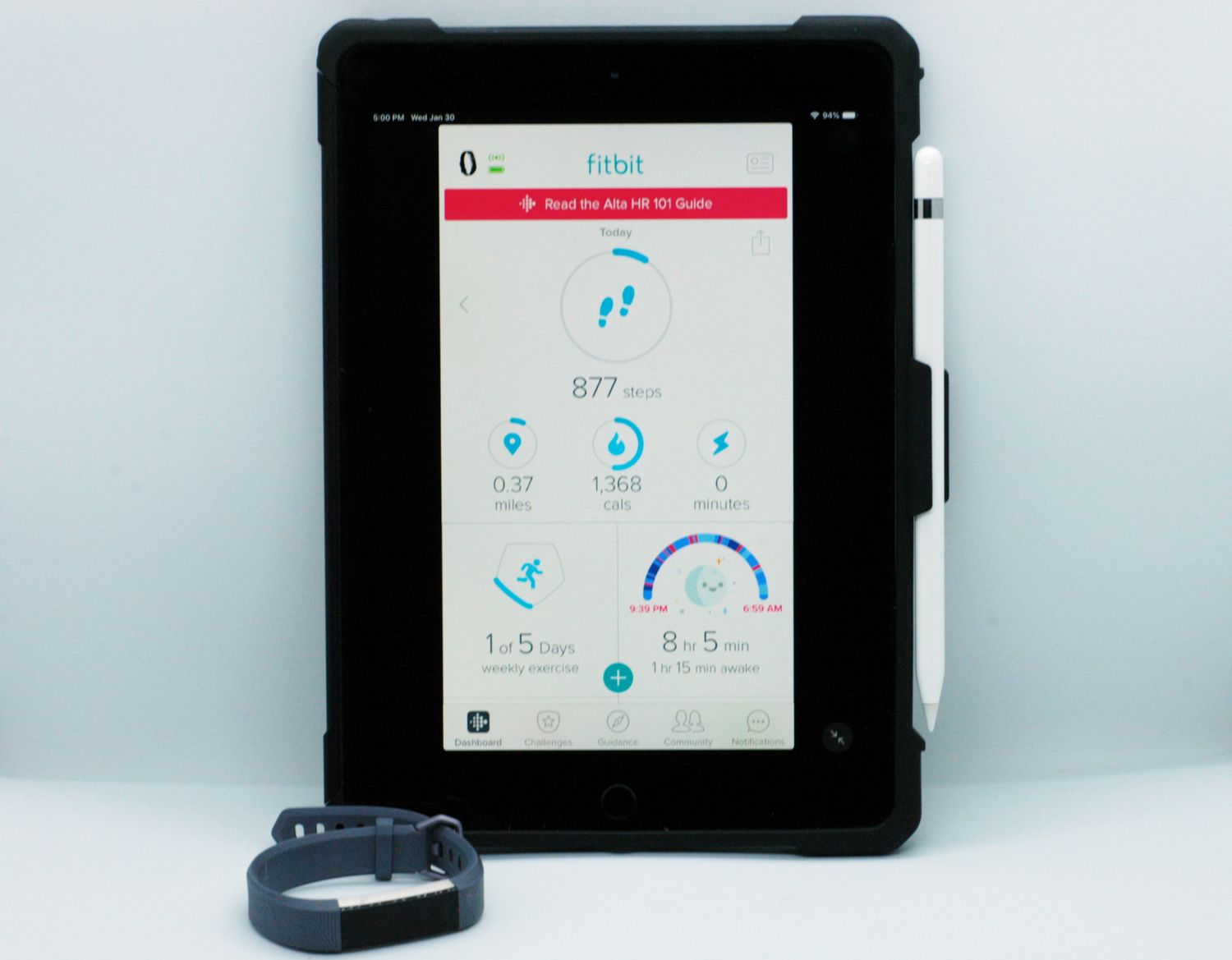
To sync Fitbit with iPad, download the Google Health app (the successor to the Fitbit app) from the App Store, log in with your Google account, and follow the in-app pairing prompts while Bluetooth is enabled on your iPad. The entire process takes only a few minutes, and once connected, your fitness data will flow between your Fitbit device and iPad automatically or on demand.
How to sync Fitbit with iPad: the quick setup
Start by ensuring your iPad has Bluetooth turned on, this is the primary channel for communication between your Fitbit device and the iPad. Next, download the Google Health app from the App Store. When you open it for the first time, you'll be asked to set up your Fitbit account by creating a Fitbit login or using your Google account. After logging in, you'll be prompted to set up a health profile, where you enter your birthday, height, weight, and sex; this data is used to calculate your stride length, estimate distance, basal metabolic rate (BMR), and calorie burn. Finally, follow the on-screen steps to complete the connection, your iPad will connect to your Fitbit after a few seconds. Once paired, your device appears under "Devices" in the app, showing details like last synced time and battery percentage.
How to sync your Fitbit data automatically and manually
The easiest way to keep your data current is to enable the All-Day Sync feature, which periodically and automatically syncs your Fitbit's data with the app throughout the day, as long as your iPad is in range. To turn this on, open the Google Health app, tap the Account icon, select your Fitbit device, and ensure the All-Day Sync toggle is in the ON position. If you prefer to sync on demand, open the app and tap Sync Now for a manual sync. Additionally, each time you open the Google Health app, your device will sync automatically if it's nearby, so simply launching the app is often enough to refresh your stats. Once your Fitbit is reliably syncing, you can also bring in weight and body composition metrics by syncing Renpho data with your Fitbit. If All-Day Sync is turned off, Fitbit recommends syncing your device at least once a day to avoid data gaps.
Troubleshooting Fitbit and iPad syncing issues
When a sync fails, work through these verified steps in order. First, force quit and then reopen the Google Health app, this clears temporary glitches. Next, on your iPad, open the Settings app, tap Bluetooth, and turn Bluetooth off and back on. If that doesn't help, turn your iPad off and back on to reset the system. Because the Google Health app requires an internet connection to sync, check that your iPad is connected to cellular data or Wi-Fi. As a final standard step, uninstall and reinstall the Google Health app; this resets the app's internal state without affecting your account data. These actions resolve the vast majority of syncing failures.
Advanced fixes: removing and re-pairing your Fitbit
If standard troubleshooting doesn't work, the next step is to remove and re-pair your Fitbit device. This is also the recommended path when replacing a Fitbit device, you must remove the previous device from the list of connected Bluetooth devices in your iPad's Settings before adding the new one. To disconnect from the app, open the Google Health app, tap Connections at the top left, tap your device, then System, and select Disconnect. Then, on your iPad, open the Settings app, tap Bluetooth, tap the Information icon next to your Fitbit device's name, and select Forget This Device. After both removals, set up your Fitbit again as a new device by opening the Google Health app, tapping Connections at the top left, then Add device or Add more devices, and following the pairing prompts. If syncing issues persist after re-pairing, remove other Fitbit devices from your account and from your iPad's Bluetooth list, then try to sync again, stale device entries can interfere with a clean connection. For a dedicated walkthrough of setting up a specific device, see a step-by-step guide to syncing your Fitbit aria air scale.
Tips for a reliable Fitbit-iPad connection
To keep your Fitbit setup and syncing running smoothly, adopt a few habits. Keep both your Fitbit device and iPad updated with the latest software, as updates often include connectivity improvements and bug fixes. Maintain adequate battery charge on both devices, a low battery on either side can interrupt syncing. Also, ensure your Fitbit is within Bluetooth range of your iPad during syncs; walls and distance can weaken the signal. By following these practices, you'll minimize interruptions and keep your fitness data flowing reliably between your Fitbit and iPad.