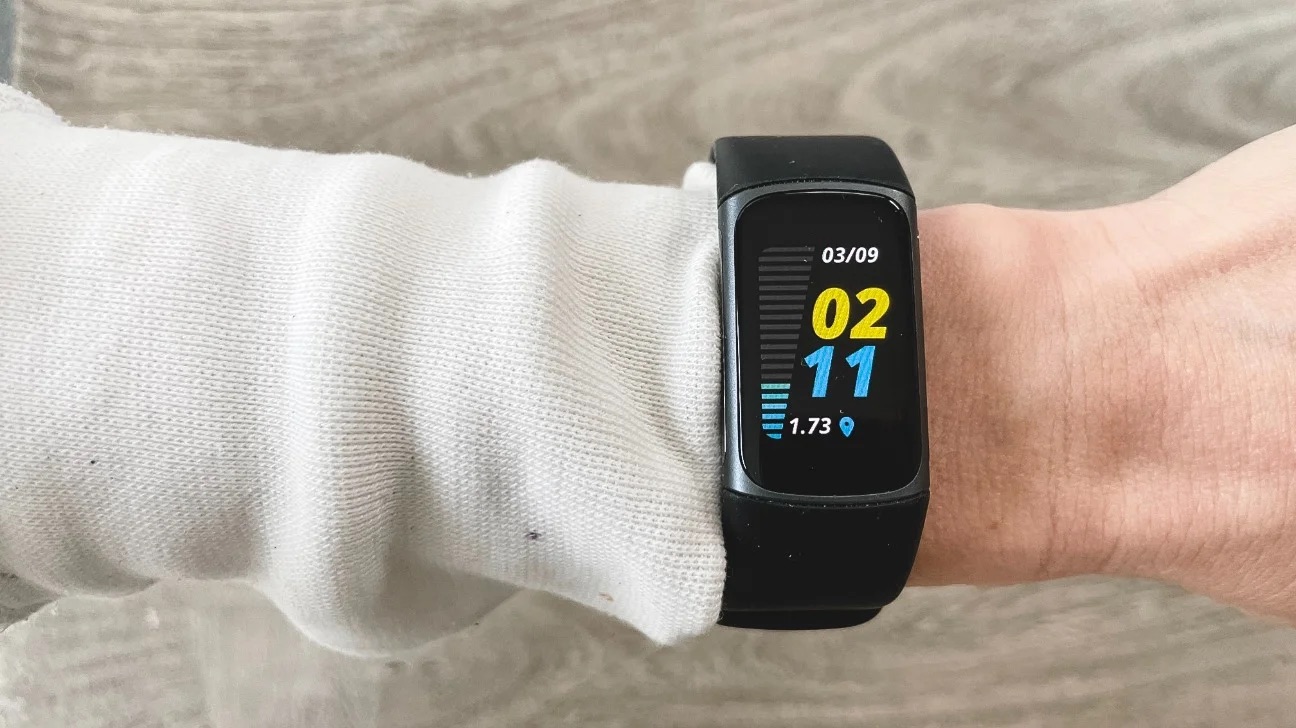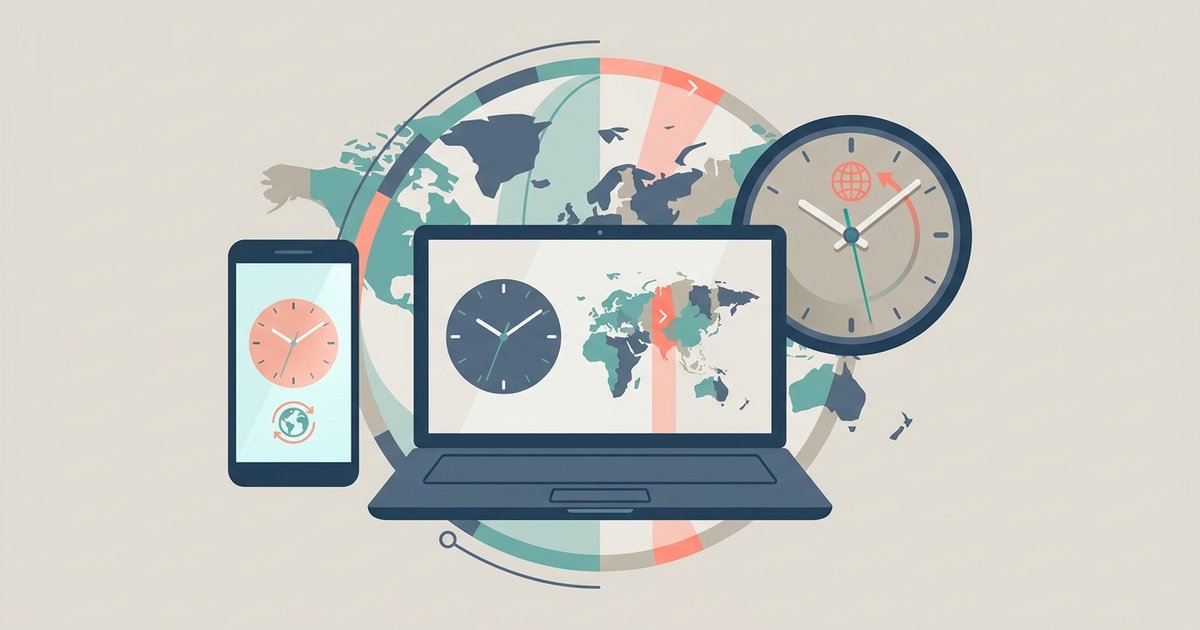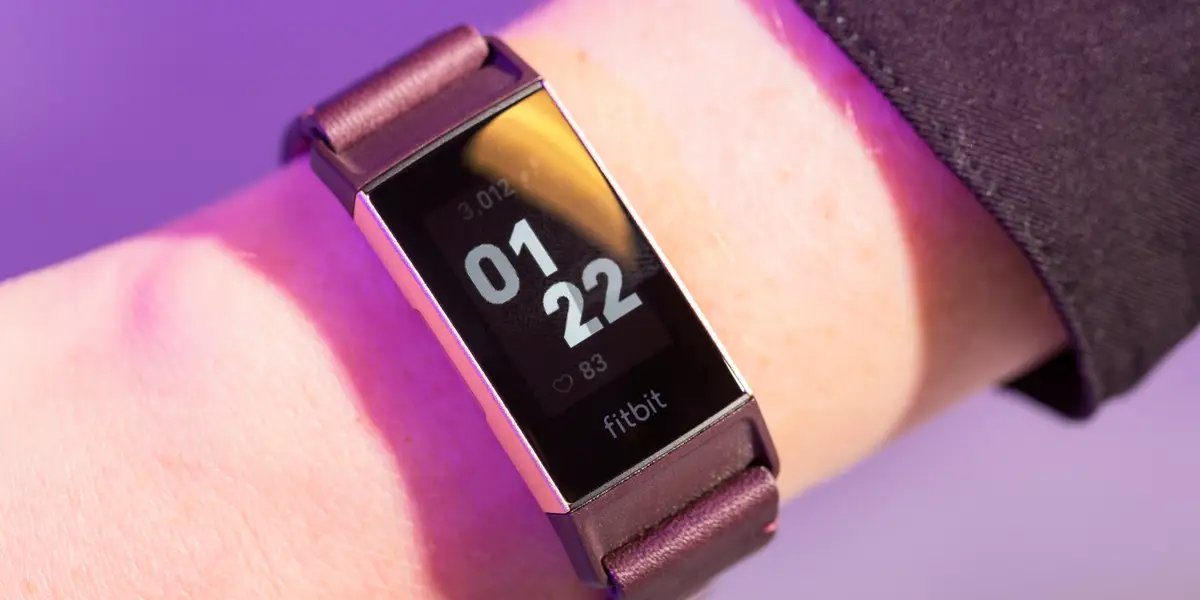
To fix an incorrect time on your Fitbit Versa 3, you must change the time zone in the Fitbit app and then sync your device, there is no on-watch setting for versa 3 time adjustment. The Versa 3 does not have a manual time-setting option on the device itself, so the app is the only way to update the clock after travel or daylight saving changes. If your device still shows the wrong time after syncing, you may need a quick guide to resetting time and date on Fitbit for a more thorough fix. If you own multiple trackers, the process for changing time on Fitbit charge 5 follows the same app-based method.
Why your versa 3 time adjustment needs the Fitbit app
The Fitbit Versa 3 relies entirely on the Fitbit app on your smartphone or tablet to manage its time settings. Unlike some other wearables, the Versa 3 has no clock face menu, no hidden settings tab, and no button combination that lets you change the time directly on the watch. When you cross into a new time zone or when daylight saving time begins or ends, the watch does not automatically know the correct time unless the app tells it. This design keeps the watch simple and ensures that the time stays consistent with your phone, but it also means that if the time on your Versa 3 is wrong, the fix is always in the app, never on the watch itself.
How to change the time zone in the Fitbit app
To change the time zone, you need to open the Fitbit app on your smartphone or tablet. From there, tap your profile picture in the upper left corner. This opens a menu where you can access your account settings. Look for the option labeled "App Settings" or "Fitbit settings", this may appear directly after tapping your profile picture, depending on your app version. Tap that option to open the settings menu.
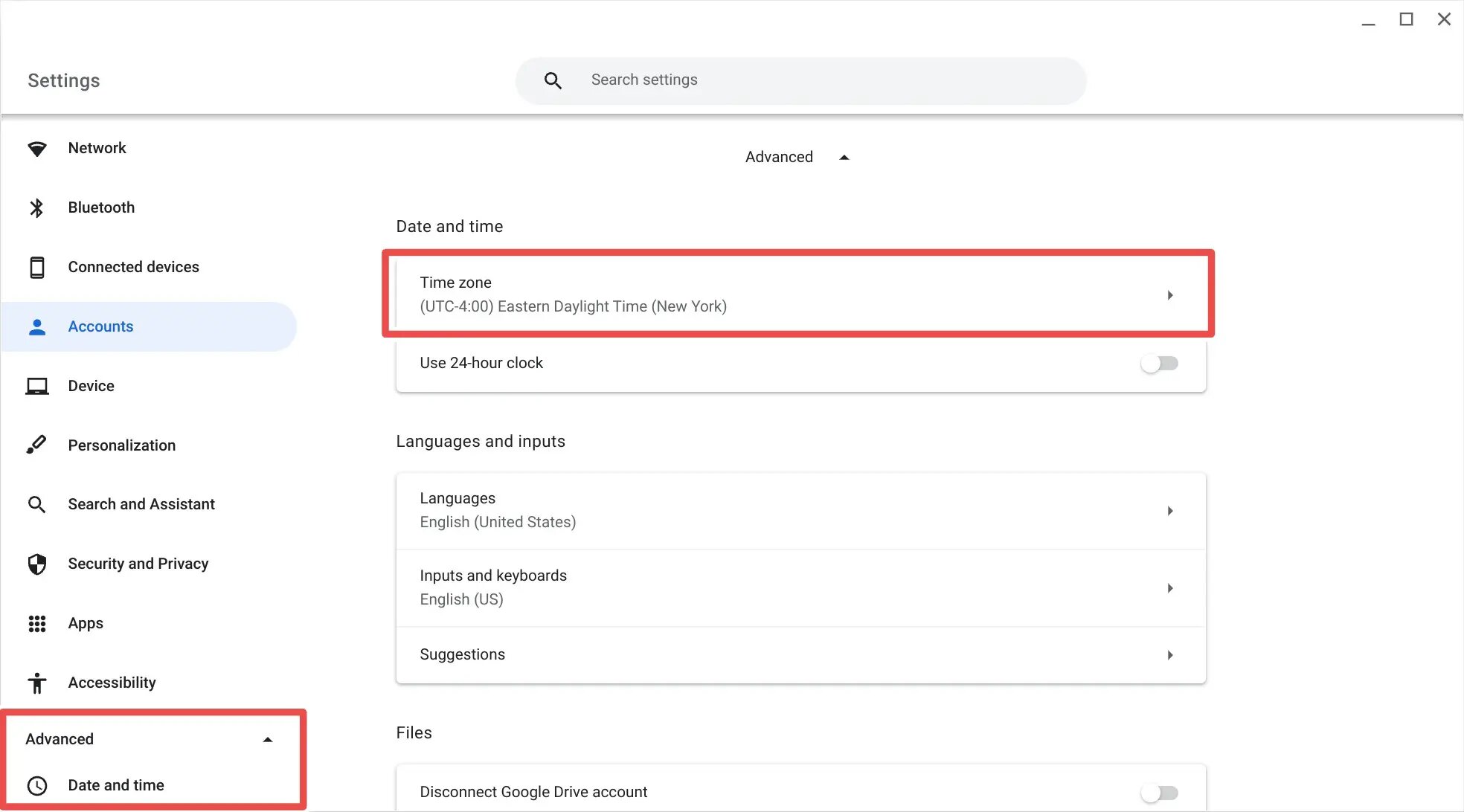
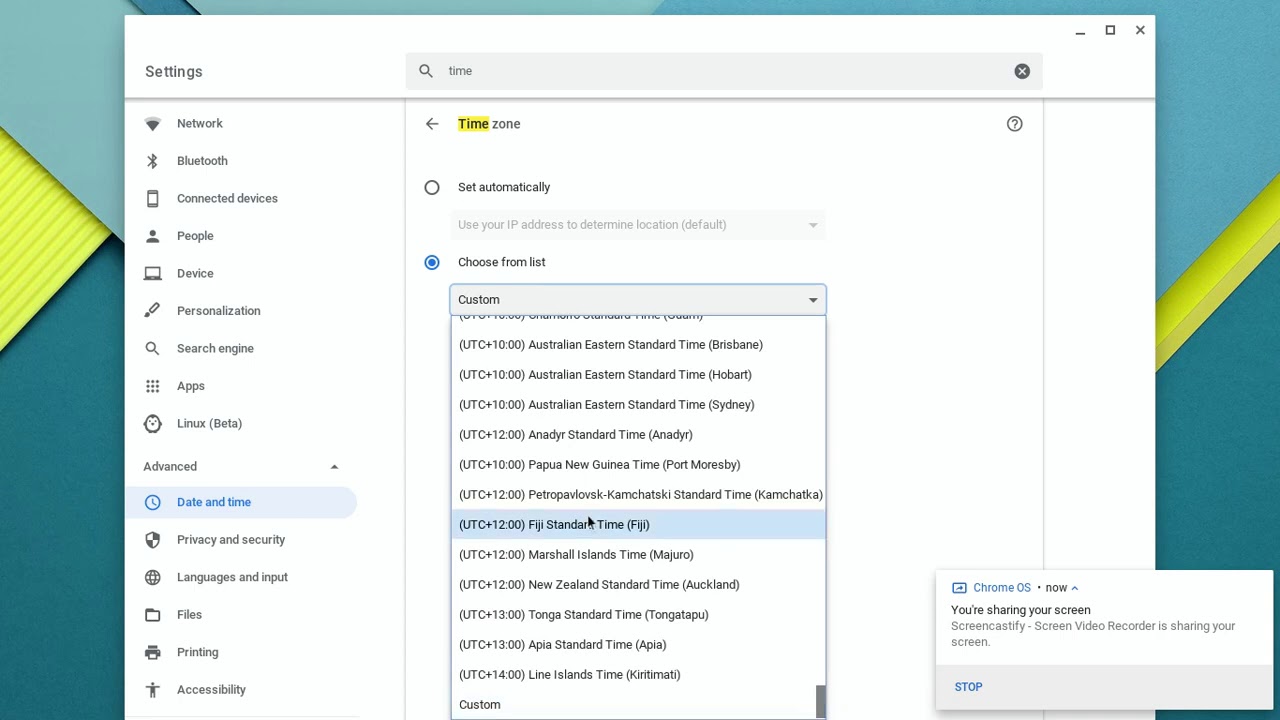
Inside the settings, find "Time Zone" or "Date, time & units." When you tap this, you will see a toggle labeled "Set automatically" or "Automatic time zone." If the time on your Versa 3 is wrong, this automatic setting is likely the culprit, it may have selected the wrong zone or failed to update after a recent move. Turn off this toggle to take manual control.
Once the automatic setting is off, tap "Select time zone" or "Time Zone" and choose the correct zone from the list. The list is organized by region and city, so scroll to find the zone that matches your current location. If you are traveling, select the zone for where you are right now, not where you started. After you make your selection, the app saves the change automatically, but the watch will not update until you sync it.
Turning off automatic time zone
The "Set automatically" or "Automatic time zone" toggle is the single most common reason a Versa 3 shows the wrong time. When this is on, the app relies on your phone's network location, which can be inaccurate in certain situations, such as near a time zone border, on a long flight, or when your phone has not refreshed its location data. If you have traveled recently, the automatic setting may still be pointing to your home time zone. Turning it off and manually selecting your current zone gives you direct control over what the watch displays.
Syncing your Versa 3 to apply the new time
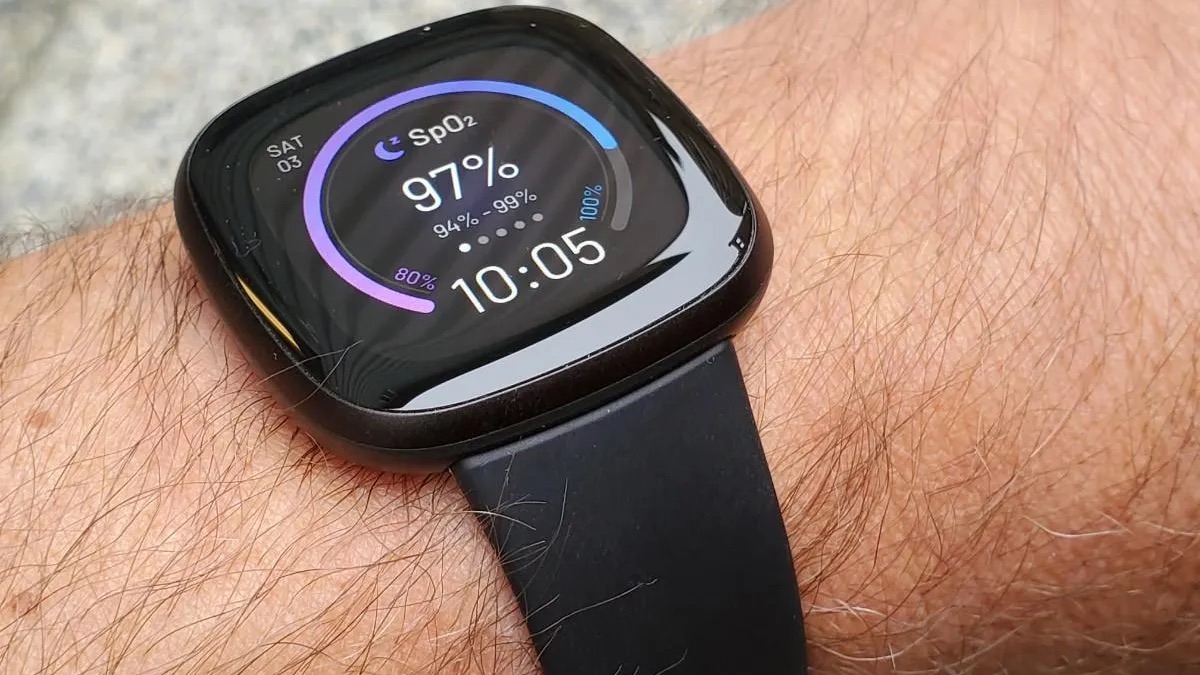
After you change the time zone in the app, you must sync your Fitbit Versa 3 to push the new settings to the watch. To sync, open the app and pull down on the Today tab to trigger a manual sync, or go to the device icon and tap the sync option if your app version has one. The watch will vibrate briefly and the time on the watch face will update to match the zone you selected. This sync is the final step that transfers the app's settings to the watch, so do not skip it.
If the time is still incorrect after syncing, the most reliable troubleshooting step is to log out of the Fitbit app and then log back in. Logging out clears the app's cached location data and forces it to re-read your phone's current settings. After you log back in, repeat the sync process. In most cases, this second sync applies the correct time, but if the issue persists, check that your phone's own time and time zone settings are correct, the Fitbit app reads from your phone's system clock as a reference. Once your phone is accurate, the app and watch will follow.
Remember that the Versa 3 has no manual time-setting feature, so you cannot type in a specific hour or minute on the watch itself. The only way to adjust the time is through the app's time zone setting and a subsequent sync. This includes situations where you need to change the time for reasons other than travel, such as a temporary work schedule in a different zone. The same process applies: open the app, turn off automatic time zone, select the zone you want, and sync.
For the most accurate versa 3 time adjustment, always verify that your phone's time zone is set correctly before you change the app's setting. If your phone is on the wrong zone, the app will inherit that error even after you manually override it. Once your phone, the app, and the watch all agree on the zone, the time on your Versa 3 will be correct and will stay correct until your location or daylight saving status changes again.
For the wider topic, see changing the time and time zone.