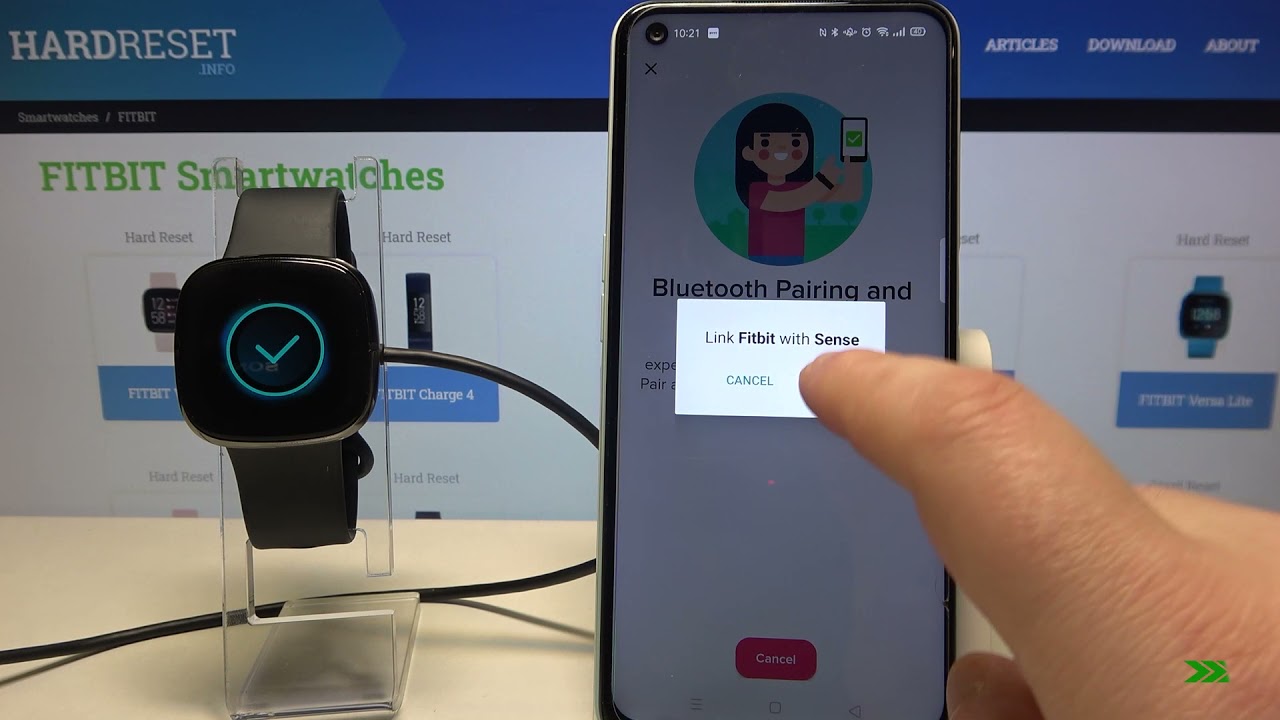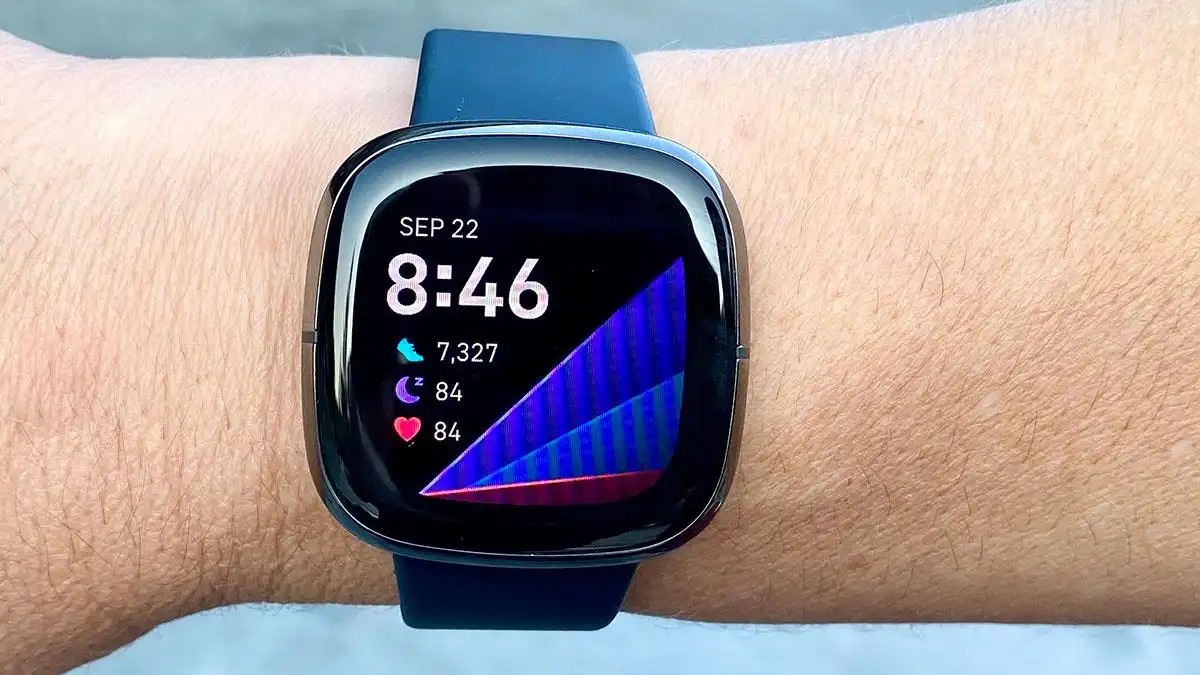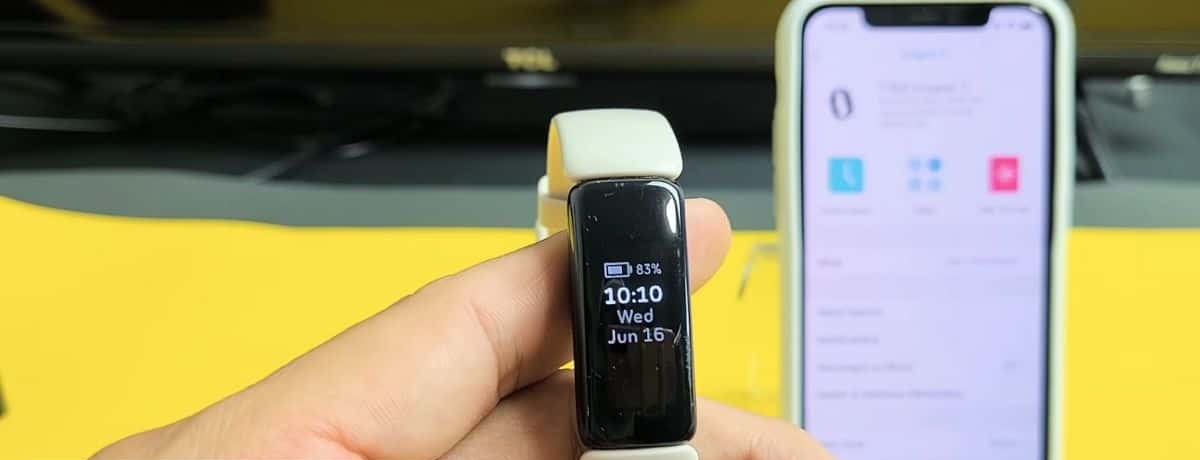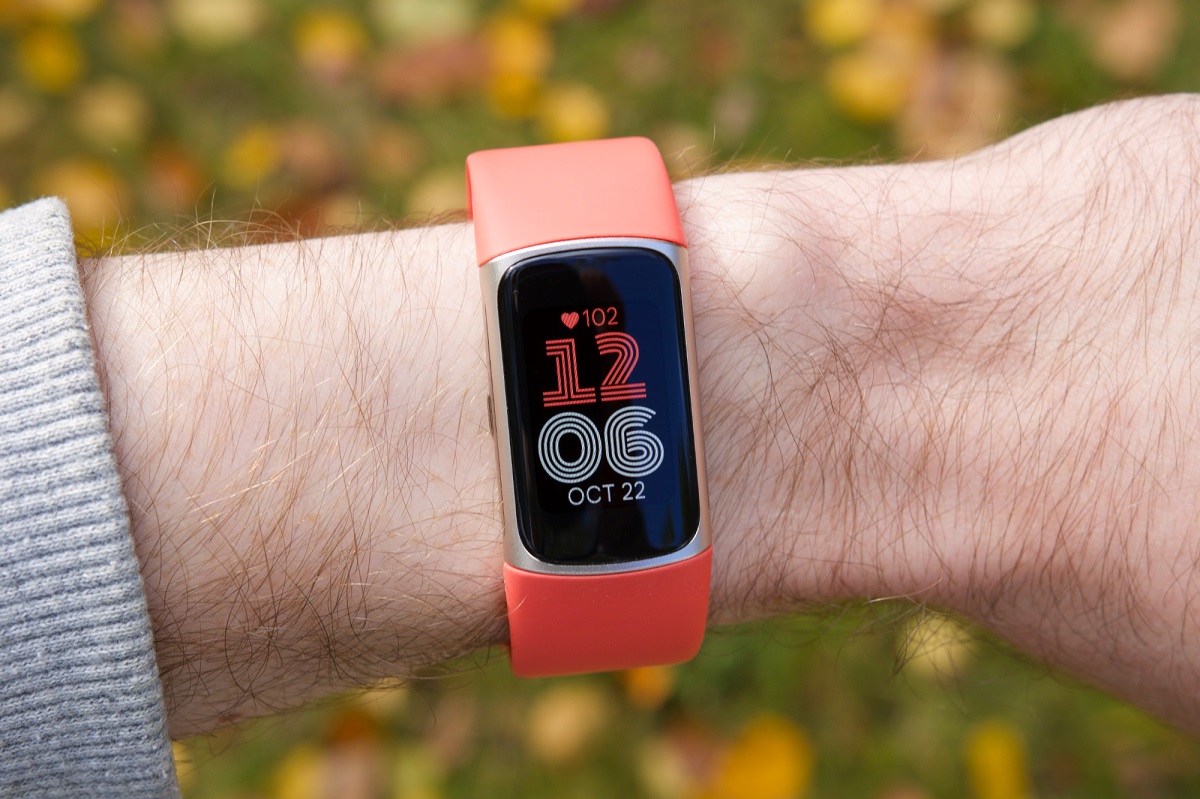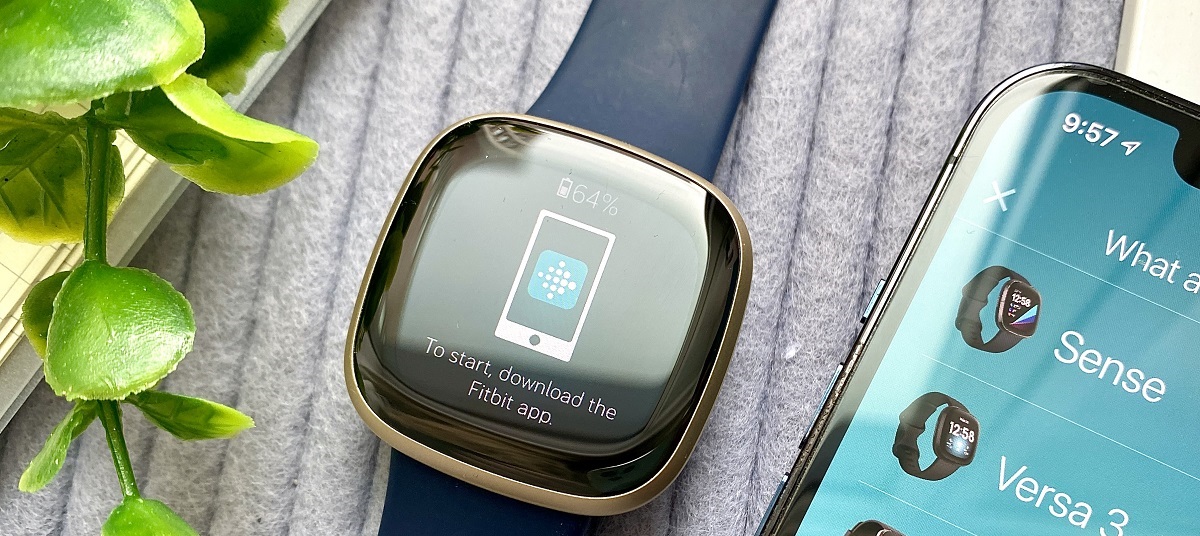
To connect Fitbit to Bluetooth, you’ll pair the device through the official Fitbit app on a compatible phone, tablet, or Windows 10 PC. The process takes about five minutes: enable Bluetooth, open the Fitbit app, log in, and tap “Set Up a Device” to start pairing. Below are the exact steps for mobile, Windows 10, and older models, plus fixes for the most common connection failures.
Before you connect your Fitbit to Bluetooth
Check device compatibility on Fitbit.com/devices before attempting any pairing. Fitbit apps use Bluetooth Low Energy (BLE) technology to sync with your tracker, so your phone or tablet must support BLE (most devices from the last decade do). For the best experience, use the Fitbit app for iPhones, iPads, or Android phones. A phone is required for call, text, calendar, and smartphone app notifications, a tablet or PC can sync data but won’t deliver those alerts. If your device isn’t listed as compatible, you can still set up your Fitbit on a Bluetooth-enabled Windows 10 PC using the desktop app.
How to pair your Fitbit with a phone or tablet
Enable Bluetooth on your smartphone or tablet first. On iOS, swipe into Control Center and tap the Bluetooth icon; on Android, go to Settings > Connections > Bluetooth and toggle it on. Keep your Fitbit within a few feet of the phone during pairing.
Open the Fitbit app and log in to your account, or tap “Join Fitbit” to create a new account. If you’re replacing an old Fitbit, select “Set Up a Device” from your profile in the app rather than adding a new one. Tap “Set Up a Device” to initiate pairing, then follow the on-screen instructions in the app to connect your Fitbit to your account. The app will search for nearby devices, when your Fitbit appears, tap it and confirm any pairing code shown on both screens.
How to set up your Fitbit on a Windows 10 PC
If you don’t have a compatible phone, you can set up and sync your Fitbit with a Bluetooth-enabled Windows 10 PC using the Fitbit app. Click the Start button on your PC and open the Microsoft Store. Search for “Fitbit app,” then click “Free” to download it. Sign in with your existing Microsoft account or create a new one. Open the app and follow the on-screen instructions to set up your device. The PC app mirrors the mobile experience, it will walk you through entering the code on your Fitbit’s screen and confirm the connection.
Setting up older Fitbit models with Fitbit Connect
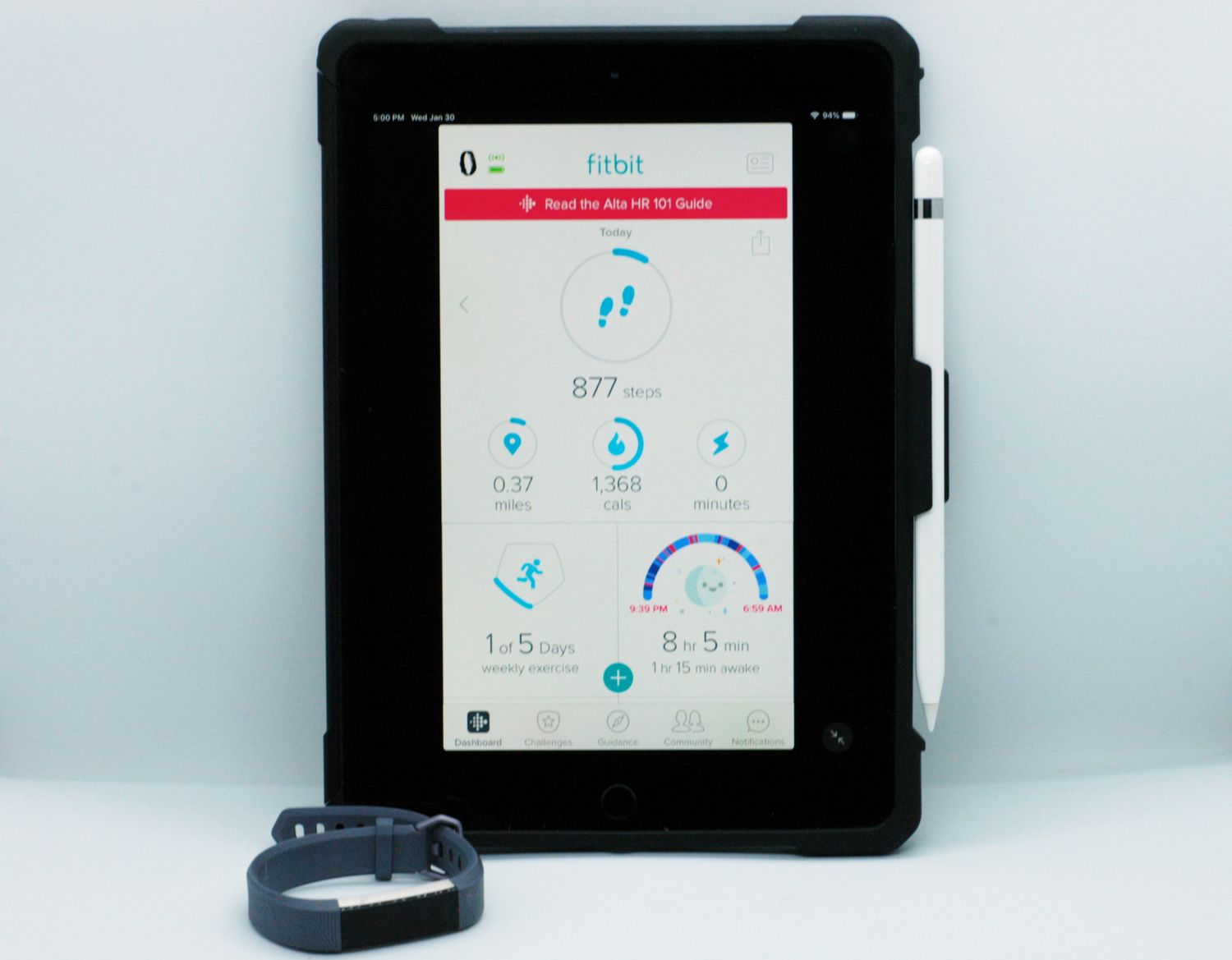
For older models like Fitbit One or Zip, you may need Fitbit Connect (software for Mac/PC) for setup and syncing, especially if your mobile device isn’t compatible. Download Fitbit Connect from Fitbit.com/setup, then double-click the installer file (FitbitConnect_Win.exe for Windows, Install Fitbit Connect.pkg for Mac). Choose “Set up a New Fitbit Device” when prompted, then follow on-screen instructions to create an account and connect your device. If your computer doesn’t have Bluetooth, you’ll need to plug in the wireless sync dongle that came with your device, this acts as a USB receiver. For PC syncing, your tracker should be within 20 feet of your computer and have new data to upload. Fitbit Connect is the only official way to set up these legacy trackers on a computer; the modern Windows 10 app doesn’t support them. If you prefer a tablet-based setup, syncing Fitbit with your iPad offers a streamlined alternative for compatible models.
Troubleshooting Fitbit Bluetooth connection issues
If your Fitbit won’t connect, start with the simplest fix: bring the devices closer together. Physical distance and obstacles weaken the Bluetooth signal, so moving within a few feet often resolves the issue. Next, restart both your Fitbit and your phone or PC, this resets their Bluetooth stacks and clears temporary glitches. If that fails, check for updates: open the Fitbit app and go to Settings > About to see if a firmware update is pending, and update the app itself from your device’s app store. On Android, clearing the Bluetooth cache can help: go to Settings > Apps > Show system > Bluetooth > Storage > Clear cache, then retry pairing. For iOS, forget the Fitbit in Bluetooth settings and re-pair through the app. As a last resort, factory reset your Fitbit, this restores the device to original settings and often resolves deeper connection bugs. Note that a factory reset erases all stored data, so sync first if possible. If none of these steps work, your phone’s Bluetooth hardware may be incompatible with BLE; double-check Fitbit.com/devices for your exact model.
For the wider topic, see Fitbit setup and syncing.
\nRelated reading: Sense Phone Pairing: A Step-by-Step Guide To Pairing Your Fitbit Sense With Your Phone.