If your Fitbit can't find phone when you trigger the Find Phone feature, the culprit is almost always a permission or background-process issue on the smartphone side, not a hardware failure. The feature depends on the Fitbit app (or Google Health app on newer models) actively running in the background with Location and Nearby devices permissions granted; without those, the wearable's request never reaches the phone.
Why your Fitbit can't find your phone
The Find Phone feature works by sending a Bluetooth signal from your Fitbit to the Fitbit app on your phone, which then plays a ringtone. For that signal to be received, the app must be alive in the background, listening for the command. If your phone's operating system has killed the app, paused it, or stripped its permissions, the signal is silently dropped. Most failures start here, not with the Bluetooth radio itself. Even if both devices are paired and within range, a background-restricted app will never respond to the Find Phone request.
Check Fitbit app background and permissions
Open your phone's Settings and locate the app list for either the Fitbit app or Google Health app, depending on which one your wearable uses. You need to verify three things: that the app is allowed to run in the background, that battery optimization is disabled for it, and that Location plus Nearby devices permissions are granted. Many phones default to "Optimized" battery mode, which suspends background activity for apps you don't open frequently. Switch that to "Unrestricted" so the app can stay active. If any of these are off, the Find Phone command will never reach your phone's speaker.
Install the Find Phone app on your Fitbit
Not every Fitbit model comes with the Find Phone feature pre-loaded. On some devices, you must first install the "Find Phone" app from the Fitbit Gallery using the Fitbit app on your phone. Open the Fitbit app, go to the Gallery or Apps section, search for "Find Phone," and install it to your wearable. After installation, the app should appear in your Fitbit's app list. Verify the app is installed and set up before moving on to other checks.
Verify Bluetooth and paired status
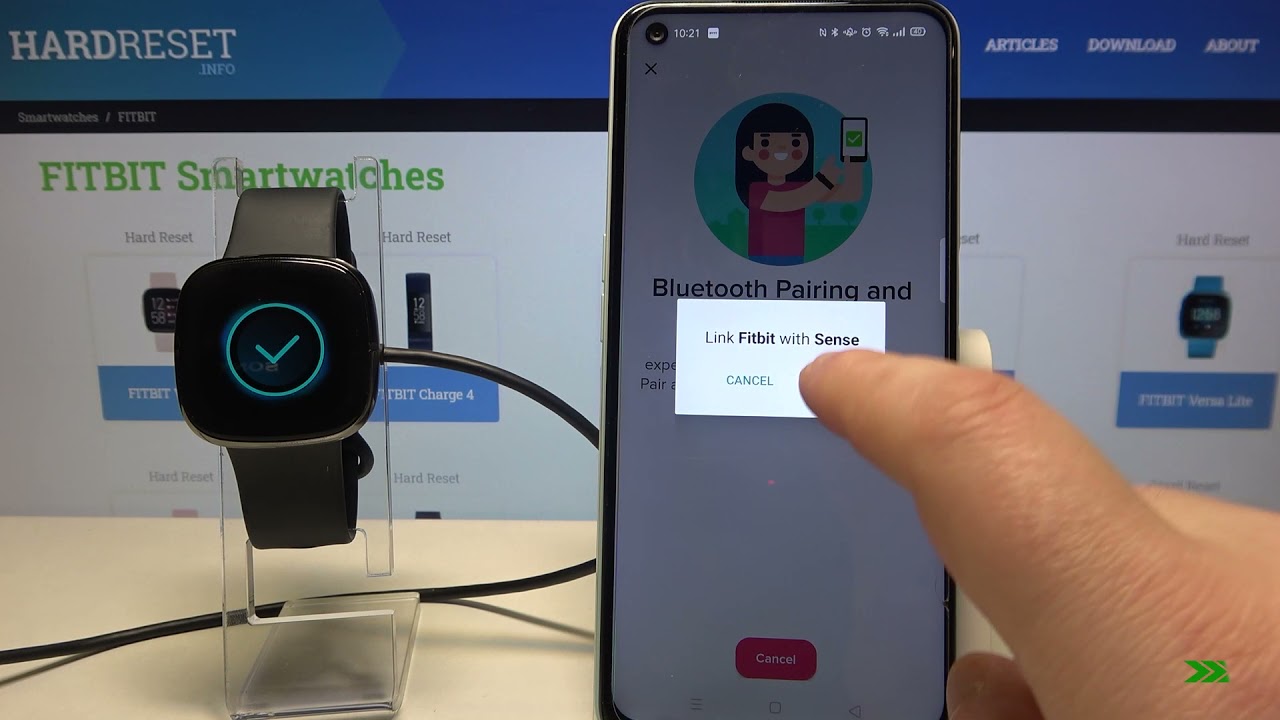
Turn Bluetooth on for both devices, it sounds obvious, but a quick toggle can fix a stale connection. Then check the paired-device lists on each side. On your Fitbit, swipe to the Settings app and check the Bluetooth status; it should show your phone as a connected device. If either list shows "Available," the link has dropped, and you'll need to tap the device name to reconnect. A "connected" status is the only state in which Find Phone will work, because the feature relies on an active Bluetooth link, not just a remembered pairing.
Restart devices and update software
Restart both your Fitbit and phone. This clears temporary glitches in the Bluetooth stack and forces the app to reinitialize its background connection. After both devices reboot, open the Fitbit app and let it sync once before trying Find Phone again. Then check for software updates on each device. On your phone, go to Settings > System > Software update; on your Fitbit, open the Fitbit app and look for a firmware update under your device's settings. Updates often include fixes for Bluetooth connectivity and background app behavior, so keeping both current reduces the chance of compatibility issues that block the Find Phone signal. If interference is the real culprit, you may need to block Bluetooth signal from nearby devices that are flooding the band.
Troubleshooting steps at a glance
- Open your phone's Settings and confirm the Fitbit app (or Google Health app) is allowed to run in the background.
- Disable battery optimization for the Fitbit app, set it to "Unrestricted" so it can stay active.
- Grant Location and Nearby devices permissions to the Fitbit app in your phone's app settings.
- Open the Fitbit app and verify the "Find Phone" app is installed on your wearable from the Gallery.
- Turn Bluetooth on for both devices and check that your Fitbit shows as "Connected" in your phone's paired-device list.
- Restart both your Fitbit and phone, then let the Fitbit app sync once.
- Check for software updates on both devices and install any pending updates.
- If the feature still fails, move closer to your phone and remove any thick walls or metal objects between the two devices, then retry.
Related reading: Sense Phone Pairing: A Step-by-Step Guide To Pairing Your Fitbit Sense With Your Phone and Connectivity Guide: Connecting Your Fitbit To Bluetooth.