Understanding your phone hotspot setup
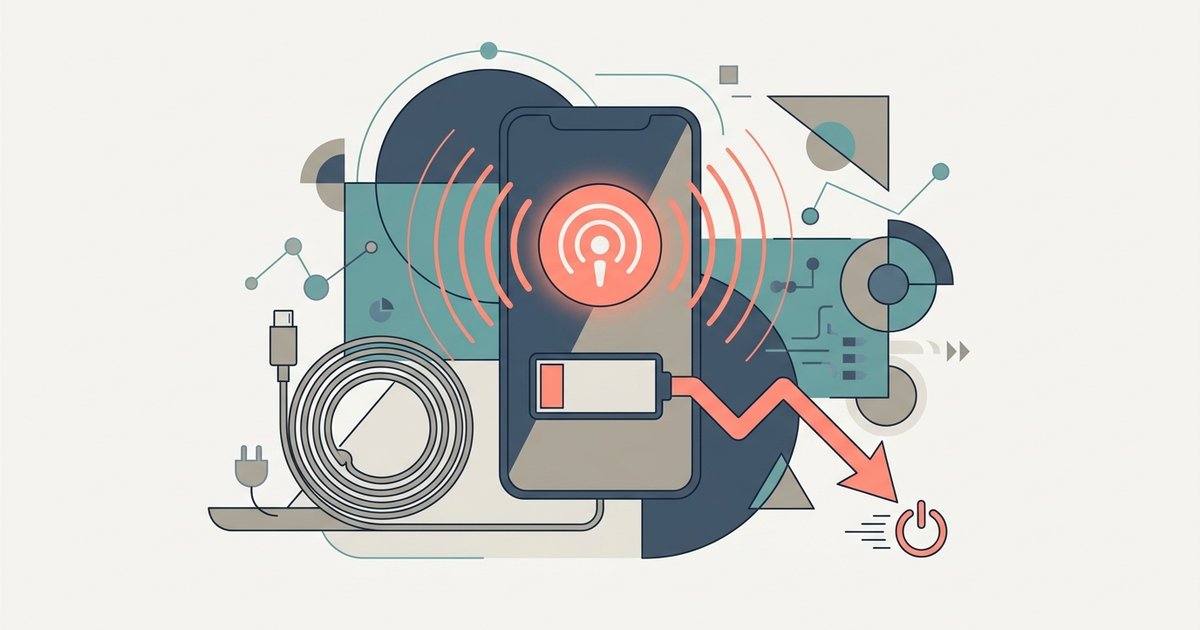
Before you begin your phone hotspot setup, it helps to understand what happens when you enable the personal hotspot on your phone. Your device essentially becomes a miniature router. It broadcasts a Wi‑Fi signal that other gadgets can join. That process is surprisingly demanding. You are likely to notice a hotspot draining phone battery faster than almost any other activity. It often cuts your normal runtime by half or more. To avoid running out of power mid‑stream, plug your phone into a charger before you turn the hotspot on. This is especially important if you plan to use it for more than thirty minutes.
Another common frustration is the hotspot dropping its connection when idle. Many phones are designed to save power by automatically disabling the feature after a period of inactivity. If you need a steady link for a laptop or tablet, look in your device’s settings for options related to keeping personal hotspot always on. On some models this is labeled “Maximize Compatibility” or a similar option to keep the hotspot active. For iPhone users specifically, check your settings for options that may help maintain the hotspot connection. Enable that to stop the connection from vanishing when no device is actively sending data. Remember to also check your carrier’s data policy. Hotspot usage often counts against a separate cap. Exceeding it can result in throttled speeds or a blocked connection entirely.
- preventing iPhone hotspot from turning off — Preventing iPhone Hotspot From Turning Off: Quick Guide
- keeping personal hotspot always on — Keeping Personal Hotspot Always On: Configuration Guide
- personal hotspot on your phone — Understanding Personal Hotspot On Your Phone: Explained
Setting up and activating your hotspot
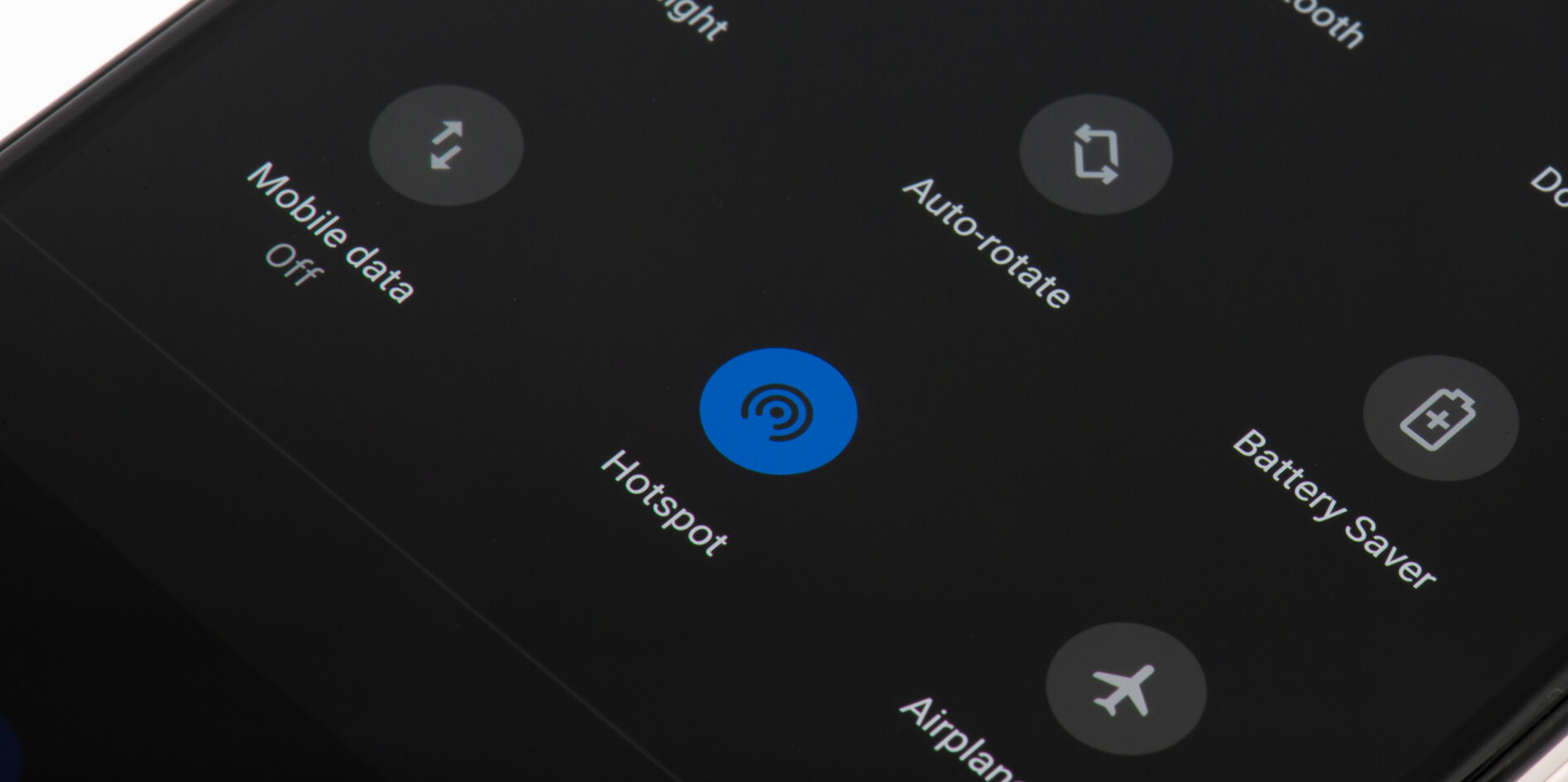
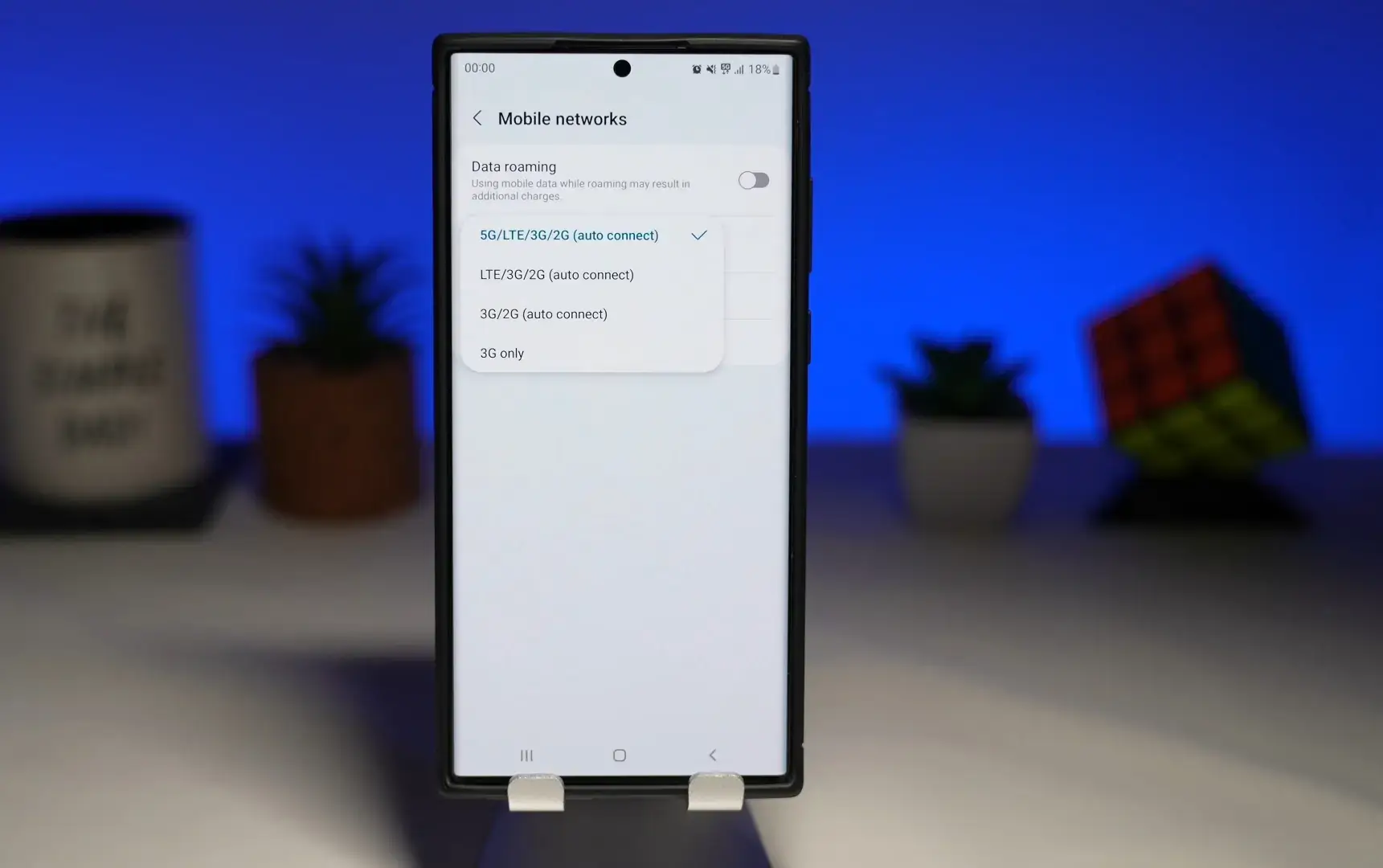
Begin by opening your phone's Settings app. Look for a section labeled "Network & Internet," "Connections," or "Mobile Hotspot & Tethering." The exact name varies by manufacturer. Tap the toggle for "Wi-Fi hotspot" or "Mobile hotspot" to turn it on. On a Samsung phone, you will find the option under "Mobile Hotspot." On a Pixel, it is inside "Hotspot & Tethering." If the toggle is grayed out, your carrier may require you to add the feature to your plan. For example, if you are on a prepaid carrier, you might need to look up a guide for activating hotspot on consumer cellular to ensure the feature is provisioned on your account before the toggle will work. Once the hotspot is active, you can rename the connection and set a strong password in the same menu. Note that the process for turning Android into a hotspot can differ slightly from one OS version to the next. Check your specific build if the toggle does not appear where you expect. On some corporate or school-managed devices, a step for disabling hotspot on child's phone might already be enforced by parental controls. This means the toggle will be missing entirely. Also be aware that certain public Wi-Fi setups, such as those using att wifi passpoint, can interfere with your hotspot's signal if you are in range of one. Your phone may try to connect to that access point instead of broadcasting its own. Unlike other guides, we explain exactly why your toggle vanishes instead of just telling you to tap it.
Connecting phones, tablets, and computers
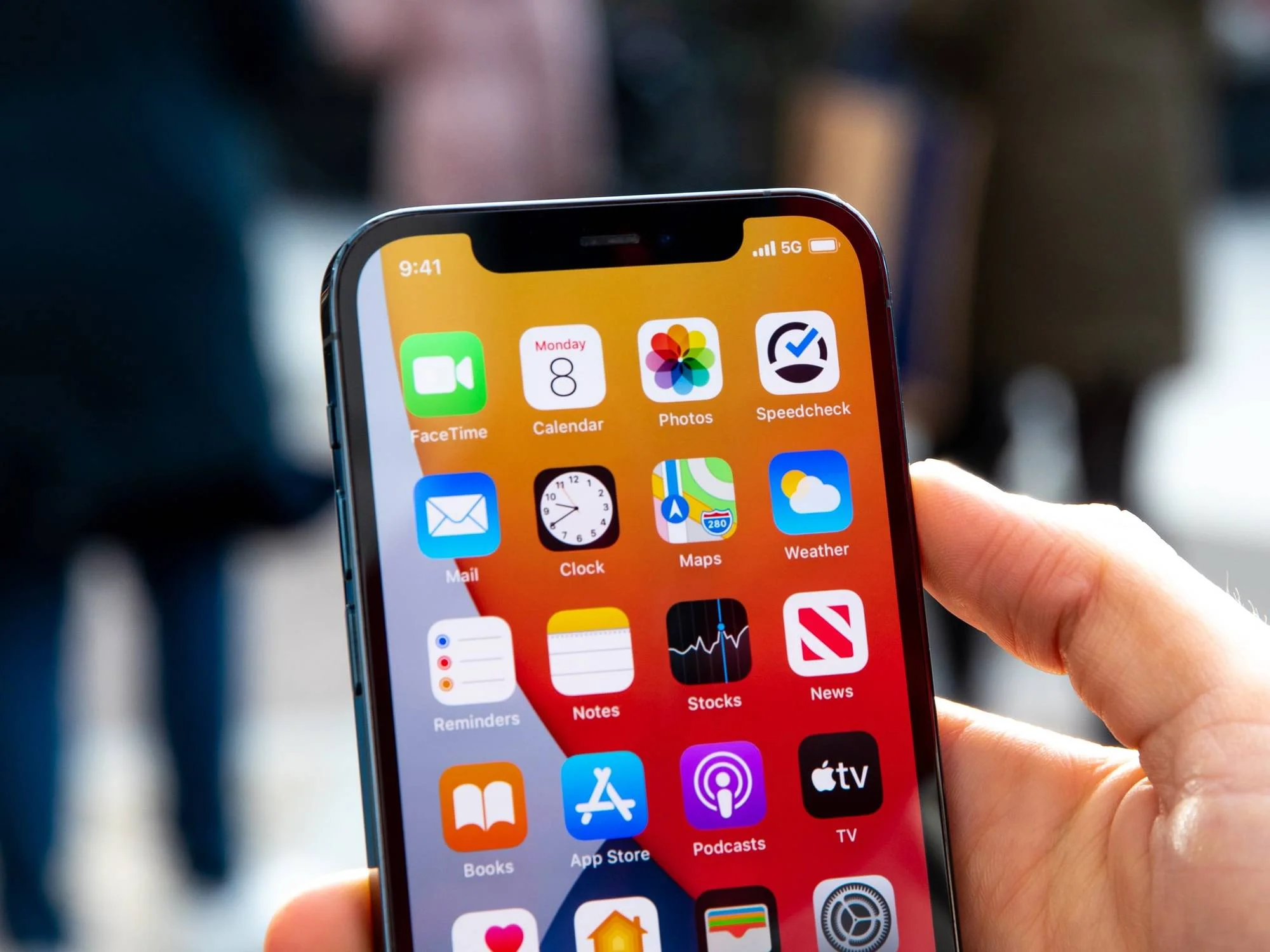
Start by turning on the hotspot in your phone’s settings, usually under “Personal Hotspot” on an iPhone or “Hotspot & tethering” (or “Mobile Hotspot and Tethering” on Samsung) on Android. Once it’s active, you can connect other phones, tablets, and laptops the same way you join any Wi-Fi signal. Open the device’s Wi-Fi list. Find your hotspot’s name. Enter the password shown on your hotspot phone. If you’re linking iPad to iPhone hotspot, the process is identical to joining any other access point. You may want to keep the iPad close to the phone to avoid signal drops.
For connecting hotspot from iPhone to Android, the Android device must have Wi-Fi enabled. The Android will see the iPhone’s hotspot in its Wi-Fi list just like any router. Should you need to connect a tablet to the internet while away from home, the tablet can either use the hotspot’s Wi-Fi signal or a USB tethering cable. Most modern tablets support Wi-Fi tethering natively. Some older models may lack the necessary Wi-Fi hardware.
To connect hotspot to tablet via a wired link, you plug one end of a USB cable into the phone and the other into a computer. Then select “USB tethering” in the phone’s settings. The tablet will treat it as a wired Ethernet connection. When connecting mobile hotspot to PC with USB, the same cable method works. The PC recognizes the phone as a network adapter. You don’t need to hunt for a Wi-Fi password. This wired setup often provides a more stable link than wireless sharing.
For connecting your iPhone hotspot to laptop, a Mac will often see the iPhone as a personal hotspot in its Wi-Fi menu automatically. This happens if both are signed into the same Apple ID. A Windows laptop requires entering the password manually. Unlike standard tethering, Apple’s Instant Hotspot requires no password entry at all when your devices share an iCloud account. Remember that every device connected adds to battery drain and data usage. Limit the number of connections to what you actually need.
Connecting smart TVs and streaming devices
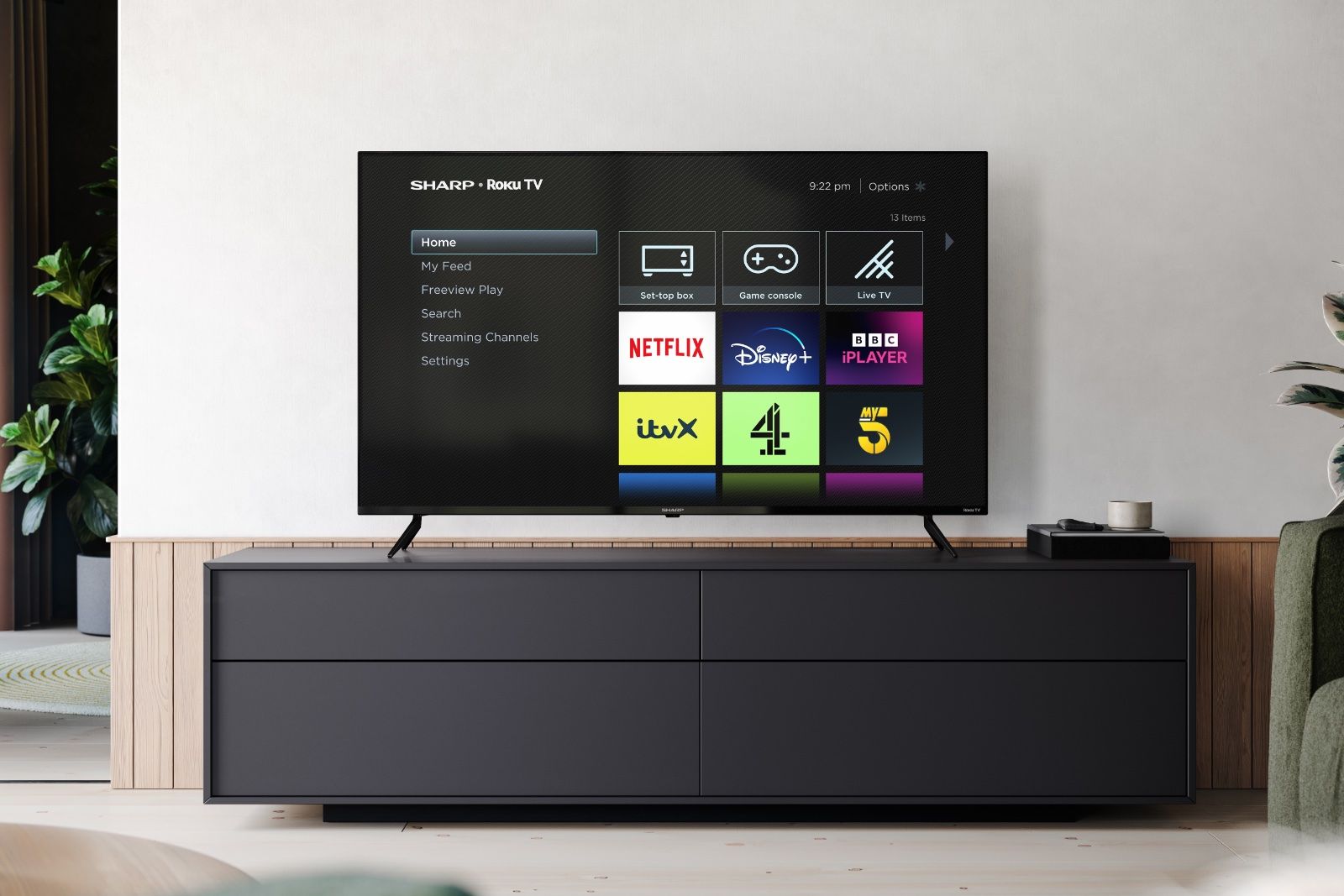
Start by turning on your phone's hotspot in the settings menu, then grab your TV remote. On most smart TVs, you navigate to the network settings and scan for available connections. Your phone's hotspot name should appear in the list. Enter the password shown on your phone's hotspot screen, and the TV will connect. Be aware that streaming in 4K on a large screen can burn through your data allowance faster than you might expect. A single movie can eat 3 to 7 GB. The constant data transfer also accelerates battery drain. If you run into connection issues, double-check that your phone's mobile data is actually on. Try moving the phone closer to the TV to reduce interference. The process for connecting mobile hotspot to TV is nearly identical across brands, but each manufacturer tucks the Wi-Fi menu in a slightly different place. If you own an LG television, you will benefit from the article on connecting LG smart TV to mobile hotspot, which walks through the webOS network menus step by step. For Vizio owners, the guide on connecting Vizio TV to mobile hotspot clarifies how to access the SmartCast settings for a quick setup. Those using a Roku streaming stick should refer to the resource on connecting Roku to phone hotspot, as it covers the on-screen prompts unique to the Roku interface. And if your television has Roku built in, the tutorial on connecting Roku TV to hotspot provides the precise sequence for integrating the hotspot with the TV's native system. Pick the one that matches the logo on your TV's bezel, and you will have your screen online in minutes.
Sharing your hotspot with a router
Once your phone is actively sharing its data connection, you can bring a Wi‑Fi router into the mix. This creates a real home setup that lets devices without hotspot support get online through the router. A desktop PC, a smart TV, or a printer can all connect this way, instead of linking directly to your phone. The trick is to put the router into a mode that treats the phone’s signal as its internet source. On many routers, this may be called "WISP mode," "wireless repeater mode," or a similar option. You’ll find it in the router’s web interface or companion app. When you start setting up router connection to hotspot, you’ll typically need to enter your phone’s hotspot name and password exactly as they appear in the phone’s settings menu. Once the router saves those credentials, it will automatically link to your phone whenever the hotspot is active. The process of connecting hotspot to router usually takes less than two minutes. Keep an eye on your phone’s battery level, though. The router will keep the hotspot awake, draining power even faster than a few devices connected directly.
Troubleshooting, security, and data management
If your carrier blocks or throttles hotspot traffic after a certain cap, you can often bypass those limits using various techniques and workarounds. One common method is changing the TTL (Time To Live) value on your connected device. This makes the connection treat the data as if it originated from the phone itself. Be aware that this may violate your terms of service.
To avoid surprises, check your phone's data usage stats before streaming video or downloading large files. A single hour of HD streaming can easily burn through 3 GB or more. For a more concrete reference, look up the typical data usage from a tablet hotspot per hour when watching 4K content. It can exceed 7 GB.
On the security side, always set a strong, unique password for your hotspot. When you only need to connect to the internet without wifi, consider using a USB or Bluetooth connection instead. Regularly audit which devices have connected to your hotspot. Never leave it on when you aren't actively using it.
Some common myths about hotspot password hacking are widespread. The real risk comes from weak passwords and unencrypted connections. Review the latest myth busting and security tips to keep your data safe. Finally, turn off automatic app updates and background sync on any connected laptop or tablet to prevent silent data drains.
We are the only guide that maps exact TTL values to specific carrier firmware versions, because these values change with every silent update and generic advice fails instantly.