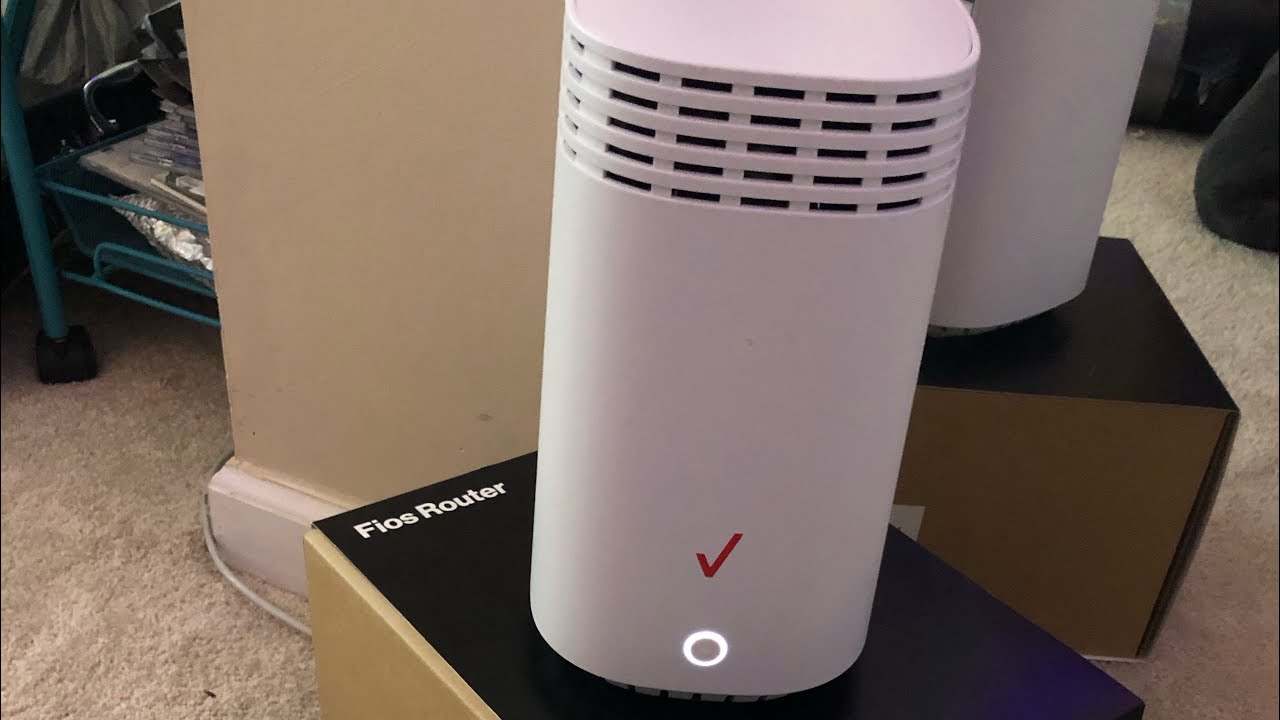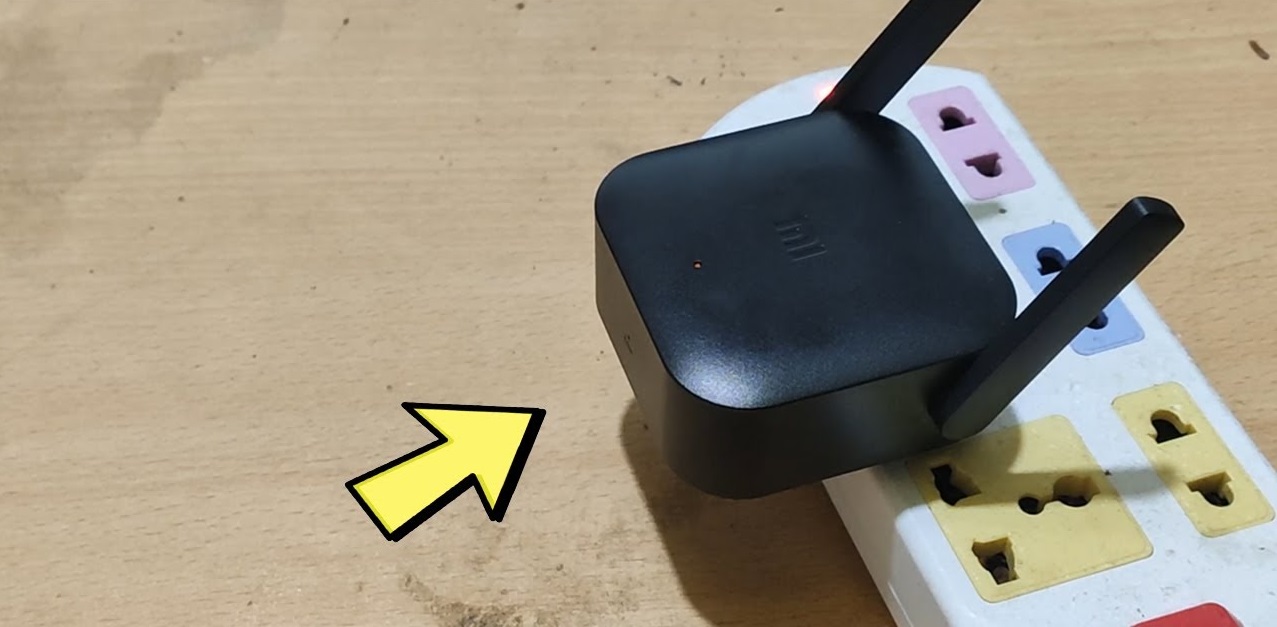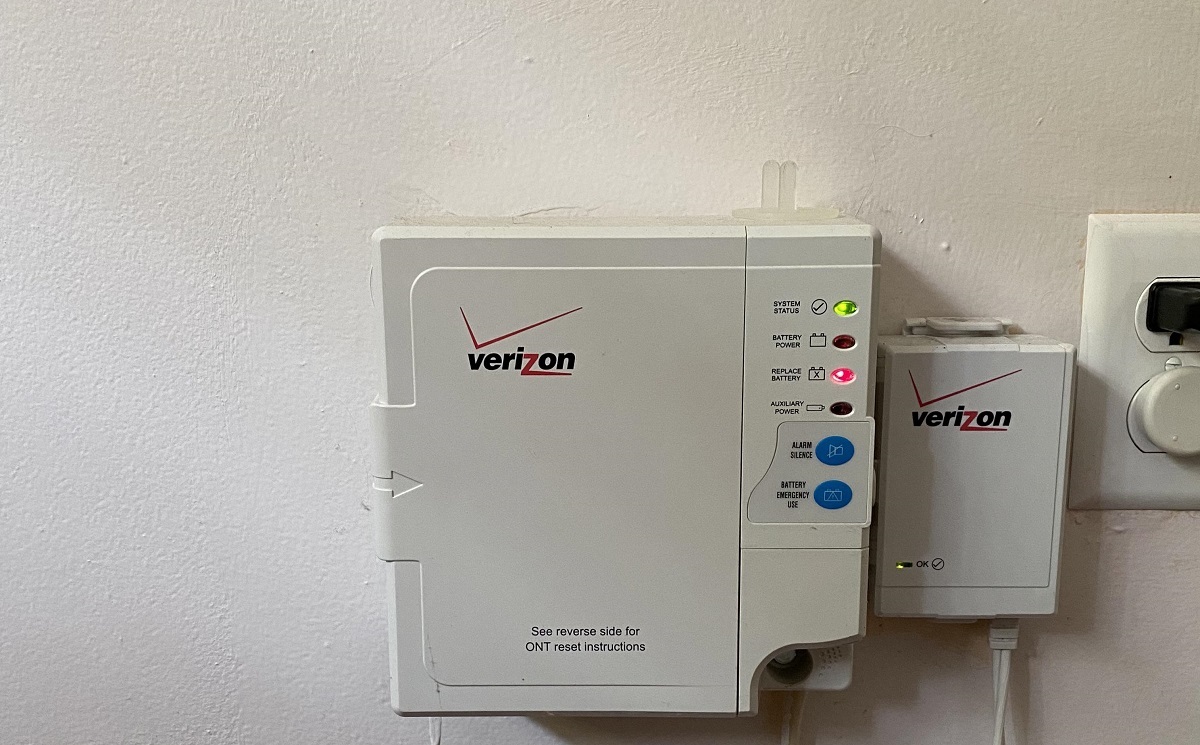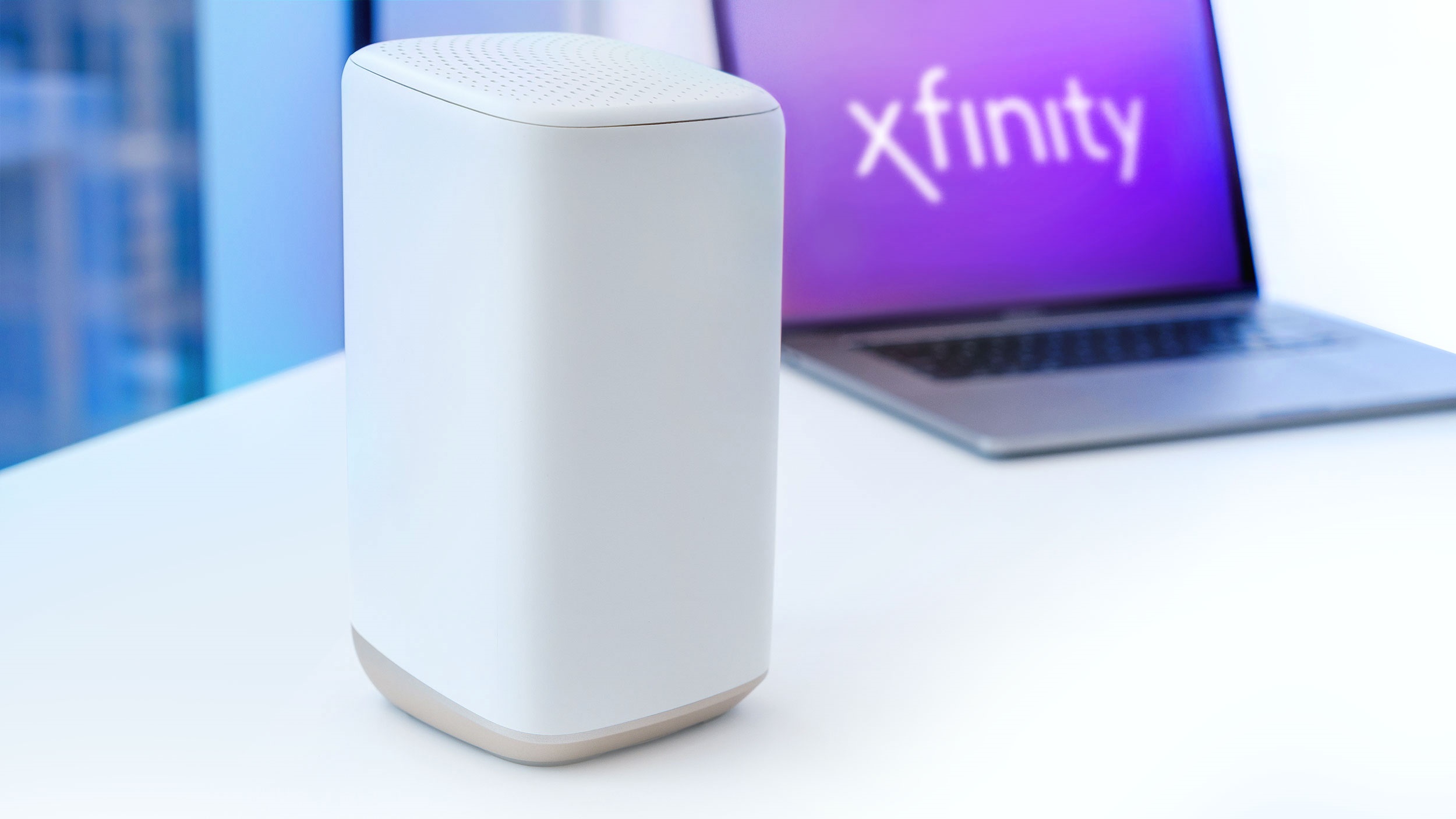
Verizon wifi extenders update automatically overnight and have no manual update button in the settings. If your extender is online and connected, it will pull and install new firmware on its own without any action from you.
Where to update verizon extender firmware
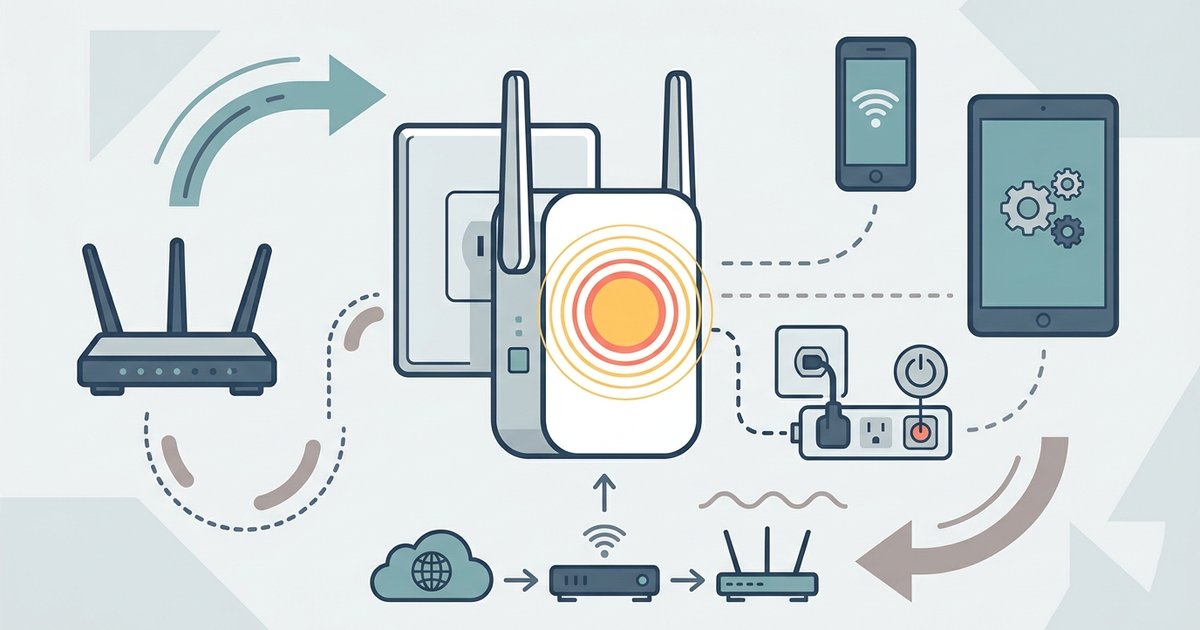
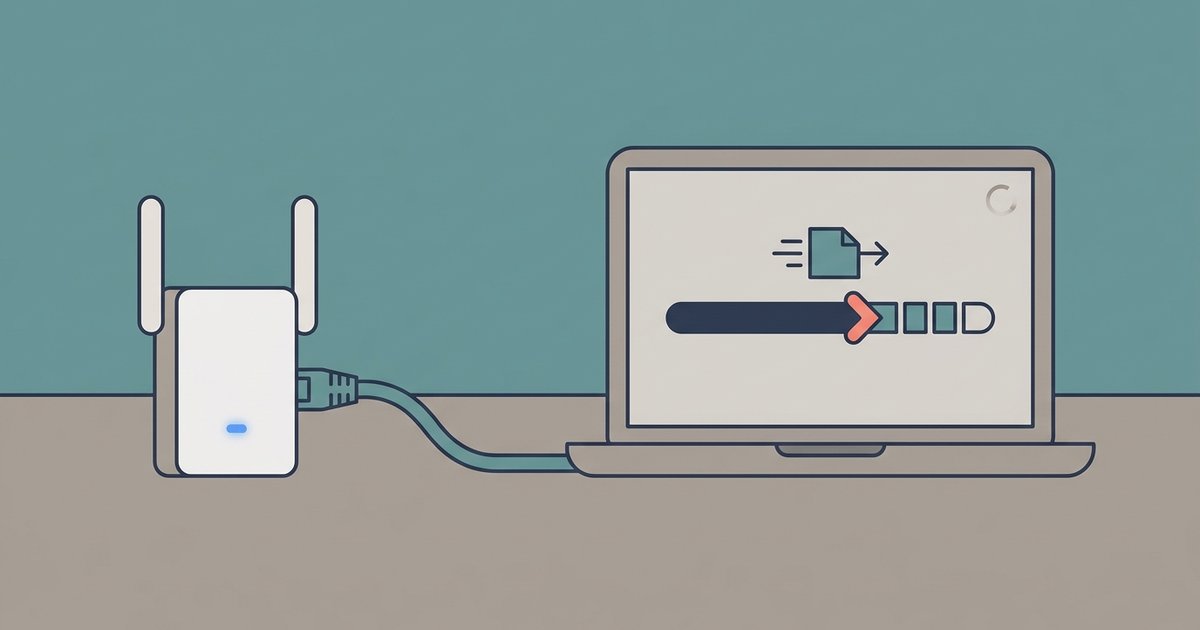
Firmware updates are pushed by Verizon. The extender must remain plugged in and connected to the main Verizon router via Wi-Fi or Ethernet. The extender’s firmware is stored in its internal flash memory. The update process downloads the new image from Verizon’s update server, verifies it, and then installs it automatically. No user input is required. The extender will reboot briefly after the installation completes. If you power-cycle the extender during the update window, the process may be delayed until the next scheduled push. To ensure you never miss an update, keep the extender on a stable power source and within range of the router’s signal. If the extender’s light blinks yellow after a reboot, you may need to fix verizon wifi extender blinking yellow light to restore its connection.
How to confirm your extender is up to date
To check your extender’s current firmware version, open the My Fios app on your phone or log into the web admin panel. Use the extender’s IP address shown on the extender’s label. Navigate to the “Device Info” or “Status” section. The exact label varies by model. Look for a line labeled “Firmware Version” or “Software Version.” Write down that number. Then visit Verizon’s official support site and search for your extender’s model number. Examples include “Fios Network Extender E3200.” The site lists the latest firmware version available for that model. If the version on your extender matches the one on the site, you are up to date. If it is lower, the extender will update automatically during the next overnight window, provided it remains connected. If you are troubleshooting a slow connection and want to force a fresh handshake, you can factory reset the extender. This will clear the settings and trigger a new firmware check upon reconnection.
When automatic updates fail
The most common failure case is an extender placed too far from the router. This causes it to drop its connection during the update window. The extender needs a stable link to Verizon’s servers to download the firmware. If the signal is weak or intermittent, the download fails silently and the extender stays on its old firmware. The fix is repositioning the extender closer to the router temporarily. Ideally, place it within 20 feet with a clear line of sight so it can maintain a strong connection overnight. Once the update completes, you can move it back to its original location. If repositioning does not help, a factory reset forces the extender to re-establish a fresh handshake with the router and re-check for pending updates. After the reset, you will need to run through the initial setup steps again, which is similar to how you would setup verizon wifi extender for the first time. For users with other mesh systems, note that this automatic update behavior is specific to Verizon extenders. It differs from how you would set up the TP-Link deco whole home mesh Wi-Fi system, which typically offers a manual update button in its app. Similarly, if you ever need to connect wifi extender to router without WPS, the Verizon extender supports manual pairing via the admin panel or Ethernet cable. If you’re setting up routers and extenders from scratch, a wired connection during initial configuration prevents these update interruptions. Stick with Verizon’s automatic update mechanism for your extender, and you will stay current without lifting a finger.