Setting up a new mesh Wi-Fi system
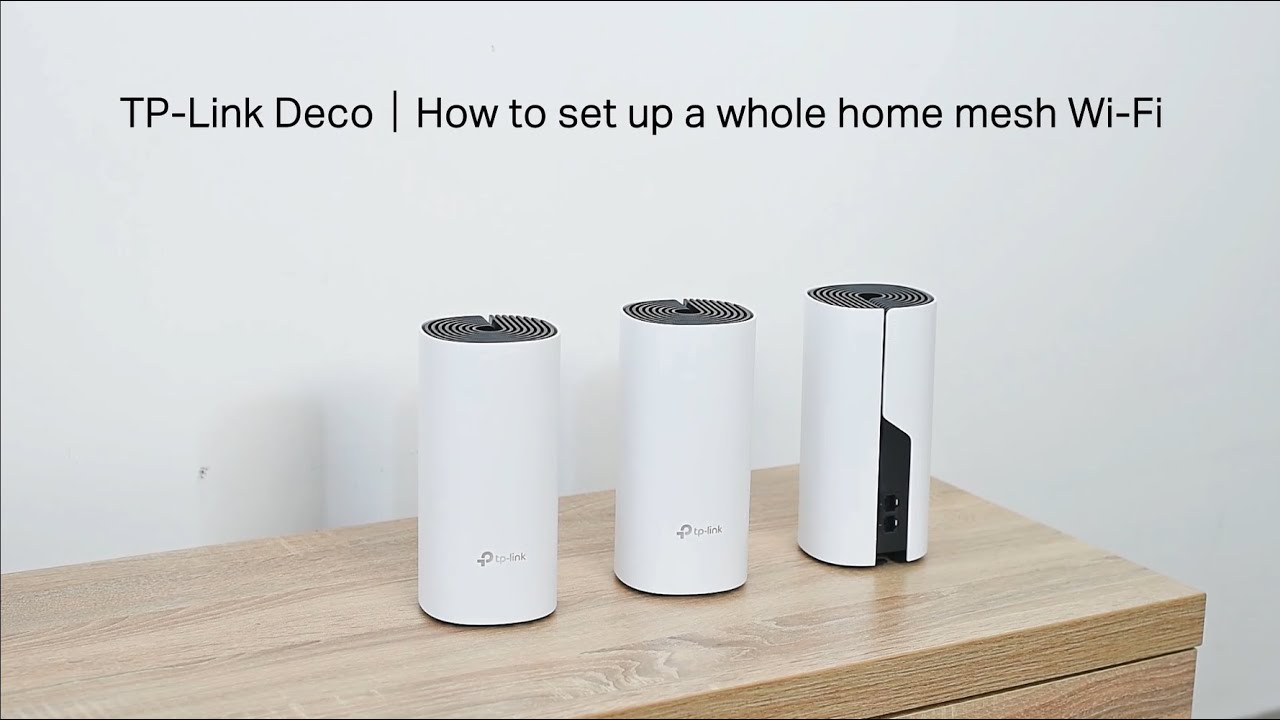
A mesh Wi-Fi setup is a fundamentally different approach if you are replacing an older router: instead of one device doing all the work, multiple nodes blanket your home in a single Wi-Fi network. To get started, physically connect the first (main) node to your modem using the included Ethernet cable, then plug it into power. Open the Deco app on your phone; the app will handle the setup process. The app will guide you through creating an admin account and naming your network. Once the primary node is online, you can place the second node halfway between the primary and the farthest corner of your home; the app will test the connection. If you prefer an alternative setup method, you can also set up the TP-Link deco whole home mesh Wi-Fi system using the Deco app, which is the primary method. After all nodes sync, test a video call from the room farthest from the primary node, mesh systems hand off your connection without dropping it, unlike range boosters that create separate networks. Remember to disable the Wi-Fi on your old modem/router combo to avoid interference, and place nodes with adequate spacing for optimal backhaul. This system replaces your old router entirely, so remove the old one from the loop.
Adding a second router to your network
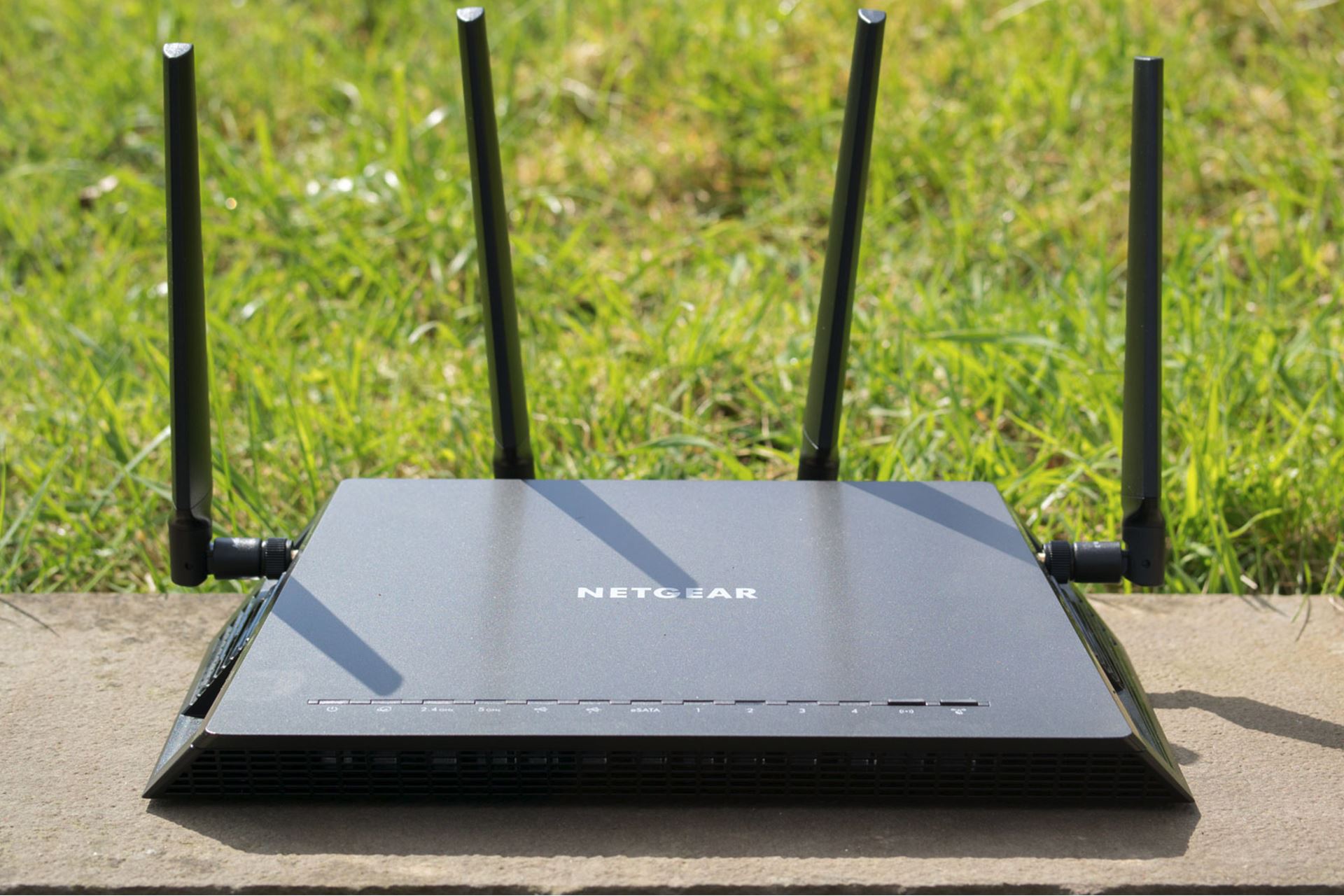
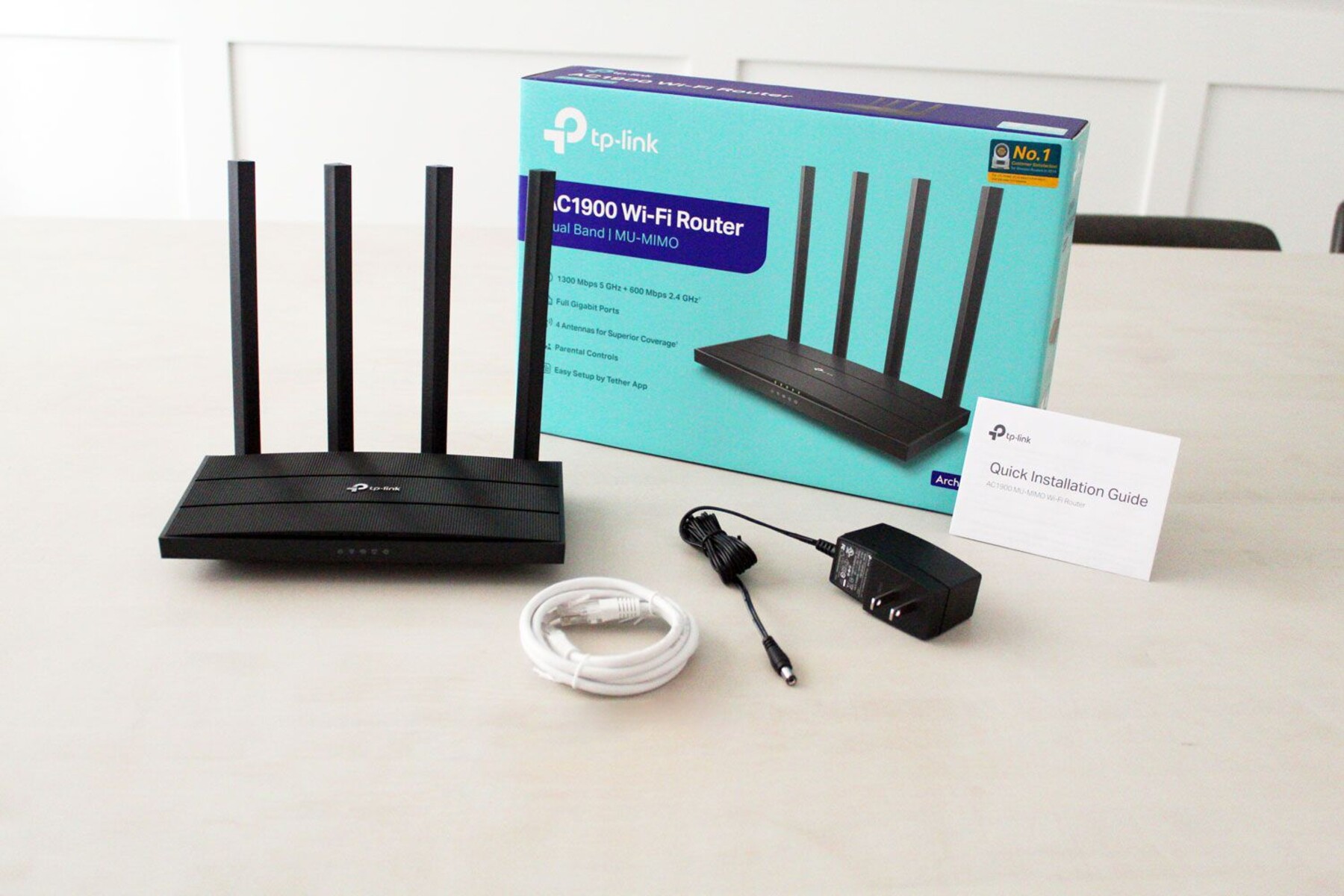
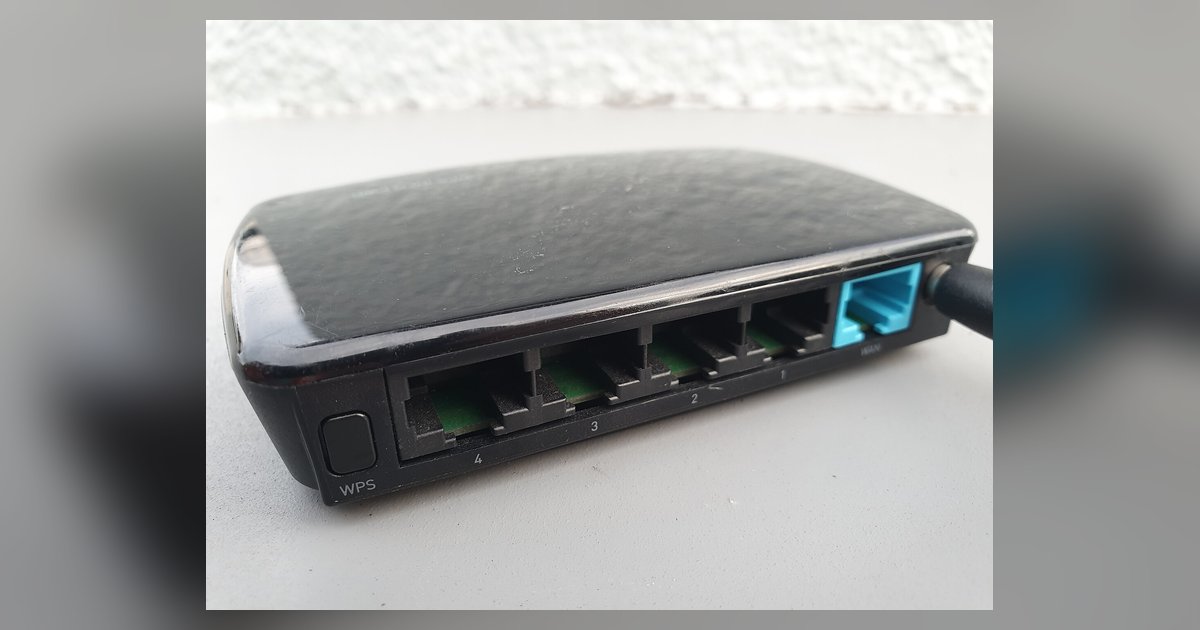
If your home has a dead zone that a single router cannot reach, you can extend coverage by adding a second router to your network. The method depends on whether you want a wired or wireless connection between the two units. For a wired setup, run an Ethernet cable from a LAN port on your primary router to a LAN port of the second router, then configure the second unit in Access Point mode through its web interface. This keeps both networks on the same subnet and avoids double NAT issues. For a wireless connection, you can use a feature called wireless bridging, though this often reduces speed on the backhaul link. If you own an Orbi system, the easiest path is to connect two orbi routers using the dedicated wireless backhaul that the system is designed for, no Ethernet cable needed, and the mesh handles roaming without dropping your connection, unlike a range booster that creates separate networks. For traditional routers, you can set up two netgear routers in a wireless bridge by logging into the secondary unit’s admin panel, selecting "Wireless Bridge" or "Repeater" mode, and scanning for the primary network. In either case, avoid relying on WPS; a manual browser-based configuration gives you control over channels and security settings, which is far more reliable. Only a mesh system with a dedicated backhaul channel can extend a network without cutting your top speed in half.
Installing and fixing a verizon wifi extender
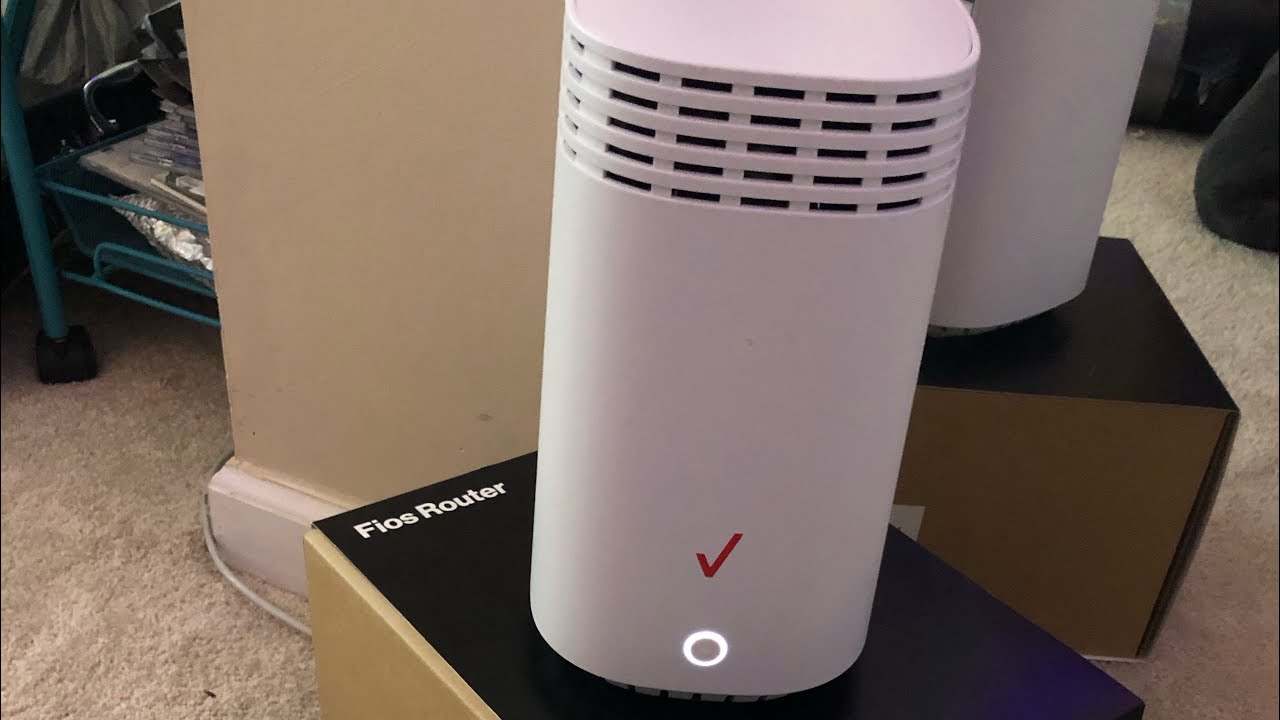
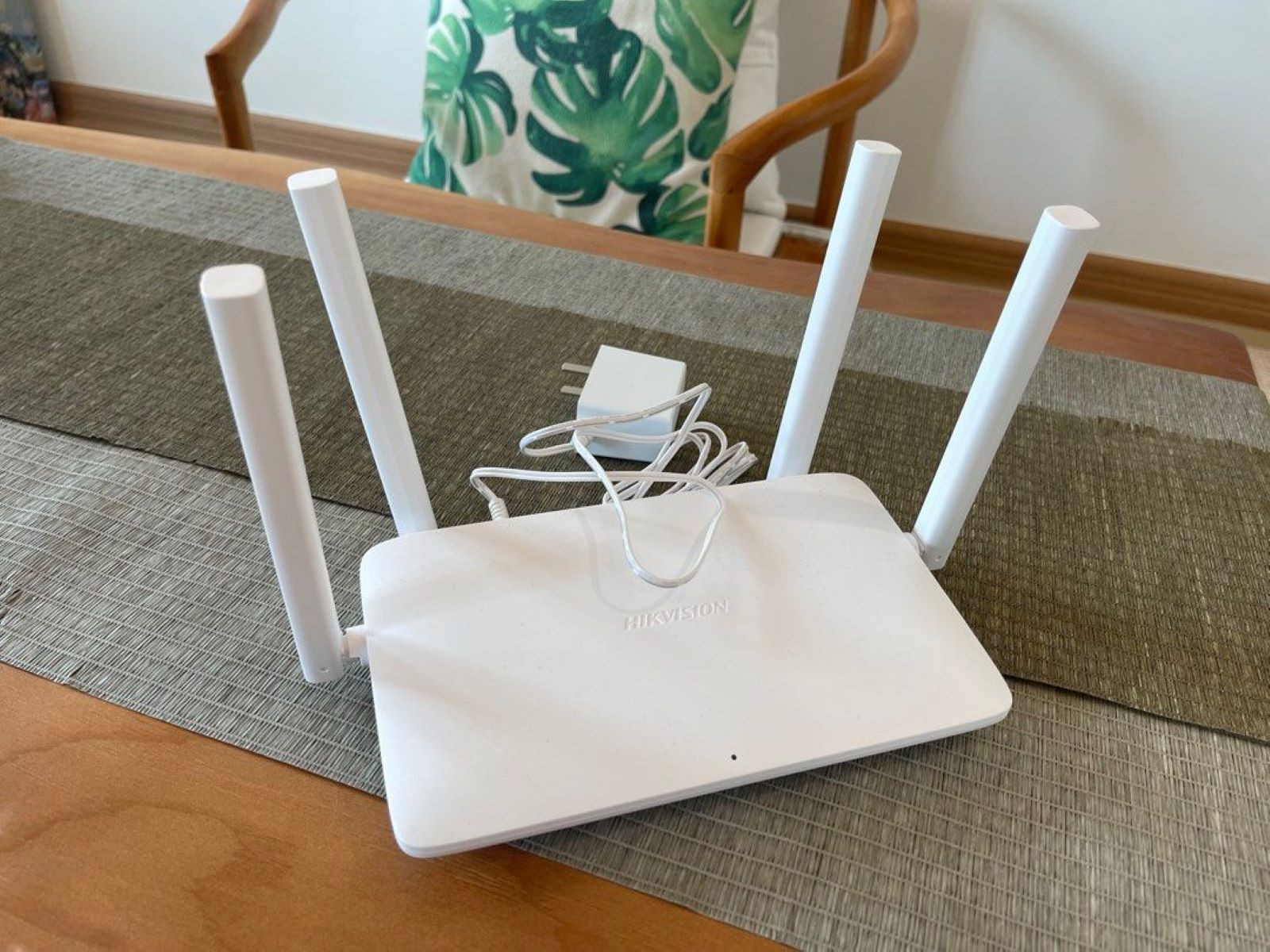
Begin by plugging the Wi-Fi booster into a wall outlet near your Verizon router. Press and hold the WPS/Unified button on the extender for 3 seconds, then within two minutes press the pair button on the router, but if that fails, you can manually setup verizon wifi extender by connecting a laptop to the device’s temporary network and opening its web interface. This method is actually more reliable because it lets you choose the correct 2.4 GHz or 5 GHz band yourself. If you prefer not to use a button at all, the process to connect wifi extender to router without WPS walks through the browser-based steps that work for every model.
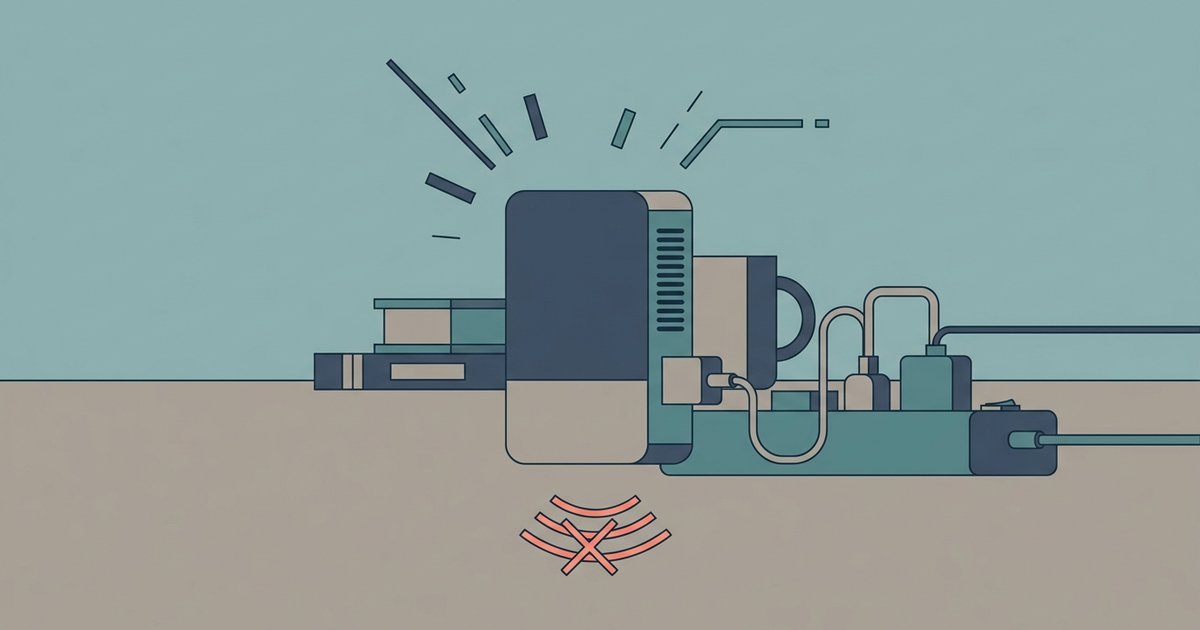
Once connected, check for a firmware update immediately. The process to update firmware on verizon wifi extender is straightforward: log into the repeater’s admin page, locate the firmware section, and upload the latest file from Verizon’s support site. An outdated firmware is the most common cause of a verizon wifi extender disconnecting from the main router every few hours. If the status light blinks yellow, you need to fix verizon wifi extender blinking yellow light by moving the satellite closer to or farther from the router; a fast blink means it's too close, a slow blink means it's too far. After repositioning, reboot both the satellite and the router, then re-run the setup from the web browser to lock in the stronger connection. The room farthest from the primary node gets a single network name that follows you without dropping, unlike extenders that create separate networks.