A slow blinking yellow light means the extender is too far from the router to establish a stable connection. A fast blinking yellow light means it is too close. Move it to the same room as the router until the light turns solid white, then relocate it to the halfway point between the router and your dead zone.
What the verizon extender yellow light means
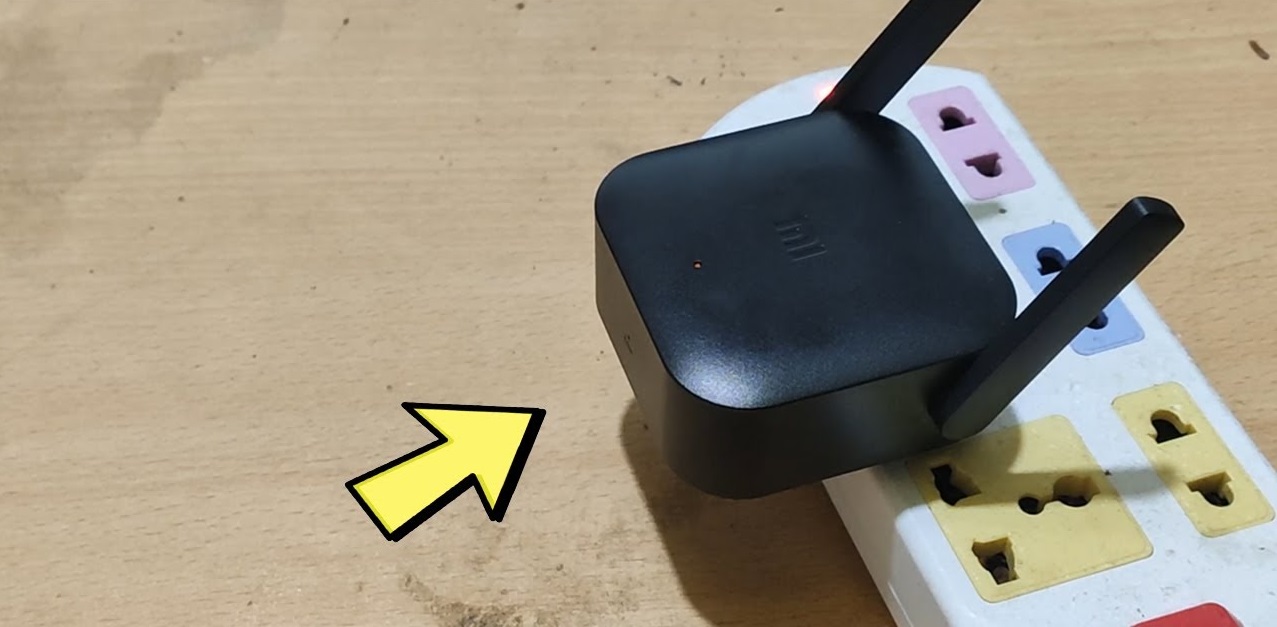
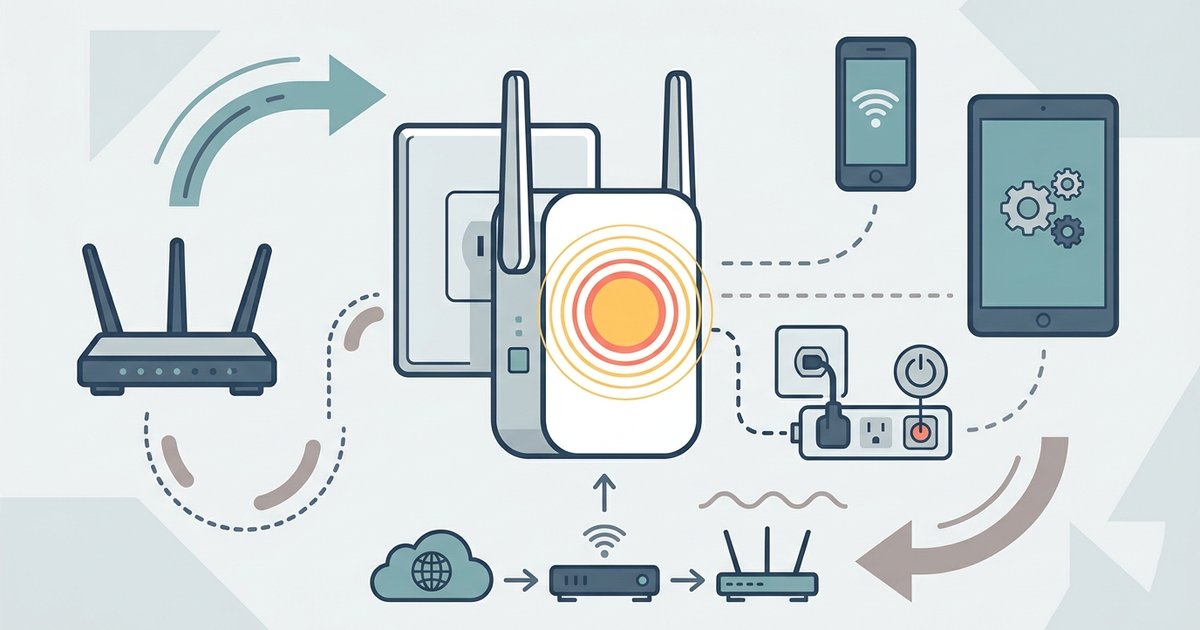
The blinking yellow light on your Verizon Wi-Fi extender is a signal-strength indicator. It is not a hardware failure or an internet outage. When the extender first powers on, it attempts to pair with the Verizon router. A solid yellow light typically means there is no internet connection. A blinking yellow light means it is searching for the router but cannot maintain a strong enough connection. This is almost always a distance or interference problem. The extender is not defective. Your Verizon internet service is likely working fine. The extender simply cannot hear the router clearly enough to complete the handshake.
Move the extender closer during initial pairing
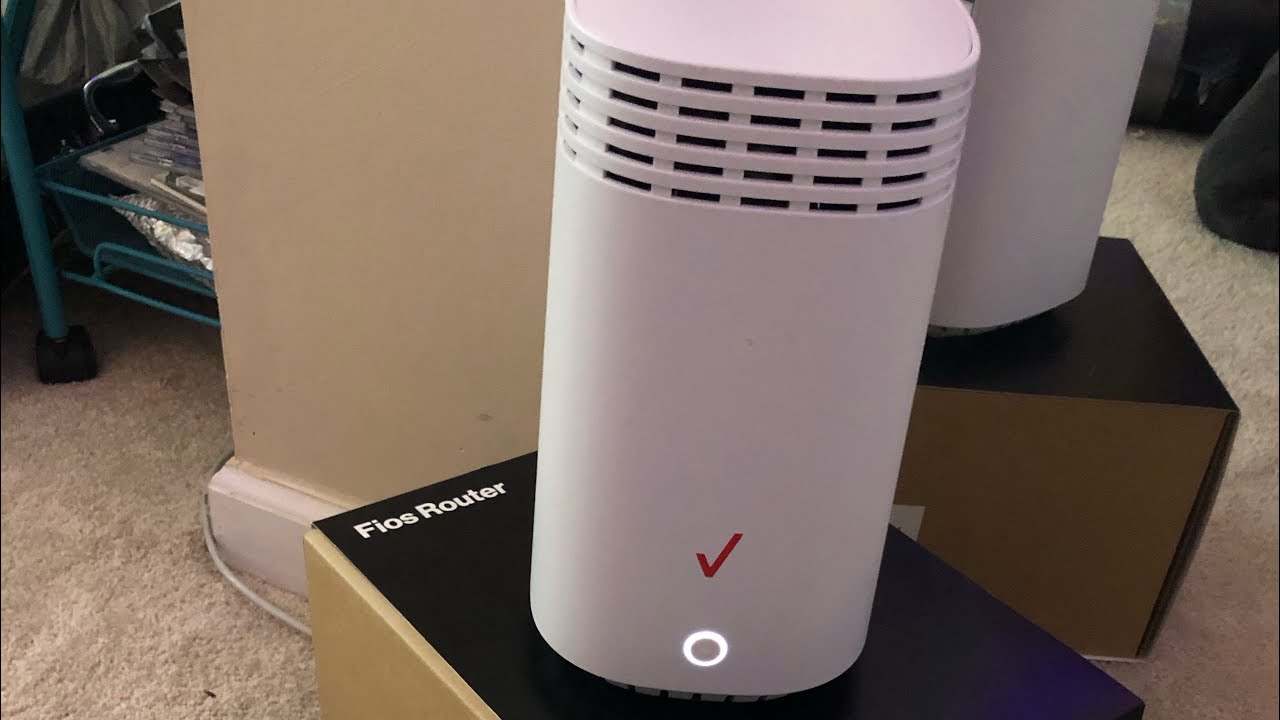
Do not plug the extender into the outlet in the dead zone before pairing it. You must first **set up the Verizon Wi-Fi extender** in the same room as the Verizon router. Place it within five to ten feet, with no walls or large appliances between them. Plug the extender into a wall outlet. Wait for the light to turn solid yellow. This can take up to two minutes. Then press and hold the front buttons on both the router and extender for about 5 seconds to initiate pairing. The light should blink yellow briefly and then turn solid white; this can take up to 10 minutes. Once the light is solid white, unplug the extender and move it to the halfway point between the router and your dead zone. If the light starts blinking yellow again after moving it, the halfway point is still too far. Move it back toward the router until the light stays solid white. Then test the signal in the dead zone.
When moving it closer doesn't work
Place the extender right next to the router. If the light still blinks yellow after two minutes, the device may be stuck in a failed pairing state. Power cycle both the router and the extender. Unplug both for 30 seconds. Plug the router back in and wait for it to fully boot. This means all lights are stable, usually two to three minutes. Then plug the extender back in next to it. If the light still blinks yellow, perform a factory reset on the extender. Press and hold the reset button for ten seconds until the light flashes amber. The button is often labeled "Reset" or is a pinhole on the bottom. Release the button. After the extender reboots, try the pairing process again. To bypass WPS entirely, **connect the Wi-Fi extender to the router without WPS**. Access the extender's web interface to manually enter your router's Wi-Fi network name and password. Manually enter your router's Wi-Fi network name and password. This often resolves stubborn blinking-yellow issues. Both require initial closeness to the main router to establish a stable link before you move the satellite units to their final positions. If none of these steps work, the extender may have a hardware fault. Contact Verizon support to request a replacement unit.
For the wider picture, see setting up routers.