What the different colors and Ethernet light meanings indicate
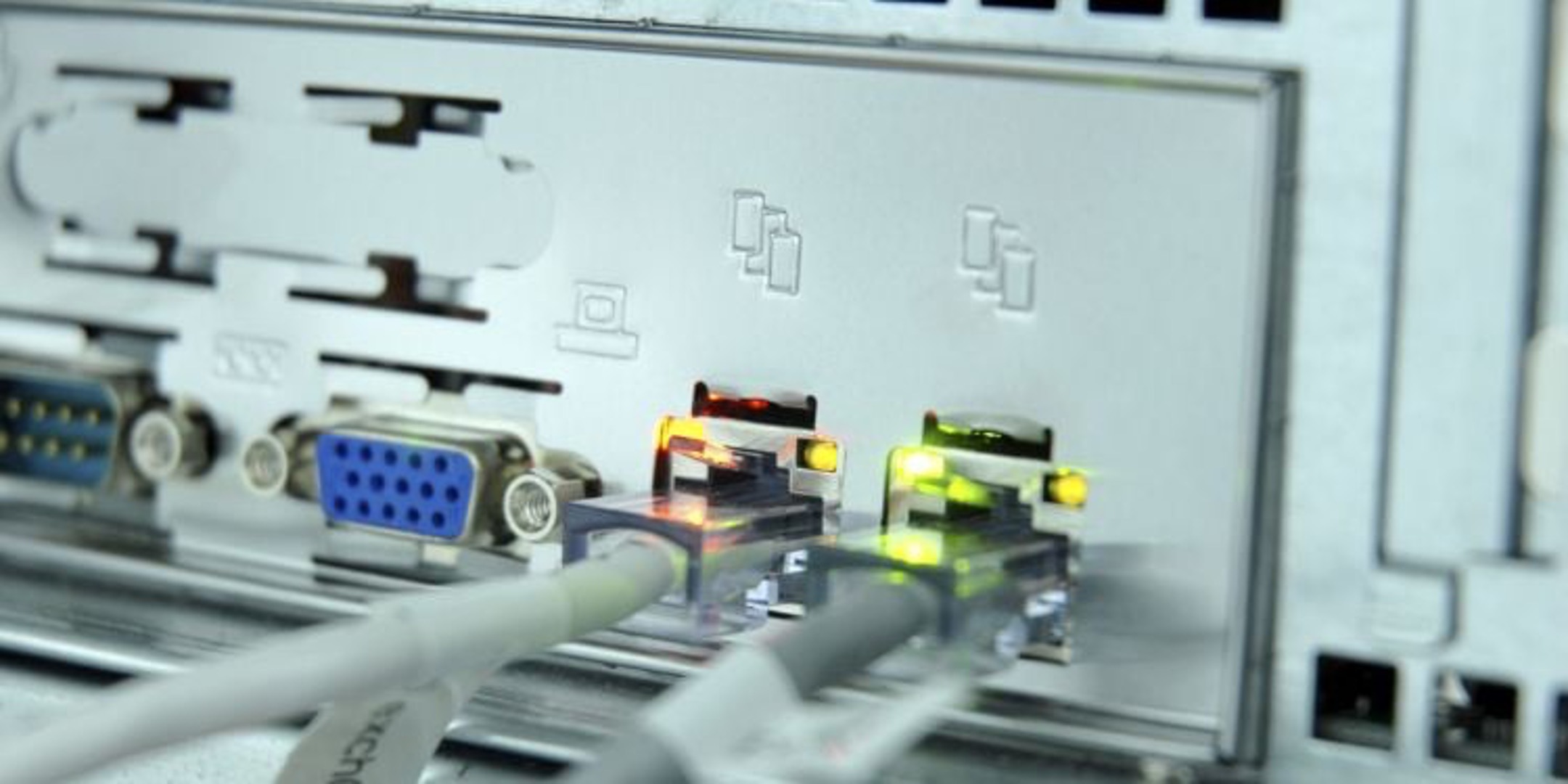
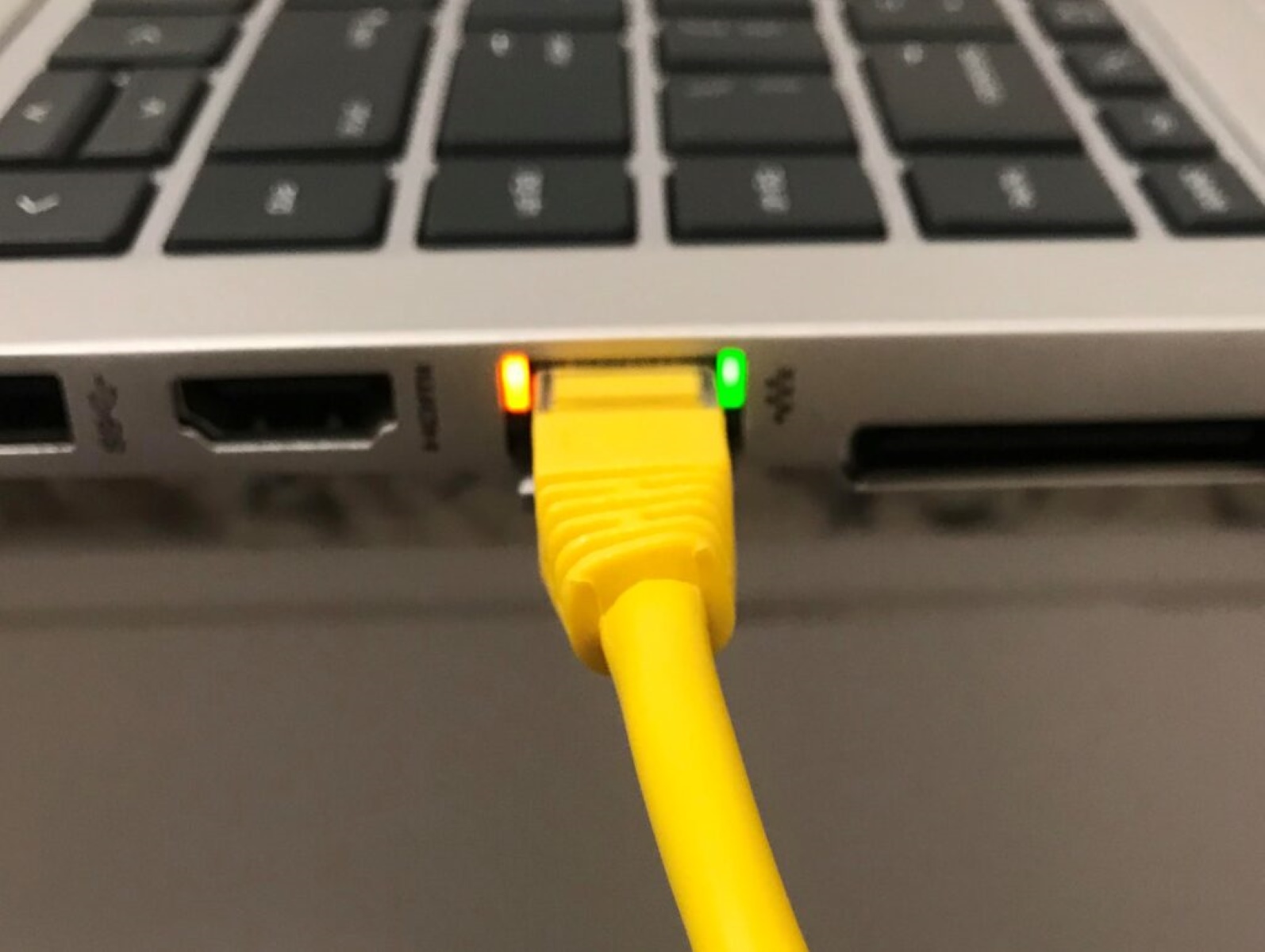
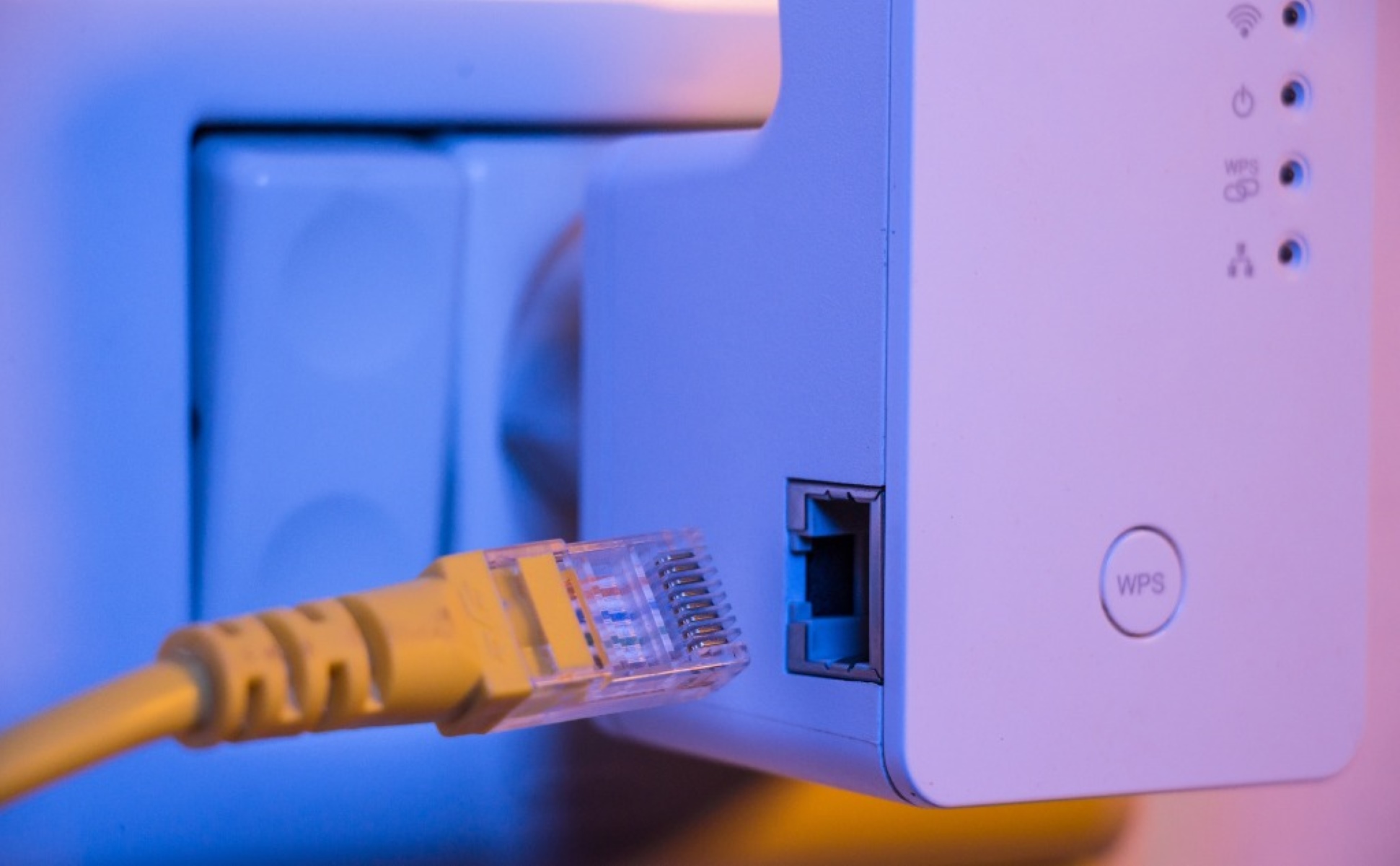
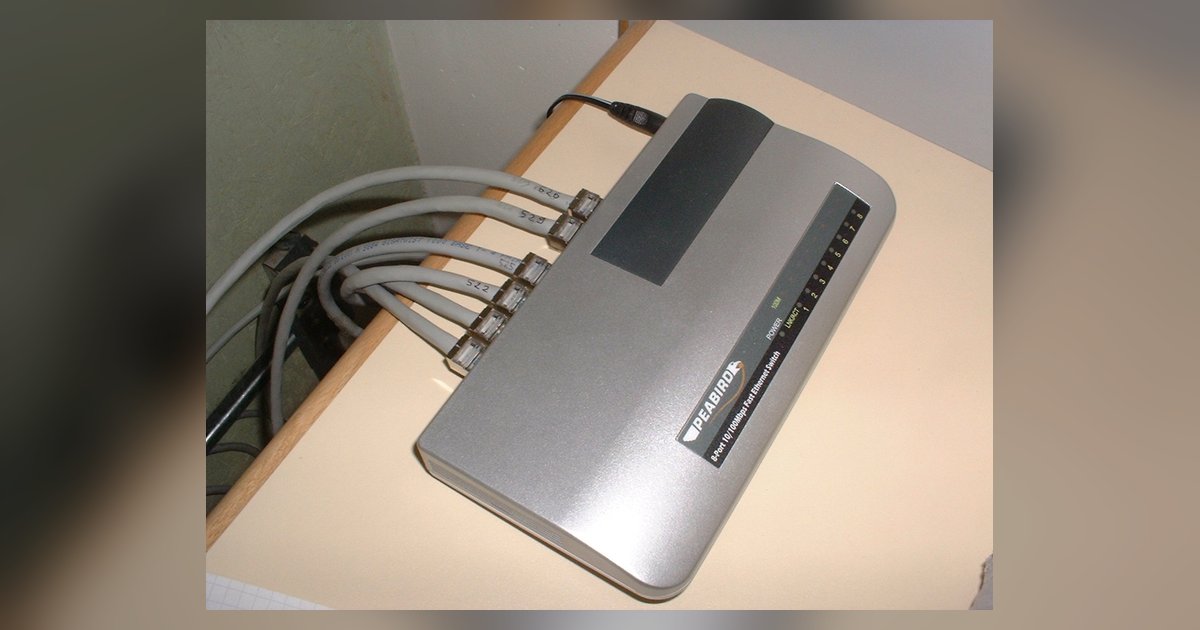
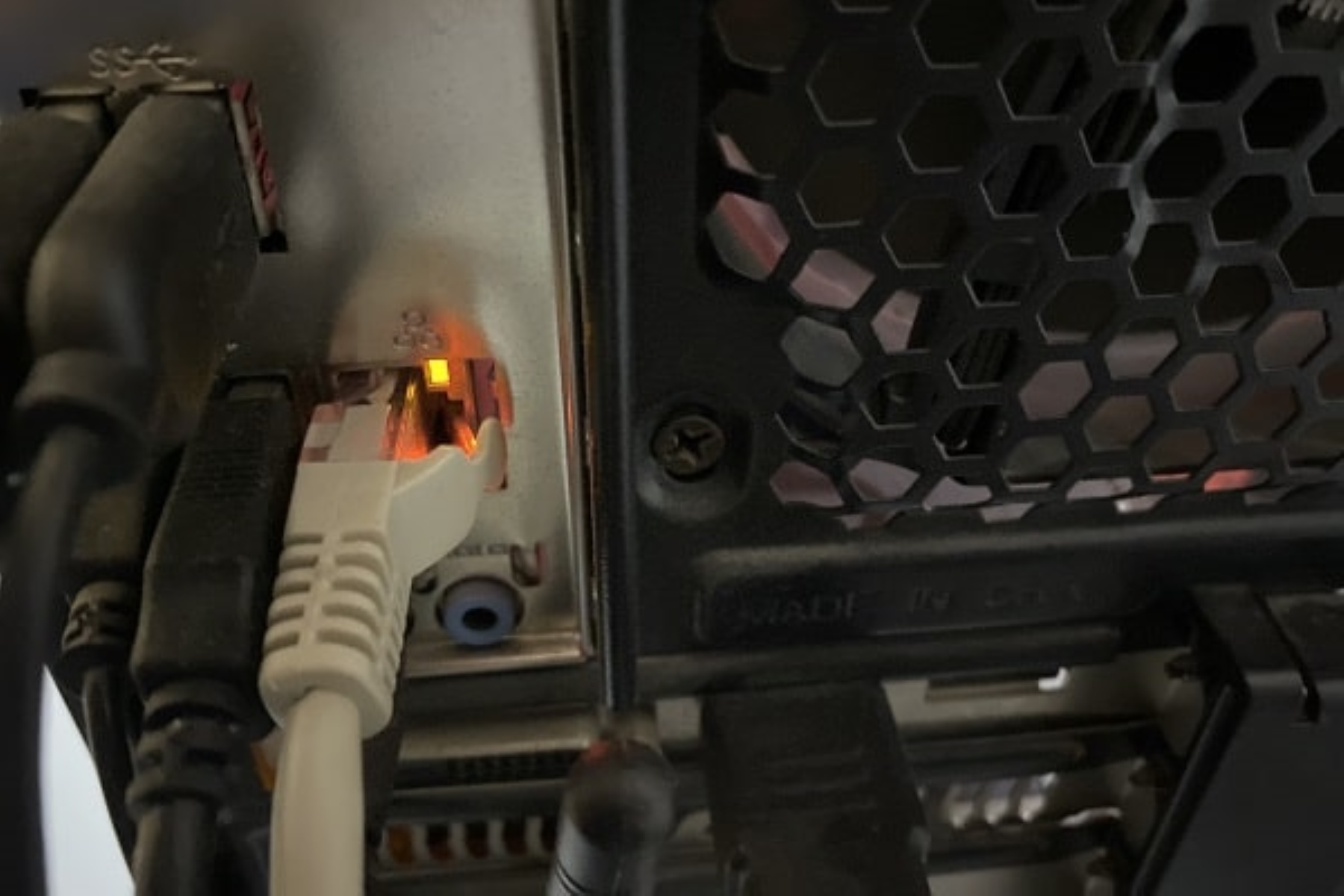
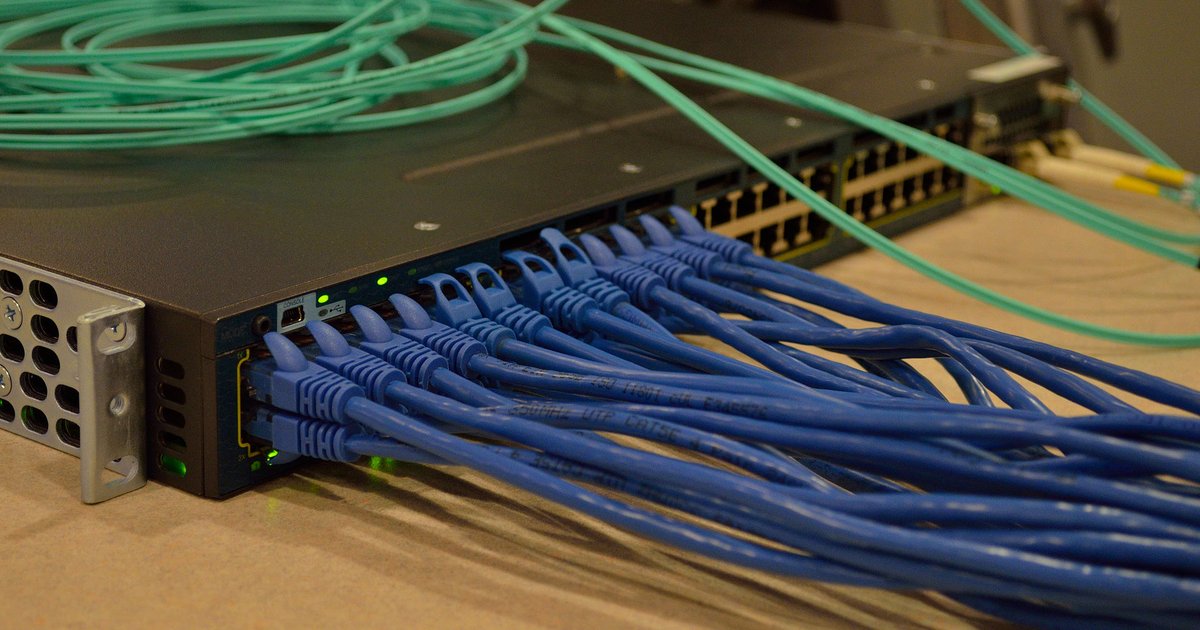
To understand the full picture, it helps to look up Ethernet light meanings. When you plug in a cable and see a solid green light, your link is established. The speed indicated by the color varies by manufacturer. A blinking green light means data is actively passing through the port. If the light is solid orange instead, do not assume the port is broken, but check your device's documentation for the specific meaning. Many people ask what does orange light mean on Ethernet port, and the answer is usually that the connection is stable but running at a lower speed, such as 100 Mbps. This often points to a speed or duplex mismatch between your device and the switch, not a hardware failure. Before swapping cables, check your adapter's negotiated speed. Those references clarify that amber or orange indicators often signal a specific link rate or status that varies by manufacturer, rather than necessarily a fault. On a managed switch, you might also wonder what does the orange light mean on a network switch. The meaning varies by manufacturer and model; consult your switch's documentation. For a complete overview of the meaning of network switch lights, remember that a solid light usually means a link is established, blinking means activity, and colors vary by manufacturer, so check your device's documentation.
When the lights are off or the speed is wrong
If the port is completely dark, start by verifying that the cable is firmly clicked into both the device and the wall jack or switch. A loose connection is the most common cause of a dead link. Reseat the cable and check for any bent pins inside the port. You can also swap the cable with a known-working one to rule out a damaged wire. For a systematic walkthrough of these steps, the search phrase "Ethernet port lights off no connection what to check" will lead you through physical checks, including testing the port with a different device.
When the light is solid but your connection feels slow, file transfers might top out around 11 MB/s instead of 110 MB/s. You may need to fix Ethernet speed stuck at 100 Mbps instead of 1 Gbps. Begin by confirming that the cable is at least Cat 5e. The rating is printed on the jacket. Also confirm that both the device and the switch or router support gigabit speeds. Then open your network adapter’s properties in the operating system. Look for a setting labeled "Speed & Duplex." If it is set to "Auto Negotiation," try manually selecting "1 Gbps Full Duplex." A mismatch between the adapter and the switch can force a fallback to 100 Mbps, even with good hardware. A solid orange light on the port usually means the link is stable but running at the lower speed. Check the adapter settings before replacing the cable.
Identifying activity lights on your PC
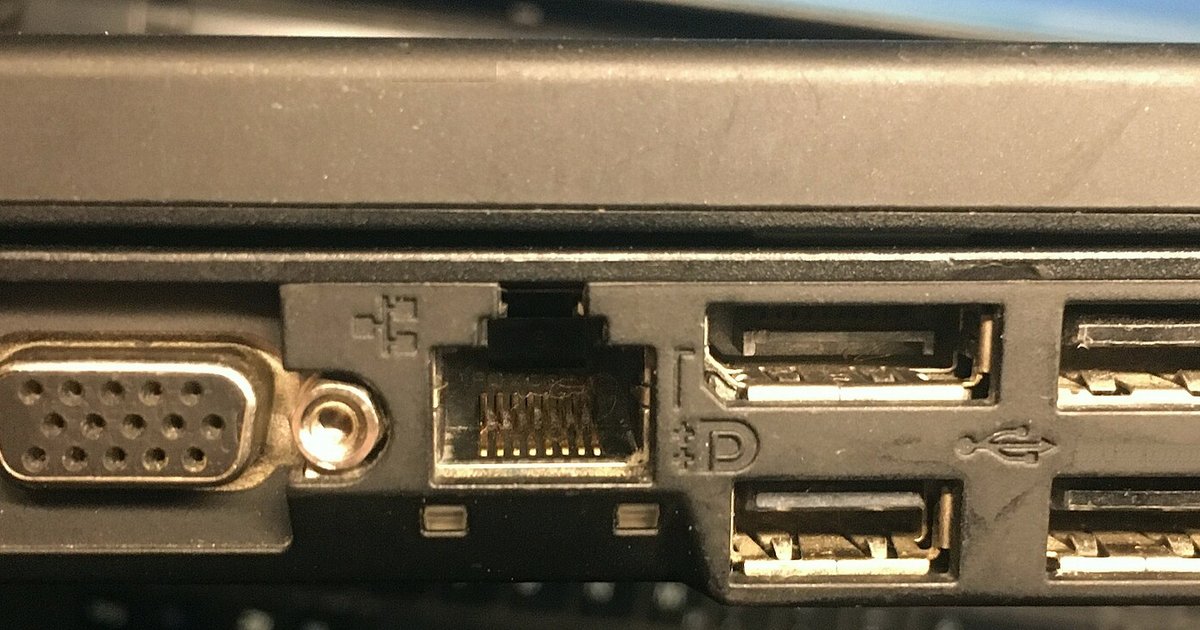
Before you reach for a new Ethernet cable, take a moment to look at the lights on your PC. Many people confuse the blinking activity from a storage drive with a network problem. If you see a pulsing glow and wonder about "the flashing light on the front of my PC case," that is almost certainly your hard drive or SSD working. It is not your internet connection. The actual network port, usually on the back of your desktop or the side of a laptop, has its own dedicated LEDs. A solid green or amber light there typically indicates a link is established. Flashing means data is moving. If that port shows a solid orange light, remember that this often signals a stable connection at a lower speed rather than a fault. Your next step should be to check the adapter's configuration. You can change speed and duplex settings in Windows 11 by opening the network adapter's properties. Select the Advanced tab and choose a value like "1.0 Gbps Full Duplex." Forcing the correct speed often clears up a mysterious orange light and saves you from swapping hardware you do not need to replace.