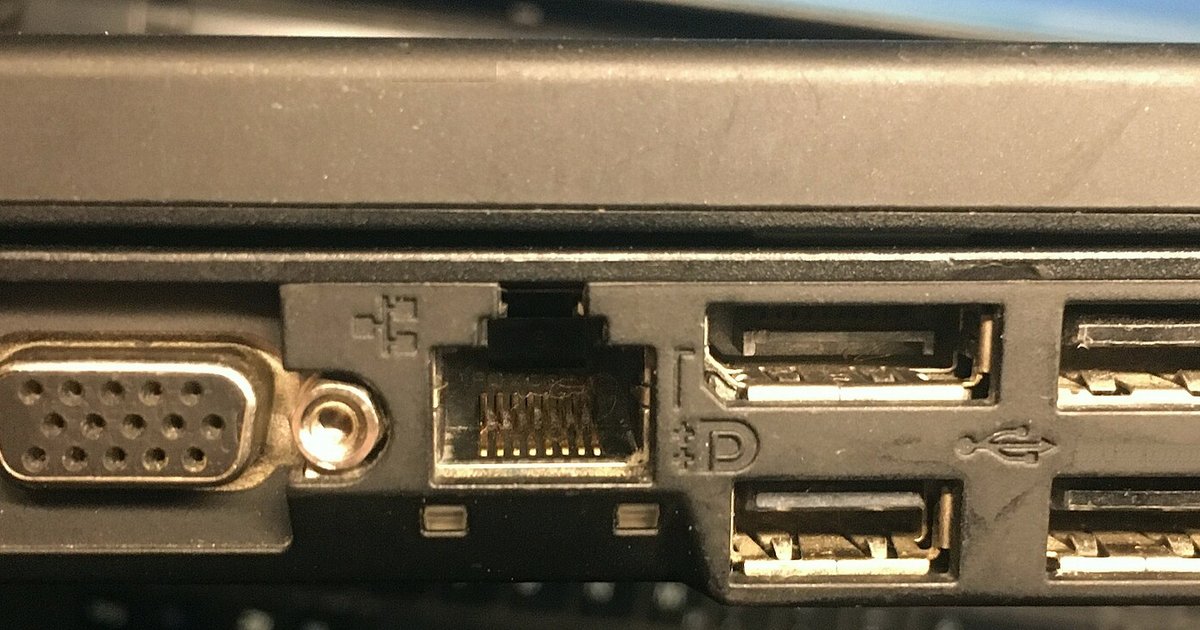
A completely dark Ethernet port means the physical link is dead—either the cable is faulty, the port is disabled in software, or the hardware has failed. Swap in a known-working cable and device first; if the lights stay off, check that the Ethernet adapter is enabled in your operating system’s network settings.
Test with a different Ethernet cable and device
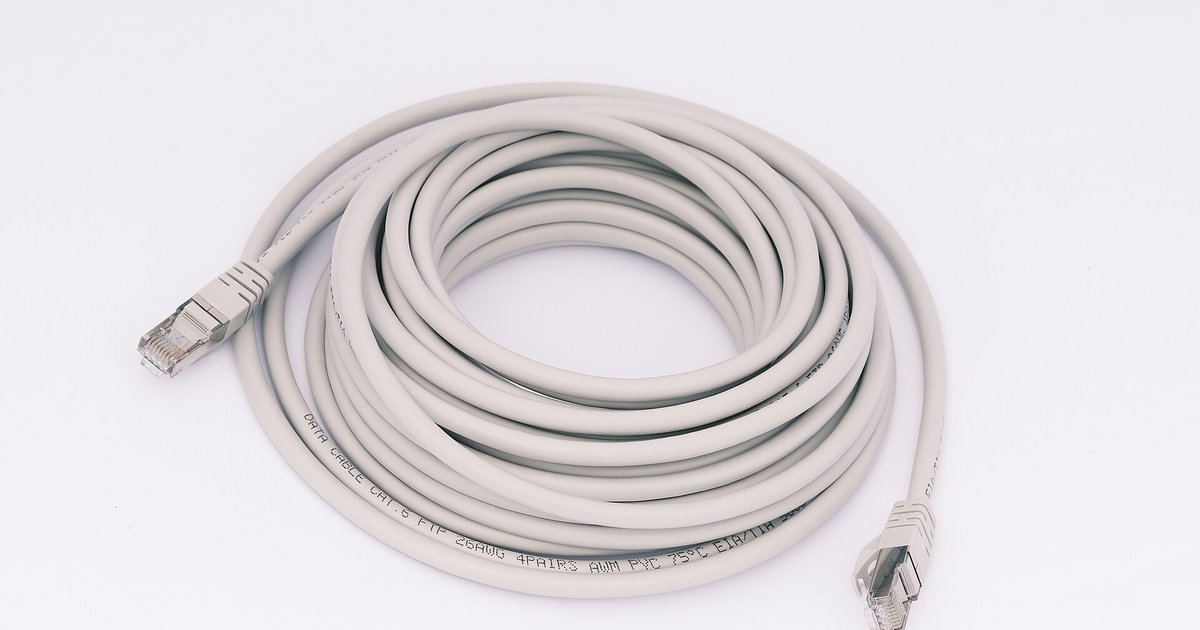
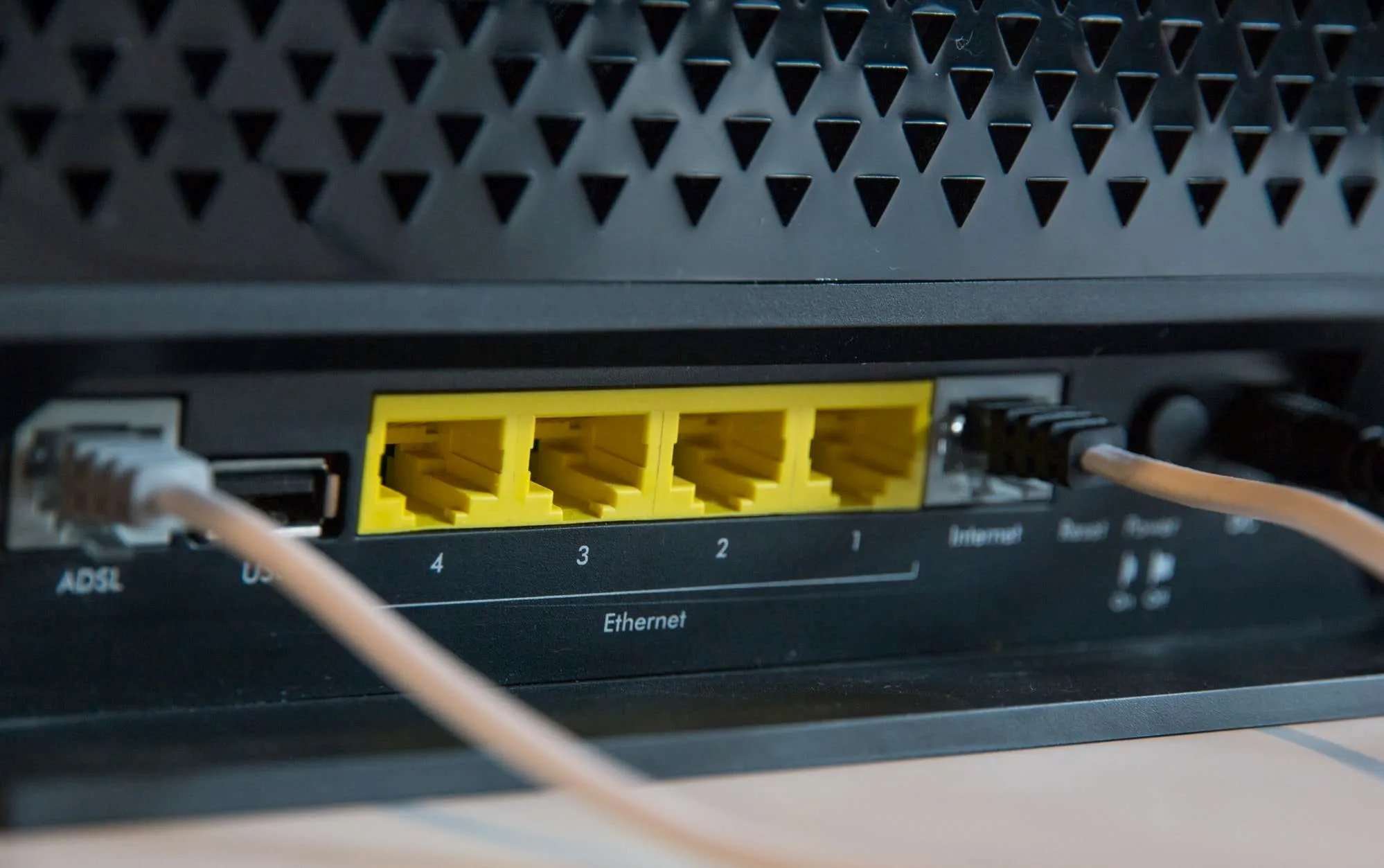
Start by ruling out the simplest failure: the cable itself. Grab a patch cable you know works. Ideally, use one you have tested on a different computer or router where the Ethernet port lights up. Connect it between your PC and router, then check the port LEDs. If the lights remain off, swap the device end. Plug your PC into a different router port that you have verified works with another machine. If your PC’s port still shows no activity, the issue is likely on the computer side. Conversely, if a known-working laptop lights up when plugged into the same wall port, your original cable or PC port is guilty. Do not skip this step. Many users waste hours assuming a brand-new cable is flawless, only to find a broken conductor inside. Also test with a different device like a game console or a second PC. This confirms whether the router port itself is alive. If that device’s lights come on, your original computer’s Ethernet port or its driver is the problem.
Check if the port is disabled in software
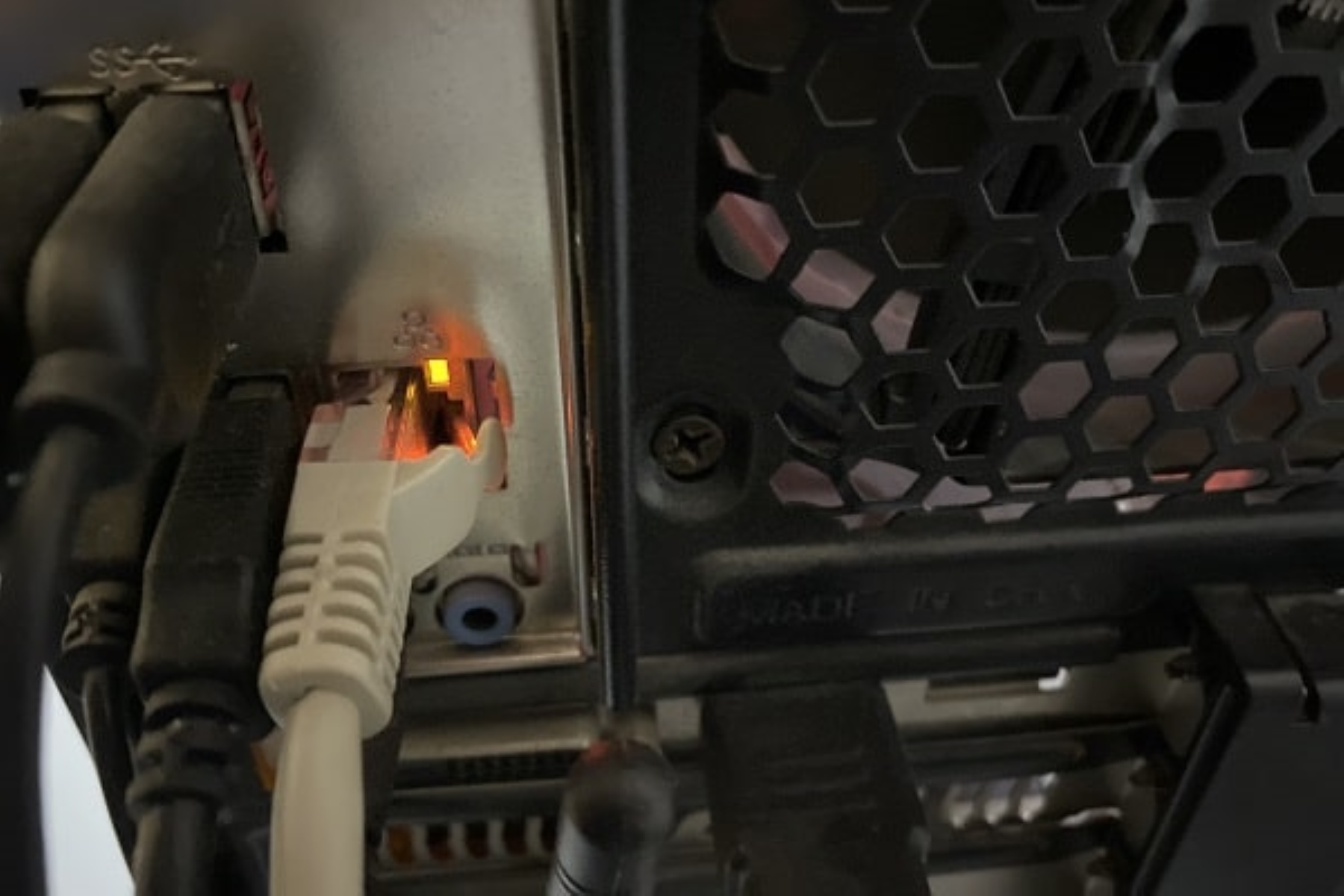
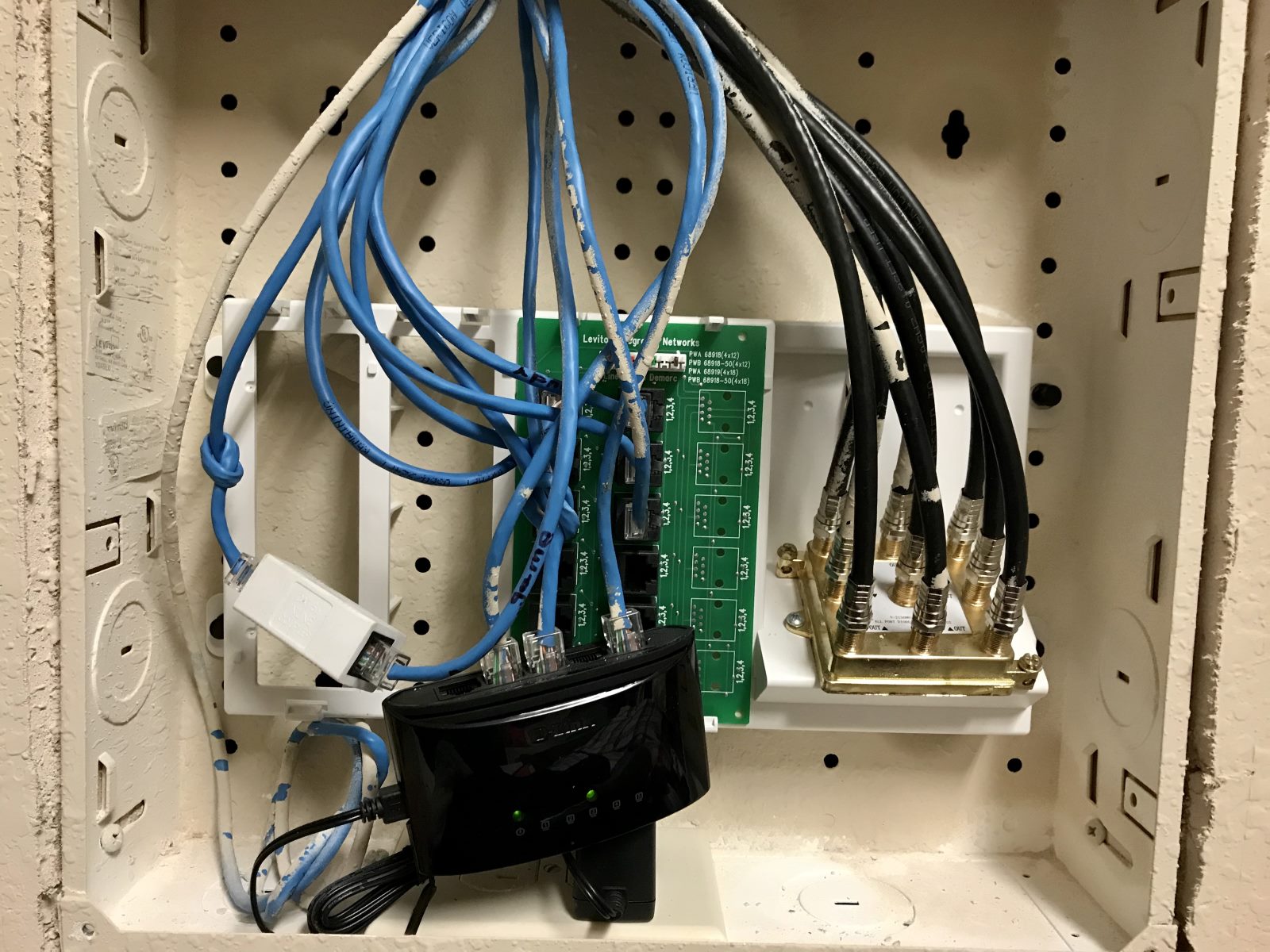
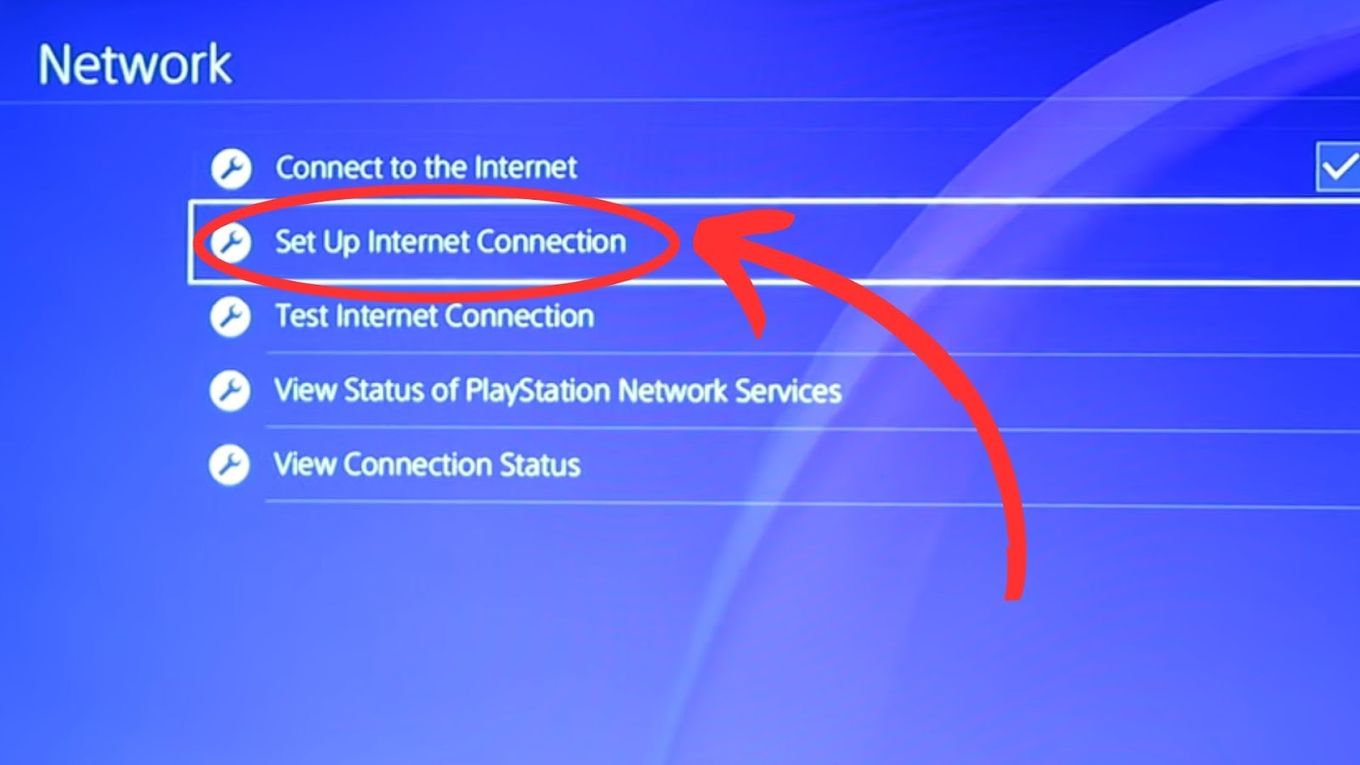
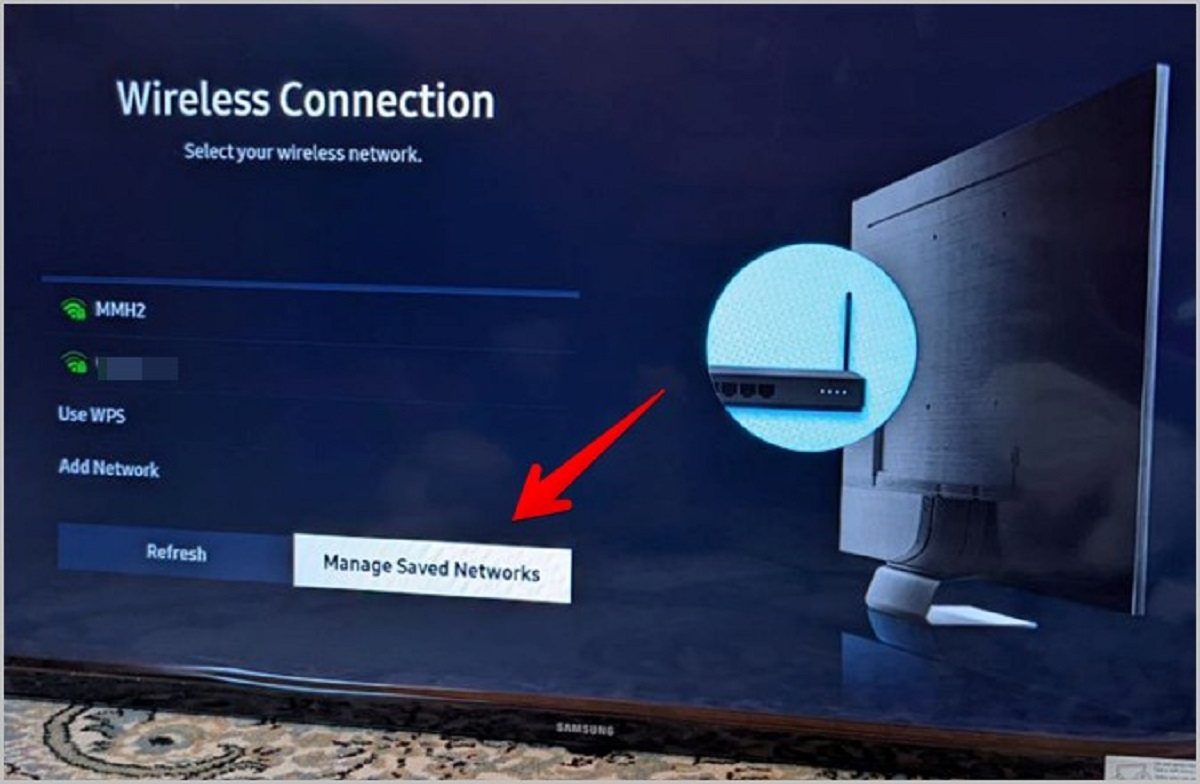
If hardware swaps produce no change, the port may be turned off at the operating system or firmware level. In Windows, open Device Manager, expand "Network adapters," and look for your Ethernet adapter. If the icon is grayed out or says "Disabled," right-click and select "Enable." On macOS, go to System Preferences > Network, select Ethernet, and ensure "Configure IPv4" is set to "Using DHCP" and the service shows a green "Connected" dot. If it’s red or gray, the port is inactive. In your computer’s BIOS or UEFI, check that the onboard LAN controller is set to "Enabled." This setting is often found under "Integrated Peripherals" or "Onboard Devices." A disabled adapter in any of these places kills all LED activity because the physical layer never initializes. On a managed network switch, a port can be administratively shut down via its web interface or CLI. Logging in and verifying the port’s status by looking for "err-disabled" or "shutdown" may reveal the culprit. Understanding what the Ethernet lights mean helps here, and you can quickly decode the patterns with a reference to Ethernet light meanings. No light at all often points to a disabled link, not a damaged cable. For example, an orange light on an Ethernet port typically indicates 100 Mbps speed or a duplex mismatch. A completely dark port is a more severe signal: the link is absent entirely. Similarly, if you are troubleshooting a switch and see an orange light, it helps to know what the orange light means on a network switch. It usually signals a slower speed or error condition, but total darkness means the port is either disabled or dead. Do not confuse this with the flashing light on the front of my PC case, which indicates storage activity, not network status.
When no lights means hardware failure
After swapping cables and enabling the port in software, persistent darkness usually means physical damage. A common mistake is assuming a dark port always means a bad cable. However, a fried NIC or a router port that died after a power surge will show no LED at any stage. Inspect your PC’s Ethernet jack with a flashlight and look for bent or broken pins inside the connector. A single missing pin can prevent the link from forming. On a laptop, the port may have been physically stressed by a tugged cable, cracking the solder joints on the motherboard. Router ports are vulnerable to lightning strikes or voltage spikes. If multiple ports on the same router are dark, the switching chip may have failed. If you have tried a known-good cable and device, and the port remains off on both ends, replace the hardware. For a desktop PC, a cheap PCIe Ethernet card costs under $20 and instantly bypasses a dead onboard port. For a router, try a factory reset before ordering a replacement. This re-enables all ports. If the LED stays off after that, the hardware is gone. Remember: no light means no electrical connection, and no software fix can resurrect a physically broken port.
Swap in a known-working cable and device first. Without any LED glow, the connection cannot negotiate even a basic handshake. Your next steps must systematically isolate the cause. Only a completely dark port confirms a total absence of electrical connection, distinguishing a dead link from a slow or error-prone connection that still shows activity lights.
For the wider picture, see network gear lights.