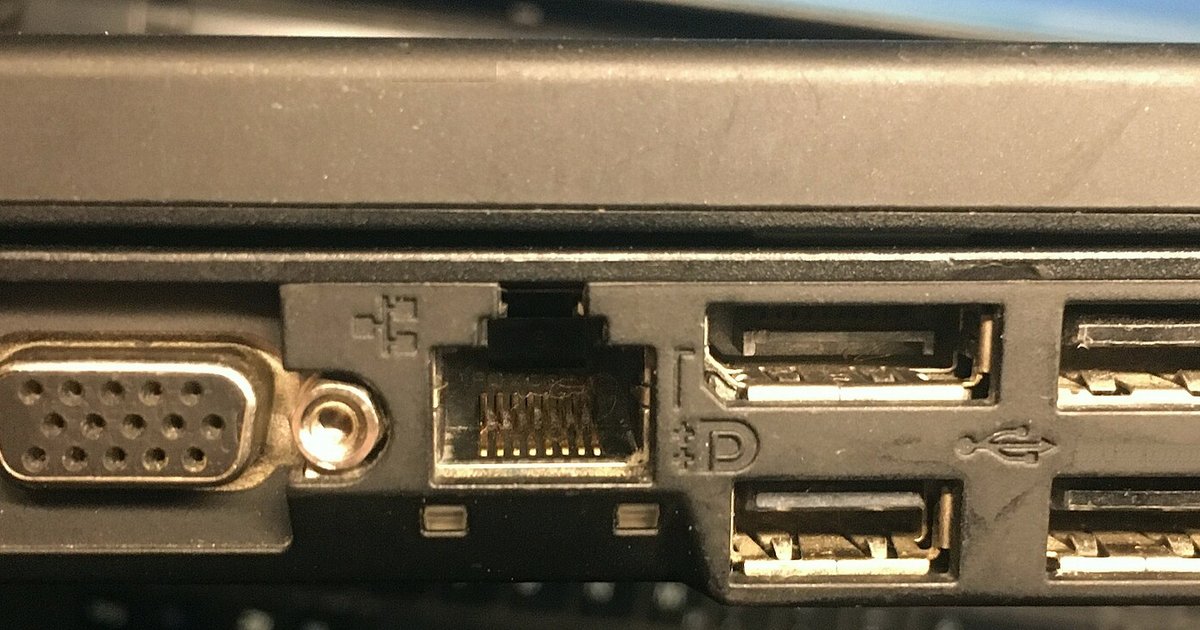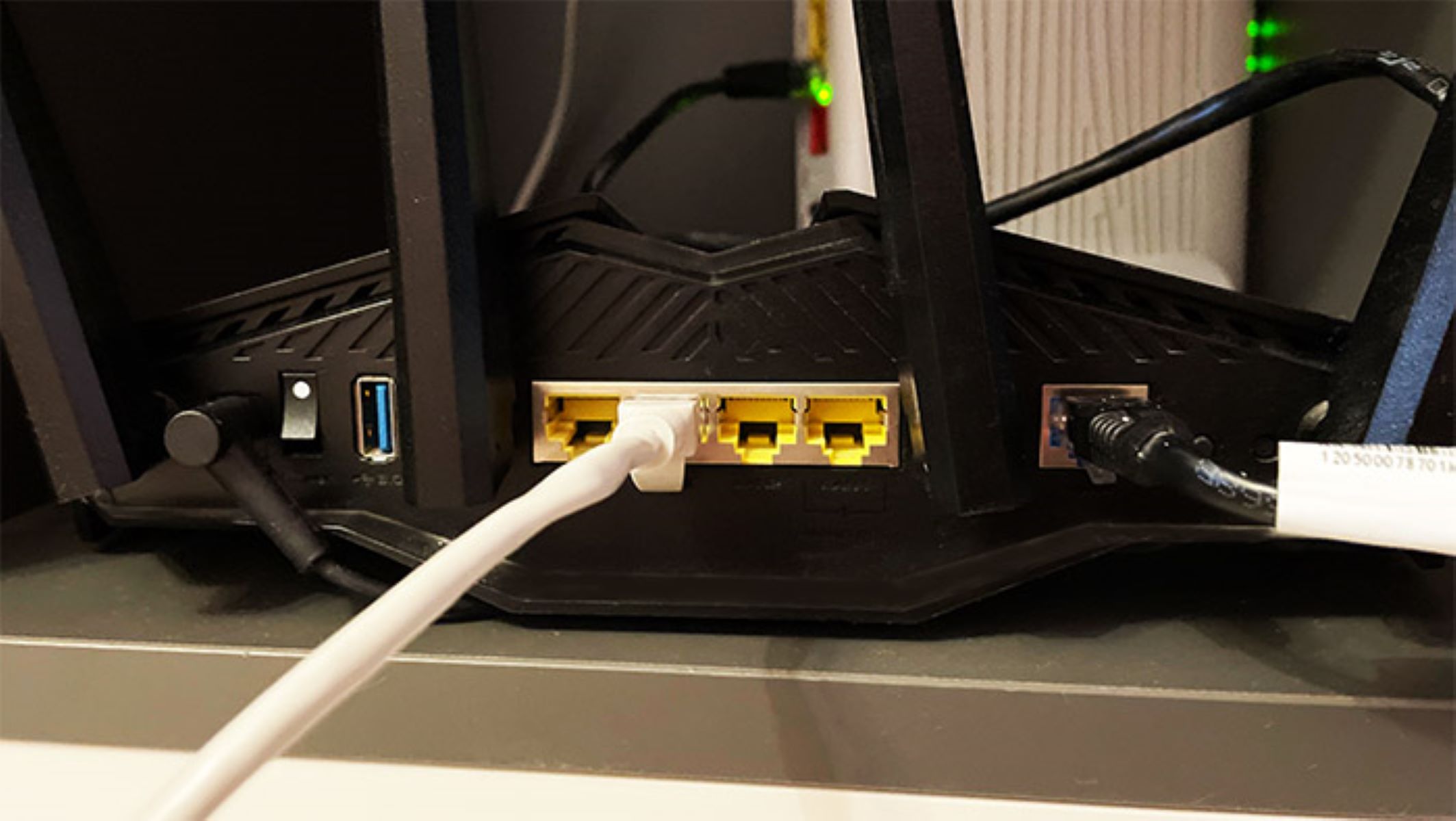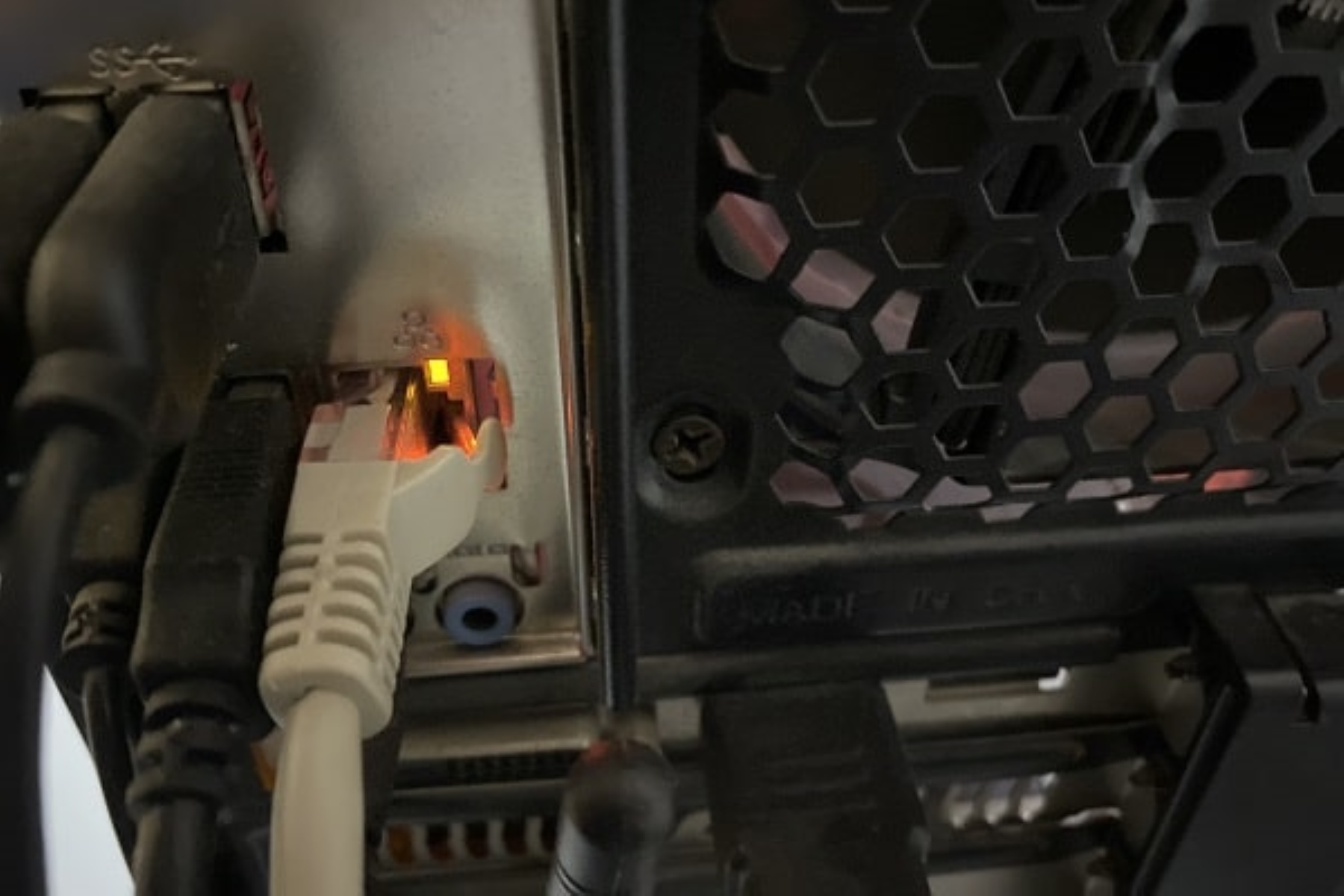
If the orange light on the Ethernet port is blinking, it simply means data is being transmitted or received at that lower speed, confirming the connection is active but throttled.
What an orange light on Ethernet port really means
A solid orange or amber light on an Ethernet port most commonly indicates that a network link has been established at a slower speed, typically 10 or 100 Mbps. A blinking orange or amber light usually signifies that data is actively being transmitted or received through the port at the established lower speed. This is not a sign of a broken connection, it is a sign of a speed bottleneck. Understanding this immediately tells you that your hardware is talking, but not at the full speed it could be.
Why your connection dropped to a slower speed
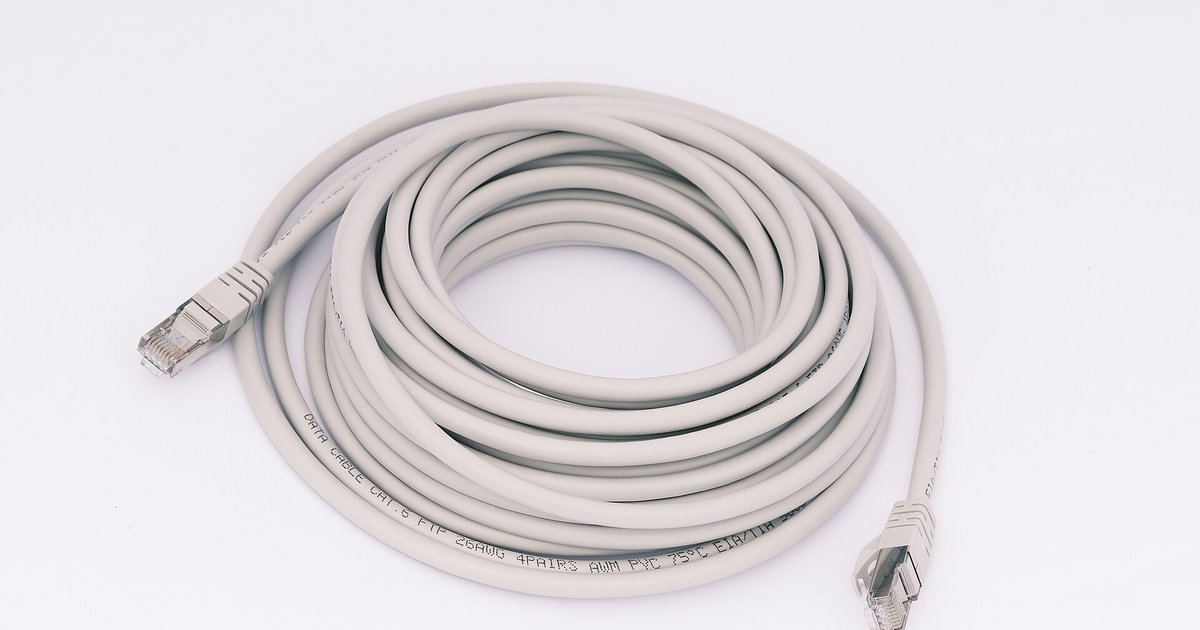
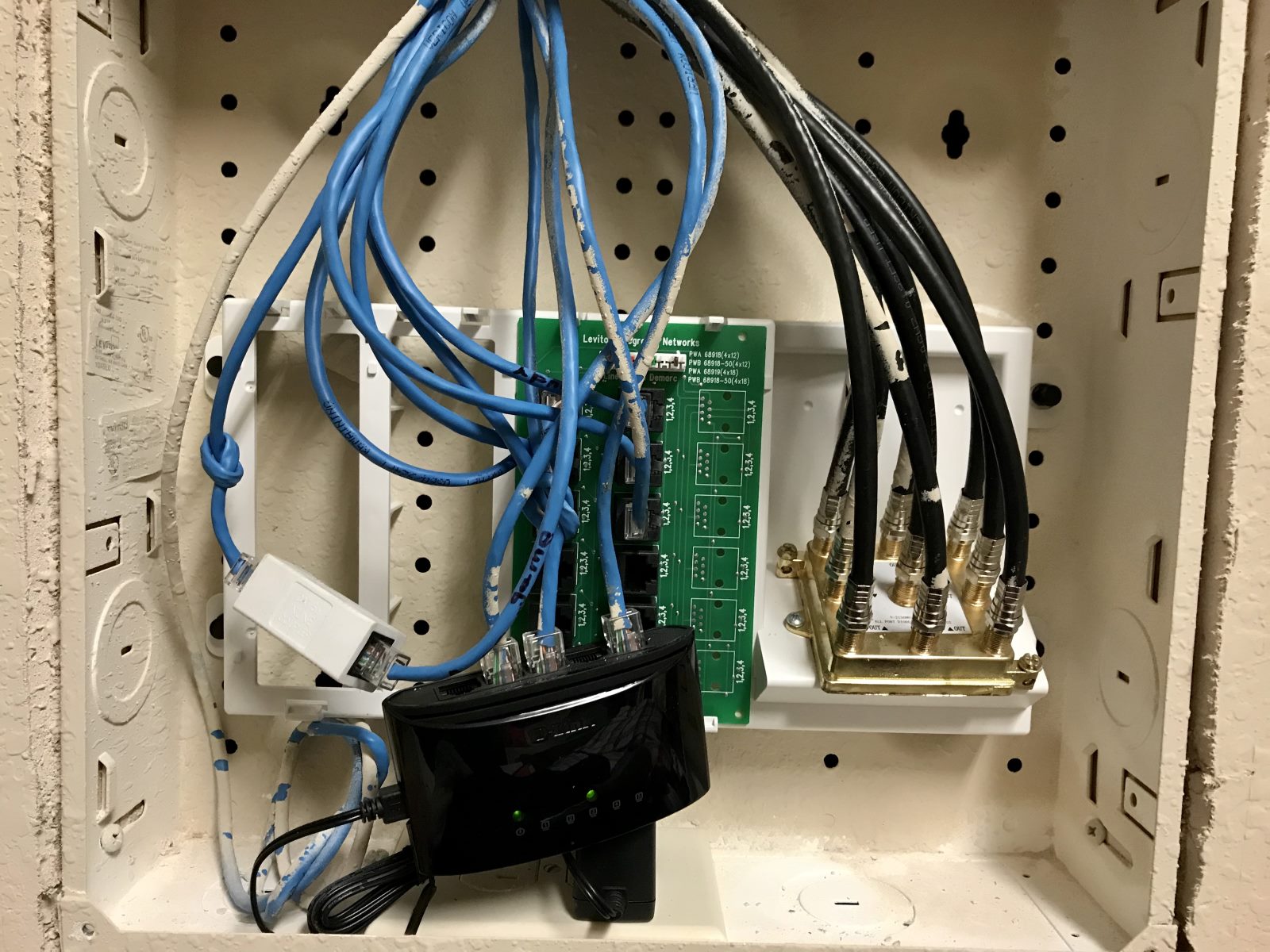
Knowing that the orange light means a speed downgrade, the next logical question is what caused it. Common causes are tied directly to that meaning, not generic "hardware failure" lists. A bad or old Ethernet cable is the most frequent culprit: a Cat5 cable, for example, is only rated for 100 Mbps, so even if your devices support Gigabit, the cable will force a 10/100 link. Auto-negotiation failures between your device and the router or switch can also cause both sides to settle on the lowest common speed, a behavior that also explains the orange light mean on a network switch. Outdated network interface card (NIC) drivers may miscommunicate the supported speeds, and some older Ethernet ports themselves are hardware-limited to 100 Mbps.
How to fix the orange light and restore full speed
To get that green light back and restore Gigabit speeds, follow these steps in order of likelihood. Each step targets a specific cause from above.
- Check and replace the Ethernet cable. This is the fastest fix. Inspect the cable for damage or bends, and verify its category. If it is Cat5 or older, replace it with a Cat5e or Cat6 cable, which are built for Gigabit speeds. Even a Cat5e cable can fail over time, so swapping with a known-good cable is a simple test.
- Check speed and duplex settings in Windows. If the cable is fine, the next step is to ensure your computer is not forcing a lower speed. Open your network adapter settings, locate the Ethernet adapter, and check the "Speed & Duplex" setting. Forcing a specific speed can cause the orange light.
- Update NIC drivers. Outdated drivers can cause auto-negotiation to fail. Visit your computer or network card manufacturer's website, download the latest driver for your Ethernet adapter, and install it. A reboot is usually required afterward.
- Power cycle your devices. Turn off your computer, router, and any switches or modems. This clears temporary glitches in the negotiation process.
- Test another port. If you are using a router or switch with multiple Ethernet ports, move your cable to a different port. If the orange light turns green, the original port may be faulty or speed-limited. If the orange light persists on a different device, the issue is with your computer or cable.
When the orange light means something else
While the speed-downgrade meaning is the most common, there are edge cases. Some manufacturers use orange for other statuses, such as indicating a specific diagnostic mode or a link to a device that is powered off. Always check your device's manual for the exact meaning. Additionally, a solid orange light with no network connectivity at all could indicate a dead port or a hardware failure. If you see that scenario, you need a different troubleshooting approach entirely, refer to the article on "Ethernet port lights off no connection what to check" for that specific situation. To avoid confusion in the first place, it helps to understand the full picture of "network gear lights" and what each color and blink pattern means across different brands.