Netflix error code nw-2-5 means your streaming device is taking too long to connect to Netflix's servers, indicating a network connectivity issue. This error typically appears on TVs or TV streaming devices and can be resolved by following a series of targeted troubleshooting steps.
What the Netflix error code nw-2-5 means
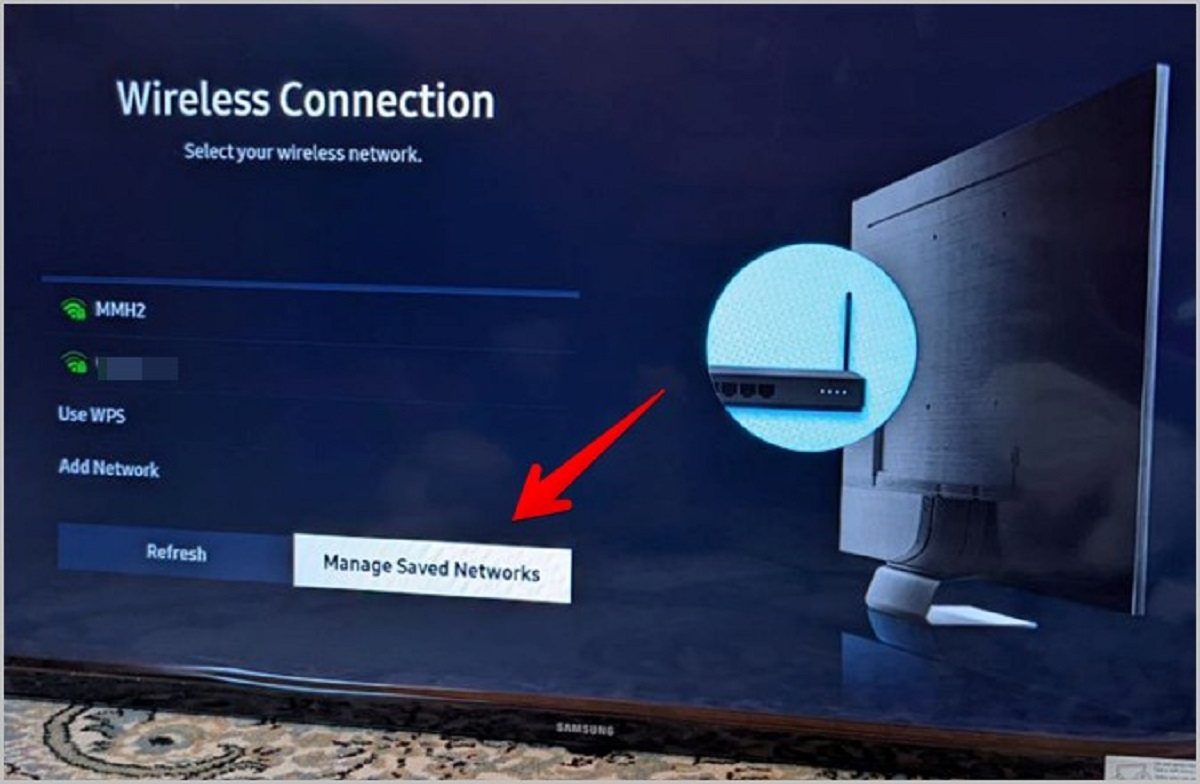
This error typically appears on TVs or TV streaming devices.
Check your connection type
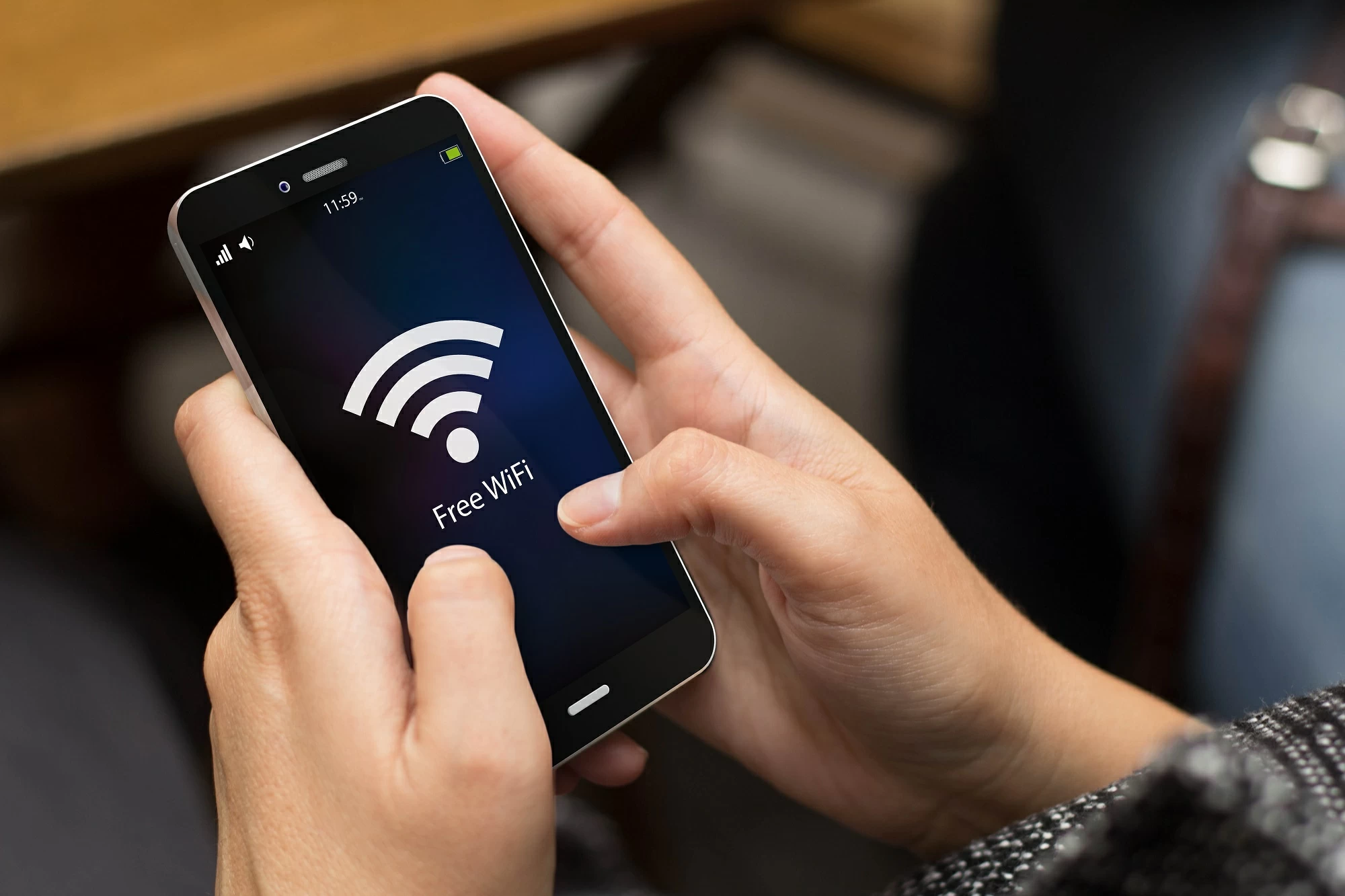
Before diving into device-specific fixes, rule out the most common dead-ends. Public or shared Wi-Fi networks, such as those in hotels or schools, may have too many users or block streaming services like Netflix entirely. Similarly, cellular, satellite, or mobile hotspot connections might be too slow for stable Netflix streaming. If you are on either type of connection, the error is expected and you will need to switch to a private, high-speed network to proceed.
Restart your streaming device and home network
A full power cycle clears temporary glitches that cause the error. Follow these steps in order:
- Restart your streaming device by unplugging it for at least 15 seconds (or 3 minutes for a cable box) to clear the error.
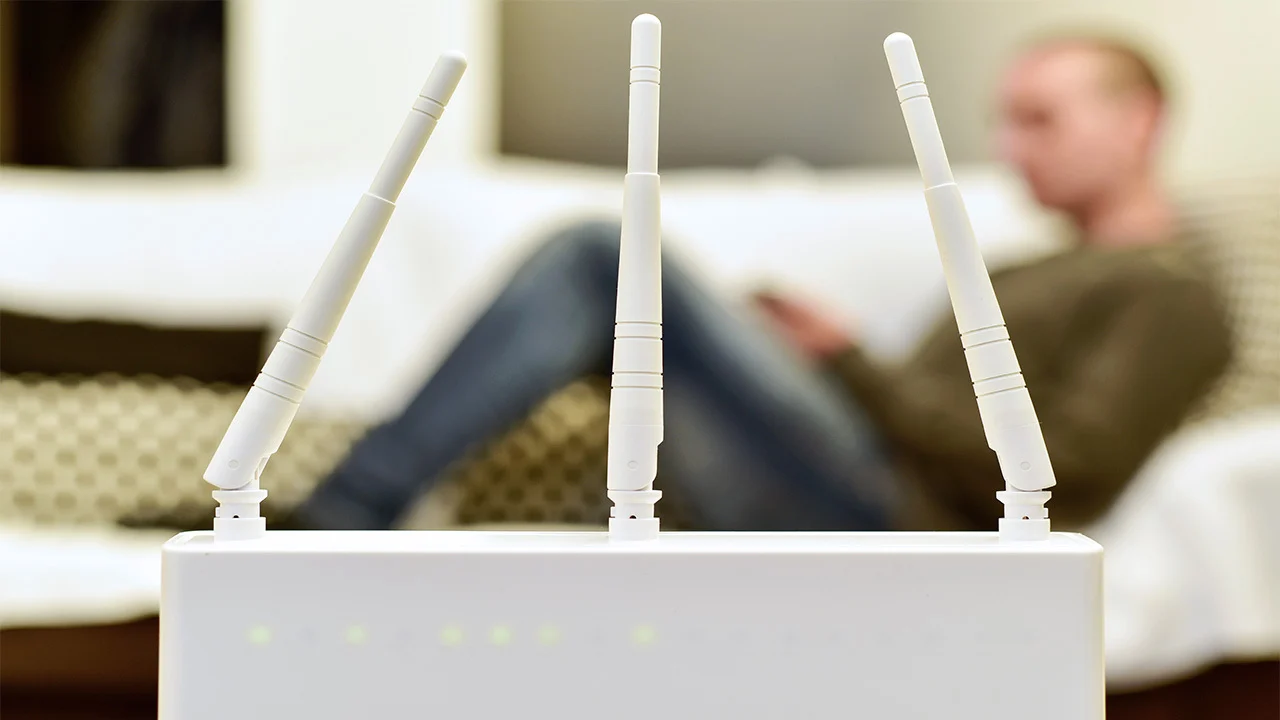
- Restart your home network by unplugging your modem and router for 30-60 seconds, then plugging them back in to clear old data and refresh the connection.
- Once both are powered back on and fully booted, launch Netflix to check if the error is resolved.
Improve your Wi-Fi signal
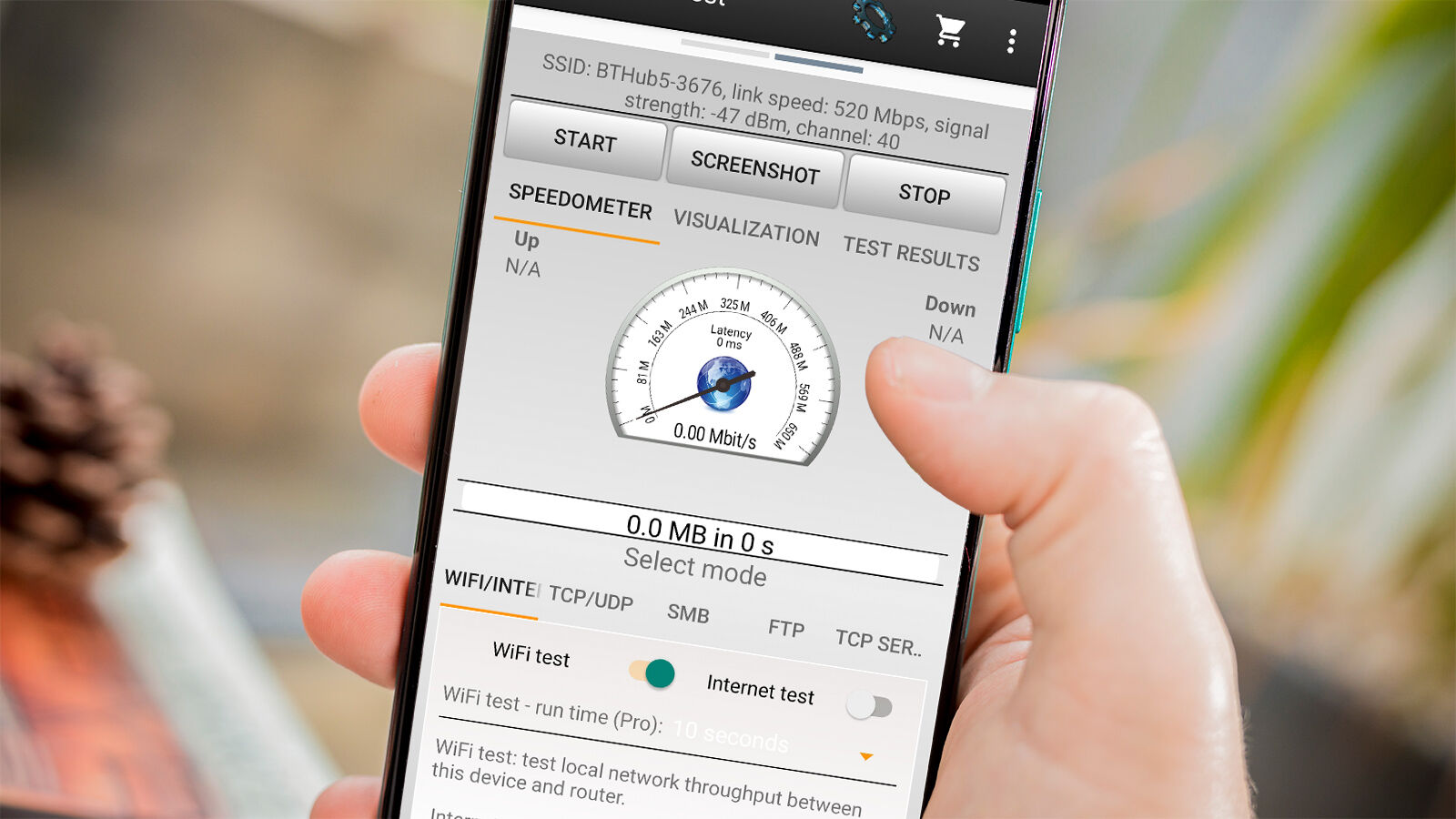
If the error persists, your Wi-Fi signal may be too weak. Improve Wi-Fi signal strength by moving your router closer to your device, placing it on a raised surface, or away from other wireless devices and metal appliances. A stronger connection between your router and streaming device reduces the likelihood of timeout errors.
Reset the Netflix application
Corrupted app settings or cached data can mimic network problems. To resolve this, access your device's settings menu, locate the Netflix app, and clear its cache and data. After resetting the Netflix application, restart the app and sign in again to see if the error clears.
Set DNS to automatic on gaming consoles
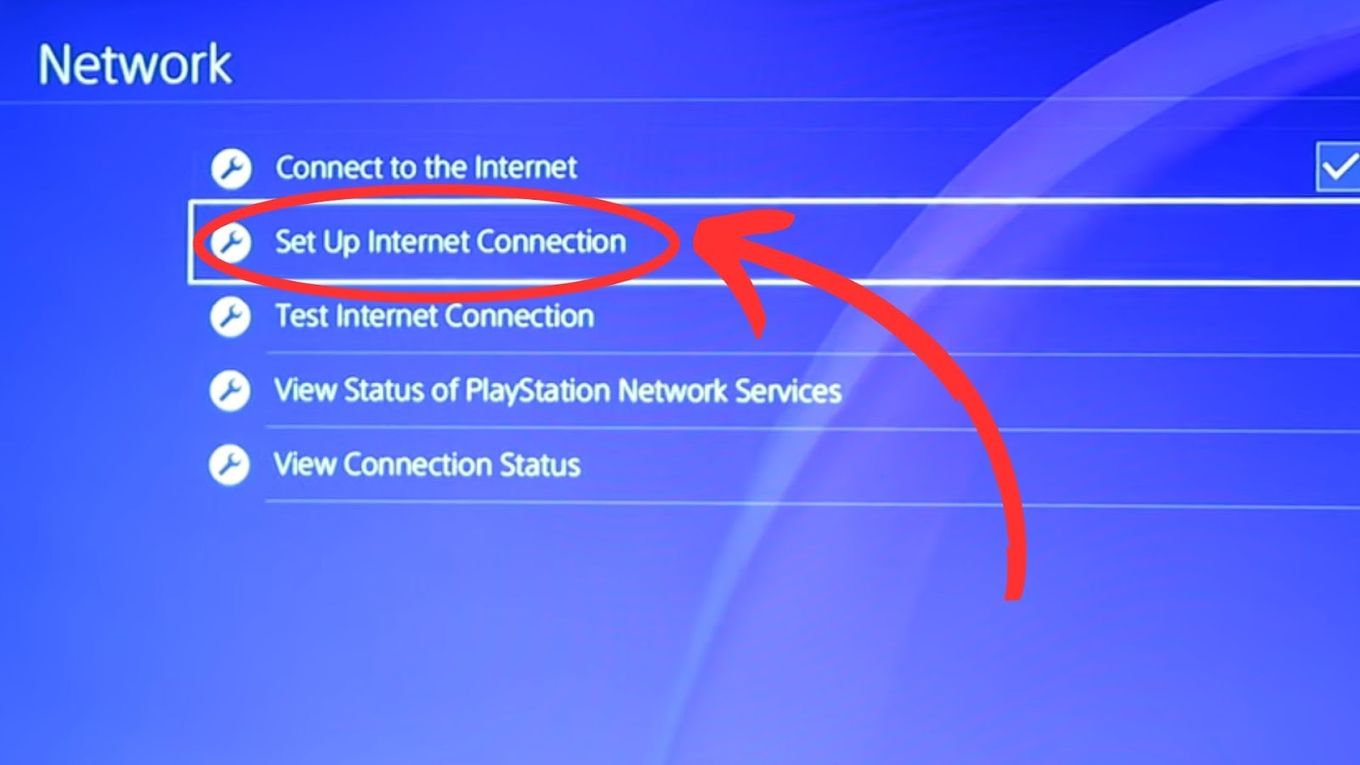
Incorrect DNS settings are a common cause on PlayStation and Xbox consoles. For PlayStation and Xbox consoles, setting DNS to "Automatic" in network settings can fix DNS-related problems. On other devices, you may also try using public DNS servers like Google's 8.8.8.8 if the automatic setting does not resolve the issue.
Disable your VPN or proxy
VPNs and proxies can interfere with the connection to Netflix servers. Temporarily disable your VPN or proxy service, then restart your device. If the error disappears, the VPN or proxy was the cause, and you should either leave it off or configure it to allow Netflix traffic.
Contact your internet service provider
If all troubleshooting steps fail, contact your Internet Service Provider (ISP) to inquire about network outages, DNS issues, or if your network supports video streaming. The problem may be on their end, and they can provide specific guidance or escalate the issue.
\nRelated reading: What Does Orange Light Mean On Ethernet Port and How To Change Accounts On Netflix.